
Proxus enforces a strict Role-Based Access Control (RBAC) architecture designed to secure complex organizational hierarchies. It goes beyond simple "Admin vs User" toggles, offering granular control down to individual object properties and navigation items.
User Management
The Users view is the central directory for all accounts.
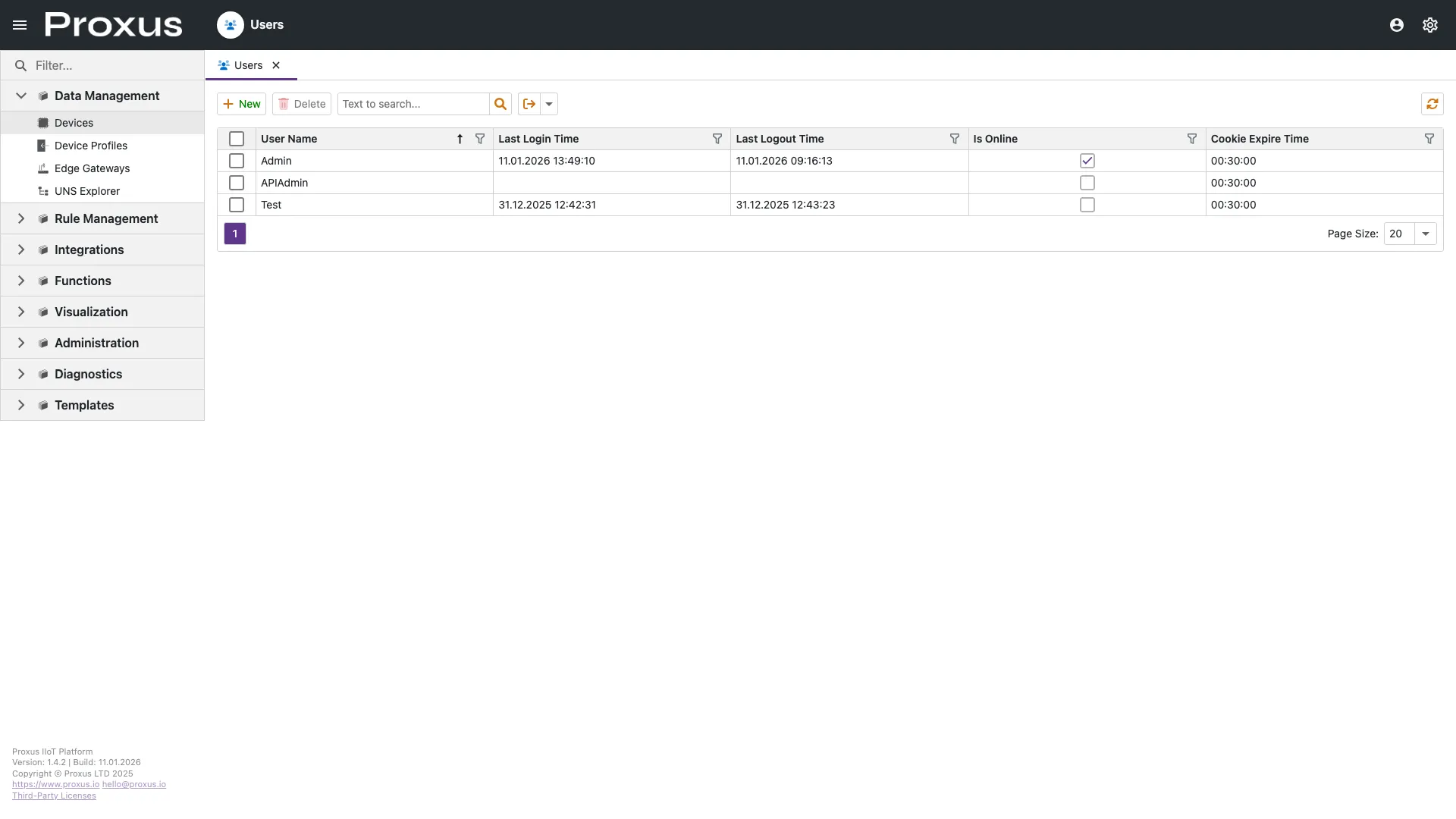
Creating a User
- Navigate to Administration > Users.
- Click New.
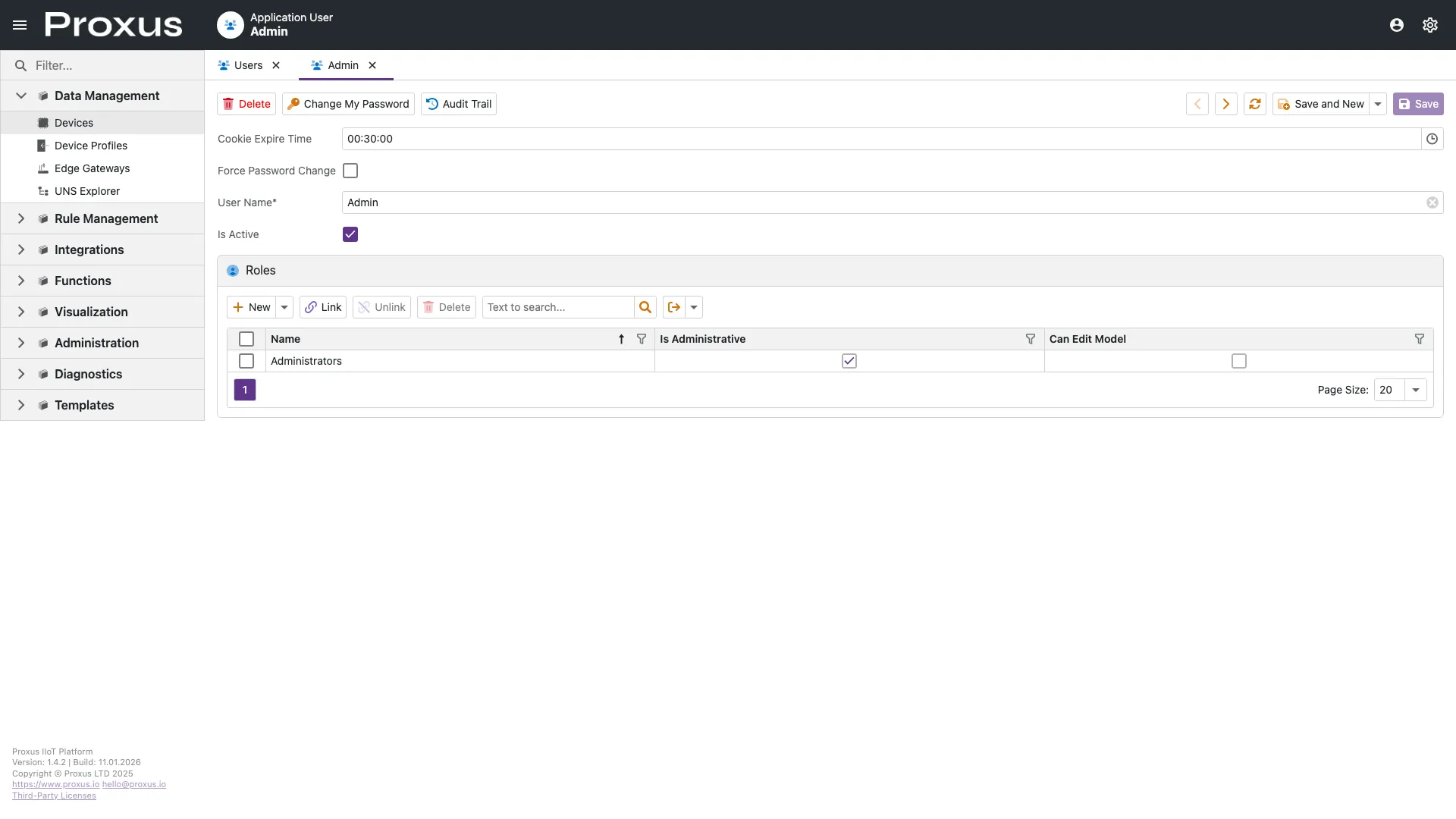
- Fill in the required identity fields. The User Name is used for login.
- Set an initial Password (User will be prompted to change it if configured in policies).
- Assign one or more Roles. Permissions are additive (User gets the union of all assigned roles).
Authentication & SSO
Proxus supports multiple authentication strategies, including Local Database, Active Directory (On-Premise), and Azure AD (Cloud).
To learn how to integrate Proxus with your enterprise identity provider, see the Authentication Providers guide.
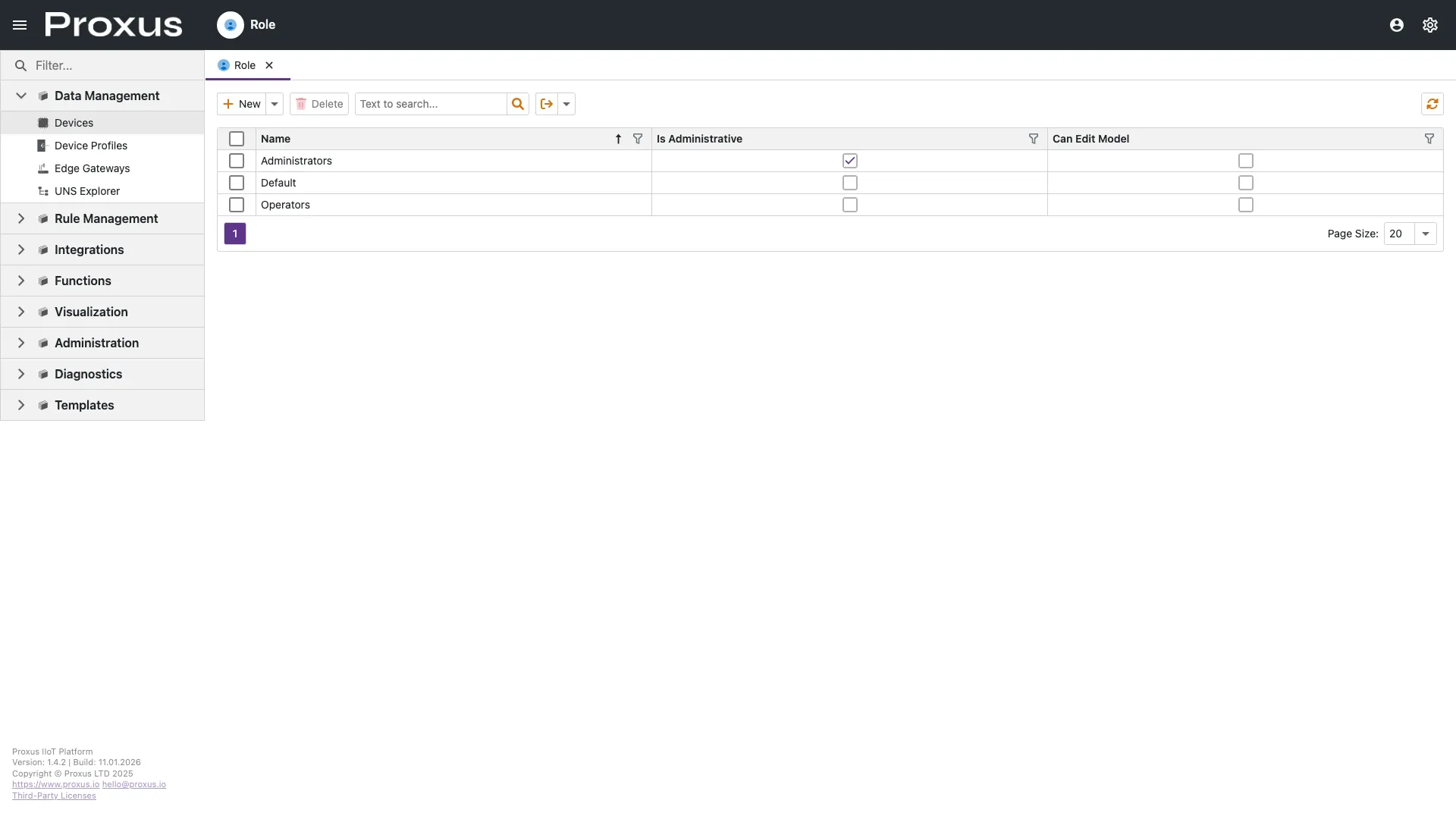
Role Management
Roles are the container for all permission logic. A well-structured role strategy reduces administrative overhead.
General Permissions (Type-Based)
This is the foundation of the security model. You define CRUD (Create, Read, Update, Delete) access for specific business objects (e.g., Device, Gateway, Report).
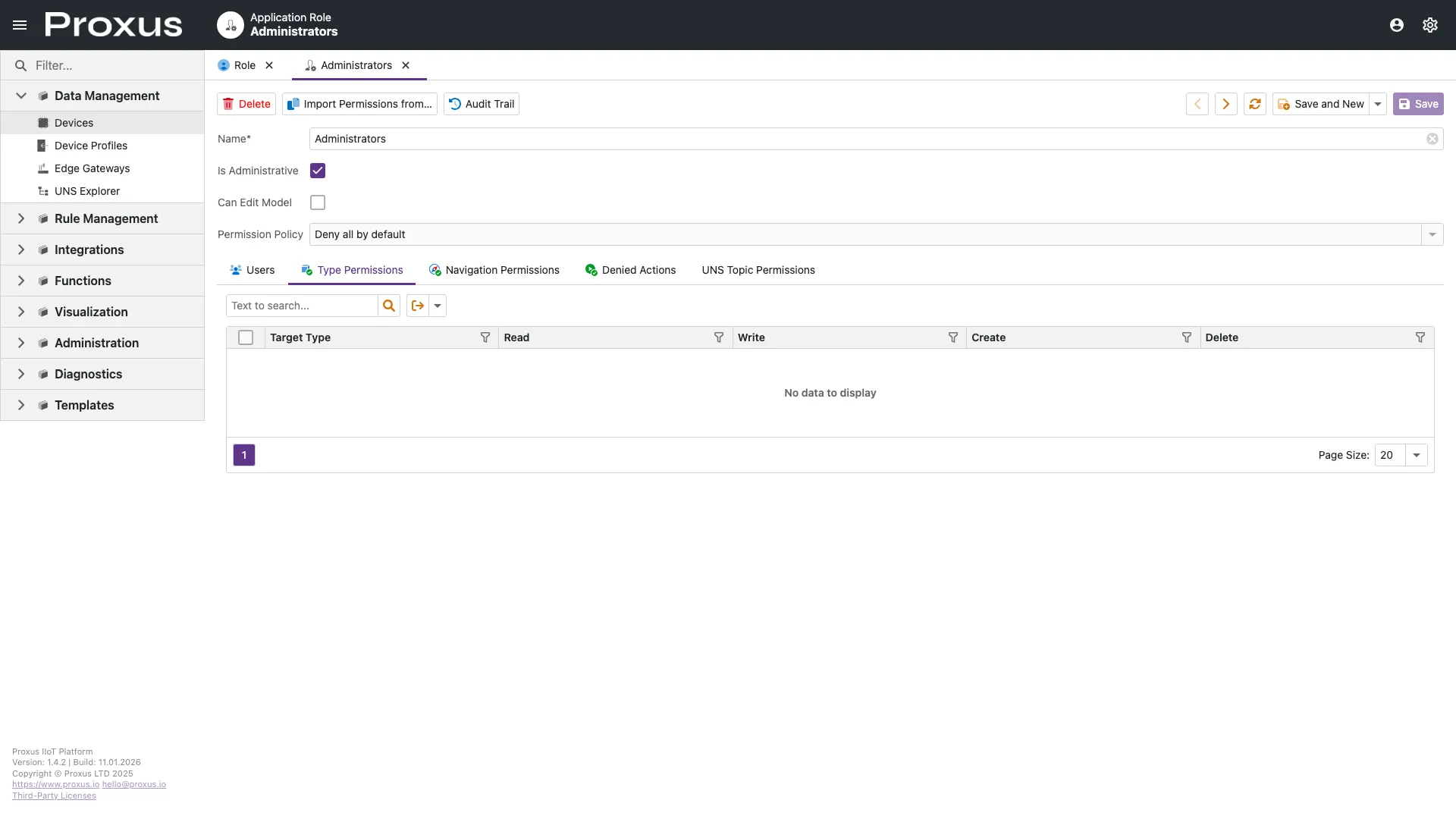
- Read: Can view the object in lists and details.
- Write: Can modify properties.
- Create: Can instantiate new objects.
- Delete: Can remove objects.
- Navigate: Can see the object in the navigation menu.
Object-Level Security (Criteria)
Proxus allows you to restrict access to specific rows based on data values.
- Example: Define a "Site Manager" role that has Read access to
DeviceONLY IFSite.Name == 'New York'. - This ensures a manager in New York never sees London's data, even though they share the same object type.
Navigation Permissions
You can explicitly hide or show items in the main sidebar menu, regardless of the underlying data access.
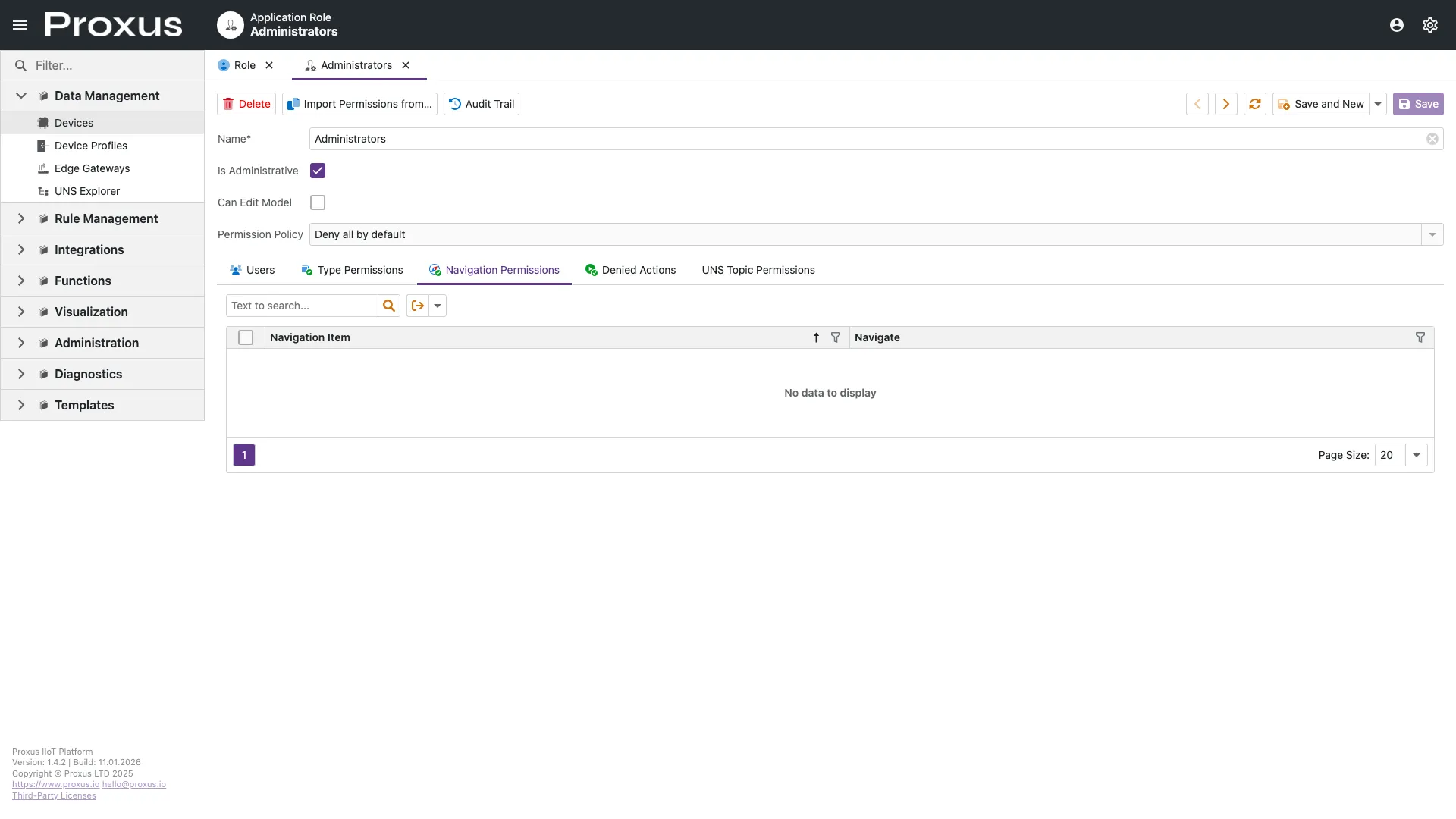
- Allow: The menu item is visible.
- Deny: The menu item is hidden. Use this to simplify the interface for operators (e.g., hiding "Administration" or "Developer API").
UNS Topic Permissions
This is specific to the Unified Namespace. It controls which nodes in the hierarchy tree are visible to the user.
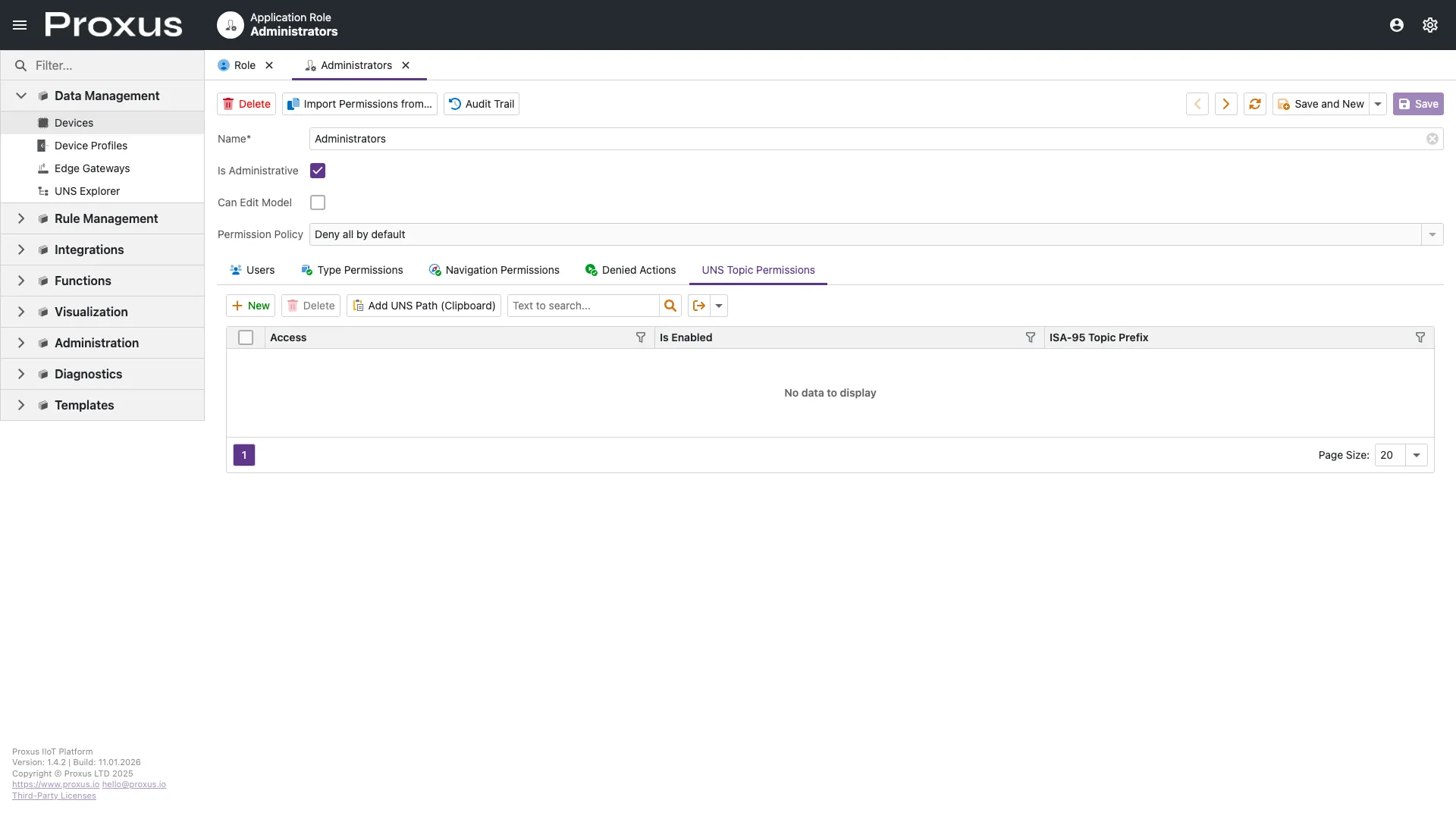
See the detailed UNS Topic Permissions guide for configuration patterns.
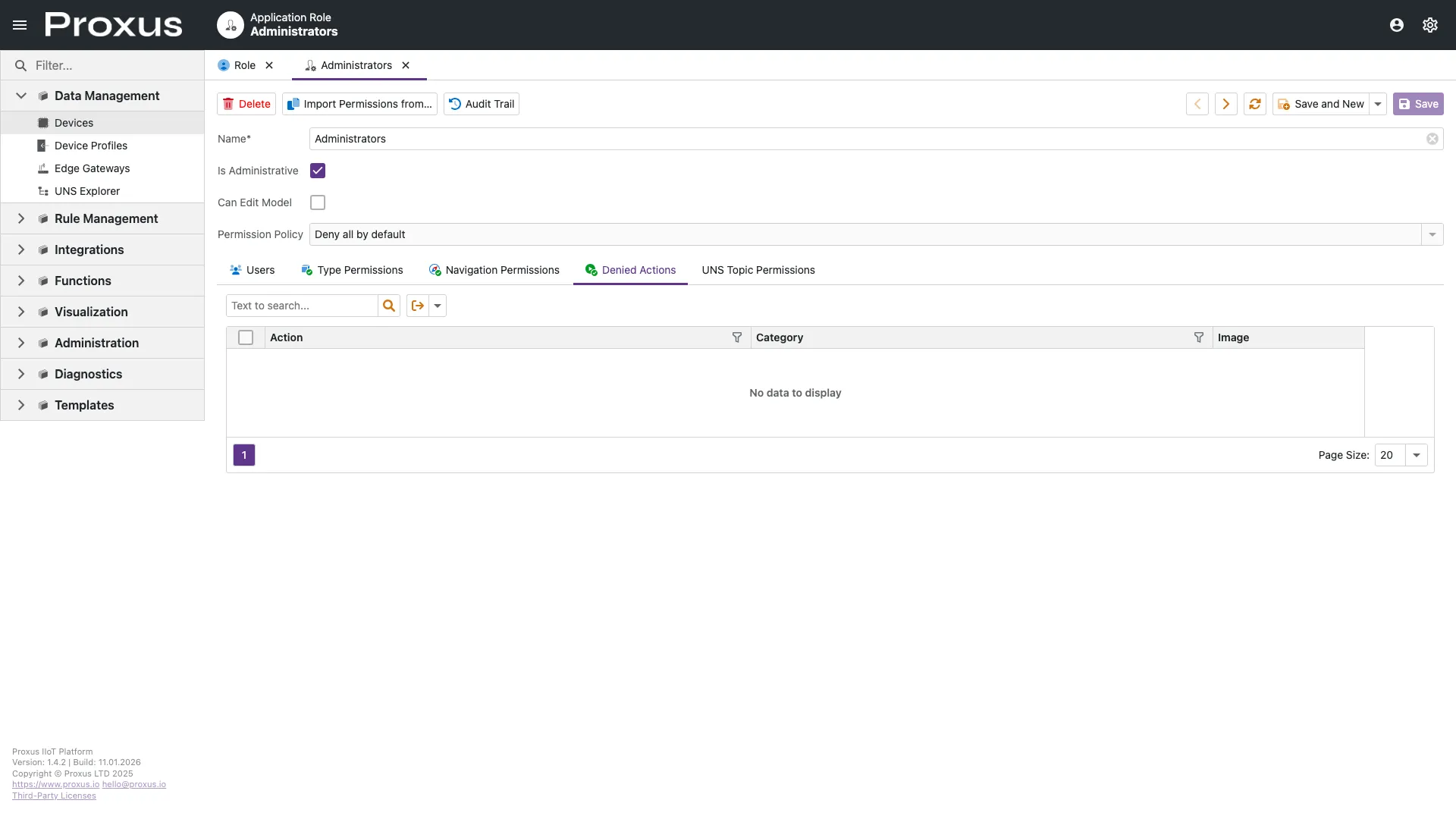
Denied Actions
For scenarios where "Allow" rules are too broad, you can explicitly deny specific actions. This acts as a "hard stop" overriding other permissions.
Administrative Roles vs. Standard Roles
Proxus distinguishes between two administrative levels:
| Role Type | Capabilities |
|---|---|
| Administrative | Has the Is Administrative flag checked. Can manage other users, roles, and view all data by default (unless explicitly denied). Also has access to the Model Editor and low-level system configs. |
| Standard | Starts with No Access. You must explicitly grant permissions to types, objects, and navigation items. Ideal for Operators, Viewers, and Site Managers. |
Security Policies
Global security settings are managed via the Configuration Editor. These settings control compliance and protection across all authentication providers.
- Password Complexity: Define minimum length, special characters, and history reuse policies in the
[Security.Password]section. - Lockout Policy: Configure protection against brute-force attacks by limiting failed attempts in the
[Security]section. - Session Timeout: Set auto-logout intervals for inactive users.
Settings changed in the Configuration Editor require a service restart to take effect. For Docker deployments, these can also be set via Environment Variables.
Always follow the Principle of Least Privilege. Start with a blank Standard Role and add only the necessary permissions. Avoid giving "Administrative" status unless absolutely required.