
Proxus is designed to be rebranded for OEM usage or corporate identity compliance. You can change the look and feel without altering the underlying code.
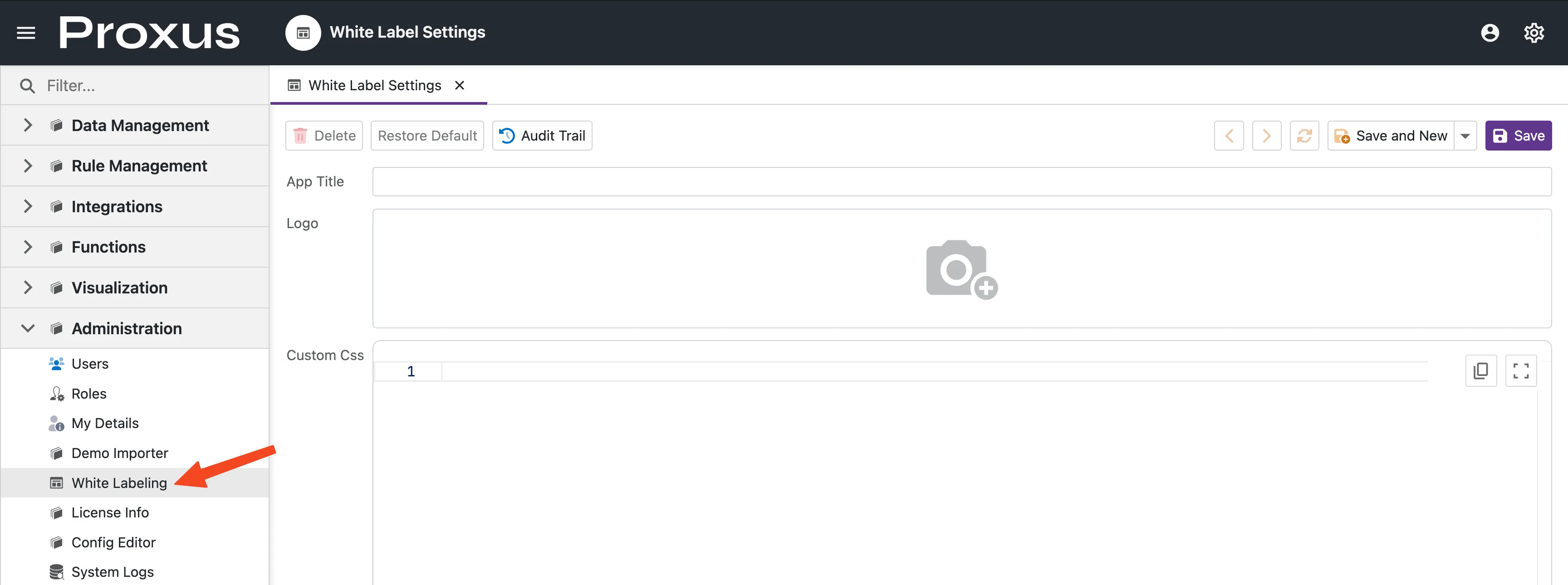
White Labeling is available when it is included in your current Proxus license. If the feature is not enabled, Proxus prevents branding changes from being saved.
To review your license options, contact the Proxus team.
Customization Options
Navigate to System > Settings > White Label Settings. For authentication and user access configuration, see Security & Access Control.
App Title
Set a custom application title that replaces the default "Proxus" branding in the browser tab and header.
Logo
Upload your custom logo to replace the Proxus logo in the sidebar navigation. The logo is saved as Logo.png and displayed at the top of the management console.
| Requirement | Detail |
|---|---|
| Format | PNG only (validated by file header) |
| Recommended Size | 200×50px (transparent background) |
| Location | Top of sidebar navigation |
Custom CSS
For advanced customization, use the built-in CSS Editor to inject custom styles. The CSS is loaded after the system styles, allowing you to override:
- Fonts and typography
- Spacing and layout
- Component-specific behaviors
- Color schemes beyond the primary accent
For global configuration options, see the Configuration Reference.
Restore Default
Use the Restore Default action button to revert all branding changes back to the original Proxus branding. This will:
- Clear the custom App Title
- Restore the original Proxus logo
- Remove all custom CSS