
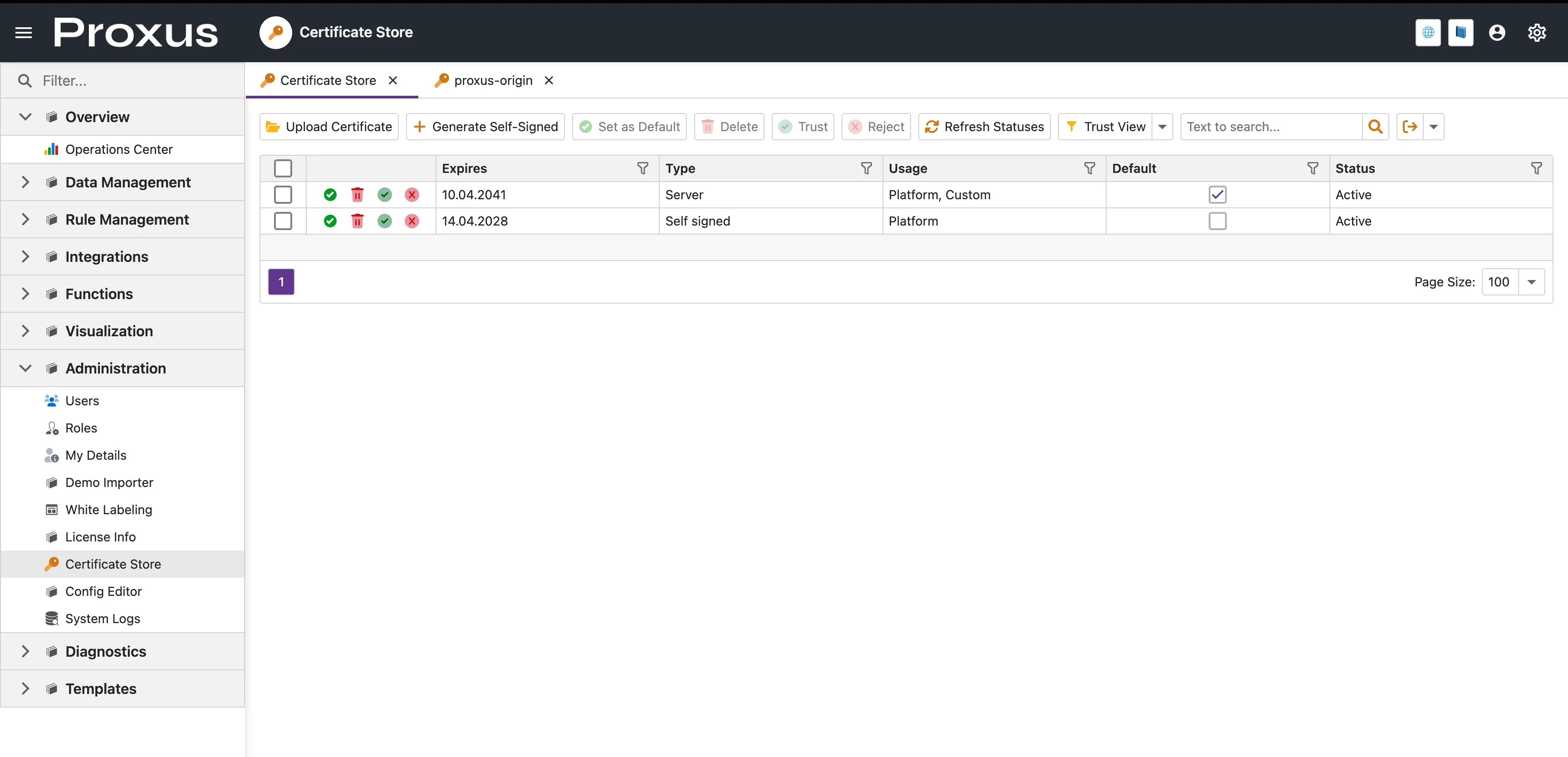
Use Administration → Certificate Store to manage the certificates used by the Management Console, edge services, OPC UA, and certificate-based outbound integrations.
If you open a new installation before importing your own certificate, Proxus creates a starter self-signed certificate automatically so the system can come up securely. You can keep using it for internal environments, or replace it later with a certificate from your own CA or public provider.
When you use this page
- Change the HTTPS certificate used by the Management Console
- Import a Cloudflare Origin Certificate or another PEM/PFX certificate
- Generate a self-signed certificate for a test or internal deployment
- Assign client certificates to AWS IoT Core, MQTT, Sparkplug B, or OPC UA
- Manage trusted and rejected certificates for OPC UA security flows
Start here
1. Import a certificate you already have
Use Upload Certificate when the certificate already exists outside Proxus.
Common import options:
- PFX / PKCS#12 if the certificate already includes the private key
- PEM certificate + private key for services such as Cloudflare Origin Certificates
- Public certificate only when you are importing a trust certificate and no private key is needed
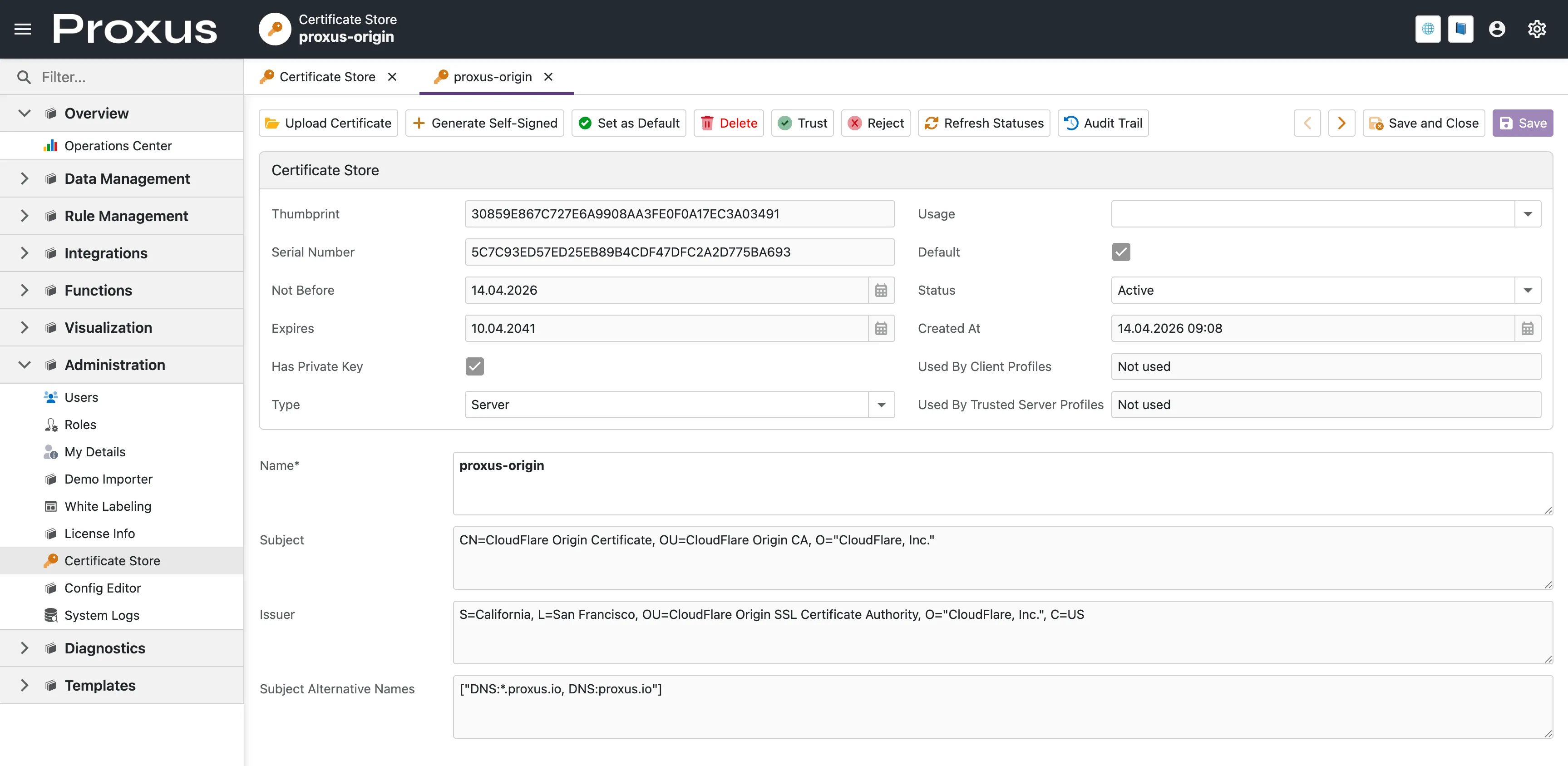
A certificate can be used as the default HTTPS certificate only if it includes the associated private key. If Has Private Key is false, Proxus can store the certificate for trust or reference purposes, but it cannot terminate HTTPS with it.
2. Generate a self-signed certificate
Use Generate Self-Signed when you want Proxus to create a certificate for you.
- This is a practical option for labs, internal pilots, and isolated networks
- The generated certificate is stored in Certificate Store
- You can later replace it with a certificate issued by your organization or provider
3. Make a certificate the active HTTPS certificate
Select the certificate and choose Set as Default.
What happens when you change it:
- Proxus prepares a new protected key set for the selected certificate
- Existing browser sessions and cookies are expected to expire
- After restart, the Management Console starts with the new certificate
This is designed to prevent the restart failures that usually happen when a system switches certificates but still tries to open protected keys created by the old one.
Cloudflare: Full (strict) checklist
For Cloudflare Full (strict), the upload must include both the certificate and the private key.
Recommended steps:
- In Cloudflare, create or renew an Origin Certificate
- Copy the Origin Certificate text into a
.pemfile - Copy the Private Key text into a separate
.keyfile - Upload both files together in the Certificate Store
- Confirm that Has Private Key is enabled
- Set the certificate as the default platform certificate
- Restart the UI service
If you upload only the public certificate, Proxus can store it, but it cannot use it as the active HTTPS certificate.
After importing a Cloudflare Origin Certificate with its private key and setting it as default, use Full (strict) in Cloudflare. Flexible mode is only a temporary fallback and does not validate TLS on the origin server.
Using certificates in integrations
When an integration needs a client certificate, select it from the integration parameter editor. The certificate stays in Certificate Store and Proxus prepares the runtime material automatically.
Typical examples:
- AWS IoT Core: choose the client certificate from the parameter editor
- MQTT / Sparkplug B: choose a TLS client certificate
- OPC UA: choose an application certificate and, if needed, a trusted server certificate
You do not need to manage runtime certificate payload fields manually.
OPC UA trust management
Use the Trust and Reject actions to manage certificates used in OPC UA security flows.
Typical scenarios:
- Promote a previously rejected server certificate to trusted
- Keep public trust certificates without exposing private key material
- Review which profiles use a certificate as a trusted server certificate
Configuration notes
Certificate Store manages the certificate material itself. In Proxus-config.toml, you normally only define which ports should listen with HTTPS.
Typical example:
[Service]
UI-Port = "80"
UI-HTTPS-Port = "443"
WEBApi-Port = "8082"
Server-Port = "8083"
Use UI-HTTPS-Port, WEBApi-HTTPS-Port, or Server-HTTPS-Port only for the services that should expose HTTPS. The certificate itself is selected from the UI.
After you replace a certificate
When the active HTTPS certificate changes on the UI or edge side:
- Proxus detects the certificate rollover
- Old protected key files are archived automatically
- A new protected key ring is created for the new certificate
This helps the system recover cleanly after certificate replacement instead of failing on restart because older protected keys can no longer be decrypted.