
The Visual Rules Engine allows you to define logic that runs directly at the Edge. Rules are evaluated in real-time (instantly) against every data packet received by the Gateway, ensuring immediate response even without cloud connectivity.
Creating a Rule
Navigate to Rule Management > Rules and click New.
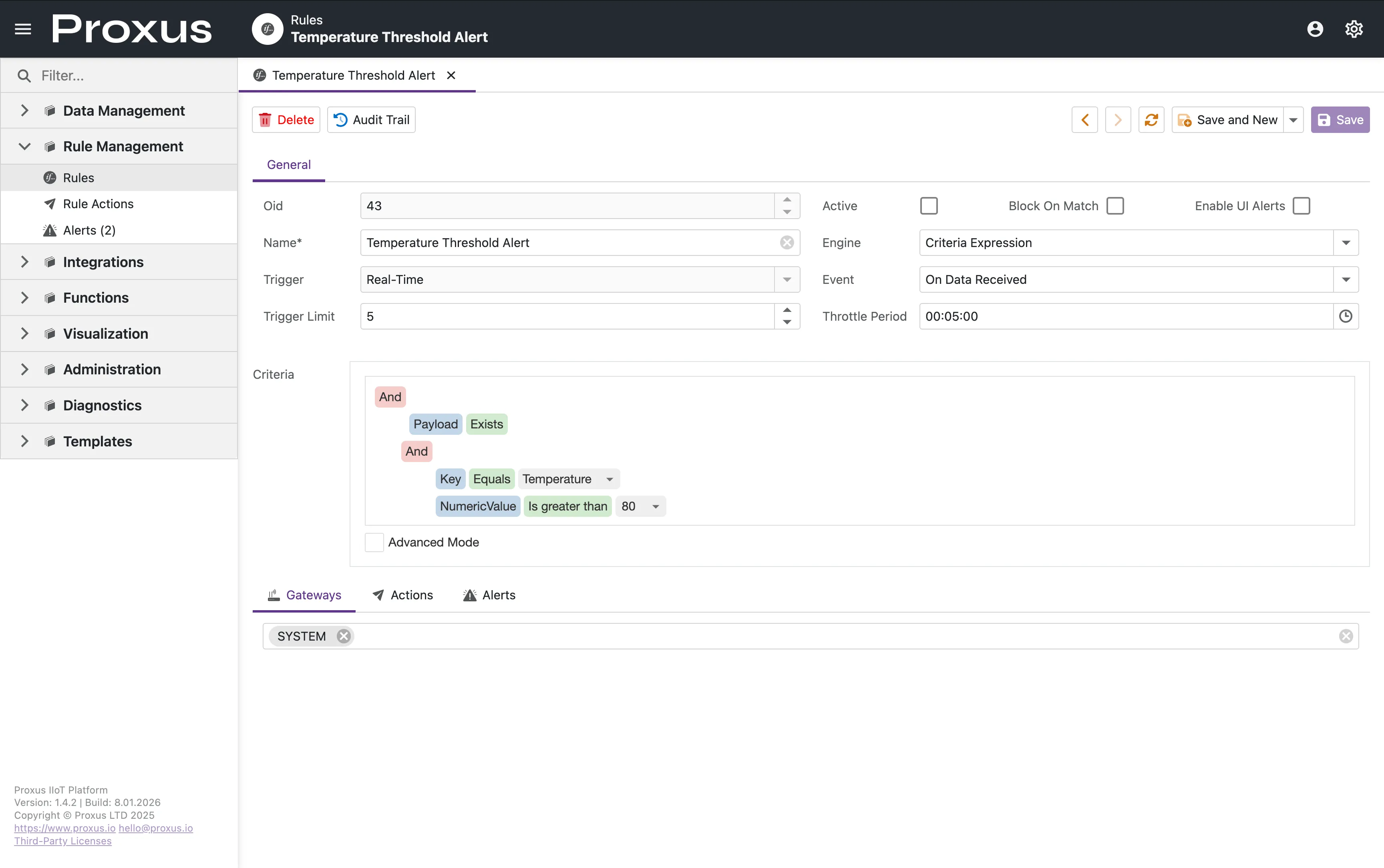
General Configuration
- Oid: The unique object identifier (auto-assigned).
- Name: A descriptive name for the rule (e.g.,
Temperature Threshold Alert). - Active: Toggle to enable or disable the rule. Inactive rules are ignored by the engine.
- Engine: Select Criteria Expression for standard logic processing.
- Event: Choose when the rule triggers. Typically On Data Received for telemetry processing.
- Trigger: Defines the execution context (e.g.,
Real-Time). - Trigger Limit: Limits the number of concurrent executions (Default: 5).
- Throttle Period: Prevents spamming alerts. If set to
00:05:00, the rule will not trigger again for 5 minutes after a match. - Block On Match: If checked, matching data is dropped from the pipeline and will not be stored or forwarded. Useful for filtering noise.
- Enable UI Alerts: Displays a toast notification in the Management Console when triggered.
Defining Criteria (The Logic)
The Criteria section allows you to build complex logic using a visual tree or advanced text mode.
Example Logic from Screenshot:
- Payload Exists: Ensures the message contains valid data.
- Key Equals 'Temperature': Filters specifically for the temperature tag.
- NumericValue Is greater than 80: The actual threshold condition.
This logic translates to: "Trigger when we receive a 'Temperature' reading above 80 degrees."
Check the Advanced Mode box to manually edit the underlying expression string for complex nested conditions. See the Expression Syntax Guide for supported operators and functions.
Gateway Assignment
Switch to the Gateways tab to select where this rule runs.
- SYSTEM: Runs on the central server (Default).
- Edge Gateways: Select specific remote gateways to push this logic to the edge for low-latency execution.
Examples
Simple Threshold
Trigger if the tag named "Temperature" is greater than 100.
[Payload][Key = 'Temperature' AND NumericValue > 100]Combined Logic (Location + Value)
Trigger if "Pressure" > 2000 AND the device is located in "Sector_A".
[Payload][Key = 'Pressure' AND NumericValue > 2000]
AND [Attributes][Key = 'Location' AND Value = 'Sector_A']
Actions & Alerts
Once the rule evaluates to True, configured Actions and Alerts (System Alarms) are executed instantly.
- Notifications: Send an email, SMS, or Slack message via configured Integration Channels.
- Trigger Outbound: Forward this specific packet to a high-priority channel (e.g., an "Urgent Alert" MQTT topic) regardless of the device's default routing.
- Alerts: Create an entry in the system Alerts log for operators to acknowledge in the dashboard.
Troubleshooting
Rule not triggering as expected? See Rule Not Triggering or Expression Errors for common issues.