
The Tag Browser lets you visually explore a device's address space and import data points as tags - no manual OID or Node ID entry required. It works across OPC UA, SNMP, and MTConnect protocols, all routed through your edge gateways.
How It Works
Every browse operation follows the same gateway-routed pattern:
- You click a browse button in the Device Profile Tags tab.
- You select a gateway that has network access to the target device.
- The gateway queries the device's address space and streams the results back.
- You pick the data points you need, and they become tags in your profile.
This architecture means the Proxus central server never needs direct access to factory-floor devices - the gateway handles all protocol communication.
Browse requests are always executed on the selected edge gateway. This ensures the browser works even when the central server and the target device are on different networks.
Supported Protocols
OPC UA
OPC UA offers two complementary browser actions:
Discover Servers
Scans the gateway's network for OPC UA servers and presents their endpoints, security configurations, and authentication options in a hierarchical tree. Selecting an endpoint automatically configures the profile's connection parameters.
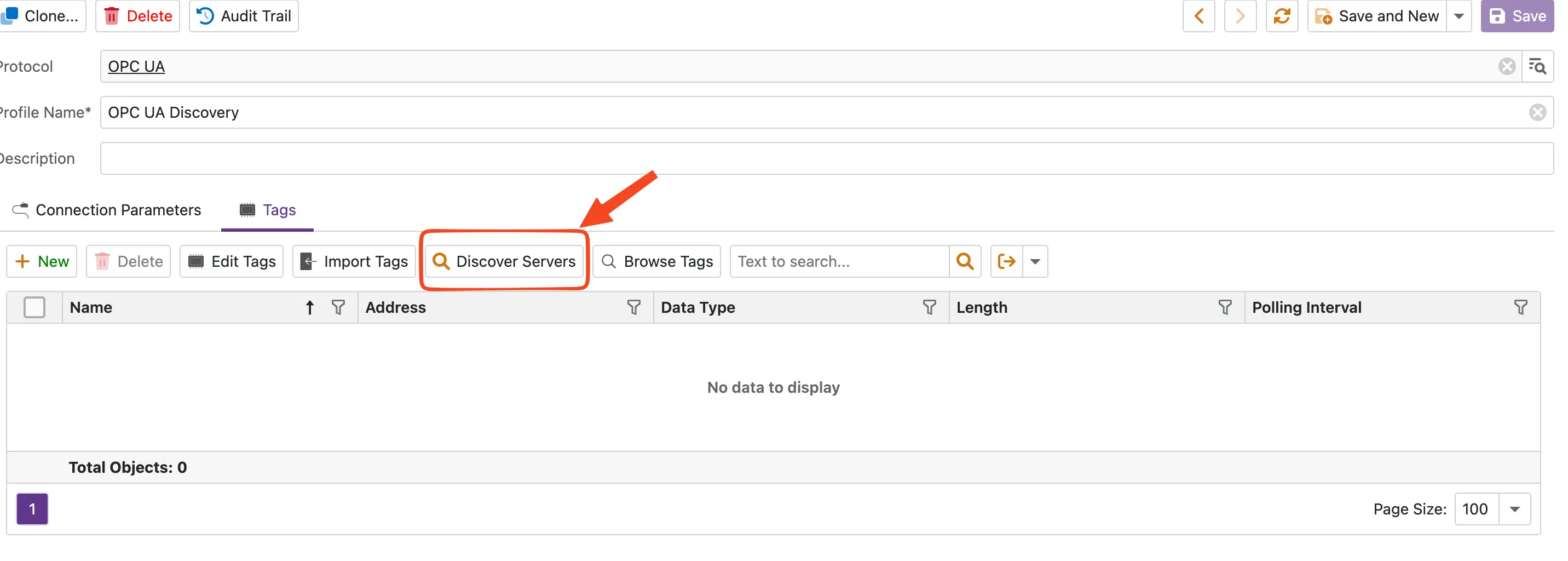
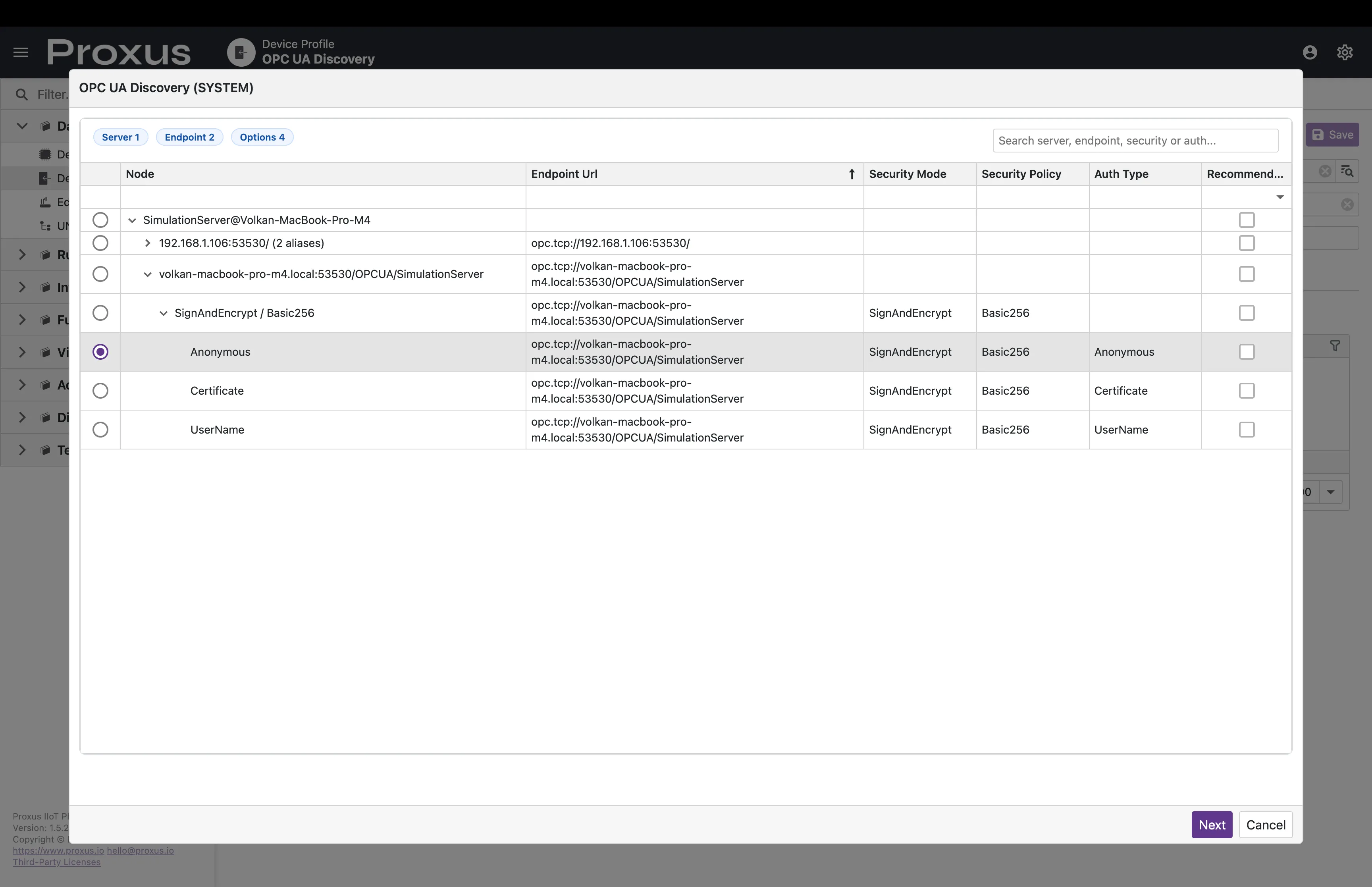
Discovery detects all available security modes and policies - including Aes128_Sha256_RsaOaep and Aes256_Sha256_RsaPss. The selected combination is applied to the profile automatically.
Browse Tags
After connection parameters are configured, browse the server's node hierarchy to select variables.
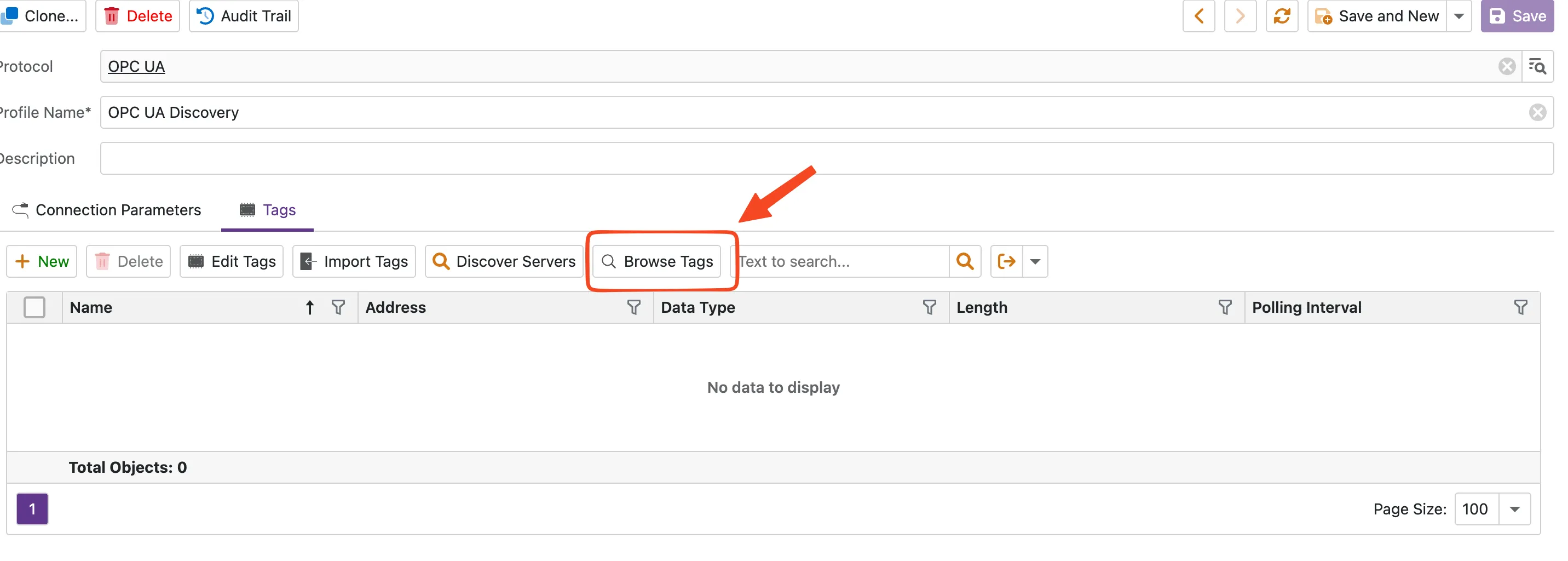
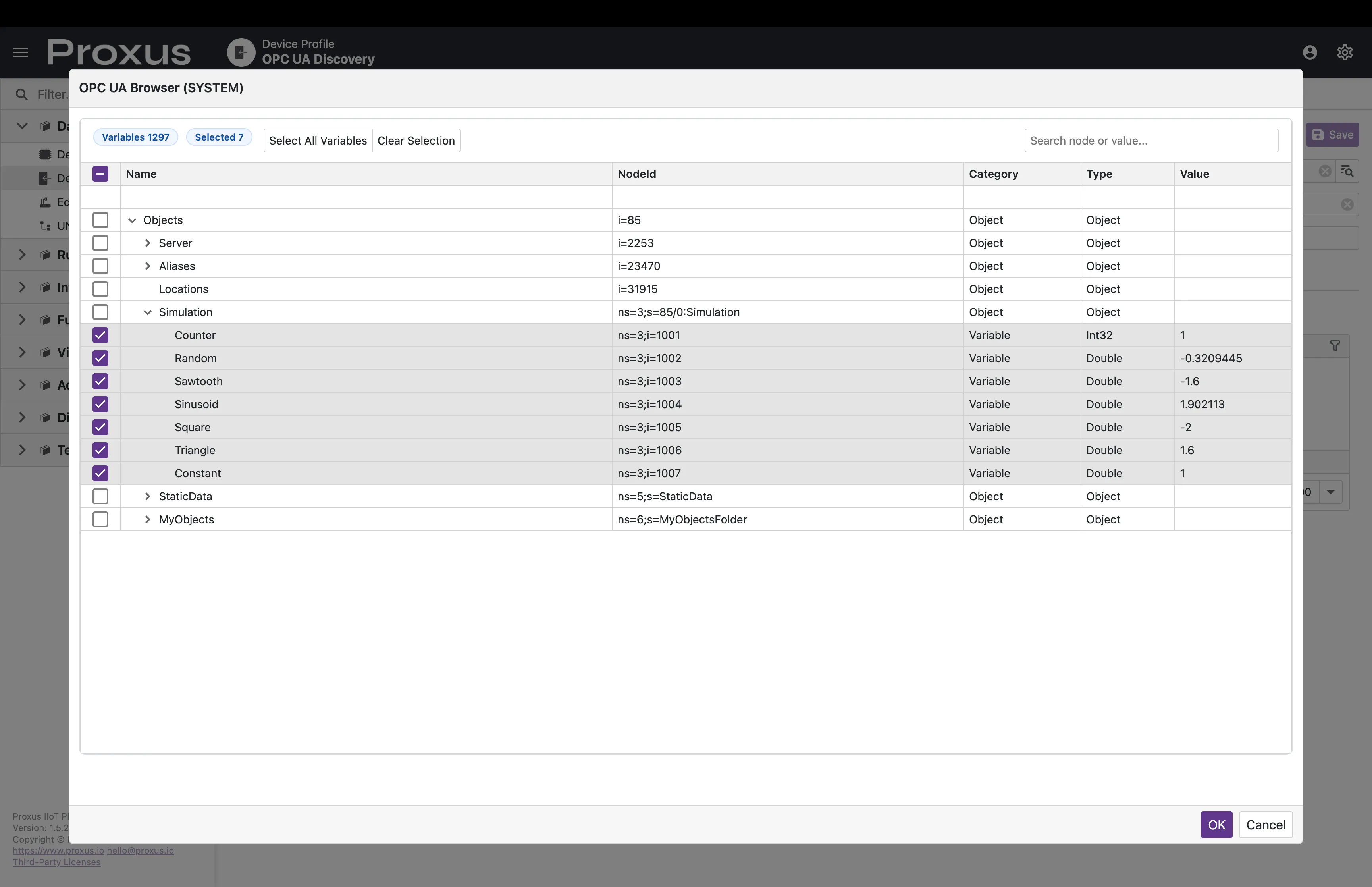
The browser displays the full OPC UA address space with:
- Node hierarchy - Objects, Folders, and Variables in a tree view
- Live values - Current value shown for each variable node
- Metadata - Node ID, Category, Data Type for every entry
- Bulk selection - "Select All Variables" for fast import
For full OPC UA connection details, see the OPC UA Guide.
SNMP
The SNMP browser performs an SNMP walk from the root OID and lists all discovered OIDs with their current values.
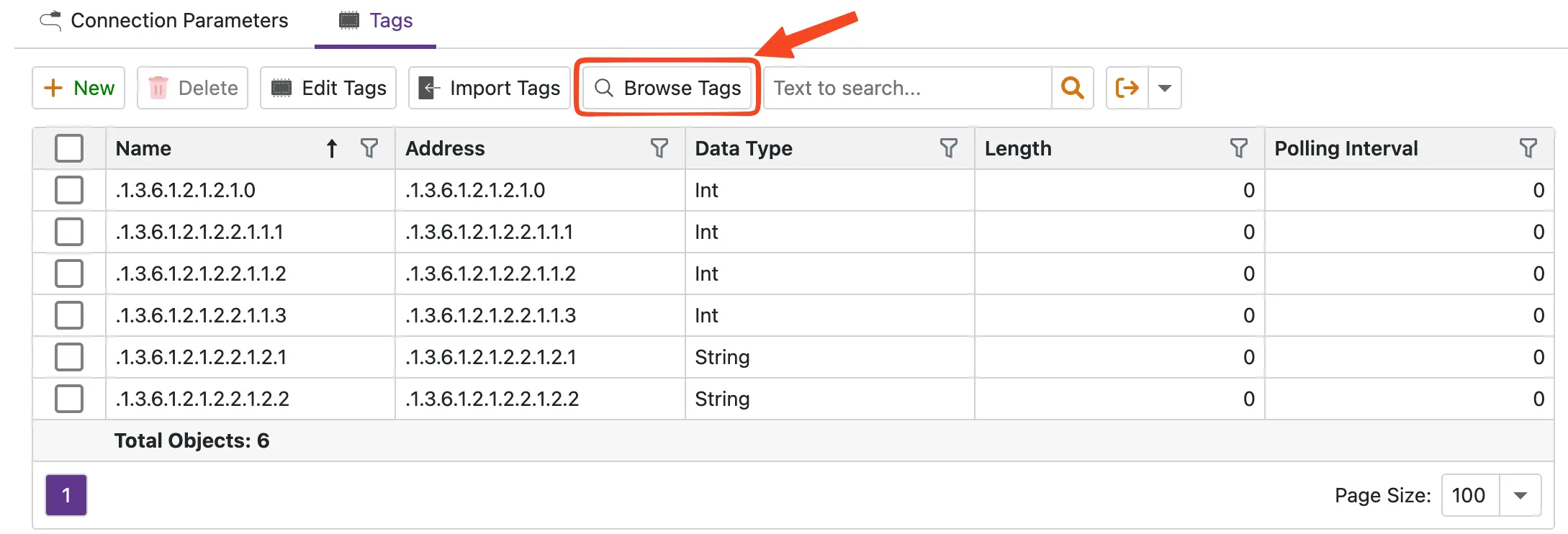
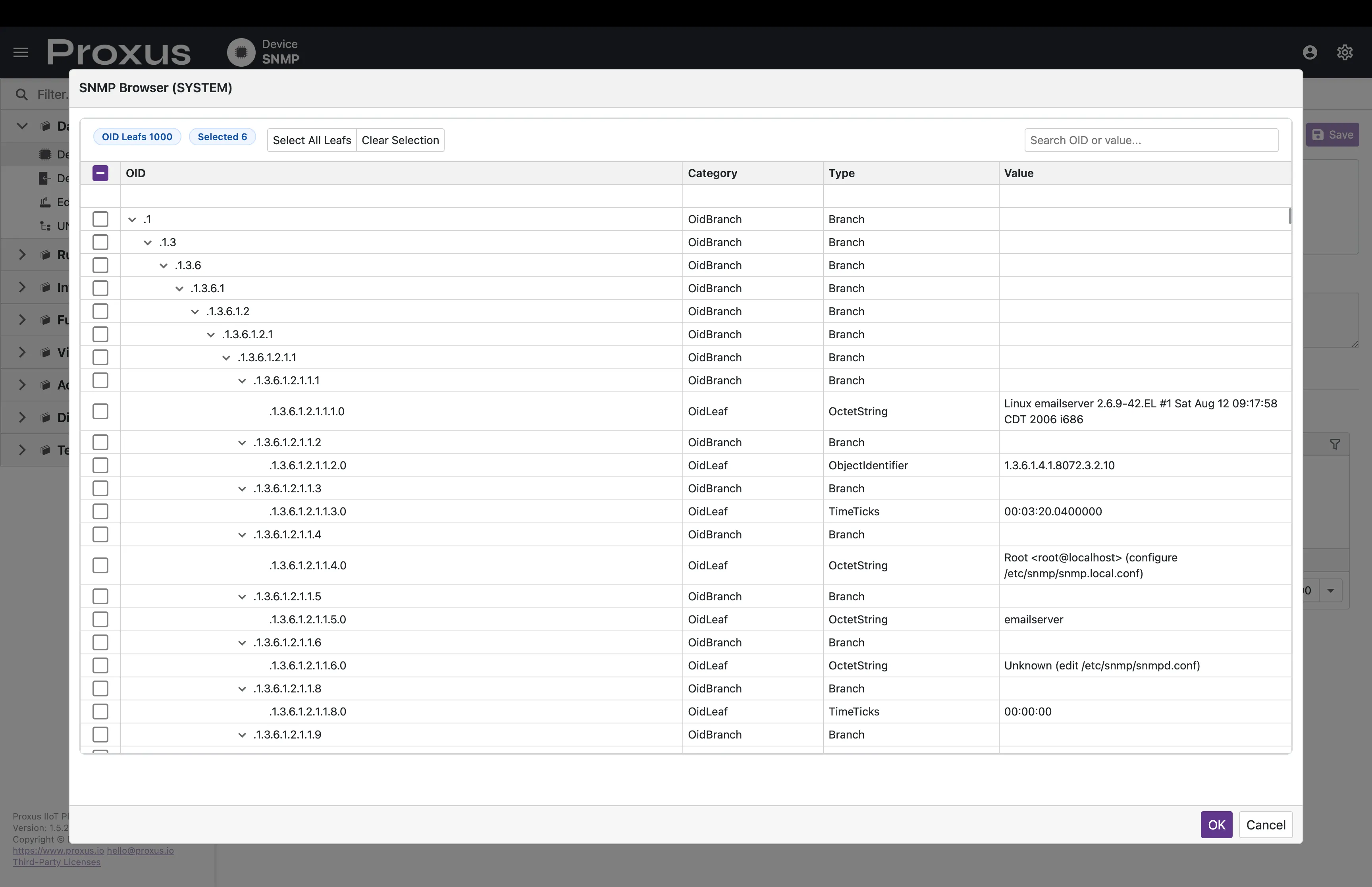
The browser displays:
- OID tree - Full MIB hierarchy from the configured root
- Live values - Current value for each OID
- Data types - SNMP type (Integer32, OctetString, Counter64, etc.)
Supports SNMPv1, v2c, and v3 with full authentication and privacy. For connection details, see the SNMP Guide.
MTConnect
The MTConnect browser loads the machine's data model via its MTConnect Agent and presents DataItems and Conditions for selection.
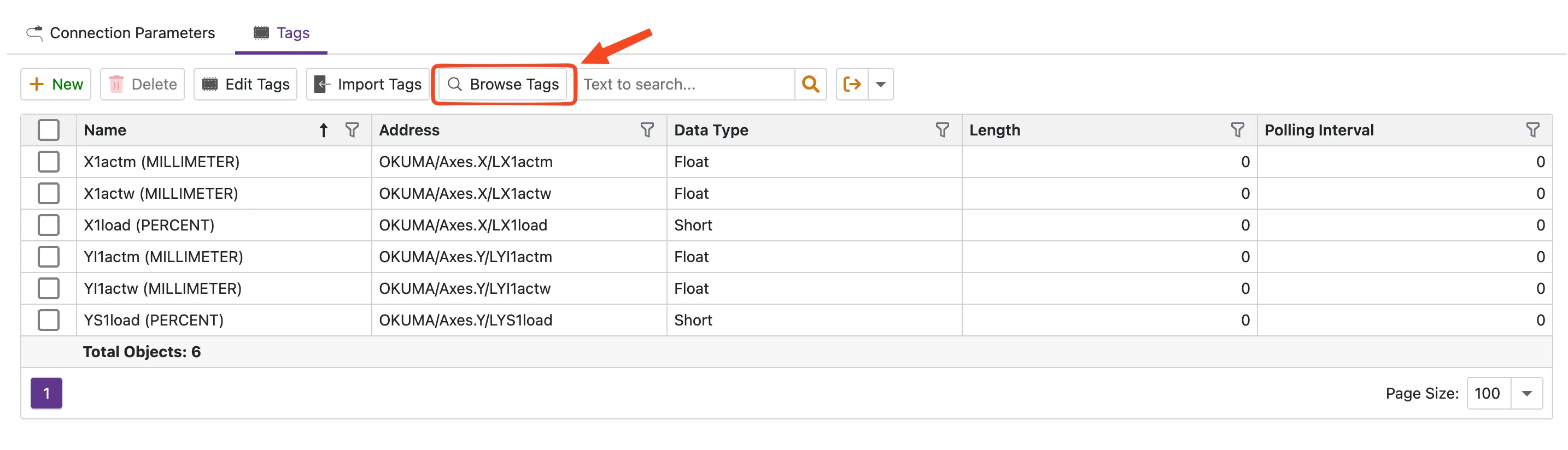
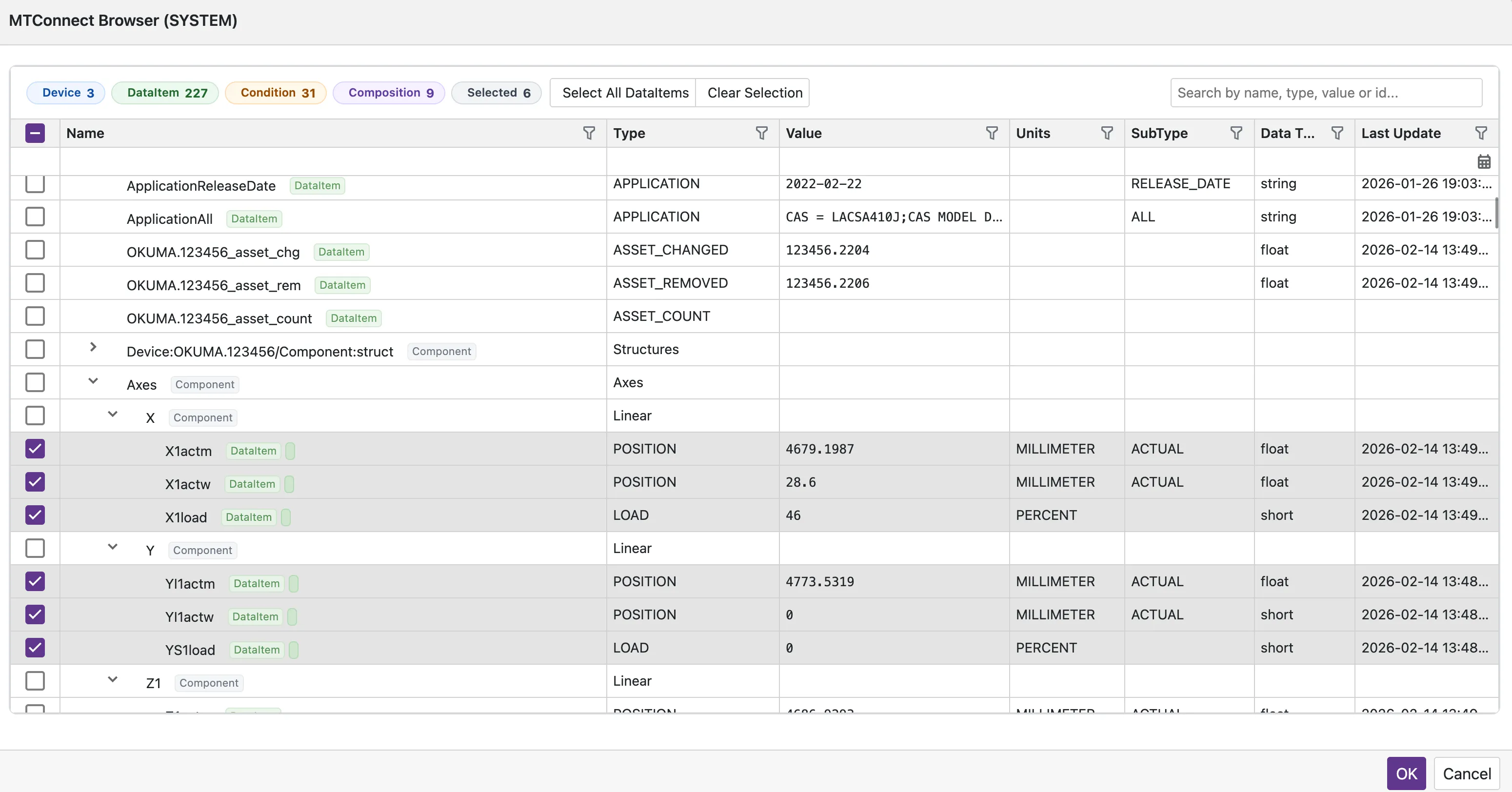
The browser displays:
- Device hierarchy - Components and sub-components from the MTConnect model
- DataItems - Samples, Events, and Conditions with current values
- Category mapping - Automatic tag name generation from the MTConnect path
For connection details, see the MTConnect Guide.
Common Workflow
Create a Device Profile
Navigate to Data Management > Device Profiles, click New, select your protocol, and give it a name.
Configure Connection
Set up the connection parameters - either manually or using Discover Servers (OPC UA). See Using Device Profiles for details.
Browse and Select Tags
Switch to the Tags tab, click Browse Tags (or Discover Servers for OPC UA), select a gateway, and pick the data points you need.
Deploy to Devices
Link the profile to one or more Devices and activate them. The gateway will start polling the selected tags immediately.
Troubleshooting
| Issue | Cause | Solution |
|---|---|---|
| No gateways shown | No online gateways available | Verify gateway is running and connected |
| Browse returns empty | Wrong connection parameters | Check host, port, and credentials |
| Browse timeout | Device unreachable from gateway | Ensure gateway and device are on the same network |
OPC UA BadSecureChannelClosed | Server doesn't trust client certificate | Trust the Proxus certificate on the server (details) |
| SNMP timeout | Wrong community string or version | Verify SNMP version and community match the agent config |