
The MTConnect driver is designed for CNCs and machine tools that expose a standard MTConnect Agent endpoint. It reads machine hierarchy and live observations through probe/current/sample flows.
Supported Models & Protocol Type
Use ProtocolType.MTConnect for MTConnect-compatible devices.
| Protocol Type | Hardware | Notes |
|---|---|---|
MTConnect | CNC / machine tools | Requires reachable MTConnect Agent endpoint |
Connection Parameters
| Parameter | Type | Required | Typical Value | Description |
|---|---|---|---|---|
| Host | string | Yes | http://192.168.1.20:5000 | MTConnect Agent endpoint. Include port in the URL when needed. |
| PollingInterval | int | No | 1000 | Read cycle in milliseconds. Lower values increase freshness and load. |
| ConnectTimeout | int | No | 3000-10000 | Connection timeout in milliseconds. |
| ReceiveTimeout | int | No | 3000-15000 | Read timeout in milliseconds. |
Use a full endpoint when possible (for example http://192.168.1.20:5000).
In distributed plants, place the data connection on the Edge Gateway closest to the machine network. Then use gateway-based remote browse from the central console.
Address Syntax
MTConnect tag addresses follow this format:
<DeviceName>/<ComponentPath>/<DataItemId>Address Components
| Component | Description | Example |
|---|---|---|
| DeviceName | MTConnect device name | Mazak-01 |
| ComponentPath | Dot-separated component/composition path | Axes.Spindle |
| DataItemId | MTConnect data item id | load |
Examples
| Address | Description |
|---|---|
Mazak-01/Controller/exec | Data item under controller component |
Mazak-01/Axes.Spindle/cool_cond | Nested component path |
Mazak-01/avail | Root-level data item |
Browse and Tag Selection
Start from the profile screen button:
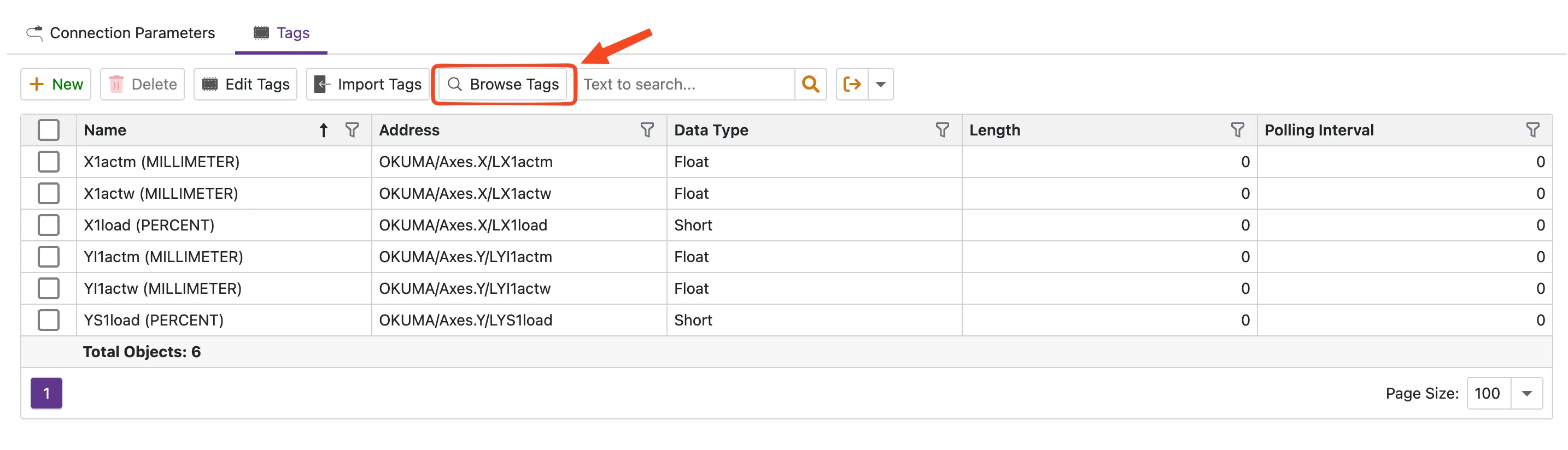
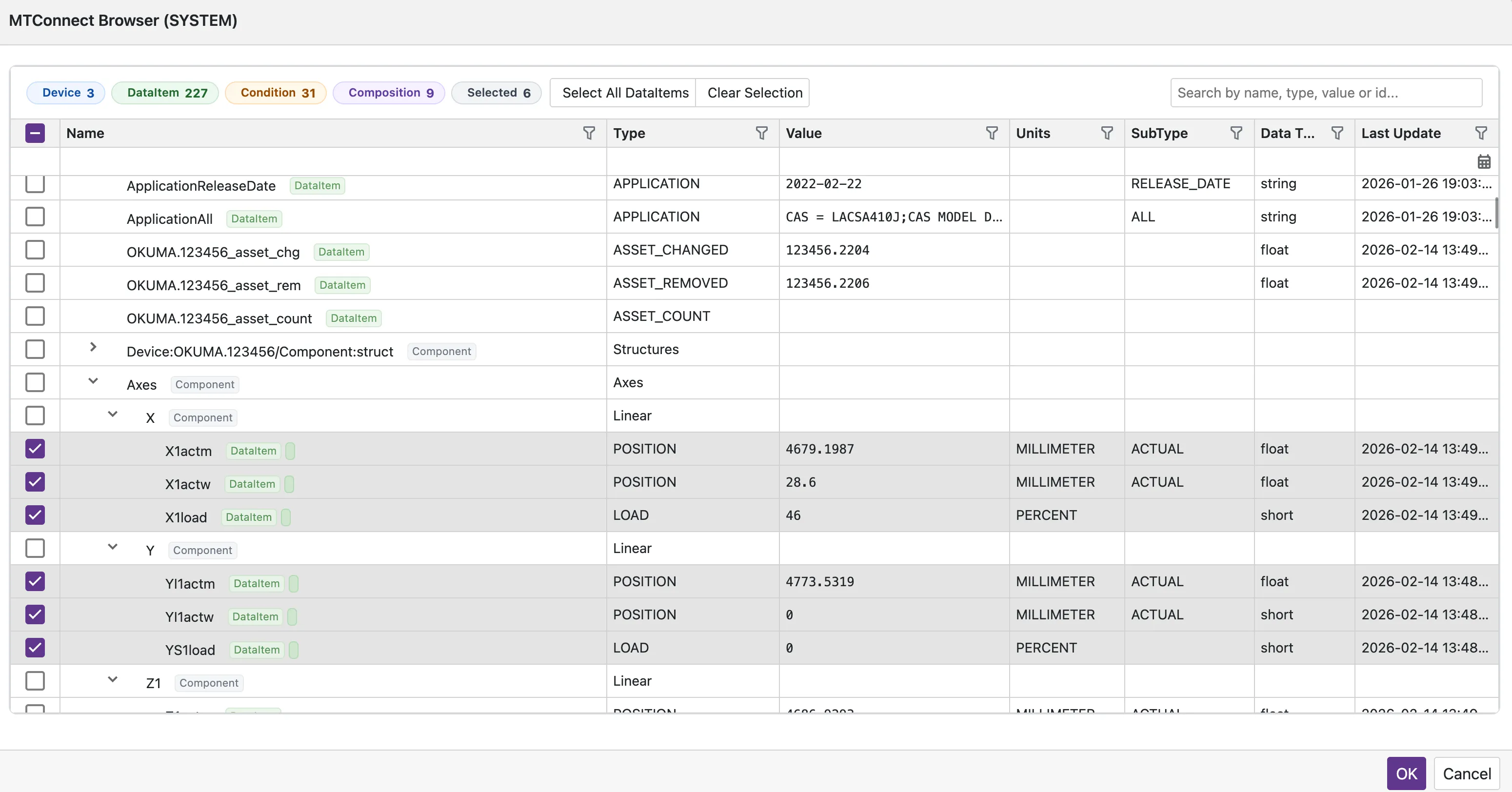
- Open Browse Tags / MTConnect Browser.
- Select a Gateway.
- Browser loads hierarchy from the selected edge.
- Select
DataItem/Conditionrows. - Click OK to sync selected rows to profile tags.
Selection behavior:
- Existing profile tags are pre-selected.
- Unselected previously mapped rows are removed from profile tags.
- Duplicate
DataItemIdrows are handled safely in live value merge.
Data Read Strategy
Snapshot + Incremental Streaming
The driver uses a two-phase read model:
- Initial full snapshot from
current. - Incremental updates from
samplewith sequence tracking.
Restart and Recovery
If the agent instance changes (restart/reset), the driver falls back to current, then resumes incremental mode.
Re-Probe Refresh
Device/item cache is refreshed periodically (every 5 minutes) to keep topology aligned with agent changes.
Data Quality Mapping
| Data Category | Incoming Value | Quality |
|---|---|---|
| Standard DataItem | normal value | Good |
| Standard DataItem | UNAVAILABLE | Uncertain |
| Condition | Normal | Good |
| Condition | Warning | Uncertain |
| Condition | Fault | Bad |
Condition values can be emitted in:
<Level>|<NativeCode>|<Text>Example:
Fault|X123|Hydraulic pressure lowPerformance Notes
- Incremental
sampleflow reduces repeated full payload reads. - Periodic re-probe keeps item cache up to date.
- Batch reads return per-tag quality (
Good/Uncertain/Bad) for downstream processing.
Troubleshooting
| Symptom | Likely Cause | Action |
|---|---|---|
| No nodes in browser | Wrong host/URL, agent unreachable, or empty probe | Validate MTConnect endpoint from selected gateway network |
Frequent UNAVAILABLE | Data item not emitted, machine state mismatch, or unstable network | Verify data item in agent output; review polling/timeout settings |
| Works on one gateway, fails on another | Network segmentation / VLAN / firewall | Use gateway in the same machine network zone |
| Values stale after topology change | Agent model changed | Re-open browser and re-sync selected tags |
Before production rollout, test normal run, agent restart, and temporary edge disconnect scenarios.
For a unified view of all protocol browsers, see the Tag Browser page.
Official Resources
- MTConnect Institute: https://www.mtconnect.org/
- MTConnect Standard: Download Portal