
Proxus includes a fully-featured Dashboard Designer that runs in your browser. Dashboards run ClickHouse SQL queries and refresh on a configurable interval or manually, so updates are periodic rather than push-based.
Creating a Dashboard
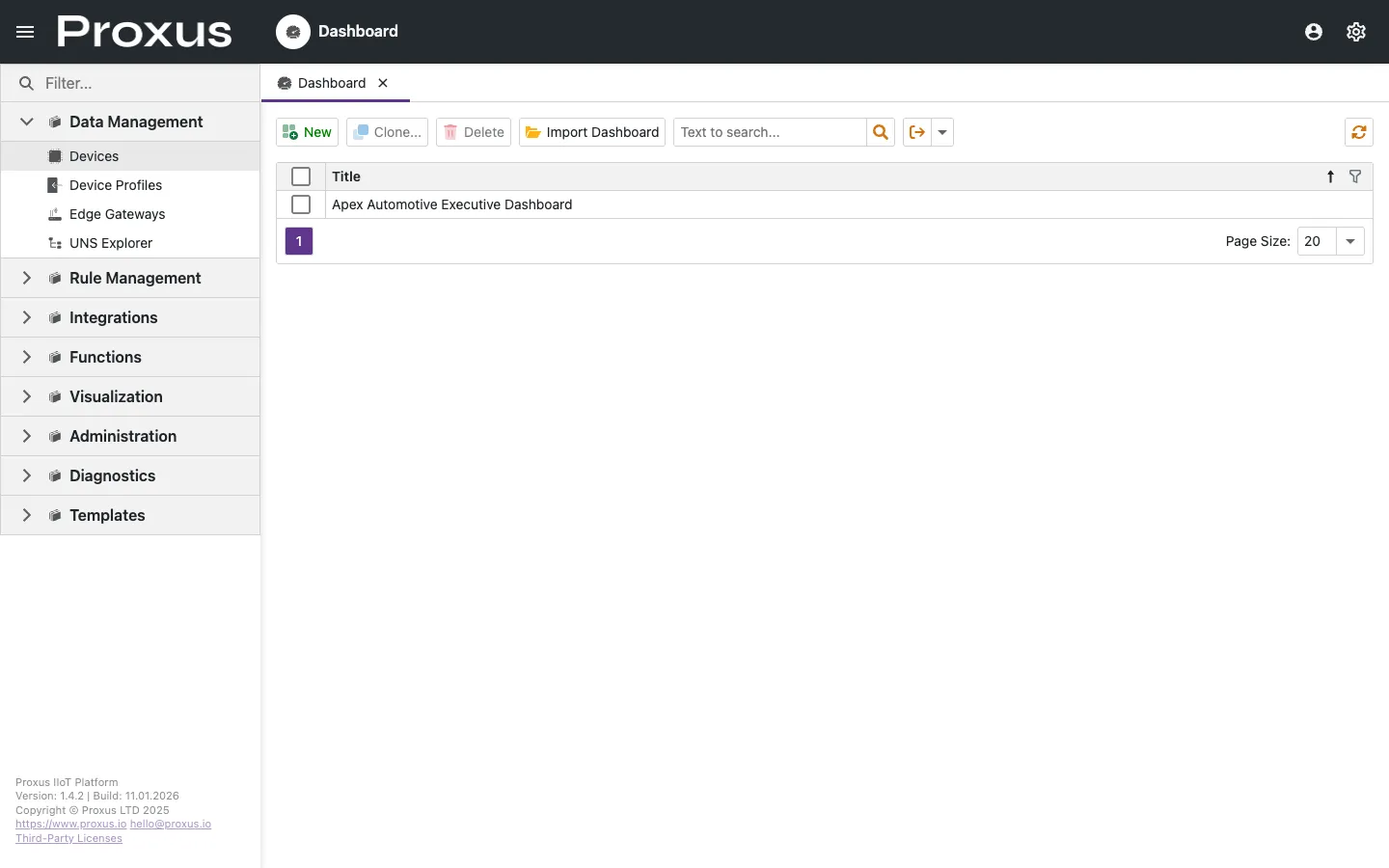
- Navigate to Visualization > Dashboards.
- Click New Dashboard.
- Select a layout template or start blank.
Adding Widgets
Drag widgets from the toolbox onto the canvas.
Common Widgets
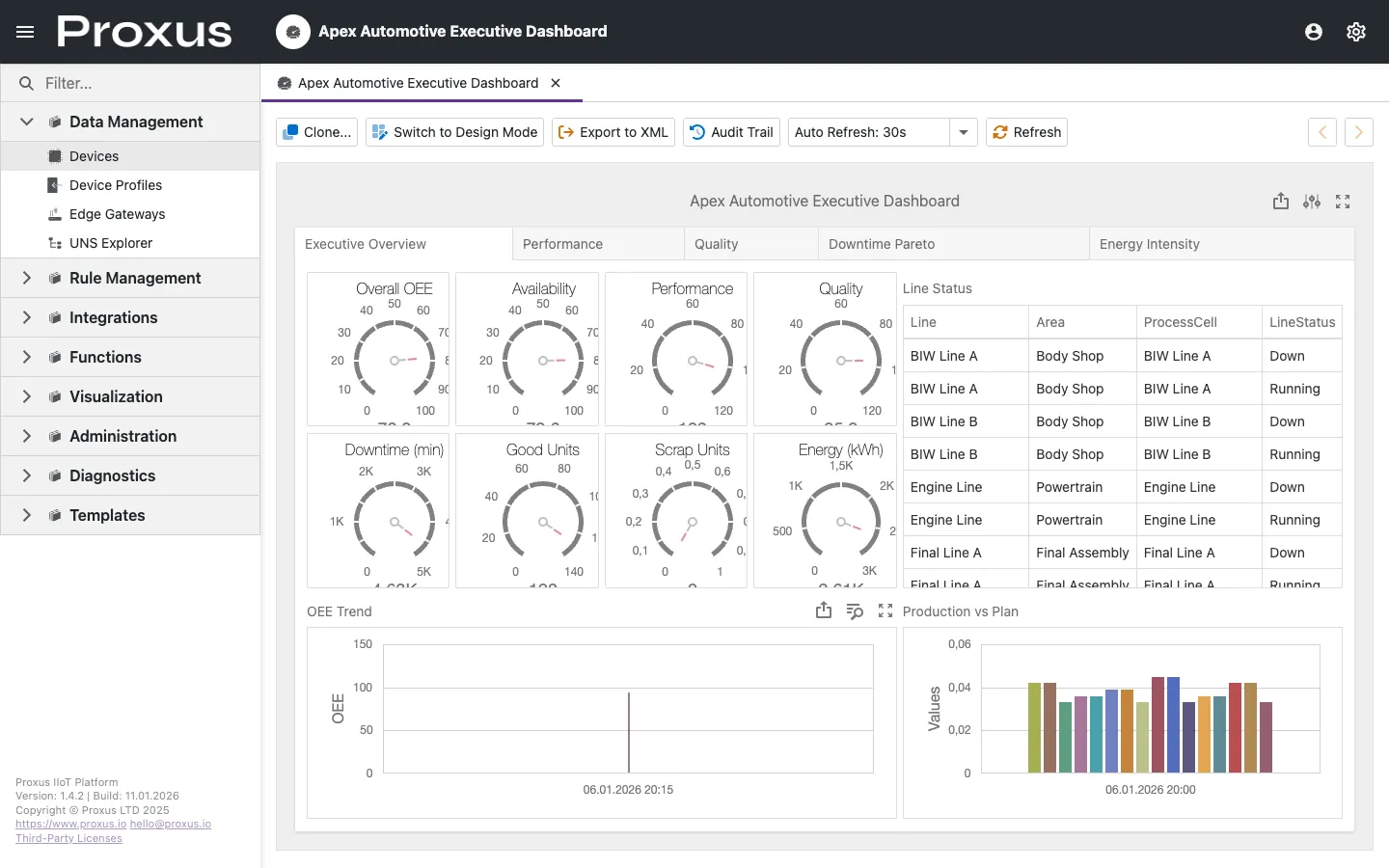
- Gauge: Perfect for single values like Speed or Temperature.
- Chart: Line, Bar, and Area charts for trends.
- Grid: Tabular view of raw data or alarms.
- Map: Geo-spatial view for distributed assets.
- State Indicator: Visual LED (Green/Red) based on boolean logic.
Binding Data
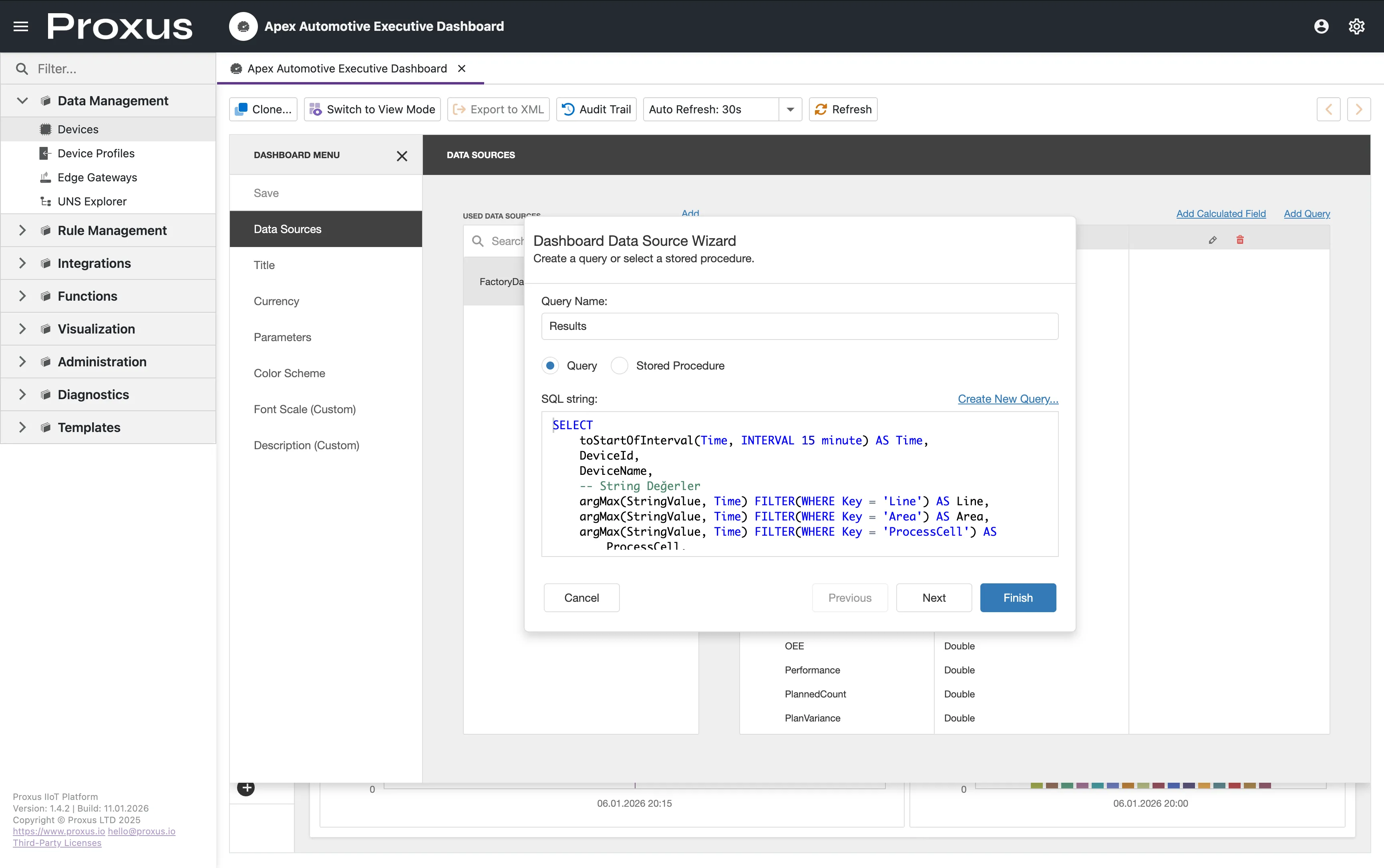
To make a widget live, you bind it to a ClickHouse SQL query. You can write a raw query or select a saved query from Data Query Studio. Results are returned as a dataset that widgets can consume (charts, grids, gauges).
Select Widget
Click on the widget (e.g., a Gauge) to open its properties panel.
Choose Query Source
- New SQL Query: Write a ClickHouse SQL query directly.
- Saved Query: Reuse a query created in Data Query Studio.
- Calculated Field: Add derived columns (e.g.,
oee = good_units / total_units).
Configure Appearance
Set min/max limits, color ranges (e.g., red if > 100), and labels.
XML Import/Export
Dashboards are stored as XML definitions. You can export a dashboard to share it between different Proxus environments (e.g., Dev to Prod).
The Dashboard engine uses a smart caching layer. It does not hit the database for every refresh; instead, it subscribes to the real-time event stream from the Core.
Customize dashboard chart colors, export restrictions, and rendering engine via the UI & Themes section in Proxus-config.toml.
Need Help?
Having issues with widgets not displaying data or performance problems? See Widgets Show "No Data" or Dashboard is Slow.