What you need
- A Proxus hub you can sign in to, and a user role that may create devices and outbound targets. Install Proxus with Docker
- The OPC UA server running and reachable from the gateway, usually on port 4840. You may know its endpoint URL (
opc.tcp://host:port/path) or let the gateway find it. Connect an OPC UA server - For a secure connection, access to the server’s certificate settings: the server must trust the gateway’s certificate. For sign-in with a user name, the user name and password. Connect an OPC UA server
- The connection details of your MQTT broker (host, port, credentials, and for Sparkplug B the Group ID and Edge Node ID), and network access to it from every gateway that will send to it. Outbound targets
Steps
- 01
Open the device wizard and choose OPC UA
Go to Connect > Devices and select New. Choose the Edge Gateway on the machine’s network: the connection is tested from that gateway. Type
opcin the protocol search box, select the OPC UA card, then select Next: Connection.Docs: Add a device
- 02
Find the server and choose how to connect
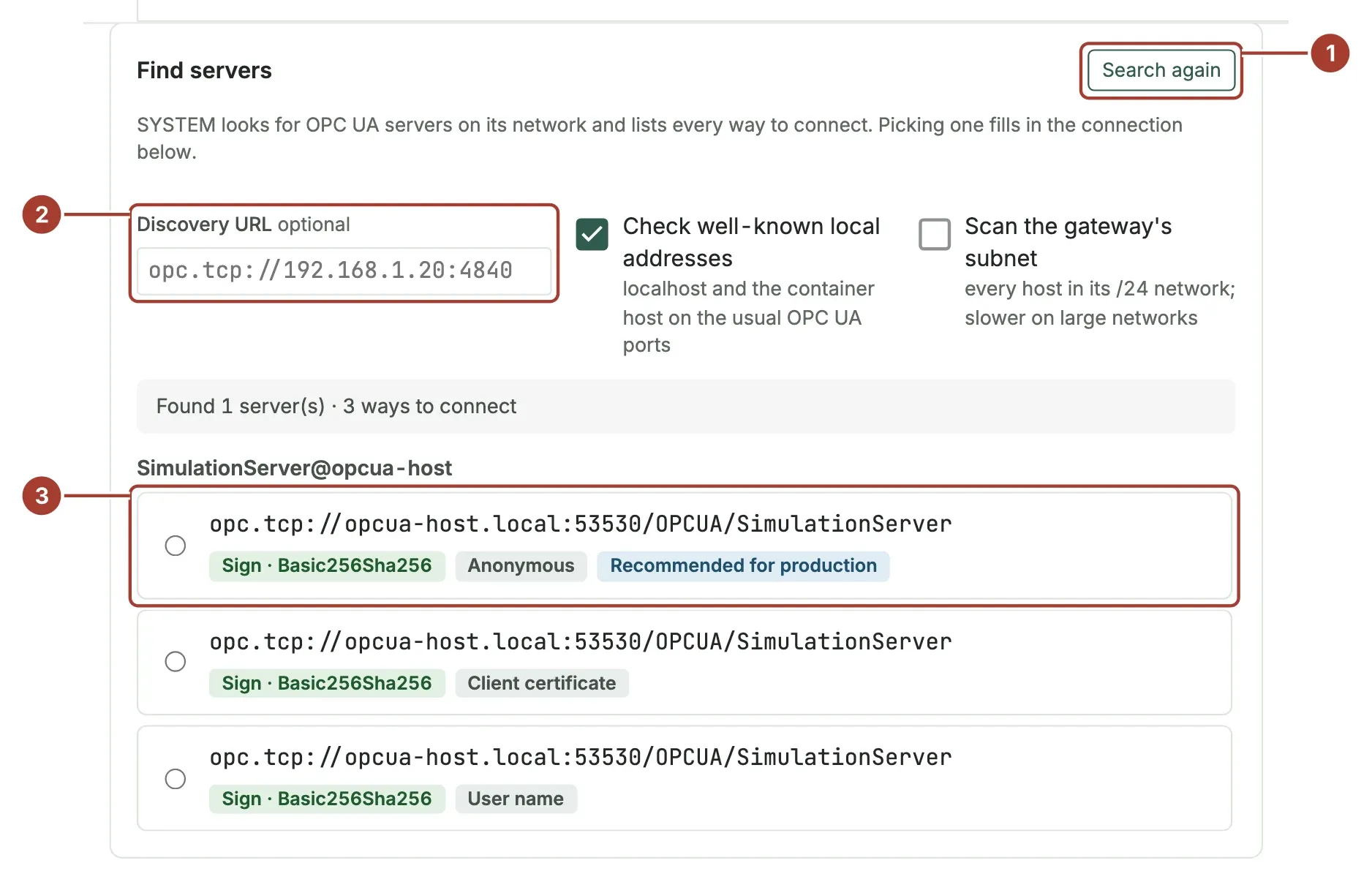
Select Discover servers; the gateway looks for OPC UA servers on its network, which can take up to 15 seconds. If the server is not found, enter its address in Discovery URL, for example
opc.tcp://192.168.1.20:4840, and search again. Each way to connect is listed with its security (No security, Sign or Sign & encrypt) and sign-in; the best one is marked Recommended for production. Selecting one fills in Endpoint Url, Security Mode, Security Policy and User Token Type. Prefer Sign & encrypt, or at least Sign, in production.Docs: Connect an OPC UA server
- 03
Trust the certificates on both sides
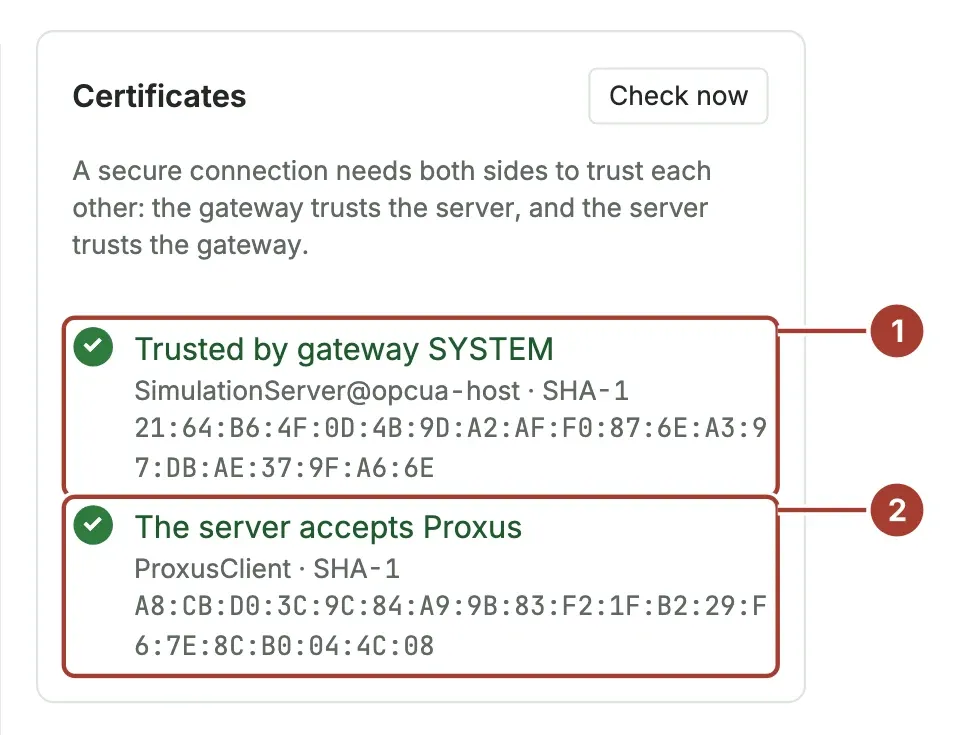
With security, the Certificates panel checks both directions. Compare the server’s fingerprint with the one on the server, then select Trust this server; the certificate is recorded as trusted in the Certificate Store, so every gateway accepts it. If the server does not trust the gateway yet, select Copy fingerprint, move the gateway’s certificate from rejected to trusted on the server, and select Check now until the line shows The server accepts Proxus. Then select Test the connection.
Docs: Connect an OPC UA server
- 04
Browse and pick the nodes
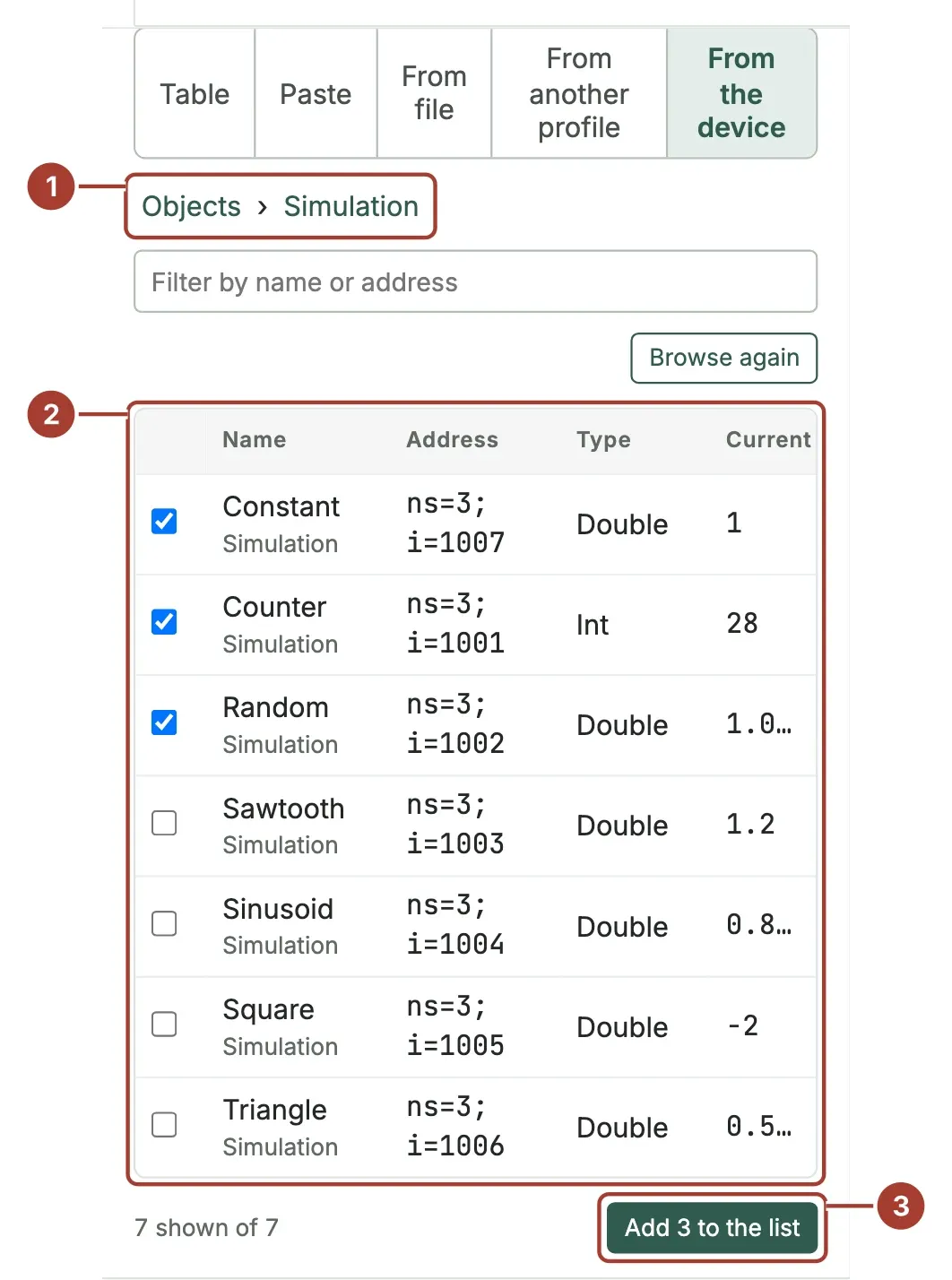
On the From the device tab, select Browse the device. The list starts at Objects; open folders, tick the variables to read and select Add … to the list. The address of an OPC UA tag is its node ID, for example
ns=3;i=1001orns=2;s=Line1.Speed, and the data type is taken from the node. The gateway reads all tags together once per Read every interval; it does not use OPC UA subscriptions.Docs: Connect an OPC UA server
- 05
Name and place the device, then save
In Place and type, enter a unique Device name, fill in the Place from Enterprise down to Equipment module (every level is optional) and choose the Device type, which Proxus does not guess. The place decides where the device appears in the Unified Namespace. Select Save and verify: the stages Saved, Sent, Device connected and First values turn green in order, and each tag shows its first value.
Docs: Add a device
- 06
Create the Sparkplug B target
Go to Connect > Outbound Targets, select New and choose SparkplugB as Target Type (or MQTT for plain JSON). Enter a Profile Name, select Edit Parameters and fill in the broker’s host and port (
BrokerPortis 1883 by default),GroupId(ProxusGroupby default),EdgeNodeIdand, if needed,ScadaHostIdentifier(scada1). For TLS, use port8883, turn on Use TLS and choose the broker’s CA as Trusted Server Certificate. Select Save.Docs: Outbound target types
- 07
Check the target from the gateway
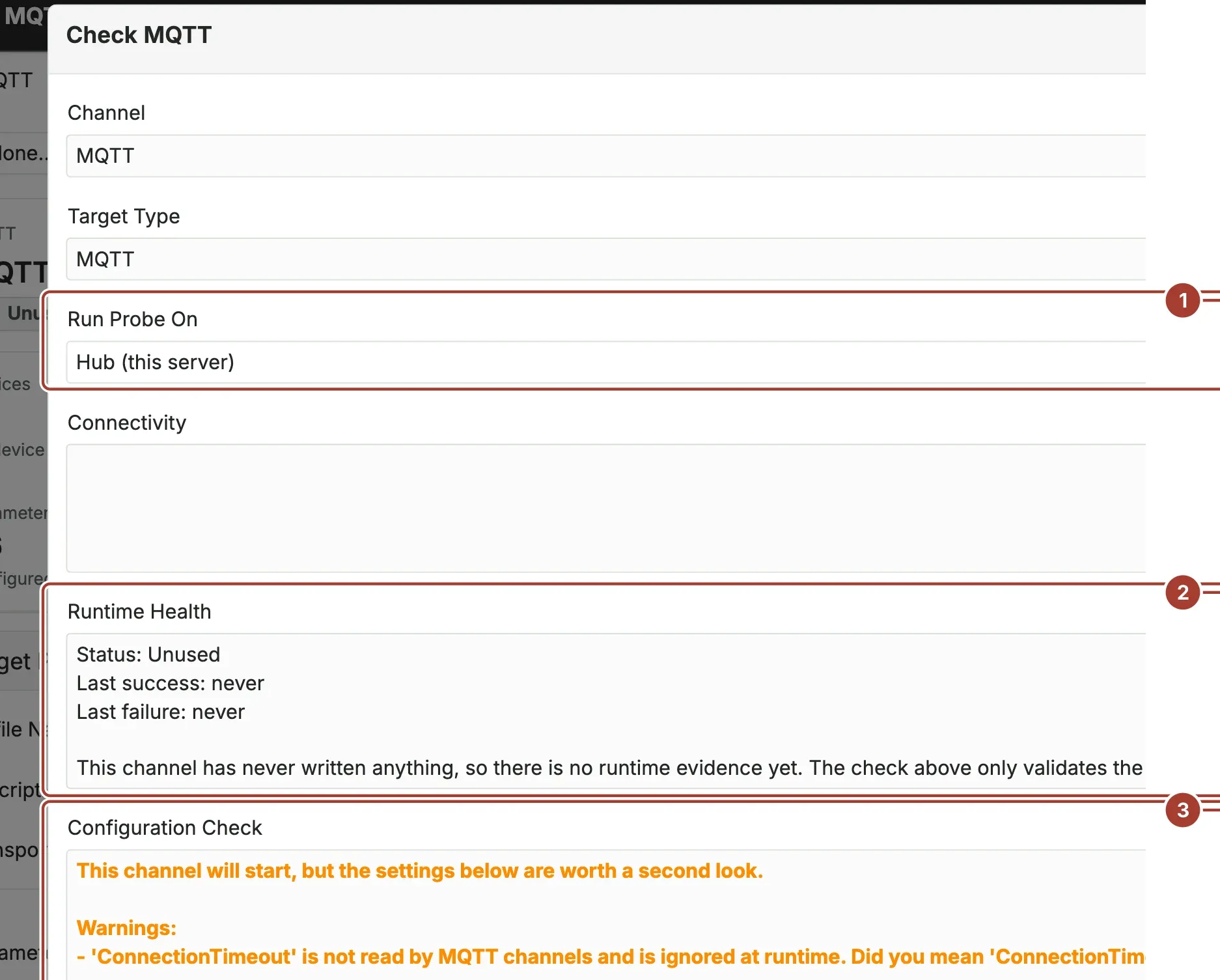
On the saved target, select Check. Under Run Probe On, choose the gateway that reads the device rather than the hub: the gateway is what sends the data, and a target that only the plant network can reach fails from the hub. The Configuration Check lists errors and warnings without contacting the target. Test Connection then connects without sending data and reports
Connected,ReachableorFailedwith the reason.Docs: Outbound targets
- 08
Send the device’s values to the target
In Connect > Devices, select the device (or several), then Targets > Add Target and choose the target. For one device you can also use the Delivery tab on its page; a new device can tick the target under Where does the data go? in the wizard. The target’s Devices count goes up, and its Status turns green after the first delivery.
Docs: Outbound targets
Sparkplug B on the gateway’s own broker
Every gateway runs a broker that publishes its devices’ values. Set UNSPayloadFormat = "SparkplugB" in the [UNS] section of the gateway’s configuration file and restart the gateway: it then publishes Sparkplug B 3.0 under spBv1.0/<UNSGroupId>/..., with a DBIRTH and then DDATA per device, and answers Node Control/Rebirth. Sparkplug host applications connect with the gateway’s MasterToken as user name.
Docs: MQTT and the UNS topics
Verify the data
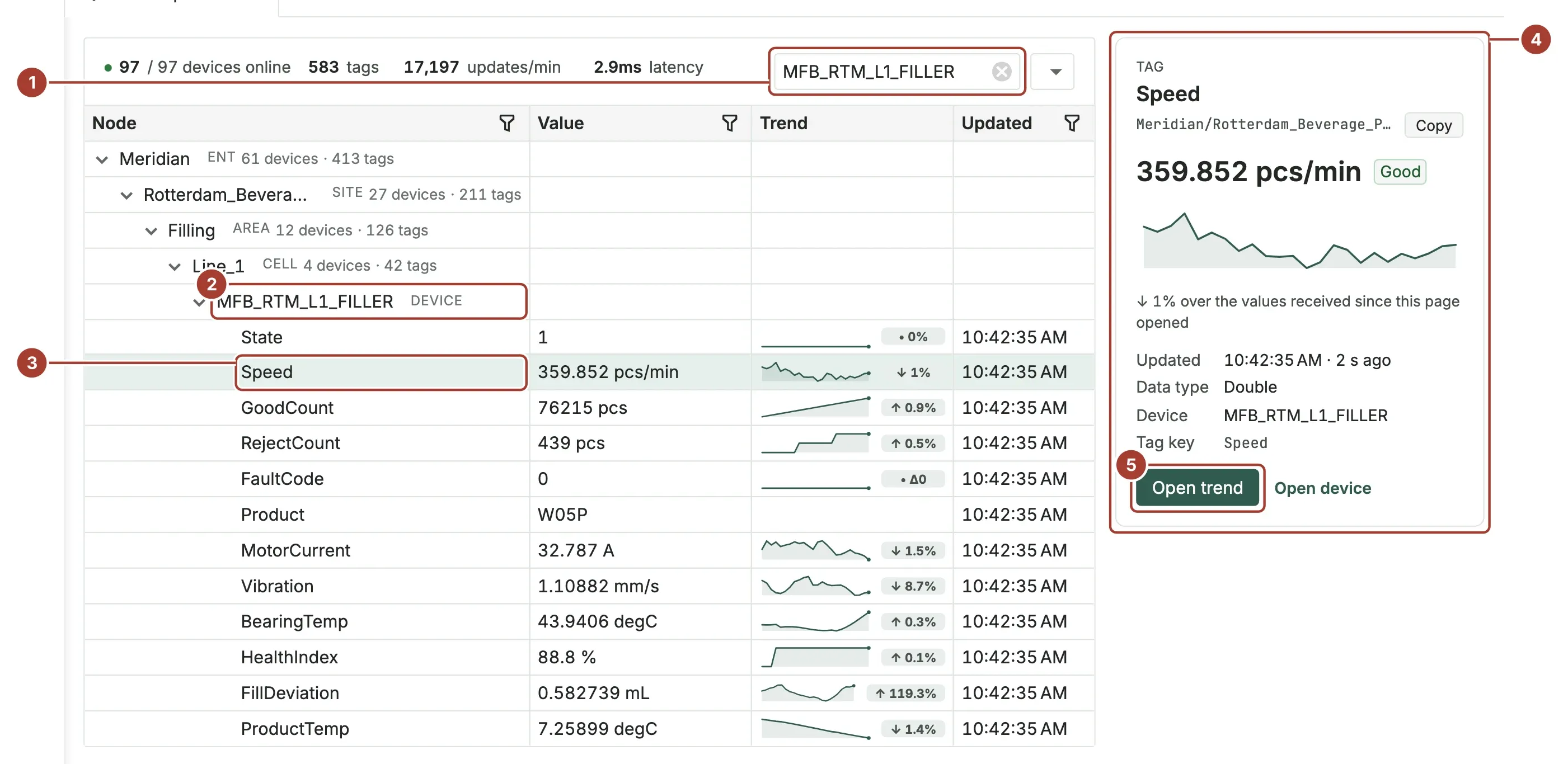
- Open the device. On the Live values tab every tag shows its value, a small trend, its Quality and when it was updated. Good means the value was read without error. The device page
- Open Organize > UNS Explorer, type the device name in Search... and press Enter, then right-click a node and choose Expand All. The device sits at the place you gave it, each tag with its current value, trend and update time. UNS Explorer
- On your broker, the values arrive as Sparkplug B under the Group ID and Edge Node ID you set on the target. Outbound target types
- On the target, Status is green, and Last Success is renewed about once a minute while the target keeps delivering. Outbound targets
Common problems
- The device sends no data and the gateway reports
BadCertificateUntrusted - Gateways accept only server certificates that the Certificate Store trusts. Go to Security > Certificate Store, open Trust View, Rejected, find
OPC UA server <name> (<address>), compare the fingerprint and select Trust. All gateways take the change within a minute. Troubleshoot devices - Discovery does not find the server
- Discovery tries ports 4840 and 53530 (
opc.tcp) and 53443 (https) on the gateway’s own machine and the container host. Enter the server’s Discovery URL, turn on Scan the gateway’s subnet, or type the endpoint directly. Connect an OPC UA server The OPC UA server does not recognize this node id.- Node IDs take forms such as
ns=2;s=TagNameorns=3;i=1001. Pick the node with Browse the device instead of typing it. Troubleshoot devices - The wizard asks for the password again
- The password is not kept in the wizard’s draft. Enter it again if you leave the wizard and come back. Connect an OPC UA server
- The server’s certificate is not trusted
- Every TLS connection verifies the server, and a target never accepts an unknown certificate. For a self-signed or private-CA certificate, upload the CA to the Certificate Store and choose it as the target’s trusted server certificate. The address on the target must be a name in the server’s certificate. Secure connections to targets
- The target test works from the hub but not from the gateway
- The gateway’s network cannot reach the server, or reaches it under another name. Run Test Connection from the gateway that sends, and check its firewall and DNS. Secure connections to targets