How-to guide · for Engineers, Administrators
Outbound targets
Send device data to your own databases, message brokers, cloud services and REST APIs. Create a target, check it, and choose which devices deliver to it.
At the end of this guide, the data of the devices you choose also goes to a system outside Proxus, such as your own database or MQTT broker. The Proxus historian keeps it as well, as long as the device delivers to it (every new device does).
An outbound target is one destination with its connection settings. The gateway that reads a device sends the device's data to each of its targets, so the hub's SYSTEM gateway sends for the devices it reads, and each edge gateway sends for its own devices.
Before you start
You need:
- The connection details of the destination: host, port, user and password, database, topic or URL.
- Network access from every gateway that will send to it. A database that only the plant network can reach needs devices on an edge gateway in that network.
- For a TLS connection with a client certificate: the certificate and its private key files.
- For a server whose certificate is self-signed or issued by your own CA: that CA certificate, so you can trust it in the Certificate Store.
- A user role that may create outbound targets.
The target list
Go to Connect > Outbound Targets.

- New creates a target.
- The filter shows In use targets by default: those that at least one device delivers to. Switch it to All to see every target, including the samples that come with Proxus.
- Status shows whether the target delivers: green when it runs, red after a failure, grey while no device uses it. Last Success, Last Failure and Last Error say when it last worked and why it last failed. While a target keeps delivering, its last success is renewed about once a minute. When several gateways deliver to the target, each reports on its own and the target shows the worst: an error on one gateway is the target's error, while a gateway that stopped using the target does not hide another that runs it. Open the target to see each gateway's status, its last success and failure, and its queue.
SYSTEM INTERNAL DB is the Proxus historian. It cannot be deleted or changed. New devices deliver to it by default: the setup wizard keeps it ticked. If you remove it from a device later (Remove Target, or the device's Delivery tab), that device's values are no longer stored and it has no history.
Step 1: Create the target
The quickest start is a sample: switch the filter to All, open the sample of the type you need (for example MQTT, PostgreSQL or Kafka), and select Clone.... The copy has every parameter of that type already listed.
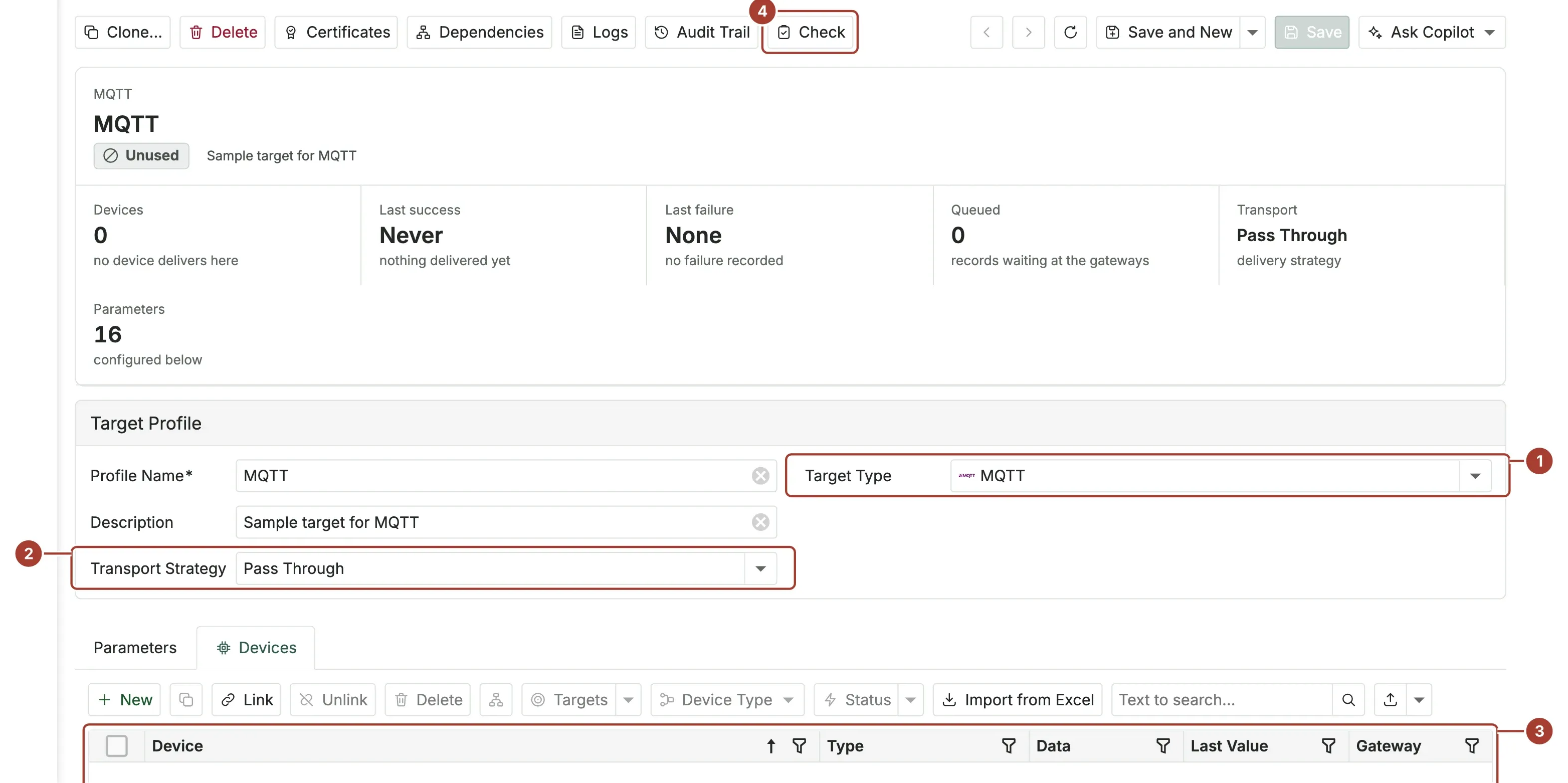
- Target Type: the kind of destination. See Target types.
- Transport Strategy: what is sent.
- Pass Through: every value read.
- On Change: only values that changed since the last read.
- Pipelines Only: nothing from normal device delivery. Only pipelines that name this target send to it.
- Parameters: the connection settings as Key and Value pairs, such as
BrokerHost,BrokerPortandTopicfor MQTT. Passwords and keys are masked. - Check tests the settings. See step 2.
Enter a Profile Name (unique) and an optional Description, fill in the parameters, then select Save.
For MQTT, AWS IoT Core, Azure IoT, SparkplugB and Azure Data Lake Gen2, Edit Parameters above the parameter list opens a form with labelled fields instead of keys. For a TLS connection, select Certificates to upload the client certificate (PEM), its private key and, if needed, the CA certificate, all at once: the certificate that matches the key is the client certificate, whatever the files are called.
TLS and server certificates
Every TLS connection verifies the server. The server's certificate must match the address you entered, and it must chain to a trusted root: the target's Trusted Server Certificate from the Certificate Store, or the operating system's trusted roots. A target never accepts an unknown certificate, and Test Connection uses the same certificates and the same verification as real deliveries.
- MQTT, AWS IoT Core and SparkplugB: choose Trusted Server Certificate in the parameter form. You can pick any CA or server certificate in the store, the Proxus Platform CA included. The old MQTT field for a CA file path is gone.
- Other types: set the TLS keys in the parameter list. They are listed per type in the Outbound targets reference. Certificate thumbprints are copied from the Certificate Store.
- Uploading with Certificates: the client certificate and key go to the store, and the CA file you add is stored too and set as the target's trusted server certificate. For AWS IoT Core, Proxus downloads Amazon Root CA 1 and sets it; without internet access, the operating system's roots are used.
Secure connections to targets walks through each type step by step, AWS IoT Core included.
The gateway takes the certificates from the store at every send. When a certificate is renewed or replaced in the store, the targets use the new one without any change on the target.
Step 2: Check the target
Select Check.
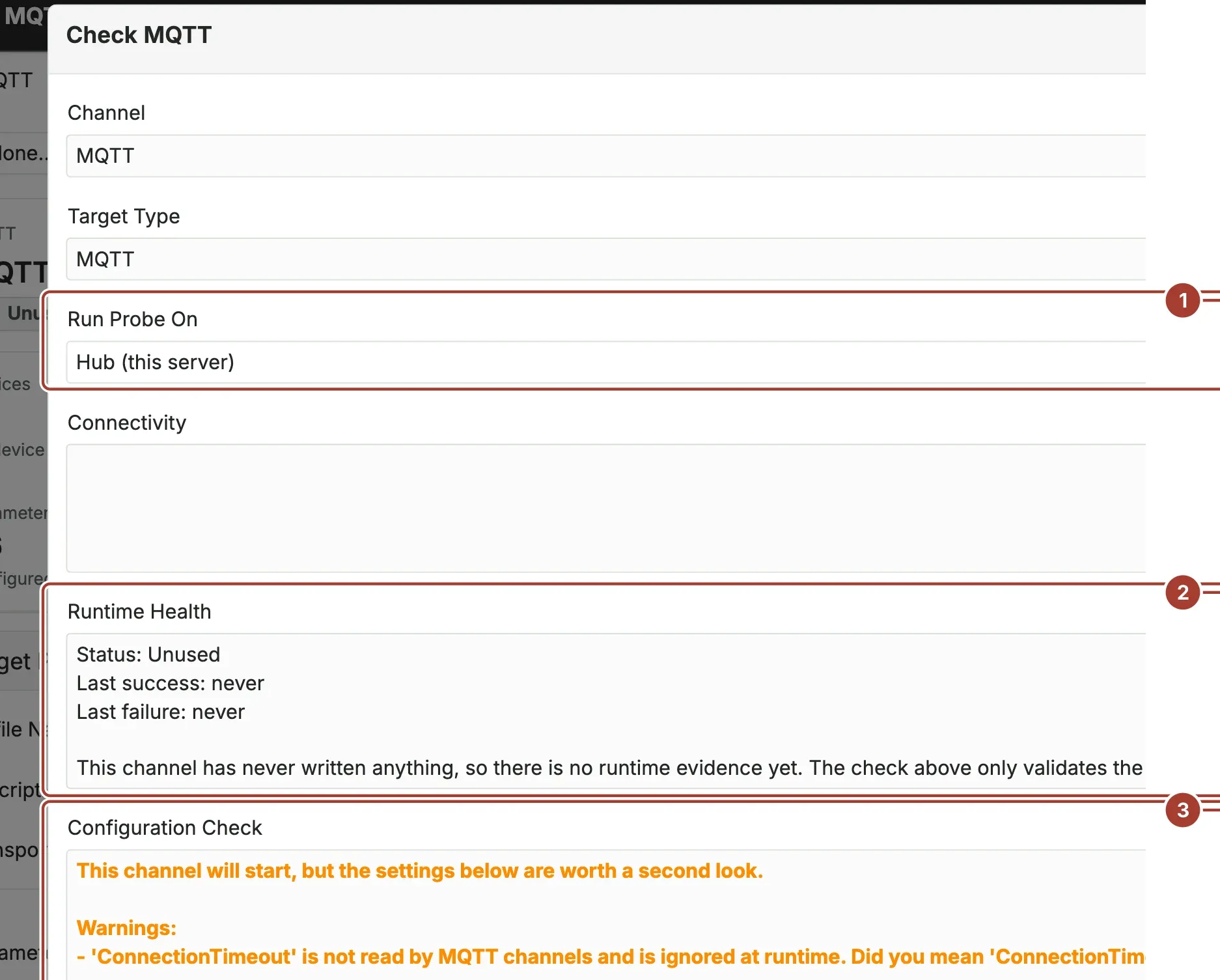
- Run Probe On: where the test runs from: Hub (this server) or one of the edge gateways. Choose the gateway that will send the data, because a target that only the plant network can reach fails from the hub.
- Runtime Health: the target's status and its last success, failure and error, from real deliveries.
- Configuration Check: whether every parameter this target type reads is present and well formed. It lists Errors (the target cannot work), Warnings (worth a second look) and Notes. This check runs as soon as the window opens and does not contact the target.
- Test Connection connects to the target from the place chosen in point 1. It sends no data. The Connectivity box shows the result: authenticated, reachable only, or failed, and how long it took.
Step 3: Choose the devices
A device delivers to a target when the target is in its list of outbound targets. Add it in one of these ways:
- For many devices at once: in Connect > Devices, select the devices, then Targets > Add Target. Remove it the same way with Remove Target.
- For a new device: in the setup wizard, step Place and type, tick the target under Where does the data go?.
- For one device: on the device page, tab Delivery.
The target's Devices count goes up, and its Status turns green after the first delivery.
When a target is unreachable
Data is not lost while a target is down, restarting or unreachable. The gateway first writes the data to its own durable queue and removes it only after the target has taken it. When the target is back, the waiting data is written in order. This also holds when the target is unreachable while the gateway starts.
- How long data waits: the gateway's Buffer Retention (hours) (default 48 hours, up to 30 days). See Manage gateways.
- Status: while the target is unreachable, its error says how many queued messages are waiting at the gateway.
- Queued on the target page: how many records wait in the gateways' queues for the target, updated at most every 15 seconds, and how many the target refused and the queue skipped. The gateway table shows both per gateway.
- When no device on a gateway uses the target any more, that gateway stops sending to it. Its queued records are not counted under Queued: the page says how many the gateway keeps and until when (the gateway's buffer retention, 48 hours by default). They are sent if the target is used there again before then; after that they are removed.
- A record the target never accepts (for example a value too long for a database column) is skipped after a few attempts and named in the status, so the data behind it does not wait.
- Duplicates: rarely, a record that the target wrote but whose confirmation was lost is written twice. Nothing is lost.
When a target fails
- Last Error on the list and the target page shows the most recent error.
- Logs on the target page shows the delivery entries of this target in the system log.
- Check with Test Connection, run from the gateway that sends, tells a network problem from a sign-in problem.
Target types
These are the target types you can choose in Target Type. The parameters each one reads are listed in Outbound targets reference.
| Group | Target types |
|---|---|
| Proxus | System Database (the built-in historian) |
| Relational databases | Microsoft SQL Server, PostgreSQL Database, MySQL Database, Oracle Database, IBM DB2, SAP HANA, Firebird Database, SQLite Database, Microsoft Access, Adaptive Server Enterprise, SQL Anywhere, Advantage Database, Pervasive Database, VistaDB |
| Time series and analytics | InfluxDB, TDengine, ClickHouse, Splunk |
| Messaging | MQTT, SparkplugB, Kafka Messaging System, RabbitMQ Messaging System, Redis Database |
| Cloud | AWS IoT Core, Azure IoT, Azure Data Lake Gen2 |
| Other | REST API, XML File |
What's next
- Outbound targets reference: the parameters of each type.
- Pipelines: transform data before it is sent.
- Troubleshoot data: data missing in a target.
Was this page helpful?
Evaluating Proxus? See it on your own machines in a 30-minute technical session.