Reference · for Operators, Engineers
The device page
What the device page shows about one machine: its status, live values and trends, value history, delivery to targets, diagnostics and logs.
Every device has a page that shows whether it is connected and what it is reading. Open it from Connect > Devices by selecting the device's row, or from Open the device at the end of the setup wizard.
The page has three parts, from top to bottom: a summary, a row of tabs, and a Configuration section that is closed until you open it.
Summary
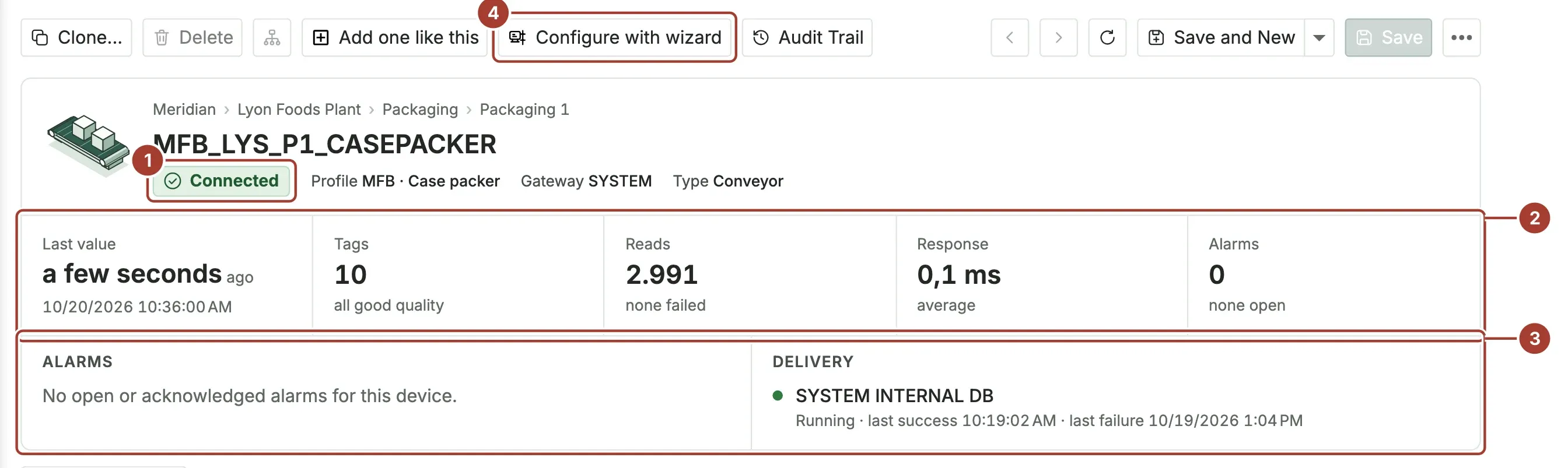
- Status, next to the device's profile, gateway and type. Above the name is the device's place, from enterprise down to equipment module. Point at the status to see the gateway's full status text.
- Five figures:
- Last value: when the gateway last received a value from the device.
- Tags: how many tags the device has, and whether all of them have good quality.
- Reads: how many reads succeeded, and how many failed.
- Response: the device's average response time.
- Alarms: how many alarms are open for the device.
- Alarms lists up to five open or acknowledged alarms of this device. Delivery lists the outbound targets that receive its data, each with its state and the time of its last success and last failure.
- The toolbar. See Actions below.
Status
| Status | Meaning |
|---|---|
| Connected | The gateway reads the device and every tag. |
| Warning | The device is connected, but some tags cannot be read. |
| Protocol Issue | The device answers but reports a protocol error, a wrong address or data type, or does not answer in time. |
| Retrying | The connection was lost and the gateway tries again shortly. |
| Error, Critical | The gateway cannot connect: the address cannot be reached, the connection is refused, or sign-in failed. |
| Gateway Offline | The gateway that reads the device is not connected to the hub. |
| Offline, Sleep Mode | The device has stopped sending data. |
| Stopped, Disabled | The device is not active, so the gateway does not read it. |
| Info, Unknown | No status has been reported yet. |
When a device is not connected, its logs usually say why. For the common causes, see Troubleshoot devices.
Tabs
Live values
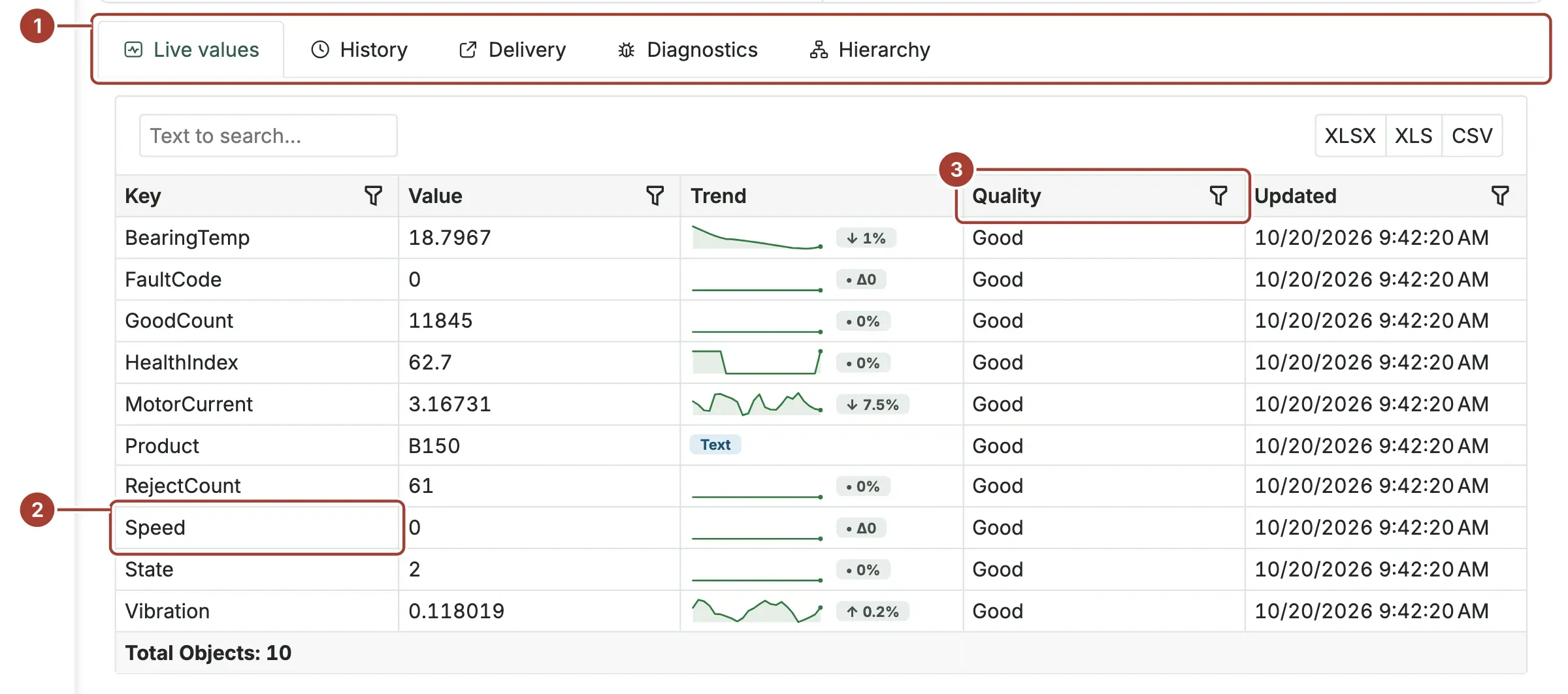
- The tabs: Live values, History, Delivery, Diagnostics and Hierarchy.
- One row per tag, updated as values arrive. Select a row to open its trend.
- Quality is Good, Uncertain or Bad. Rows that are not good are highlighted.
The columns are Key (the tag name), Value, Trend (a small chart of the recent values and the change, or Text for a text tag), Quality and Updated. Use the search box to find a tag, and XLSX, XLS or CSV to save the table as a file.
Trend of one tag
Selecting a row opens a panel with the tag's recent values.
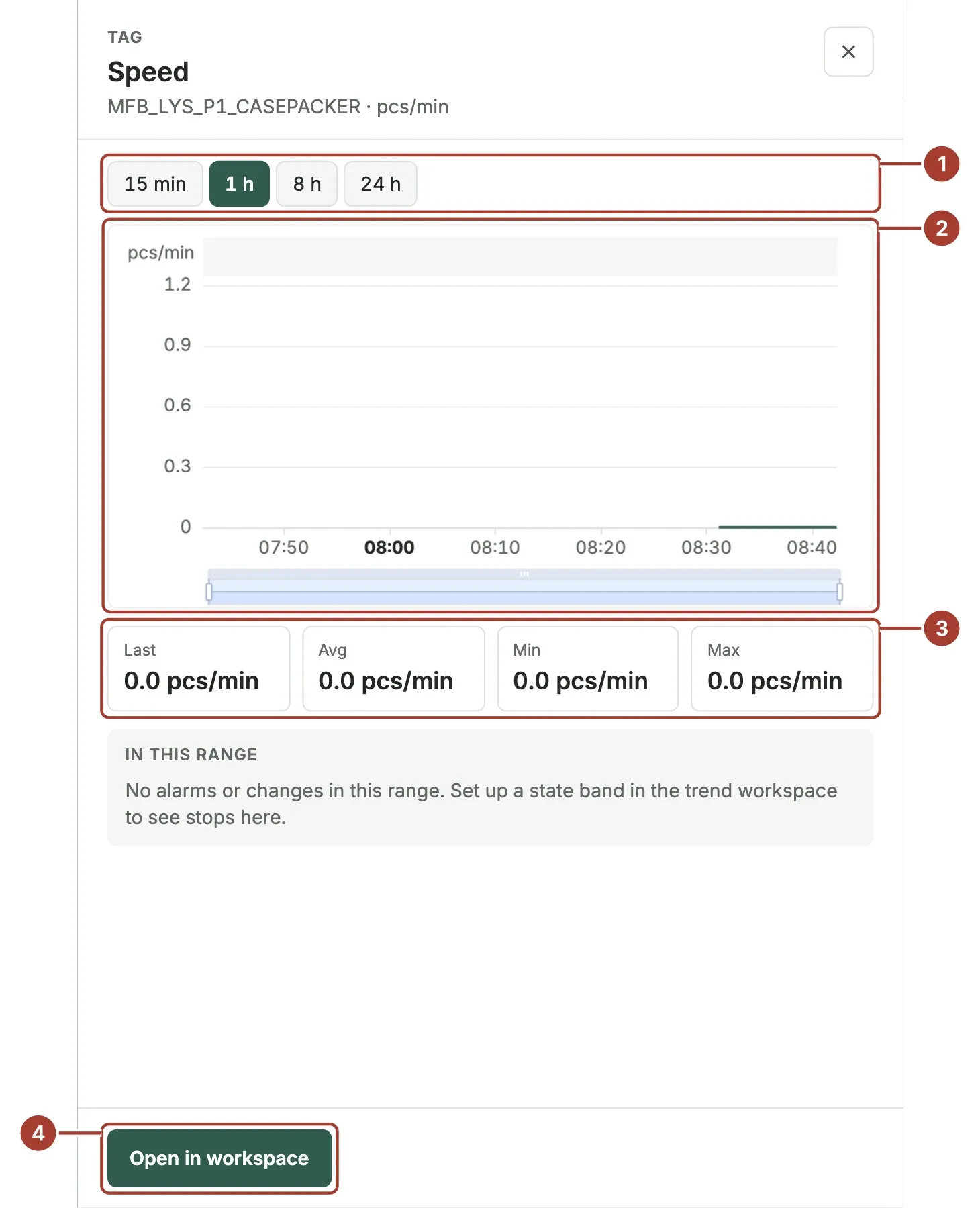
- The time range: 15 min, 1 h, 8 h or 24 h.
- The chart. Drag the handles under the chart to look at part of the range.
- Last, Avg, Min and Max for the range.
- Open in workspace opens the same tag in the Trend Workspace, where you can compare it with other tags.
Under In this range, the panel lists stops, alarms and configuration changes that happened in the range. Stops are shown only for a device that has a machine state tag. Close the panel with the close button or the Escape key.
History
The values the device sent most recently, one row per value: Time, Key, Type, Value and Quality. This is the history of the values, not of changes to the device; for changes, use Audit Trail.
Delivery
The outbound targets that receive this device's data. To add or remove targets for many devices at once, use Targets in the device list. See Outbound targets.
Diagnostics
Counters kept by the gateway for this device, as Key and Value: last communication and last data time, successful and failed operations, average response time, connection errors, the number of values processed, and data quality figures.
Hierarchy
The device's place: Enterprise, Site, Area, Process cell, Equipment module and Group. The place decides where the device appears in the Unified Namespace.
Configuration
Open Configuration at the bottom of the page to see the device's own fields: name, device type, device profile, gateway, Active, attributes and image. Clearing Active stops the gateway from reading the device; the change is saved at once.
To change the connection or the place, use the setup wizard instead: it tests the connection before it saves.
Actions
| Action | What it does |
|---|---|
| Configure with wizard | Opens the setup wizard with this device's settings. See Change a device. |
| Add one like this | Starts a new device with the same profile, gateway and place. Only the name and the address are asked. |
| Audit Trail | Who changed what on this device, and when. |
| Clone... | Copies the device's record. |
| Delete | Deletes the device. A device that is active cannot be deleted: clear Active first. |
| Dependencies (under ...) | Shows what uses this device's tags: rules, pipelines, dashboards and others. |
| Query (under ...) | Opens a query window for the device's stored values. |
| Logs (under ...) | Shows the system log entries for this device. Select an entry to read the whole message. |
What's next
Was this page helpful?
Evaluating Proxus? See it on your own machines in a 30-minute technical session.