How-to guide · for Administrators
Certificates
The Certificate Store is the platform's certificate authority. Renew and trust certificates, use your corporate CA, and choose the hub's HTTPS certificate.
At the end of this guide, you know where every certificate of your Proxus installation comes from, how to make browsers and devices trust it, and how to renew or replace it. The Certificate Store keeps all certificates in the hub's database and acts as the platform's own certificate authority (CA), so the hub, every edge gateway, your OPC UA connections and your outbound targets use the same certificates.
Before you start
- Sign in with a user that has the Administrators role.
- To use your organization's CA: the CA certificate with its private key as a
.pfxor.p12file (a password is allowed). - For a single certificate from your own certificate authority: the certificate and its private key, as a
.pfxor.p12file without a password, or as a.pem,.crtor.cerfile with a.keyfile.
The platform CA
On its first start, the hub creates the Proxus Platform CA, valid for 20 years. Every certificate the platform needs for itself is issued by it:
- the hub's HTTPS certificate (on new installations);
- the certificate of the hub's NATS server, which carries all traffic between the hub and the edge gateways;
- each edge gateway's certificate, for its HTTPS port and its MQTT broker.
Because all of them chain to one CA, a browser, SCADA system or MQTT device needs to trust only that CA. Select Download CA to get it (see Make browsers and devices trust the platform).
What the certificates are used for
| Use | Where it comes from |
|---|---|
HTTPS for the hub's web interface (port 8443) | The certificate marked Default. On new installations it is issued by the platform CA. |
The hub's NATS server (ports 4222, 7422 and, on Kubernetes HA, 6222) | Proxus Hub NATS, issued and renewed automatically. |
Each edge gateway's HTTPS port and MQTT broker (port 8883) | "gateway name (gateway N)", issued by the hub when the gateway asks for it. |
| Proxus's own certificate when it connects to an OPC UA server, and the OPC UA servers it trusts | The OPC UA connection settings of a device profile, and the store's trust list. See OPC UA. |
| Client certificates and trusted server certificates of outbound targets | Client Certificate and Trusted Server Certificate on the target. See Outbound targets. |
The Certificate Store
Go to Security > Certificate Store.
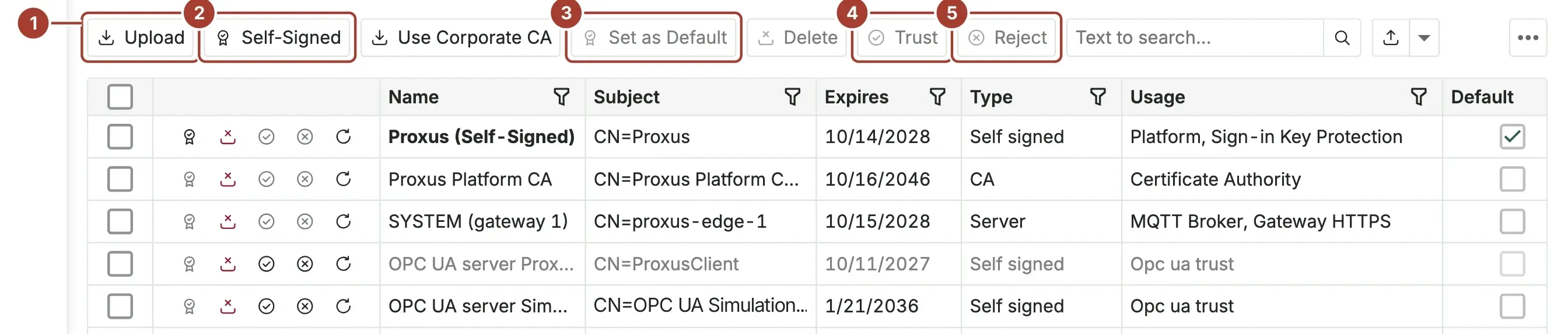
- Upload imports a certificate file.
- Self-Signed creates a new self-signed certificate.
- Set as Default makes the selected certificate the hub's HTTPS certificate. Only a server certificate with its private key can be the default; the button is unavailable on the others.
- Trust marks the selected certificate as trusted for OPC UA.
- Reject marks it as rejected, so it is no longer used.
Trust and Reject work only on certificates of OPC UA servers: certificates whose private key is not in the store and that the platform does not use itself. On the Platform CA, the hub's HTTPS and NATS certificates, the gateways' certificates and the sign-in key certificate the buttons are unavailable, and a gateway's report of an OPC UA server cannot change them either.
The store also has these actions:
| Action | What it does |
|---|---|
| Use Corporate CA | Makes your organization's CA sign the platform's certificates from now on. See Use your corporate CA. |
| Download CA | Downloads the CA certificates (public certificates only, PEM format, no private key) to install as trusted elsewhere. |
| Renew | Replaces one selected certificate with a new one from the platform CA. See Renew a certificate. |
| Refresh | Checks the expiry dates now. |
| Delete | Deletes the selected certificate after you confirm. See Certificates that cannot be deleted. |
Trust View shows All, only Trusted or only Rejected certificates. The Status column shows Active, Expiring soon (less than 30 days left), Expired or Disabled (rejected). Proxus checks the dates once a day and writes a warning to the system logs for every certificate that expires within 30 days.
The Usage column names everything the certificate is for, for example MQTT Broker, Gateway HTTPS.
Certificates on a new installation
A new hub creates these on its first start. You do not need to add any of them:
| Certificate | What it is for |
|---|---|
| Proxus Platform CA | Signs the platform's certificates. |
| Proxus Data Protection | Protects the hub's sign-in keys. |
| Proxus Hub HTTPS | The hub's web interface on port 8443. |
| Proxus Hub NATS | The hub's message server. |
| SYSTEM (gateway 1) | The built-in gateway's HTTPS and MQTT broker. Every gateway you install gets one like it. |
Previous versions of renewed certificates
The list shows the certificates in use. When a certificate is renewed, its previous version is kept for 30 days and then deleted automatically, unless an outbound target or a device profile still uses it. Deleting a gateway also deletes its certificates.
What a certificate is used by
Open a certificate to see its details. These fields tell you what depends on it:
| Field | What it shows |
|---|---|
| Used By | Everything that uses this certificate, for example "Signs the platform's certificates", "Trusted by every platform service", "Hub HTTPS", "Protects the hub's sign-in keys", "Hub NATS server", "Gateway 2: connection to the hub, HTTPS, MQTT broker", "OPC UA client identity", "Trusted OPC UA server", "Rejected OPC UA server", or the names of the outbound targets that use it as client certificate or trusted server certificate. |
| Signs Platform Certificates | Ticked on the CA that issues the platform's certificates. |
| Renewed Automatically | Ticked on certificates the platform issued and renews by itself. |
| Usage | What the certificate is for, for example Platform, NATS Server, NATS Client, MQTT Broker, Gateway HTTPS, Certificate Authority or Sign-in Key Protection. |
Check Used By before you reject or replace a certificate.
Certificates that cannot be deleted
The store refuses to delete:
- the CA that signs the platform's certificates;
- the certificate that protects the hub's sign-in keys;
- a CA whose certificates are still in use;
- any certificate an outbound target or a device profile uses.
The default HTTPS certificate cannot be deleted either. Make another one the default first.
Make browsers and devices trust the platform
- In Security > Certificate Store, select Download CA. You get a PEM file with the CA certificates. It has no private key, so you can hand it out freely.
- Install it as a trusted root certificate where it is needed: on users' computers (or through your company's device management), in SCADA systems and other tools that call the hub, and on MQTT devices that connect to a gateway's broker on port
8883.
Browsers then open the hub over HTTPS without a warning, as long as the address they use is one of the names in the hub's certificate (see The hub's HTTPS certificate).
Use your corporate CA
If your organization runs its own certificate authority, let it sign the platform's certificates. Clients that already trust your corporate CA then trust Proxus without any extra step.
- Select Use Corporate CA.
- Choose the CA file: a
.pfxor.p12file with the CA certificate and its private key. Enter its password if it has one. - Confirm.
From then on, your CA signs every certificate the platform issues. The Proxus Platform CA stays trusted until the certificates it issued are renewed, so nothing stops working in between. To move everything to your CA at once, renew the existing certificates.
The store refuses a file that is not a CA, that has no private key, or that expires within 30 days.
Renew a certificate
- Select one certificate.
- Select Renew and confirm.
The new certificate comes from the platform CA. It has the same names and usage as the old one, a new key, and a validity of two years. Everything that used the old certificate moves to the new one: the hub's HTTPS, outbound targets and OPC UA connections.
- A self-signed certificate is renewed into one issued by the platform CA.
- A certificate issued outside Proxus cannot be renewed here. Renew it where it was issued and upload it again.
- A CA is not renewed here.
Automatic renewal
Certificates the platform issued itself (the hub's NATS certificate, the gateways' certificates, and the others marked Renewed Automatically) are renewed 30 days before they expire. The hub checks once a day. Nothing has to be restarted: the hub's NATS server loads its new certificate while gateways stay connected, and each gateway gets its new certificate the next time it asks.
The hub's HTTPS certificate
The hub serves HTTPS on port 8443 by default, with the certificate marked Default.
On a new installation, the hub's certificate is issued by the platform CA and covers:
- the machine's name and its IP addresses;
localhost;- the names you list in
[Service]PublicHostNamesinProxus-config.toml(separated by commas), for example the DNS name users type or the address of a NAT.
[Service]
PublicHostNames = "proxus.lyonfoods.local, 203.0.113.10"
An installation upgraded from an earlier version keeps its self-signed Proxus (Self-Signed) certificate. To get one that browsers trust once they trust the platform CA, select it and select Renew. The renewed certificate covers the hub's names.
Change the hub's HTTPS certificate
- Generate, upload or renew the new certificate. It must be a server certificate with its private key. A CA, a client certificate and the platform's own NATS, gateway and sign-in certificates cannot be the default.
- Select it and select Set as Default, then confirm with Set as default.
The hub uses the new certificate within a minute. You do not restart anything, and nobody is signed out: the keys that protect sign-ins are protected by a separate certificate (usage Sign-in Key Protection), not by the HTTPS certificate. An upgraded installation keeps its current default certificate for that purpose.
How to turn HTTPS off, send all HTTP traffic to HTTPS, or publish HTTPS on another port is in Security.
Protect the store's private keys
The private keys in the store are kept encrypted. The key that decrypts them is not in the database:
| Installation | Where the store key is |
|---|---|
| Docker | keys/STORE/certificate-store.key in the config folder (the config volume). |
| Kubernetes HA | keys/STORE/certificate-store.key on the hub's shared config disk. |
| Any | Or the environment variable PROXUS_CERTIFICATE_STORE_KEY (a base64 value of 32 bytes), which you manage yourself. |
Certificates stored by an earlier version are encrypted automatically a few minutes after the first start of 2.0.0.
Generate a self-signed certificate
Use a self-signed certificate for tests, or where every client is told to trust it. Browsers show a warning for a self-signed certificate. In most cases, a certificate from the platform CA is the better choice.
- Select Self-Signed.
- Fill in the dialog and select Generate.
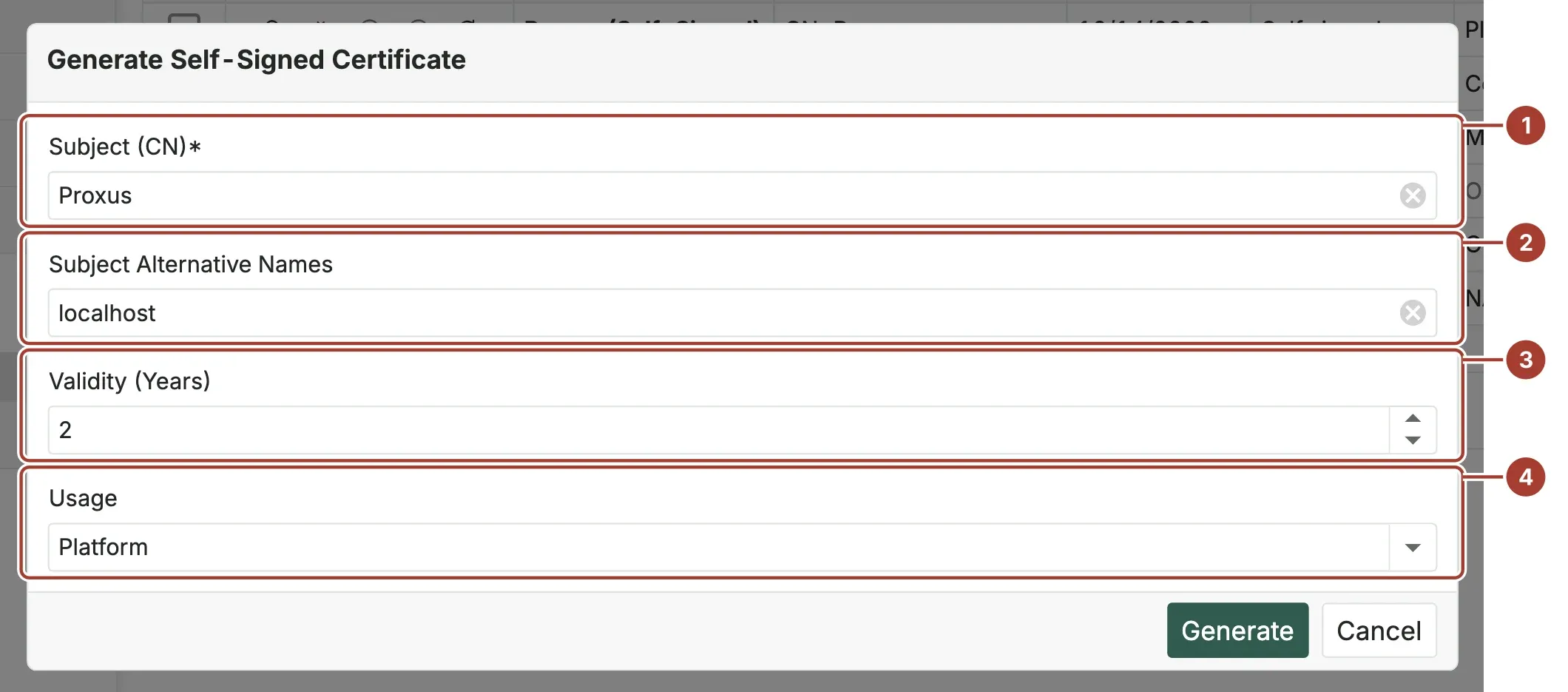
- Subject (CN): the certificate's name, for example
proxus.lyonfoods.local. - Subject Alternative Names: every name and IP address clients use to reach the hub, separated by commas, for example
proxus.lyonfoods.local, 10.20.0.15. The subject andlocalhostare always added. - Validity (Years): from 1 to 10. The default is 2.
- Usage: what the certificate is for. Platform is the hub's own use.
The certificate gets a 2048-bit RSA key and is listed as "subject (Self-Signed)". To turn it into one issued by the platform CA later, select it and select Renew.
Upload a certificate from your certificate authority
To use one certificate from your company's certificate authority, for example for the hub's HTTPS, upload it. Make sure the hub's DNS name is in its subject alternative names.
- Select Upload.
- Choose the files: one
.pfxor.p12file, or a.pem,.crtor.cercertificate together with its.keyfile. A file whose name containscais read as the certificate authority's chain. - The certificate appears in the list. A certificate that is already in the store is refused with "Certificate already exists".
A .pem, .crt or .cer file without a key is imported as a public certificate only. You can trust it, or choose it as an outbound target's Trusted Server Certificate, but you cannot make it the default.
Trust or reject an OPC UA server certificate
Proxus connects only to OPC UA servers whose certificate is trusted. The trust list lives in the Certificate Store and applies to every gateway: each gateway copies it every minute, so a Trust or Reject here takes effect on all gateways within a minute.
Trust a server that was refused
When a gateway meets an OPC UA server certificate it does not trust, it refuses the connection and reports the certificate to the hub.
- In Security > Certificate Store, set Trust View to Rejected.
- Find the certificate. It is named "OPC UA server name (address)".
- Check that you recognise the server, then select the certificate and select Trust.
The refused devices connect on their next retry.
Other ways a server certificate becomes trusted:
- The Trust step of the device connect wizard records the server's certificate as trusted in the store, for every gateway.
- Trust Server Certificate on a device accepts the server's certificate at the first connection and records it in the store as trusted. You see it in the list and can revoke it with Reject. It does not re-open a certificate that the store has rejected.
Trust decisions made locally on a gateway before 2.0.0 no longer count. Devices with security mode None do not use certificates and are not affected.
Pin a server certificate on a device profile
To bind a profile to one server certificate, bring the certificate into the store and choose it.
- Get the server's certificate file (usually a
.der,.ceror.pemfile from the server's own certificate folder) and convert it to.pem,.crtor.cerif needed. - Select Upload and choose the file. It is imported as a public certificate.
- Select it and select Trust.
- In the device profile's OPC UA connection settings, choose it as the trusted server certificate. See OPC UA.
Stop trusting a certificate
Select it and select Reject. Rejected certificates show Disabled and are no longer used. Use Trust View to list them.
What's next
Was this page helpful?
Evaluating Proxus? See it on your own machines in a 30-minute technical session.