How-to guide · for Engineers
Add a device
Connect one machine with the setup wizard. Pick the protocol, test the connection, add tags, place the device and watch its first values arrive.
At the end of this guide, a new device is running in Proxus and you can see its live values. The setup wizard takes you through five steps. Nothing is saved until the last one, so you can go back and change anything on the way.
Before you start
You need:
- An edge gateway that can reach the machine on the network. The hub's own gateway, SYSTEM, works for machines on the hub's network. A gateway shows Connected when it is online.
- The machine's address (IP address or host name) and, if it is not the protocol's usual one, its port.
- The list of values you want to read and where they are in the machine (register numbers, PLC tag names, OPC UA nodes). A spreadsheet or the PLC's tag table is ideal: you can paste it.
- A user role that may create devices.
Open the wizard
Go to Connect > Devices and select New (1).
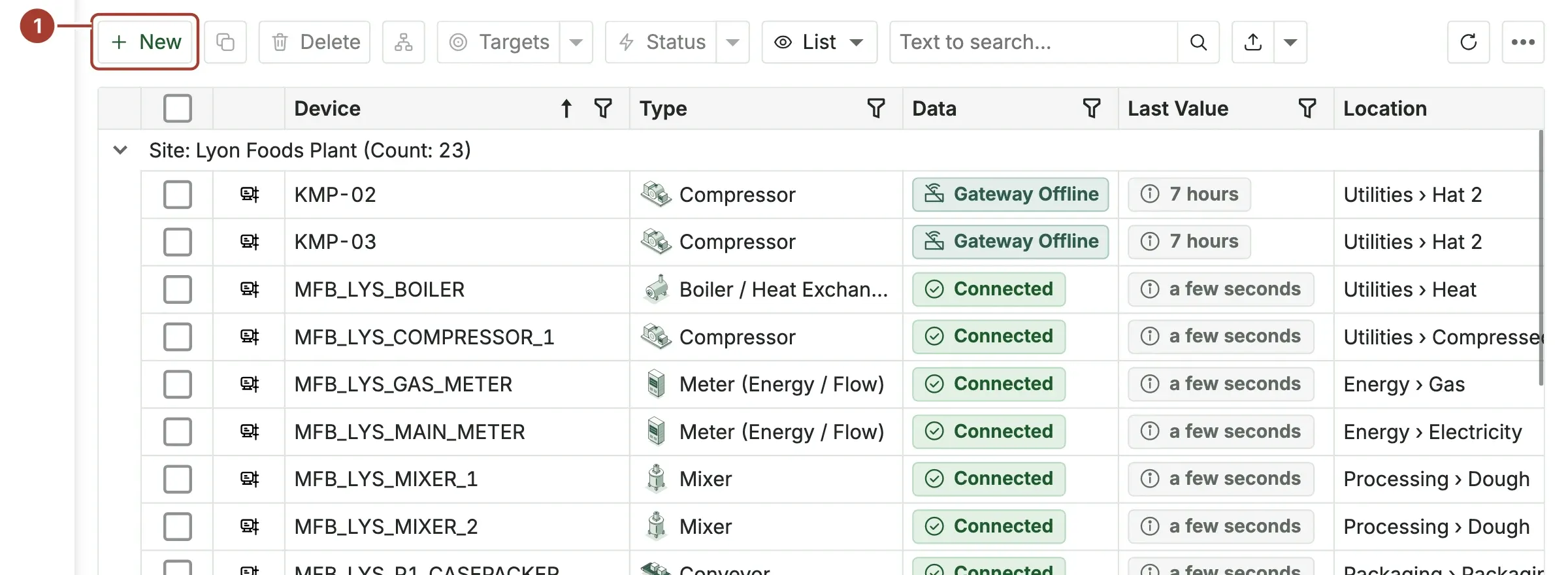
The wizard opens in its own tab. If you left a wizard unfinished earlier, it asks whether to Carry on with that draft or Start over.
Step 1: Protocol and gateway
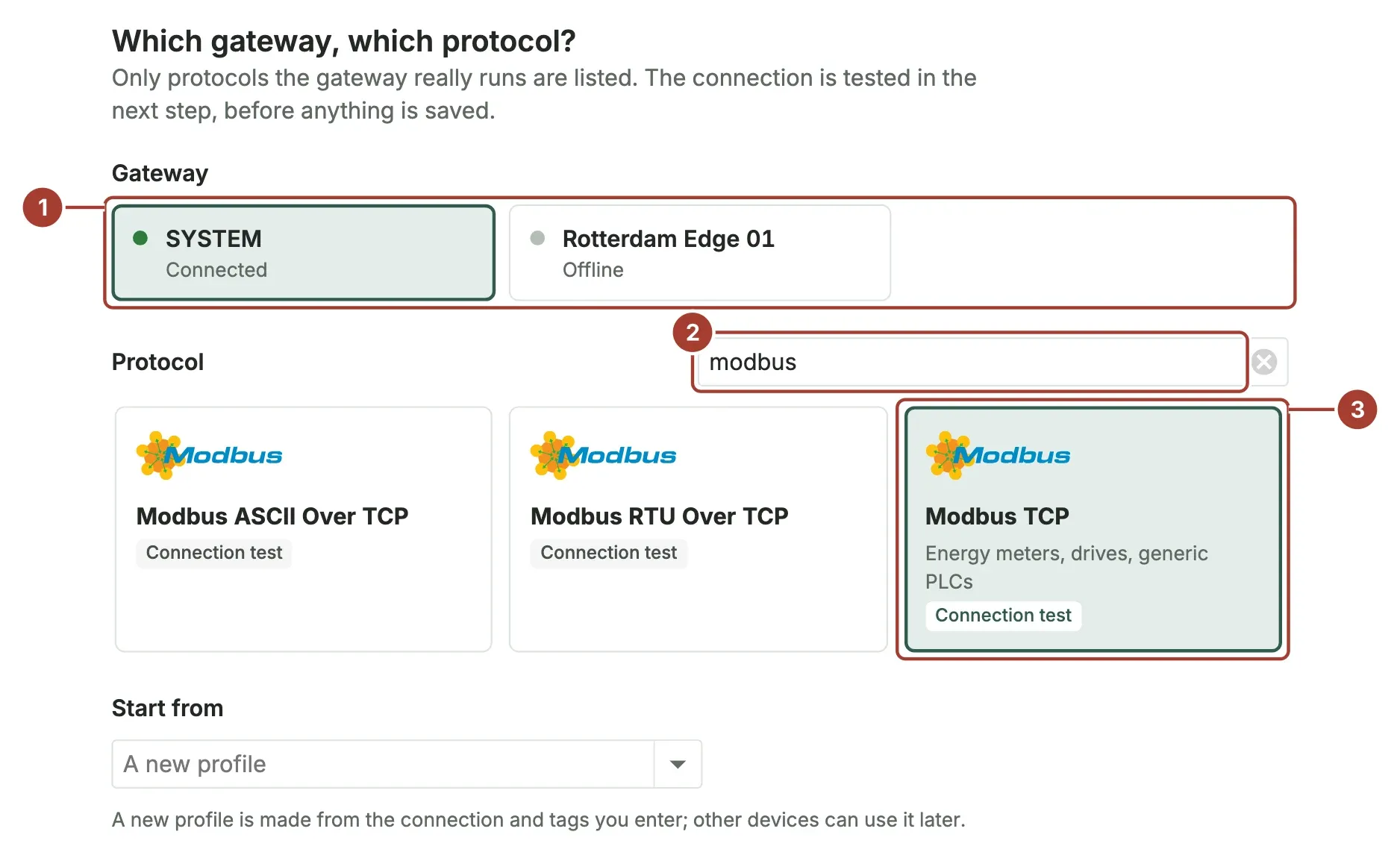
- Choose the gateway that will read the device. The connection is tested from this gateway, so pick the one that is on the machine's network.
- Find the protocol. The most common ones are shown first; type a protocol or a vendor name in the search box to see the rest ("modbus", "s7", "melsec", "fanuc").
- Select the protocol's card. Only protocols the gateway can run are listed. Then select Next: Connection at the bottom of the wizard.
Step 2: Connection
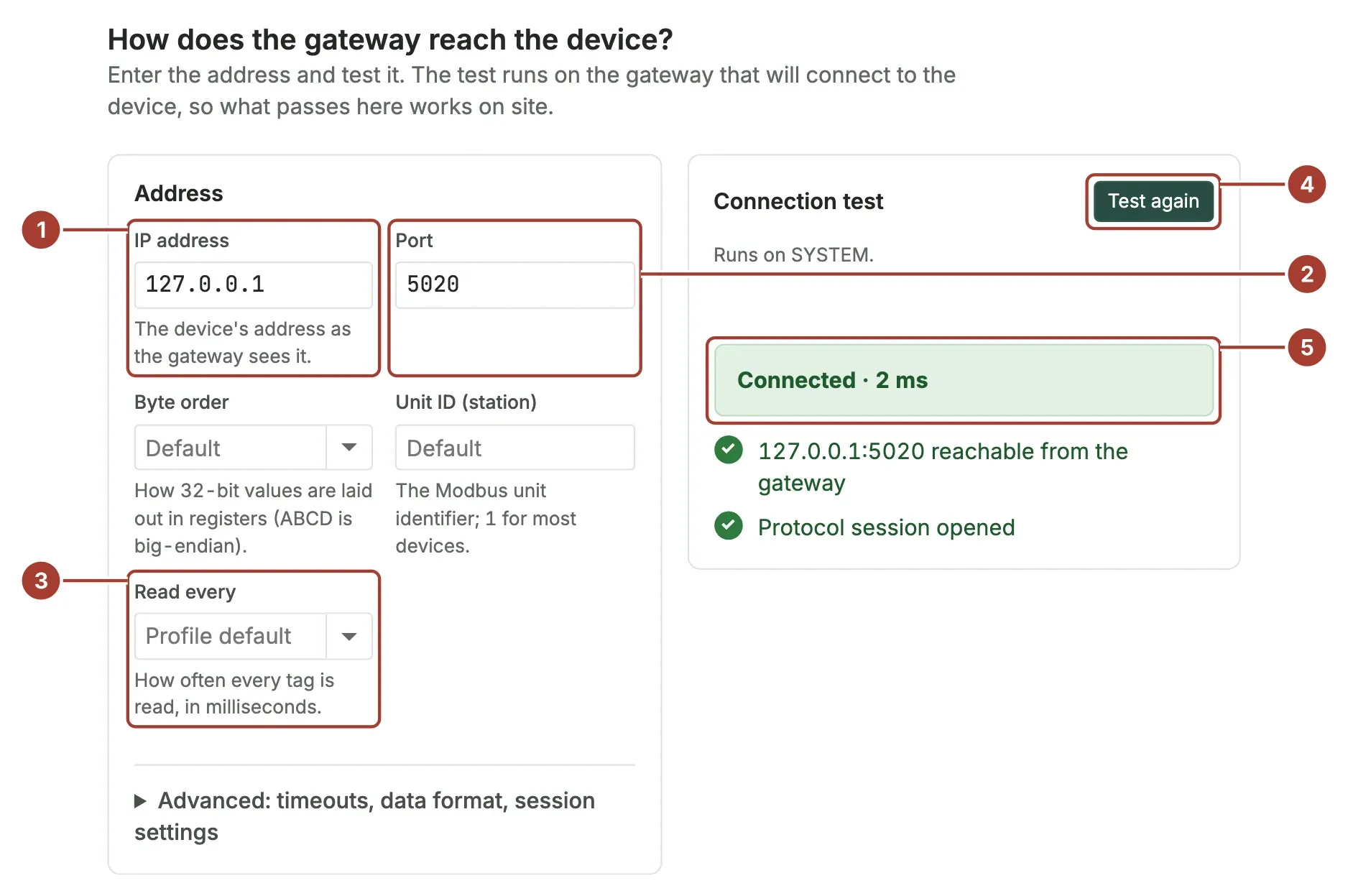
- Enter the IP address of the machine, as the gateway sees it.
- Enter the Port, or leave it empty to use the protocol's usual port (for example 502 for Modbus TCP, 102 for Siemens S7, 44818 for EtherNet/IP).
- Read every sets how often all tags of this device are read. Leave Profile default unless you have a reason to read faster or slower.
- Select Test the connection. The gateway itself tries to reach the machine, so a test that passes here also works in production.
- The result shows each check: whether the gateway reached the address, and whether the machine accepted the protocol session.
Protocol-specific settings (byte order, unit ID, rack and slot, security) are shown with the address, and less common ones under Advanced. Each field explains itself underneath.
Select Next: Tags.
Step 3: Tags
A tag is one value you read from the machine: a speed, a temperature, a counter, a state. Add them in the way that suits you, using the tabs at the top of the step:
| Tab | Use it when |
|---|---|
| Table | You type a few tags by hand. |
| Paste | You have the tags in a spreadsheet or a PLC tag table. |
| From file | You have a .csv or .xlsx file, such as a TIA Portal "PLC tags" export. |
| From another profile | Another machine of the same kind already has its tags in Proxus. |
| From the device | The protocol can list the device's values for you (OPC UA, SNMP, MTConnect, Allen-Bradley). |
Paste tags from a spreadsheet
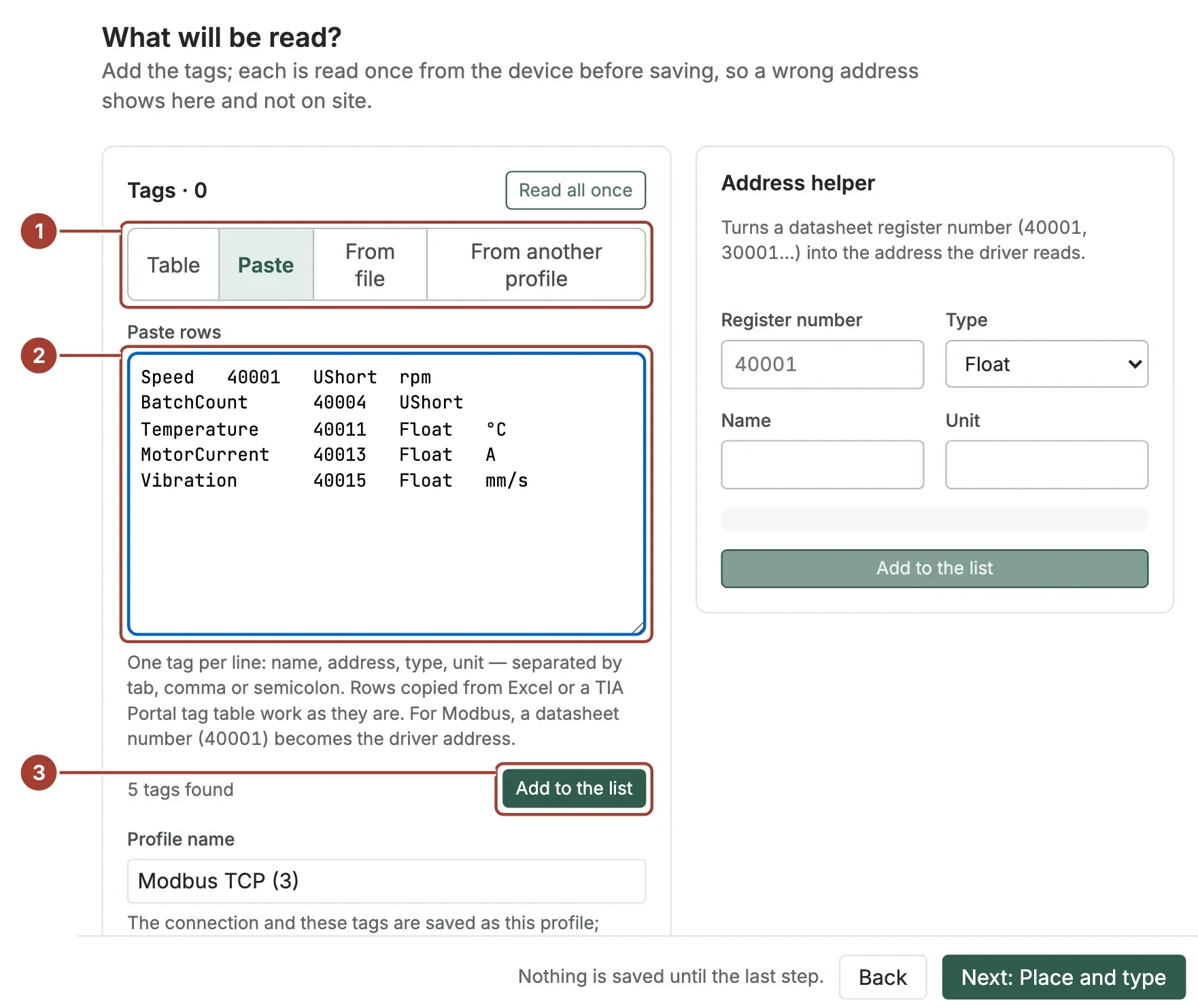
- Select the Paste tab.
- Paste one tag per line with the columns name, address, type, unit, separated by tabs (as Excel copies them), commas or semicolons. A header row is skipped.
- Select Add to the list.
For example:
Speed	40001	UShort	rpm
BatchCount	40004	UShort
Temperature	40011	Float	°C
MotorCurrent	40013	Float	A
For Modbus, a register number from a datasheet becomes the address the driver reads: 40001 becomes x=3;0 (holding register 0), 30001 becomes x=4;0 (input register 0), 10001 becomes x=2;0 (discrete input) and 1 becomes x=1;0 (coil).
For Siemens, use From file with a TIA Portal "PLC tags" export: its addresses (such as %MW10) become the addresses the driver reads (M10), and the name, data type and address columns are found by their headers.
Check the tags against the device
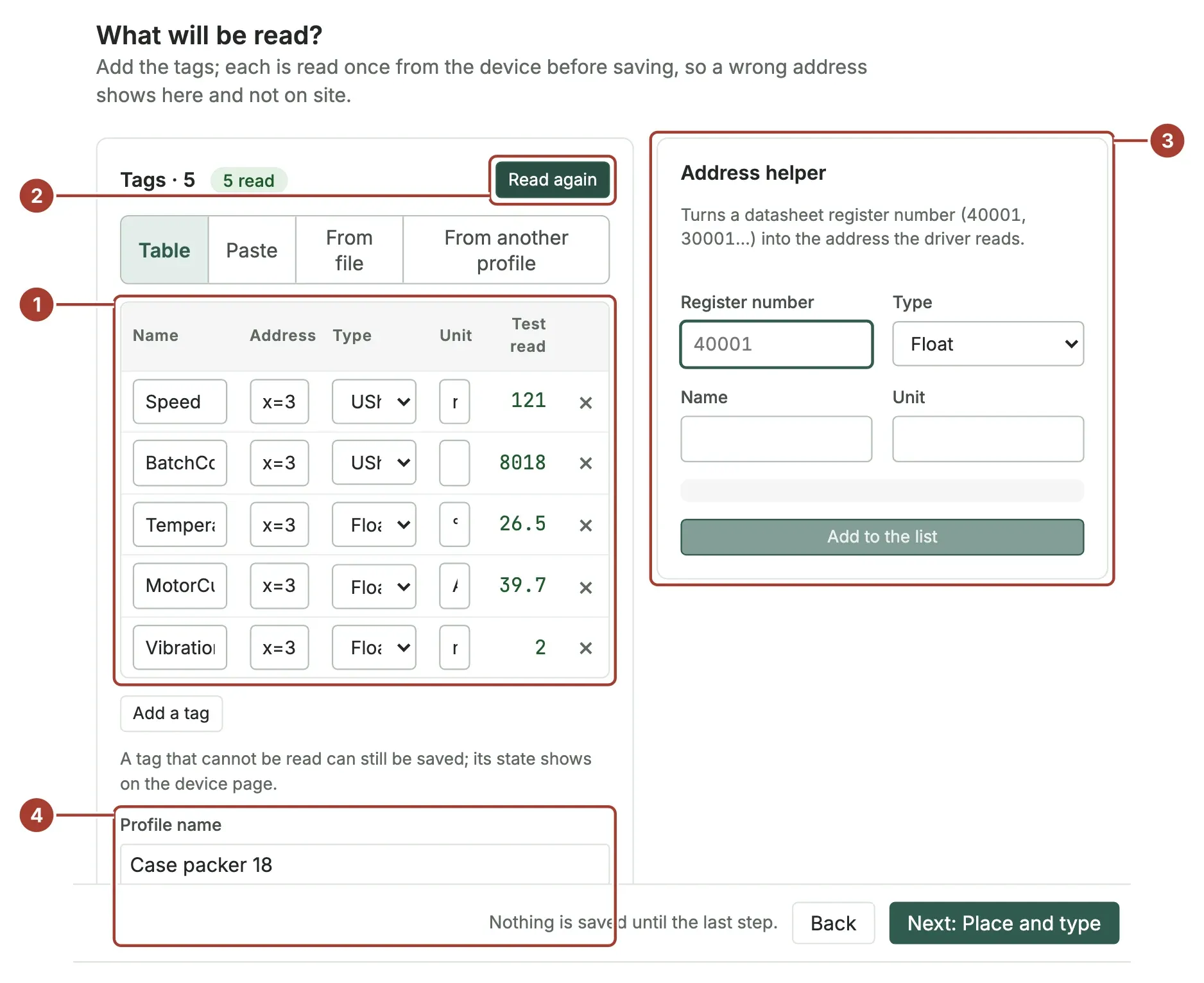
- Check the table: name, address, type and unit of each tag. Fix anything directly in the table.
- Select Read all once. The gateway reads every tag one time and shows the value next to it. A wrong address shows its error on the row, here and not later on site.
- The Address helper builds an address from its parts (a register number for Modbus; data block, offset and bit for Siemens) so it cannot be mistyped. Fill it in and select Add to the list.
- Profile name: the connection and these tags are saved as a device profile under this name, so other devices of the same kind can use them later.
Select Next: Place and type.
Step 4: Place and type
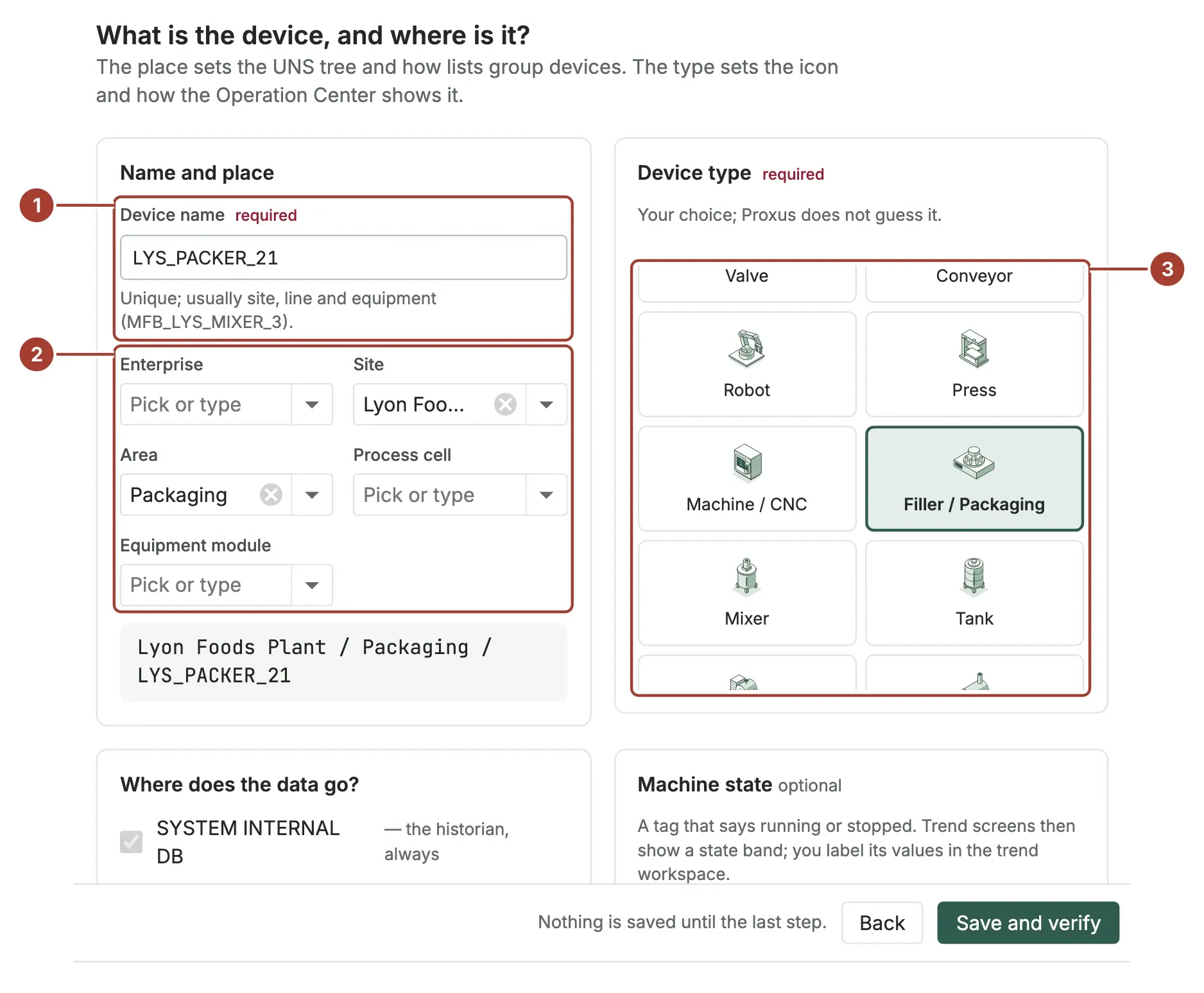
- Device name: a unique name. Most plants use site, line and equipment, for example
LYS_PACKER_04. If your administrator turned on a naming rule, the field tells you the expected pattern. - Place: where the device sits, from Enterprise down to Equipment module. All levels are optional. Select a field to pick a value already in use, or type a new one. Each list only offers values under what you chose above it. The place decides where the device appears in the Unified Namespace.
- Device type: what the machine is. Proxus does not guess it; the type sets the device's icon and how the Operations Center shows it.
Then select Save and verify.
Further down the same step:
- Where does the data go? The Proxus historian (SYSTEM INTERNAL DB) is ticked and cannot be unticked here, so the values of a new device are stored. Tick any outbound target that should also receive it (a database, a broker, a cloud service). You can change this later.
- Machine state (optional): a tag that says whether the machine is running. Trend screens then show a state band behind the values.
Step 5: Verify
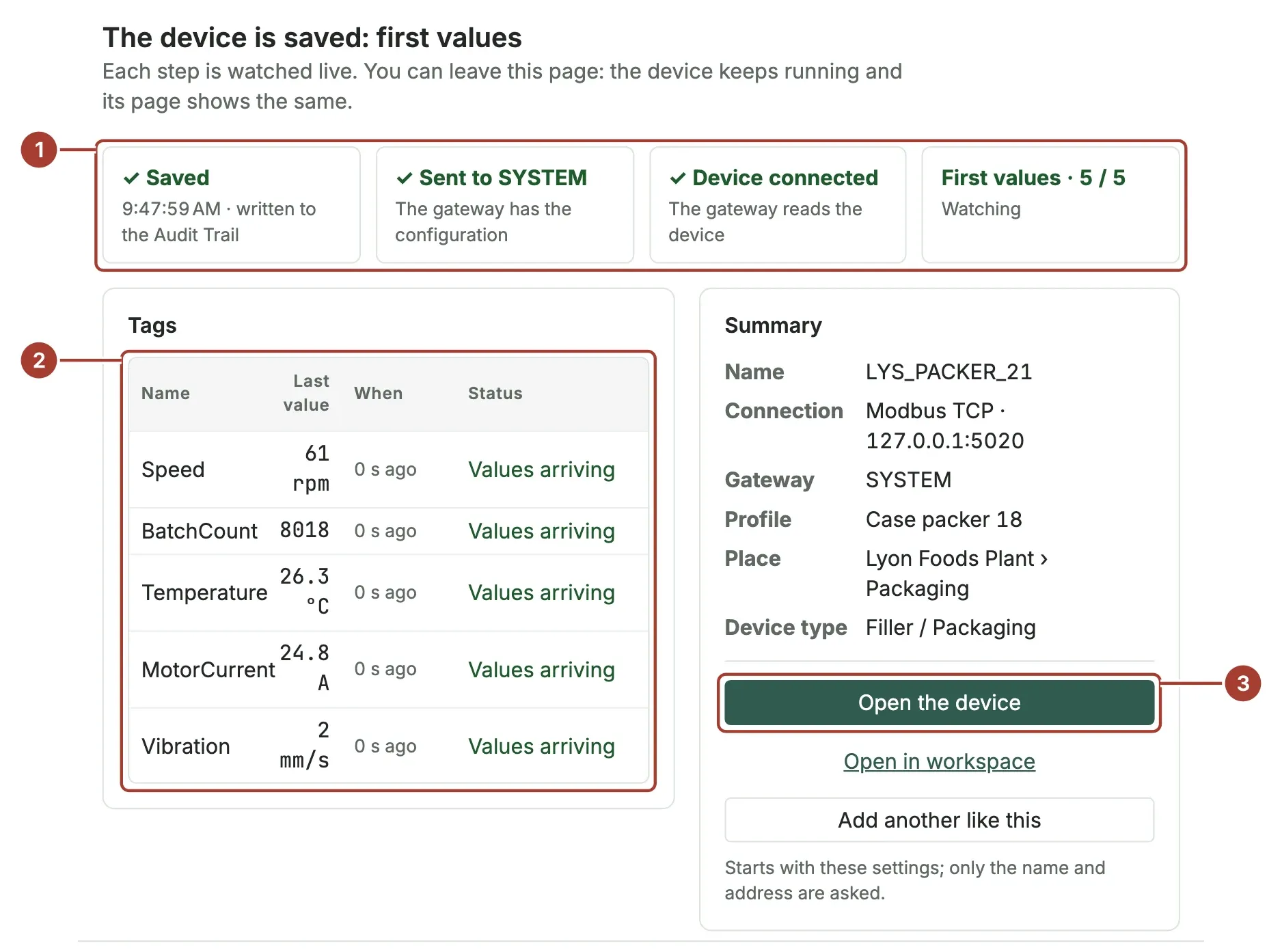
The wizard saves the device and follows it live:
- Four stages turn green in order: Saved (the change is written to the audit trail), Sent to the gateway, Device connected, and First values.
- Each tag shows its first value and how long ago it arrived.
- Select Open the device to see its page, or Add another like this to set up a similar machine with the same settings.
You can leave this page at any time; the device keeps running.
Change a device later
Open the device and select Configure with wizard. The same five steps open with the device's current settings, every step can be visited directly, and saving updates the device instead of creating a new one.
What's next
- The device page: watch the device's status and live values.
- Device profiles: keep the shared settings of machines of one kind.
- Import devices: add many devices at once from a spreadsheet.
- Outbound targets: send the device's data to your own systems.
Was this page helpful?
Evaluating Proxus? See it on your own machines in a 30-minute technical session.