How-to guide · for Administrators
Install Proxus with Docker
Run the Proxus hub, its databases, its message server and the built-in edge gateway with Docker Compose on one machine, then sign in.
At the end of this guide, Proxus runs on one machine with Docker Compose and you are signed in to the hub. This setup suits a trial, a demo or a small site. For production, read Run Proxus with Docker as well.
Before you start
You need:
- A machine with Docker Engine and the Docker Compose plugin (the
docker composecommand). See the system requirements. - Internet access to
proxus.iofor the installer. If you install from a compose file you received with your Proxus delivery instead, have thatdocker-compose.ymlready. - Access to Docker Hub, where the Proxus images (
proxusplatform/proxus-uiandproxusplatform/proxus-server) and the database and message server images are published. On a network without internet access, follow Install without internet access instead. - These ports free on the machine:
8080,8443,8083,1883,8883,4222,8222,7422,5442,8123,9000,9004and9005. Network ports says what each one is for. - A license key from Proxus or your distributor. You can also start without one and send the License ID the hub shows on its first start.
What the compose file starts
| Service | What it is |
|---|---|
proxus-ui | The hub: the web interface on port 8443 (HTTPS) and 8080 (HTTP), the hub's services, and the place where users, devices and settings are managed. |
proxus-server | The SYSTEM edge gateway, which runs next to the hub. It reads devices on the hub's network, and its built-in MQTT broker listens on port 1883 and, over TLS, on 8883. |
hub-server | The NATS message server that carries data and configuration between the hub and its gateways. All its connections use TLS. Remote gateways connect to it on port 7422. |
postgresql | The PostgreSQL database that keeps the configuration: devices, profiles, rules, users. It listens on port 5442. |
clickhouse | The ClickHouse database that is the Proxus historian: every value and the system logs. |
Each service keeps its data on a named Docker volume (proxus-db-volume, clickhouse_data, nats, config, proxus_modules), so the data survives a restart or an image update.
Install with the installer
The installer is the quickest way to start. It checks that Docker and Docker Compose are ready, asks for the display language format and the time zone, writes docker-compose.yml into a new proxus-platform folder and, if you agree, starts the stack.
Open a terminal on the machine and run the installer for its operating system:
curl -fsSL https://proxus.io/install.sh | bashirm https://proxus.io/install.ps1 | iexIf your Docker setup needs it, run the command with
sudoon Linux, or open PowerShell as administrator on Windows.Answer the installer's questions:
- Culture sets how numbers and dates are shown, for example
tr-TRoren-US. The installer suggests the machine's own setting. - Timezone sets the time in the containers and in the log files, for example
Europe/Istanbul.
The installer then shows the machine address it found ("Address edge gateways use"). The hub offers it when you install an edge gateway. See Keep the hub's address stable.
- Start the platform now? Answer
Yto download the images and start the services at once. The first download is about 2 to 3 GB. Answernto start later withdocker compose up -din theproxus-platformfolder.
- Culture sets how numbers and dates are shown, for example
Check that every service is running and healthy:
cd proxus-platform
docker compose ps
The health checks can take one or two minutes to turn green after the first start.
If a docker-compose.yml already exists in proxus-platform, the installer keeps a copy of it before it writes the new one. If Docker is missing, the Docker service is not running or Docker Compose v2 is not installed, the installer stops with a clear message and writes nothing.
Then continue with Sign in for the first time.
Install from a compose file
Use this way when your Proxus delivery includes a prepared compose file, or when the machine cannot reach proxus.io. If it cannot reach Docker Hub either, load the images first as in Install without internet access.
Create a folder for Proxus, for example
/opt/proxus, and copydocker-compose.ymlinto it.Set the time zone. In the compose file, the
x-dotnet-envblock setsTZfor the hub and the gateway. Change it to the plant's zone, for example:docker-compose.ymlx-dotnet-env: &dotnet-env TZ: Europe/ParisThe hub and the gateway write the times in their log files in this zone.
In the folder, start the stack:
docker compose up -dDocker downloads the images the first time, then starts the five services.
Wait until every service is running and healthy:
docker compose psOn the first start the hub creates its database tables, the message server's security settings and the platform's certificate authority (the Proxus Platform CA), so it takes longer than later starts. Until the hub has done this, the
hub-serverlog repeatsWaiting for Proxus UI to create the NATS trust. That is expected.Check that the hub answers. This prints
Healthywhen it is ready:curl http://localhost:8080/healthz
Sign in for the first time
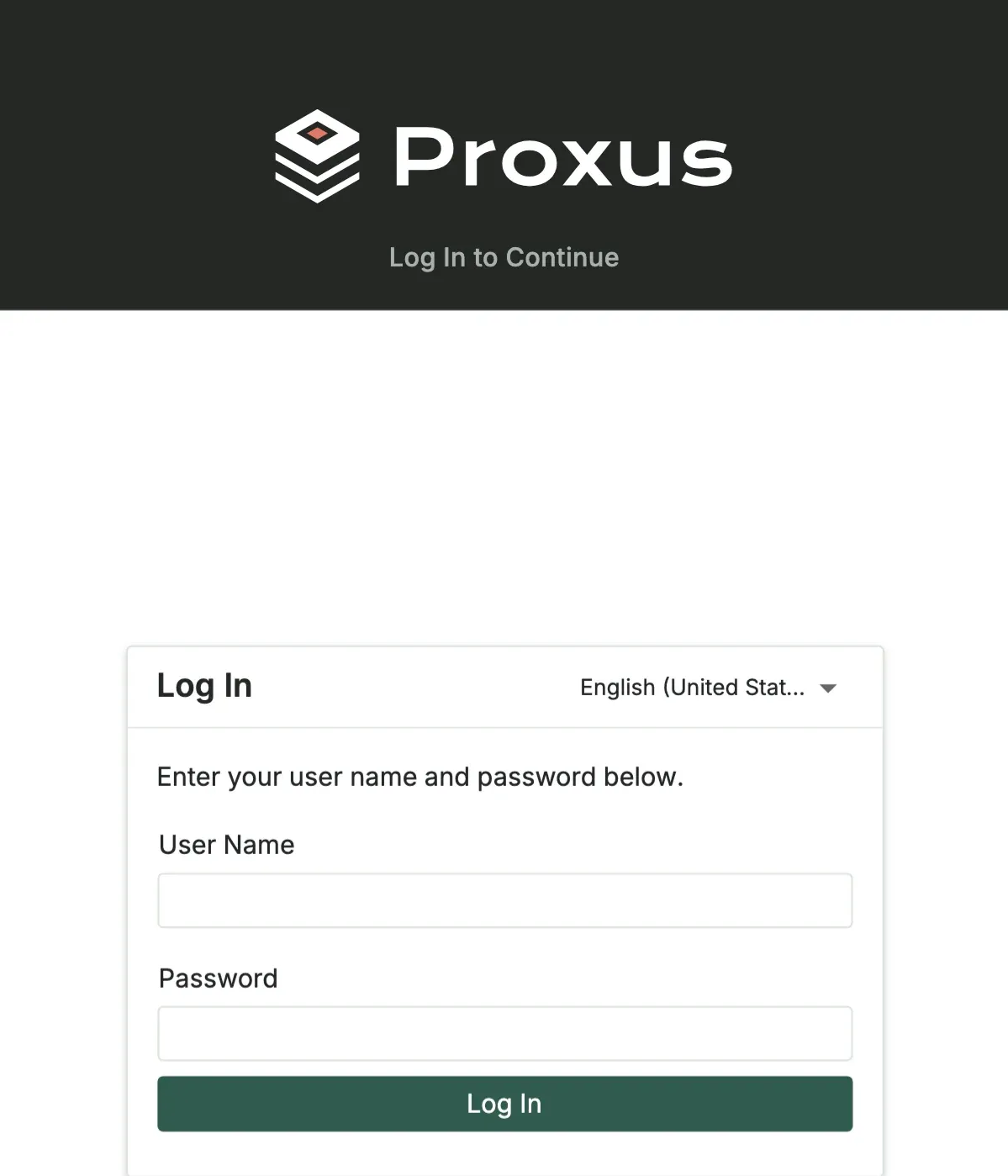
Open
https://<host>:8443in a browser, where<host>is the machine's name or IP address (https://localhost:8443on the machine itself). The hub's certificate is issued by the Proxus Platform CA, which your browser does not know yet, so it shows a warning the first time. Continue to the page, or openhttp://<host>:8080instead. To remove the warning, install the platform CA on your computer (see Certificates).If the form is not in your language, pick it from the list at the top right of the form.
Enter the user name
Adminand leave Password empty. Select Log In.A new hub has no license yet, so the License Activation window opens. Paste the key you received and activate it. The key works only on this installation; the window shows the License ID to send when you order one.
If you close the window without activating, you are signed out. License explains licenses in detail.
You now see the Operations Center.
Secure the first accounts
The first start creates one administrator account, Admin, with an empty password. Before anyone else can reach the hub, open the user menu at the top right, select My Details, then Change My Password, and set a strong password. For API access, add a user of its own on Security > Users.
Users and roles explains how to add accounts for your team.
Keep the hub's address stable
Each edge gateway is installed with the hub address you choose in its install wizard and connects to that address only. If the hub machine gets a new IP address later, for example from DHCP, the edge gateways lose their connection and each one must be installed again.
- In production, give the hub a fixed address: a DHCP reservation or a static IP, or better, a DNS name such as
proxus.plant.local. With a DNS name, an IP change does not affect any edge gateway. - The install wizard first offers the address you opened the hub on, then the address the installer found. Open the hub on the address the edge machines use, so that the right one comes first.
- To change the address the hub offers, edit the
Service__PublicAddressline of theproxus-uiservice inproxus-platform/docker-compose.yml(several addresses or DNS names separated by commas), then rundocker compose up -d. Running the installer again also detects the address again.
Keep the certificate key
The hub keeps the private keys of its certificates encrypted. The key for them is in the config volume (keys/STORE/certificate-store.key). Include the config volume in every backup: without this key, the certificates cannot be read after a restore. See Backup and restore.
What's next
- Connect your first machine with the built-in simulator.
- A tour of the hub shows what each screen is for.
- Run Proxus with Docker covers production settings, updates and backups.
- Configuration explains the configuration file. Docker keeps it on the
configvolume, where the hub writes it with its defaults on the first start.
Was this page helpful?
Evaluating Proxus? See it on your own machines in a 30-minute technical session.