How-to guide · for Engineers
Connect an OPC UA server
Find OPC UA servers from the gateway, choose how to connect, trust certificates on both sides, and pick the nodes to read.
At the end of this guide, an OPC UA server (a PLC, an HMI, a SCADA server or a gateway product) is a device in Proxus, connected securely if the server allows it, and the nodes you picked are read as tags.
Before you start
You need:
- The OPC UA server running and reachable from the gateway, usually on port 4840. You may know its endpoint URL (
opc.tcp://host:port/path), or let the gateway find it. - Access to the server's certificate settings if you connect with security: the server must trust the gateway's certificate.
- For sign-in with a user name: the user name and password.
- A gateway on the server's network. See Add a device for the general steps of the wizard.
Step 1: Choose OPC UA
In Connect > Devices, select New. Choose the gateway, select the OPC UA card and Next: Connection.
Step 2: Find the server
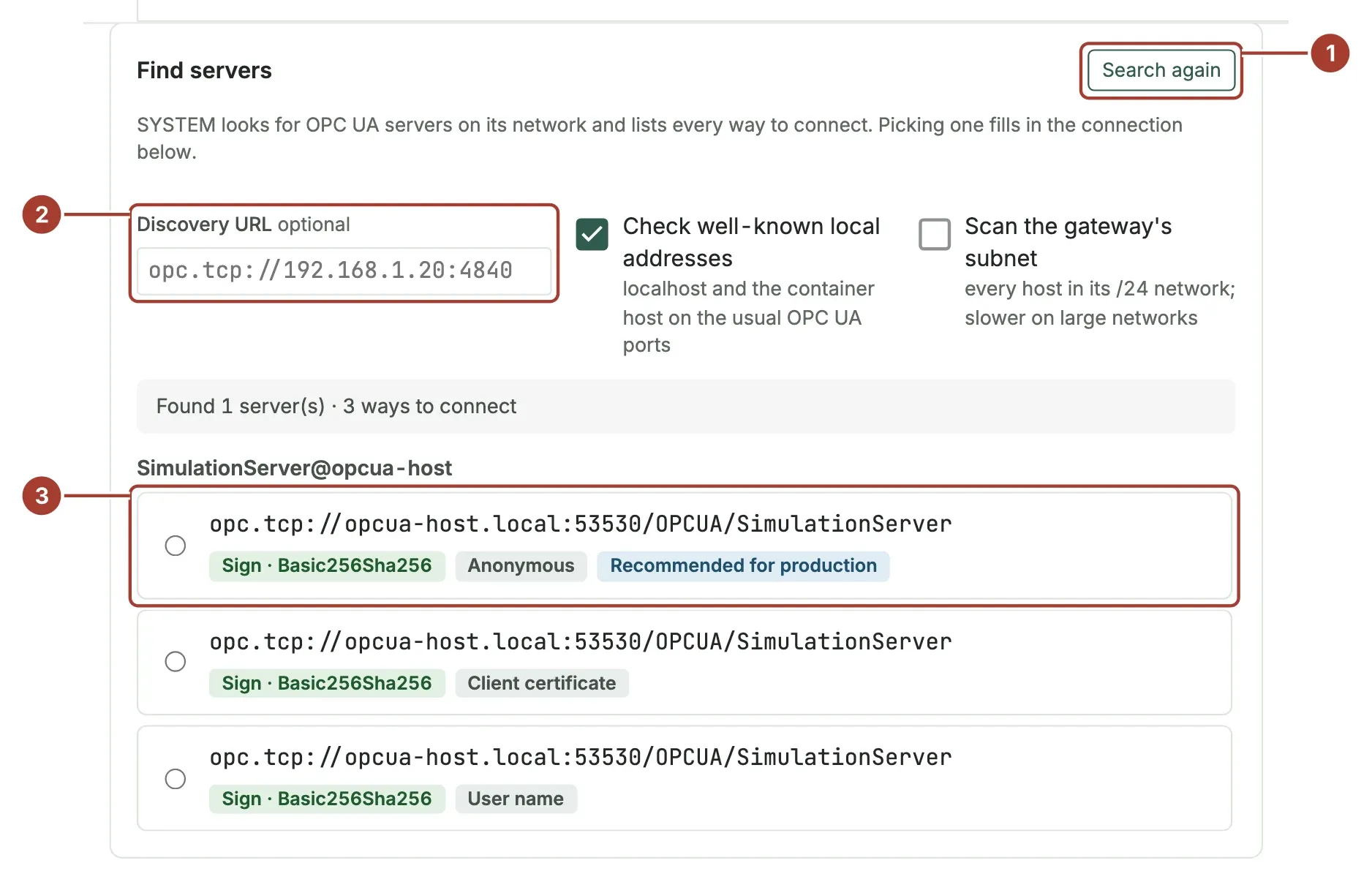
- Select Discover servers. The gateway looks for OPC UA servers on its network; this can take up to 15 seconds.
- Discovery URL (optional): if the server or a discovery server is not found, enter its address here, for example
opc.tcp://192.168.1.20:4840, and search again. - Each way to connect is listed under its server: the endpoint URL, the security (No security, Sign or Sign & encrypt with the security policy) and the sign-in (Anonymous, User name, Client certificate or Issued token). The best one is marked Recommended for production. Select one.
Selecting a way to connect fills in Endpoint Url, Security Mode, Security Policy and User Token Type under Address. If you already know the endpoint, you can type these directly instead of searching.
What the gateway searches:
- Check well-known local addresses (on by default): the gateway's own machine and the container host, on the usual OPC UA ports.
- Scan the gateway's subnet (off by default): every host in the gateway's /24 network. Slower on large networks.
For User name, enter User name and Password under Address. The password is not kept in the wizard's draft, so enter it again if you leave the wizard and come back.
Step 3: Trust the certificates
A secure connection needs trust on both sides: the gateway trusts the server, and the server trusts the gateway. When you choose a way to connect with security, the Certificates panel appears and checks both.
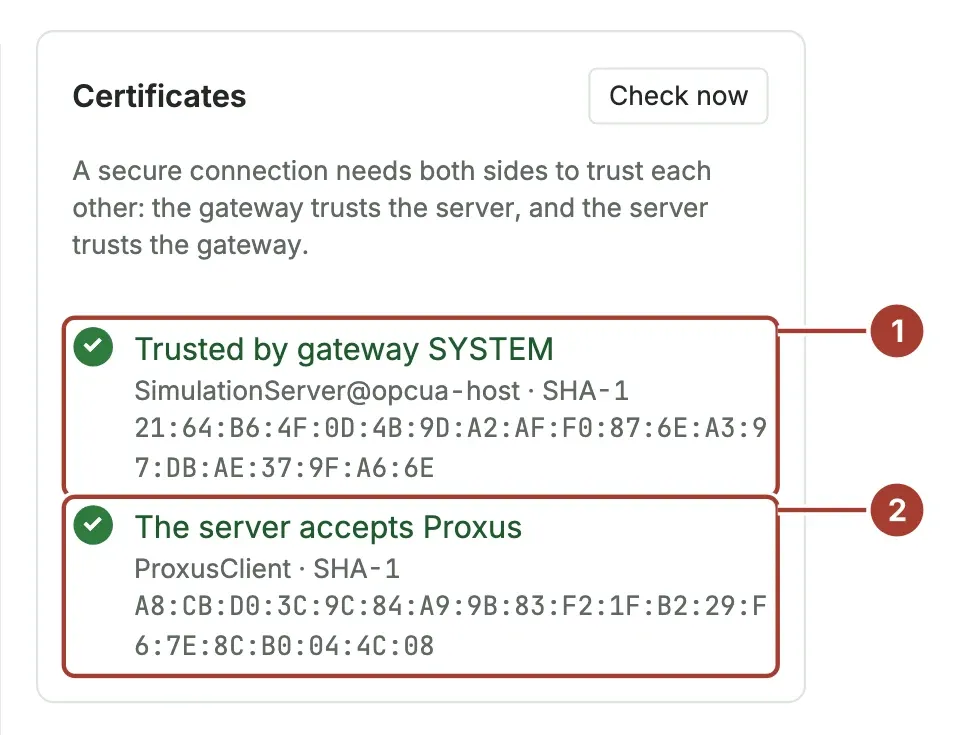
- The server's certificate. If the gateway does not trust it yet, compare the fingerprint shown with the one on the server, then select Trust this server. The line then shows Trusted by gateway and the gateway's name. The certificate is recorded as trusted in the Certificate Store, so every gateway accepts it.
- The gateway's certificate on the server. If the server does not trust the gateway yet, the panel shows the name of the gateway's certificate and Copy fingerprint. In the server's certificate settings, move that certificate from rejected to trusted (on a Prosys simulation server: Certificates, Rejected, Trust). Then select Check now until the line shows The server accepts Proxus.
Each gateway has its own OPC UA certificate. A server that talks to two gateways must trust both.
Select Test the connection, then Next: Tags.
Which server certificates the gateway accepts
Device connections and tag browsing never accept an unknown server certificate. A gateway accepts only:
- certificates the Certificate Store trusts for OPC UA, and
- the server certificate pinned on the device (the trusted server certificate in the device profile's OPC UA settings).
The store is the one place for this decision. Every gateway copies the store's OPC UA trust list every minute, so Trust or Reject in the store takes effect on all gateways within a minute.
When a gateway refuses a certificate, it reports it to the hub. To accept it:
- Go to Security > Certificate Store and open Trust View, Rejected. The certificate is named
OPC UA server <name> (<address>). - Compare the fingerprint with the one on the server, select the certificate and select Trust.
The refused devices connect at their next retry.
Trust Server Certificate on a device trusts the server on first sight: the certificate is accepted at the first connection and recorded as trusted in the store, where you can see it and withdraw it with Reject. It does not re-open a certificate that the store has rejected.
Devices with the security mode None do not use certificates and are not affected.
Step 4: Pick the nodes
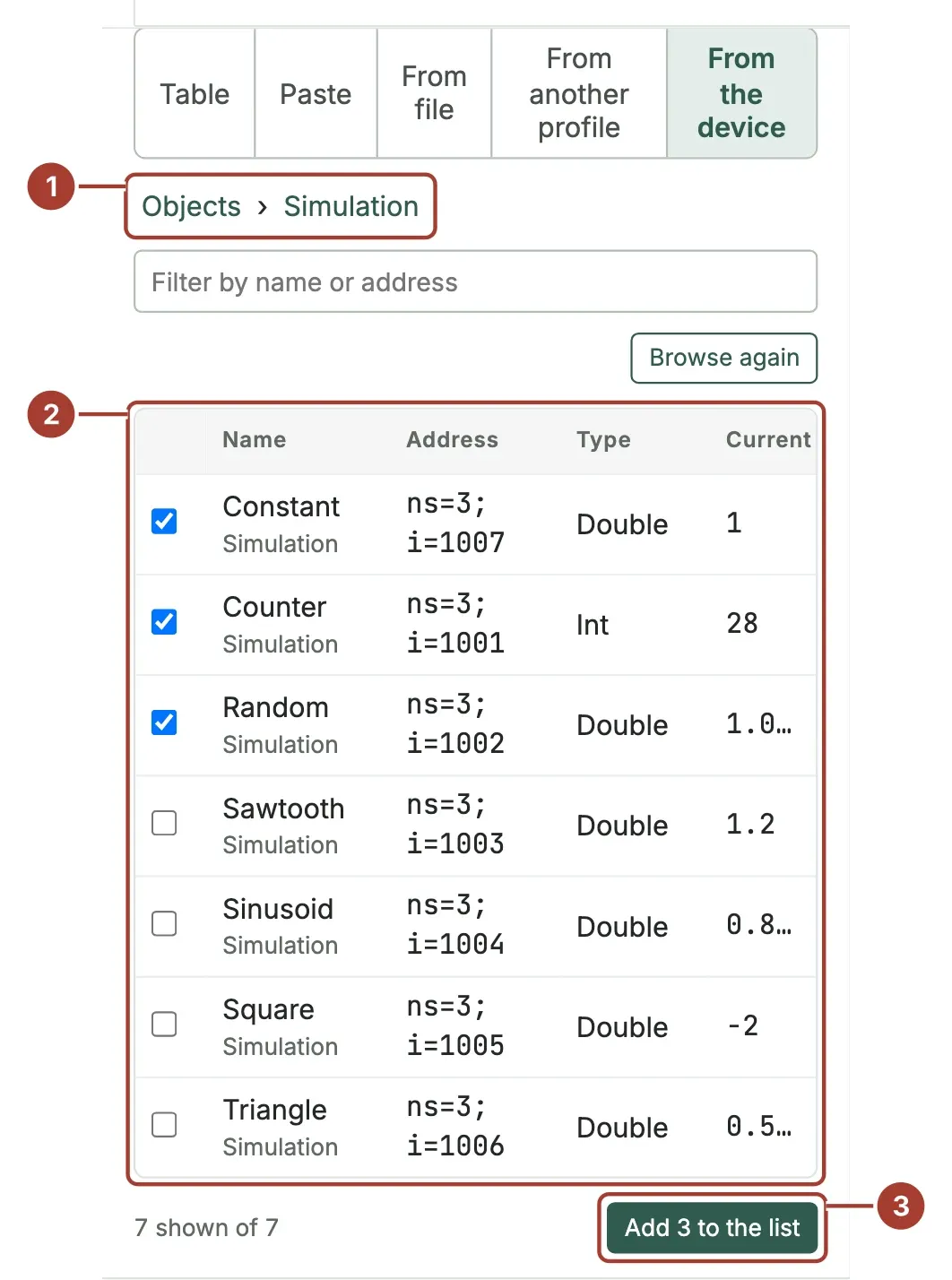
- On the From the device tab, select Browse the device. The list starts at Objects. Select a folder to open it; the path above the list takes you back.
- Tick the variables to read. Each shows its name, its node ID, its type and its current value. Use the filter box to find a variable in a long folder.
- Select Add … to the list. The variables become tags in the table.
The Address of an OPC UA tag is the node ID, for example ns=3;i=1001 or ns=2;s=Line1.Speed. You can also type node IDs in the Table or Paste tabs.
The data type is taken from the node:
| OPC UA type | Proxus type |
|---|---|
| Boolean | Bool |
| SByte, Int16 | Short |
| Byte, UInt16 | UShort |
| Int32 | Int |
| UInt32 | UInt |
| Int64 | Long |
| UInt64 | ULong |
| Float | Float |
| Double | Double |
| DateTime | DateTime |
| ByteString | Bytes |
| Arrays and other types | String (the value as text) |
Continue with Place and type and Save and verify as for any device.
How values are read
The gateway reads all tags of the device together, once per Read every interval. It does not use OPC UA subscriptions, so there is no publishing or sampling interval to set: choose Read every for how fresh the values must be.
The OPC UA wizard on a profile
A device profile with the OPC UA protocol has its own connection wizard, Connect to OPC UA. Open it from the profile's Tags tab with Discover Servers (it starts at finding the server) or Browse Tags (it starts at the tags). Its steps are Discover, Connection, Sign in, Trust, Tags and Review, and Save to profile saves the connection and the tags to the profile. Devices that use the profile get the new settings at the gateway's next sync.
Use it to change the connection or the tags of every device of a profile at once, or to sign in with a client certificate: its Sign in step lets you pick a certificate from the hub's certificate store. Import the certificate first under Certificates.
The ports the gateway tries
Discovery tries these ports on each host: 4840 and 53530 (opc.tcp) and 53443 (https). To change them, or to give discovery servers that every search should ask, edit the [Browse] section of the gateway's configuration file:
[Browse]
OpcUaDiscoveryPorts = "tcp:4840, tcp:53530, https:53443"
OpcUaSeedDiscoveryUrls = "opc.tcp://lds.example.local:4840"
What's next
- The device page: check the live values.
- Device profiles
- Troubleshoot devices
Was this page helpful?
Evaluating Proxus? See it on your own machines in a 30-minute technical session.