Reference · for Engineers, Operators
UNS Explorer
What the UNS Explorer shows. The live Unified Namespace tree with values, quality and trends, the selection panel, search, export and the right-click menu.
The UNS Explorer shows the Unified Namespace (UNS) as a live tree. Every device sits at the place it was given (enterprise, site, area, line and so on) and every tag under its device, with its current value. It is in Organize > UNS Explorer. Values update by themselves while the page is open.
You see the parts of the tree your role may read. With no access at all, the page says UNS access is not granted for your role. See UNS permissions.
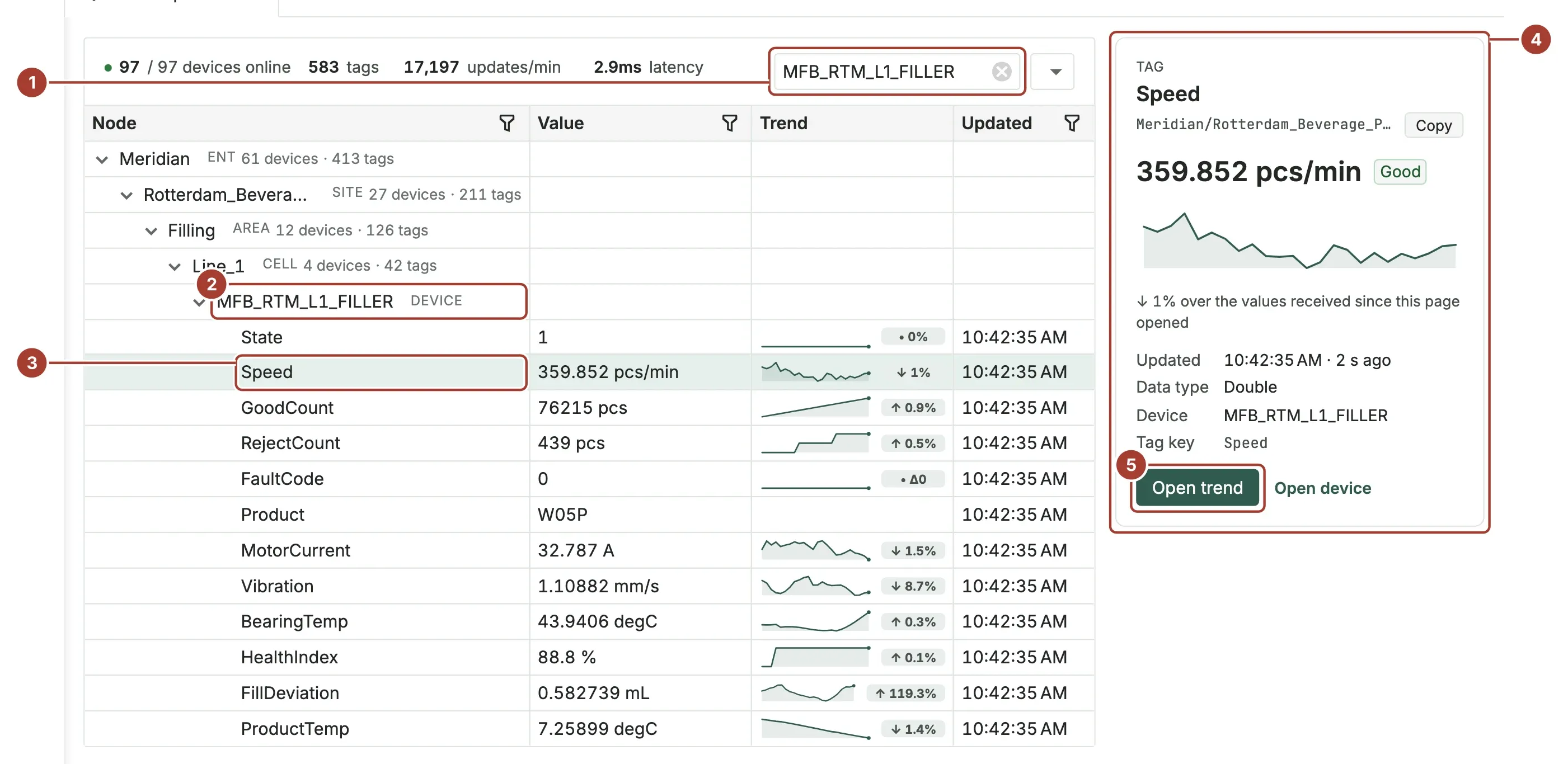
- The summary and the search box. The summary shows the devices online, the number of tags, the updates per minute and the latency.
- A device node. Group nodes show how many devices and tags are under them.
- A tag, with its value, a trend and when it was updated.
- The panel: details of what is selected.
- Open trend opens the tag's trend.
The summary
| Figure | Meaning |
|---|---|
| devices online | Devices online, out of all devices in the tree. |
| tags | Tags in the tree. |
| updates/min | Values received per minute, measured over 10 seconds. |
| latency | End-to-end age: the time between the value's own timestamp and now. |
The tree
Each row has a Node, a Value, a Trend and when it was Updated. Next to a group node, a short label says its level: ENT (enterprise), SITE, AREA, CELL (process cell) and so on, down to DEVICE. A device with no place sits at the top of the tree.
| Column | What it shows |
|---|---|
| Node | The name of the level, device or tag. A tag with bad quality has an ERR badge. |
| Value | The tag's current value with its unit. A tag that cannot be read shows its error. |
| Trend | The values received since you opened the page, with the change in percent. Text tags have no trend. |
| Updated | When the value last arrived. |
Names in the namespace replace spaces with underscores: the site Rotterdam Beverage Plant is the node Rotterdam_Beverage_Plant.
Type in Search... and press Enter to keep only the branches that contain a match. The branches start collapsed: right-click a node and choose Expand All to open them. The filter funnel in a column header filters by that column. Clear the search box to show the whole tree again.
The button next to the search box exports the tree as Excel (XLSX), Excel 97 (XLS) or CSV. The export has an extra column, Outbound, with the targets each device sends its data to.
The panel
Select a row to see it in the panel on the right. Its path is shown under the name; Copy puts the path on the clipboard.
| Selected | The panel shows |
|---|---|
| A tag | The value and its quality (Good or Bad quality), a trend since the page opened, Updated, Data type, Device and Tag key. Open trend opens a trend panel for the last hours; Open device opens the device page. |
| A device | Status, the number of Tags, how many have Bad quality, Delivers to (its outbound targets) and the tags with bad quality. Open device opens the device page. |
| A group | Devices online, Tags and Bad quality under it, the Offline devices and the tags with bad quality. |
The trend panel that Open trend opens has the ranges 15 min, 1 h, 8 h and 24 h, the last, average, minimum and maximum value, what happened in the range, and Open in workspace, which opens the tag in the Trend Workspace.
The right-click menu
Right-click a node to open its menu. Expand All and Collapse All are available to everyone; the other items only to administrators.
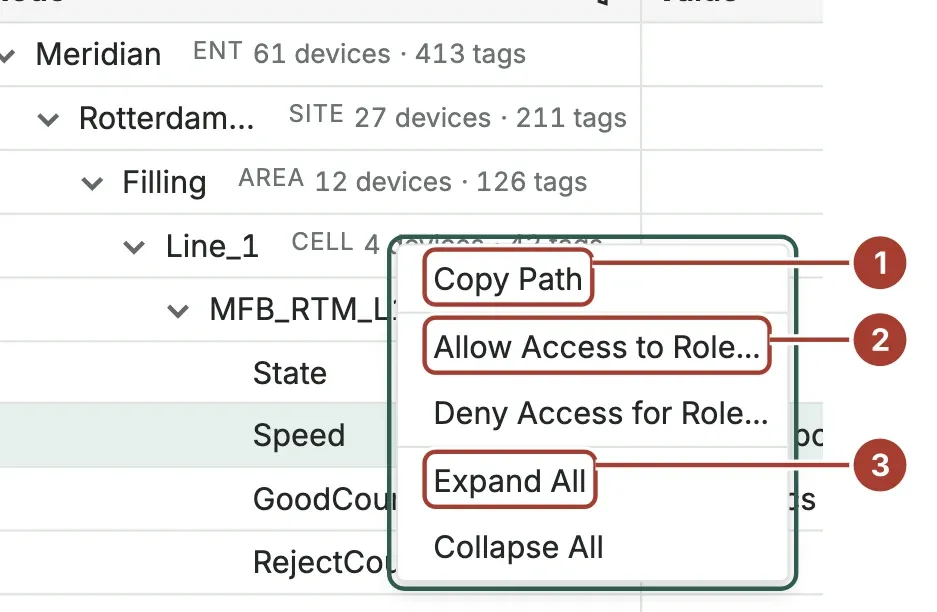
- Copy Path copies the node's path, for example
Meridian/Rotterdam_Beverage_Plant/Filling/Line_1. Use it as a UNS path in a role's permissions. - Allow Access to Role... and Deny Access for Role... give or take away a role's access to this node and everything under it. Choose the role and select Apply.
- Expand All opens every node of the tree. Collapse All closes them.
What's next
- Find a tag and its path
- Unified Namespace: how the tree is built from the places of the devices.
- MQTT: read the same namespace from your own programs.
Was this page helpful?
Evaluating Proxus? See it on your own machines in a 30-minute technical session.