What you need
- A Proxus hub you can sign in to, and a user role that may create devices and outbound targets. Install Proxus with Docker
- An Edge Gateway that can reach the machine on the network. The hub’s own gateway, SYSTEM, works for machines on the hub’s network; a gateway shows Connected when it is online. Install an edge gateway
- The control’s IP address on the machine network, and the addresses of the values you want to read. Add a device
- The connection details of the PostgreSQL database (server, port, database, user and password), and network access to it from every gateway that will send to it. Outbound targets
Steps
- 01
Open the device wizard and choose Fanuc Series 0i
Go to Connect > Devices and select New. Choose the Edge Gateway on the machine’s network: the connection is tested from that gateway. Type
fanucin the protocol search box, select the Fanuc Series 0i card (the Fanuc Interface protocol is for Fanuc robot controllers), then select Next: Connection.Docs: Add a device
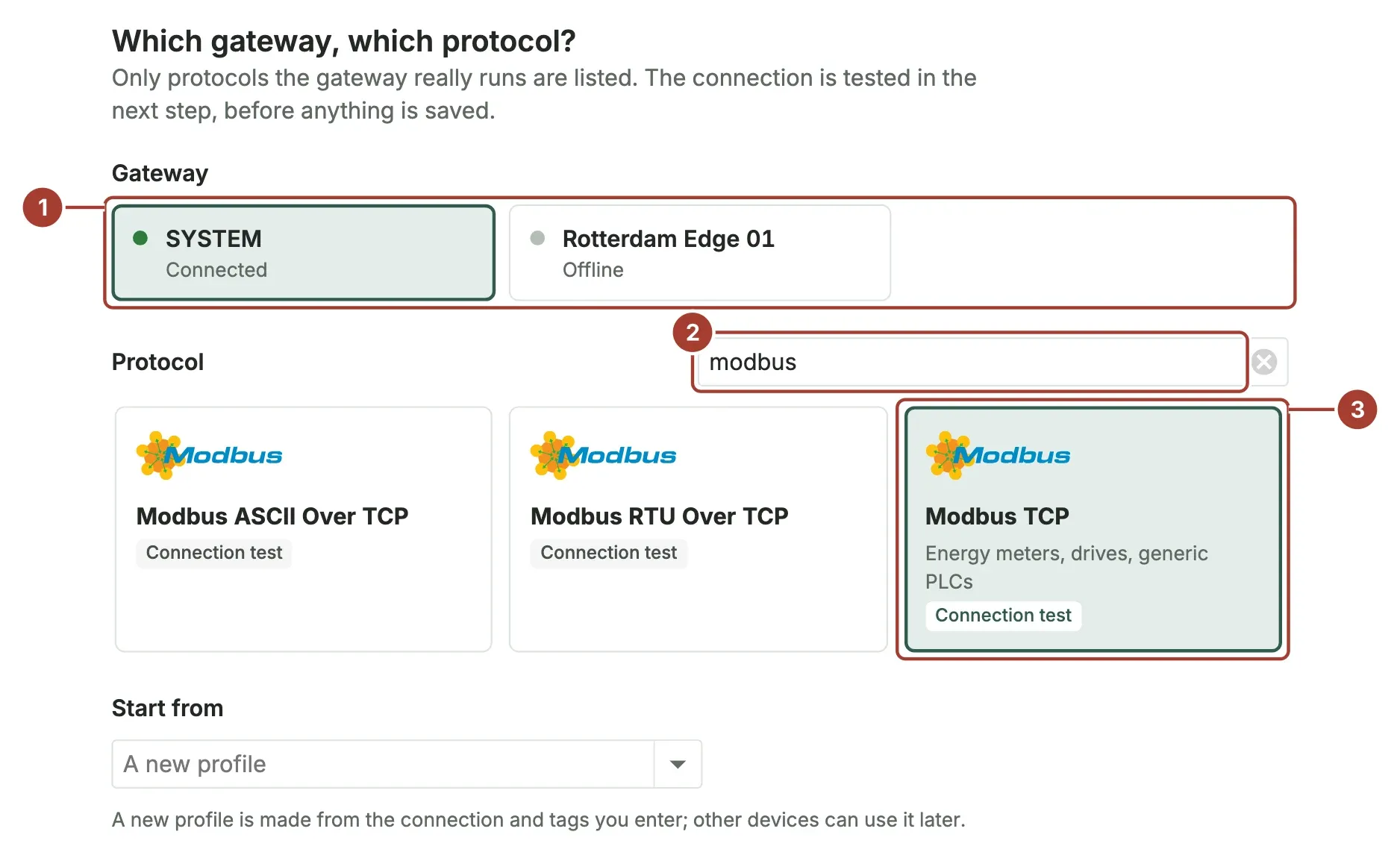
Shown with Modbus TCP; the step is the same for every protocol. - 02
Enter the address and test the connection
Enter the machine’s IP address as the gateway sees it. Leave Port empty to use port 8193. Leave Read every at Profile default unless you need faster or slower reads, then select Test the connection. The gateway itself tries to reach the machine and shows each check: whether it reached the address, and whether the machine accepted the protocol session.
Docs: Add a device
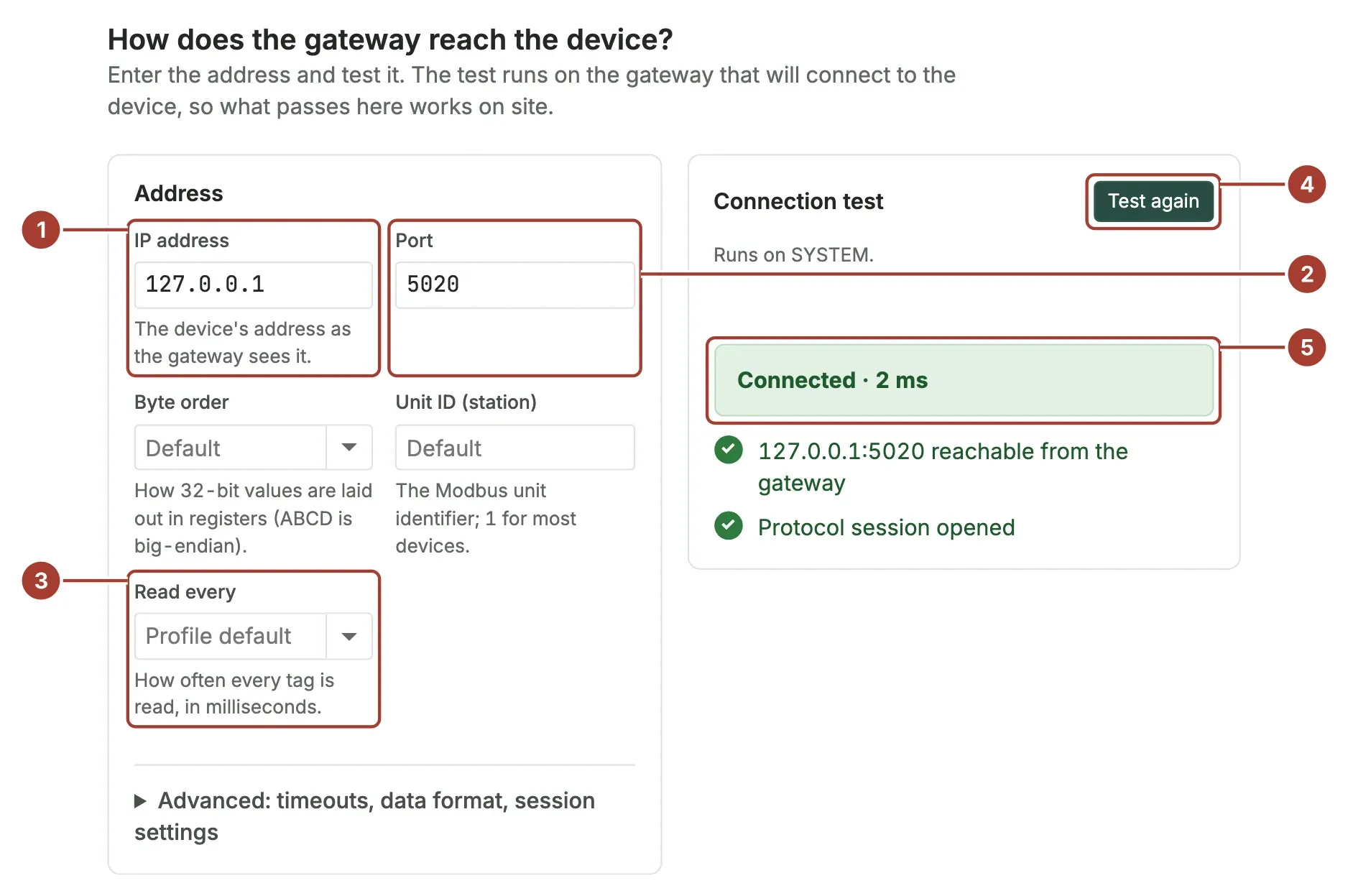
Shown with a Modbus TCP device. - 03
Add the tags and read them once
The Fanuc protocols cannot list the control’s values, so enter the addresses on the Table or Paste tab, or take them From another profile if another machine of this model is already in Proxus. Select Read all once; each tag shows a value or its error. Enter a Profile name: the next machine of this model is then a matching profile and a new address.
Docs: Add a device
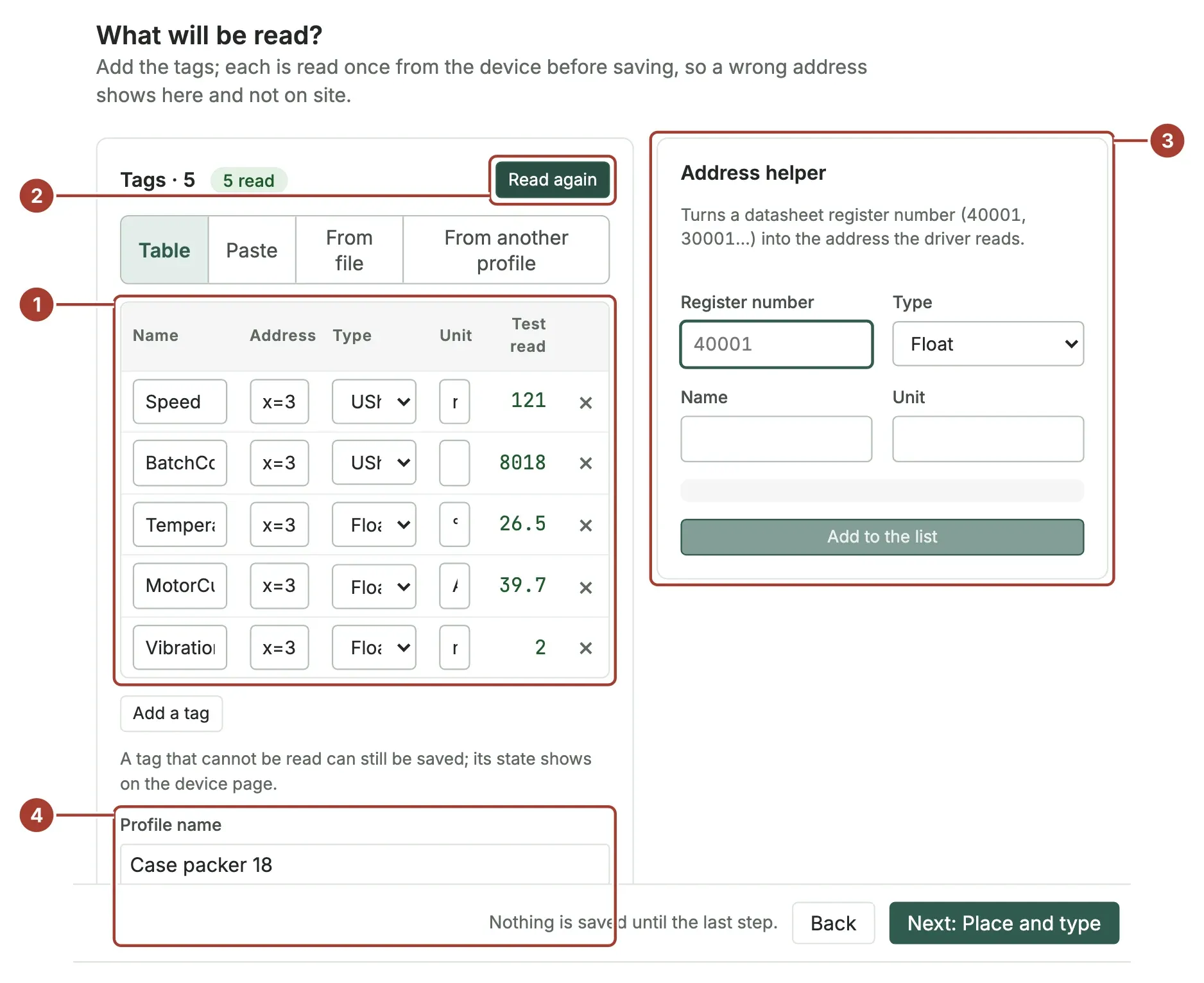
Shown with Modbus addresses. - 04
Name and place the device, then save
In Place and type, enter a unique Device name, fill in the Place from Enterprise down to Equipment module (every level is optional) and choose the Device type, which Proxus does not guess. The place decides where the device appears in the Unified Namespace. Select Save and verify: the stages Saved, Sent, Device connected and First values turn green in order, and each tag shows its first value.
Docs: Add a device
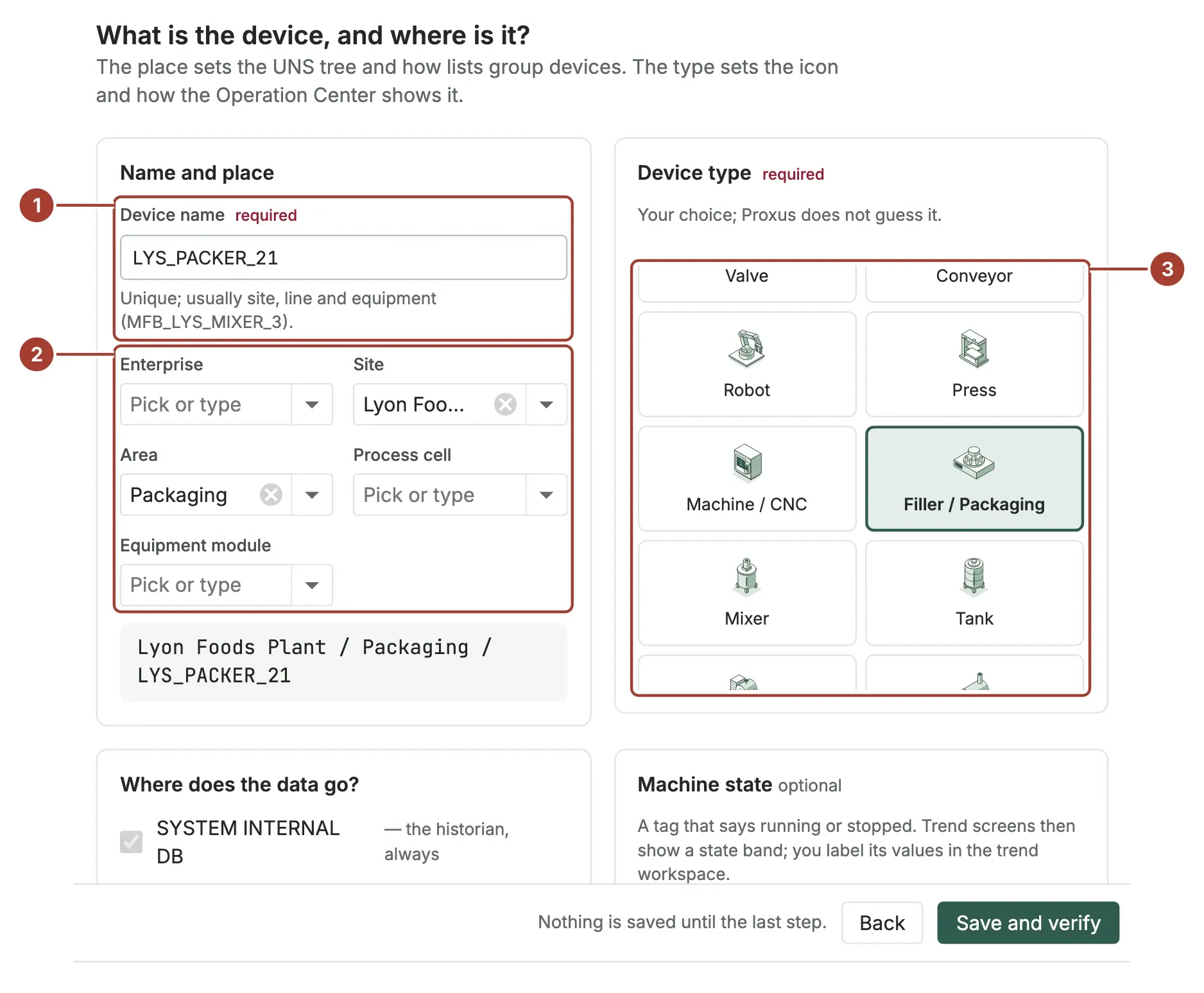
- 05
Create the PostgreSQL target
Go to Connect > Outbound Targets and select New, or switch the filter to All, open the PostgreSQL sample and select Clone.... Choose PostgreSQL Database as Target Type, enter a unique Profile Name and fill in
Server,User,PasswordandDatabase, plusPortif it is not the default. For TLS, setSslModetoVerifyFullandServerCertificateThumbprintto the server’s CA from the Certificate Store. Select Save. - 06
Check the target from the gateway
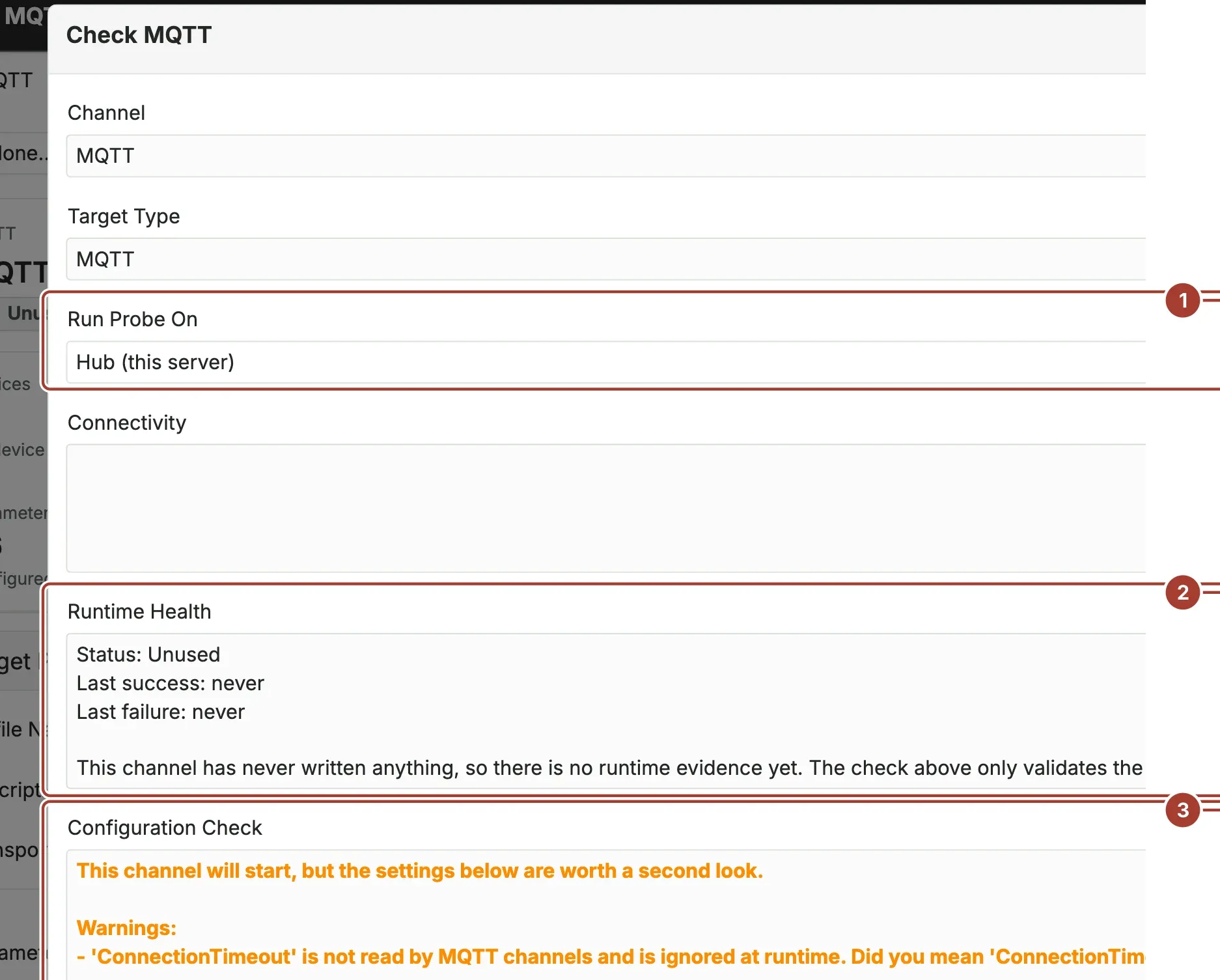
On the saved target, select Check. Under Run Probe On, choose the gateway that reads the device rather than the hub: the gateway is what sends the data, and a target that only the plant network can reach fails from the hub. The Configuration Check lists errors and warnings without contacting the target. Test Connection then connects without sending data and reports
Connected,ReachableorFailedwith the reason.Docs: Outbound targets
- 07
Send the device’s values to the target
In Connect > Devices, select the device (or several), then Targets > Add Target and choose the target. For one device you can also use the Delivery tab on its page; a new device can tick the target under Where does the data go? in the wizard. The target’s Devices count goes up, and its Status turns green after the first delivery.
Docs: Outbound targets
Verify the data
- Open the device. On the Live values tab every tag shows its value, a small trend, its Quality and when it was updated. Good means the value was read without error. The device page
- On the target, Status is green, and Last Success is renewed about once a minute while the target keeps delivering. Outbound targets
- In PostgreSQL, the gateway has created its table on first write; each reading is a row with device ID and name, tag name, value (as text), data type and time. Outbound target types
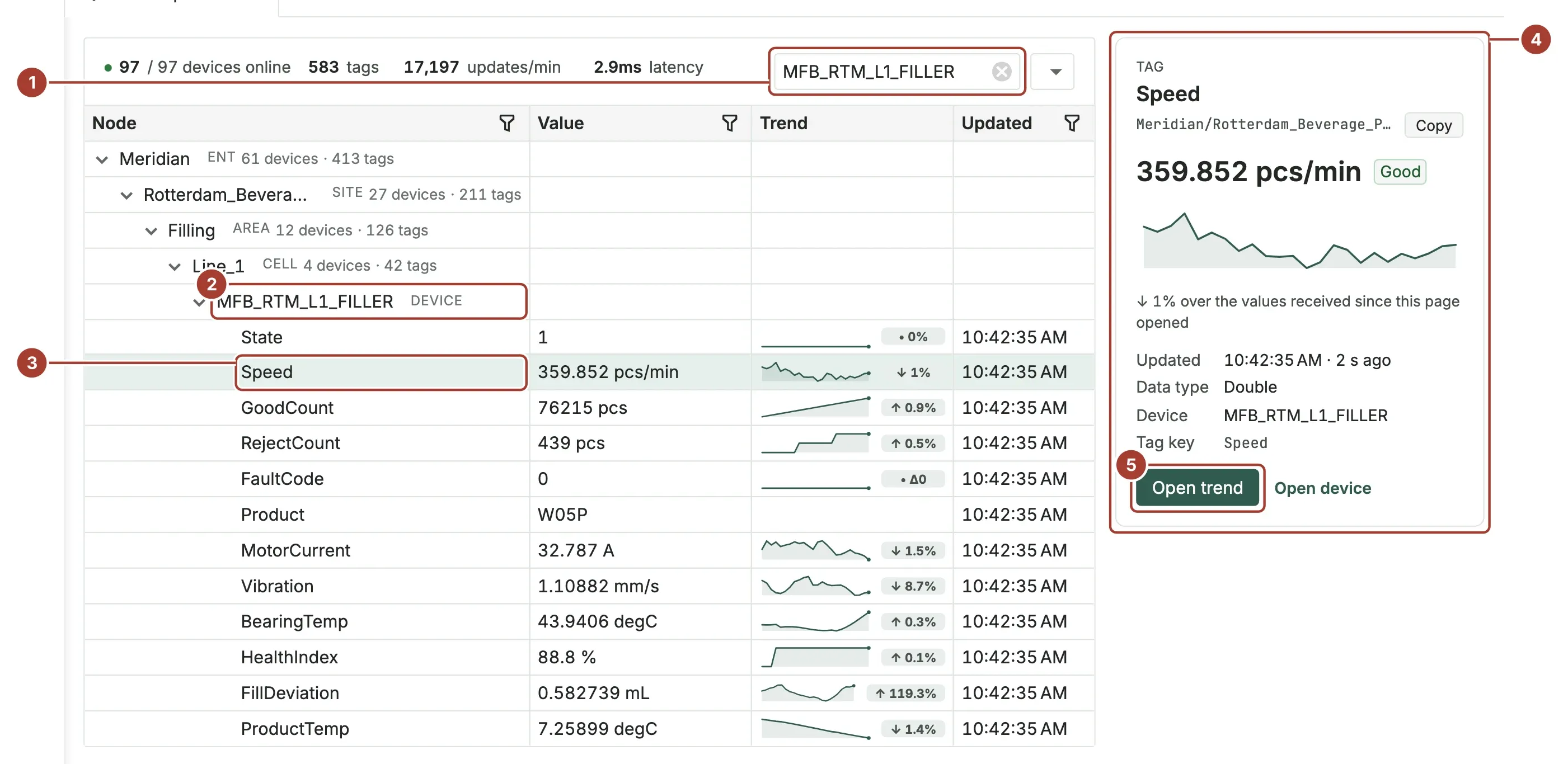
- Open Organize > UNS Explorer, type the device name in Search... and press Enter, then right-click a node and choose Expand All. The device sits at the place you gave it, each tag with its current value, trend and update time. UNS Explorer
Common problems
- A tag error with a code starting
COMM_FANUC_ - Codes for CNC and robot controls such as
COMM_FANUC_*cover cases like a machine that is not ready or not in automatic mode, servo off, a variable or parameter not found, and access denied. The message before the code says which. For serious errors, the gateway’s log in System logs lists suggested checks. Troubleshoot devices The gateway cannot reach the device.- There is no TCP connection: a wrong address or port, the device is off, or a firewall or VLAN is in between. The test runs on the gateway, so check reachability from the gateway’s host, not from your own computer. Troubleshoot devices
- The connection is not encrypted, or the server is not checked
- When
SslModeis not set, the driver encrypts if the server offers it but does not check the server. UseVerifyFullwith the server’s CA. Client certificates are not supported for PostgreSQL. Secure connections to targets - The database is down for a while
- Data is not lost. The gateway writes it to its own durable queue first and removes it only after the target has taken it; when the target is back, the waiting data is written in order. It waits for the gateway’s Buffer Retention (hours): 48 hours by default, up to 30 days. Outbound targets
- One record is skipped
- A record the database answers but never accepts, for example a value too long for its column, is skipped after a few attempts and named in the target’s status. The data behind it is still written. Troubleshoot data
- The target test works from the hub but not from the gateway
- The gateway’s network cannot reach the server, or reaches it under another name. Run Test Connection from the gateway that sends, and check its firewall and DNS. Secure connections to targets