Reference · for Engineers
Device profiles
A device profile holds the protocol, the connection settings and the tag list for one kind of machine. Many devices can share one profile.
A device profile says how to talk to one kind of machine: the protocol, its connection settings and the list of tags to read. Each device uses one profile and adds what is its own, such as its address. Ten identical packing machines can share one profile, so a tag you add to the profile is read from all ten.
The setup wizard creates a profile for you when you add a device with A new profile. Open Connect > Device Profiles to see all profiles, change them or share them between hubs.
The list
| Column | What it shows |
|---|---|
| Profile | The profile's name. |
| Protocol | The protocol the gateway uses to read devices with this profile. |
| Tags | How many tags the profile has. |
| Devices | How many devices use the profile. |
| Description | Your note about the profile. |
The demo data includes sample profiles for many protocols. Copy one with Clone... as a starting point.
The profile page
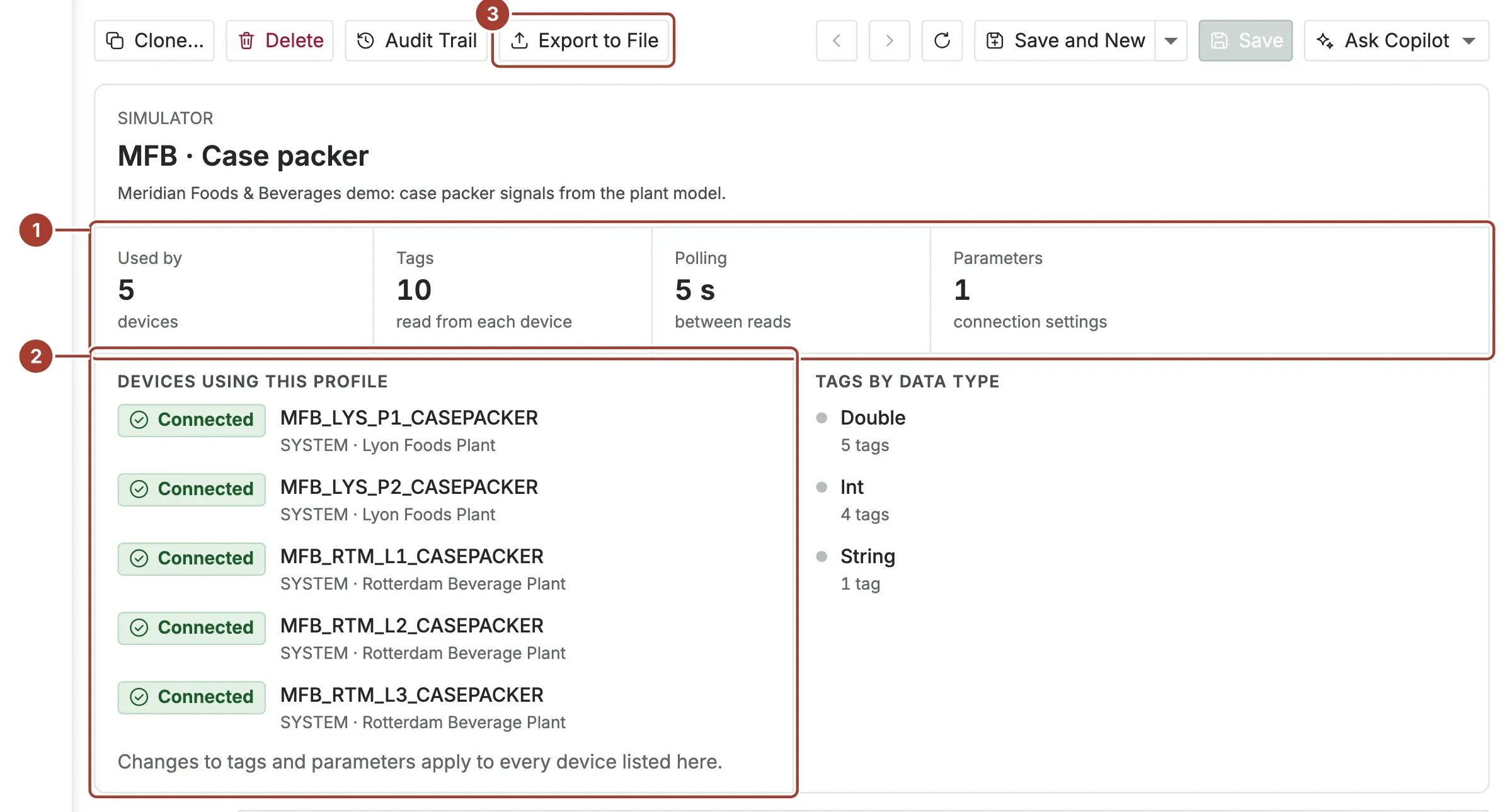
- Used by, Tags, Polling (the time between reads of each device) and Parameters (the number of connection settings).
- Devices using this profile, with the status, gateway and site of each. Changes to tags and connection parameters apply to every device in this list.
- Export to File saves the profile, with its connection settings and tags, as a file for another hub. See Share profiles between hubs.
Below the summary are the profile's fields:
| Field | What it is |
|---|---|
| Protocol | The protocol. Required. |
| Profile Name | A unique name. Required. |
| Description | Optional. |
Connection parameters and tags
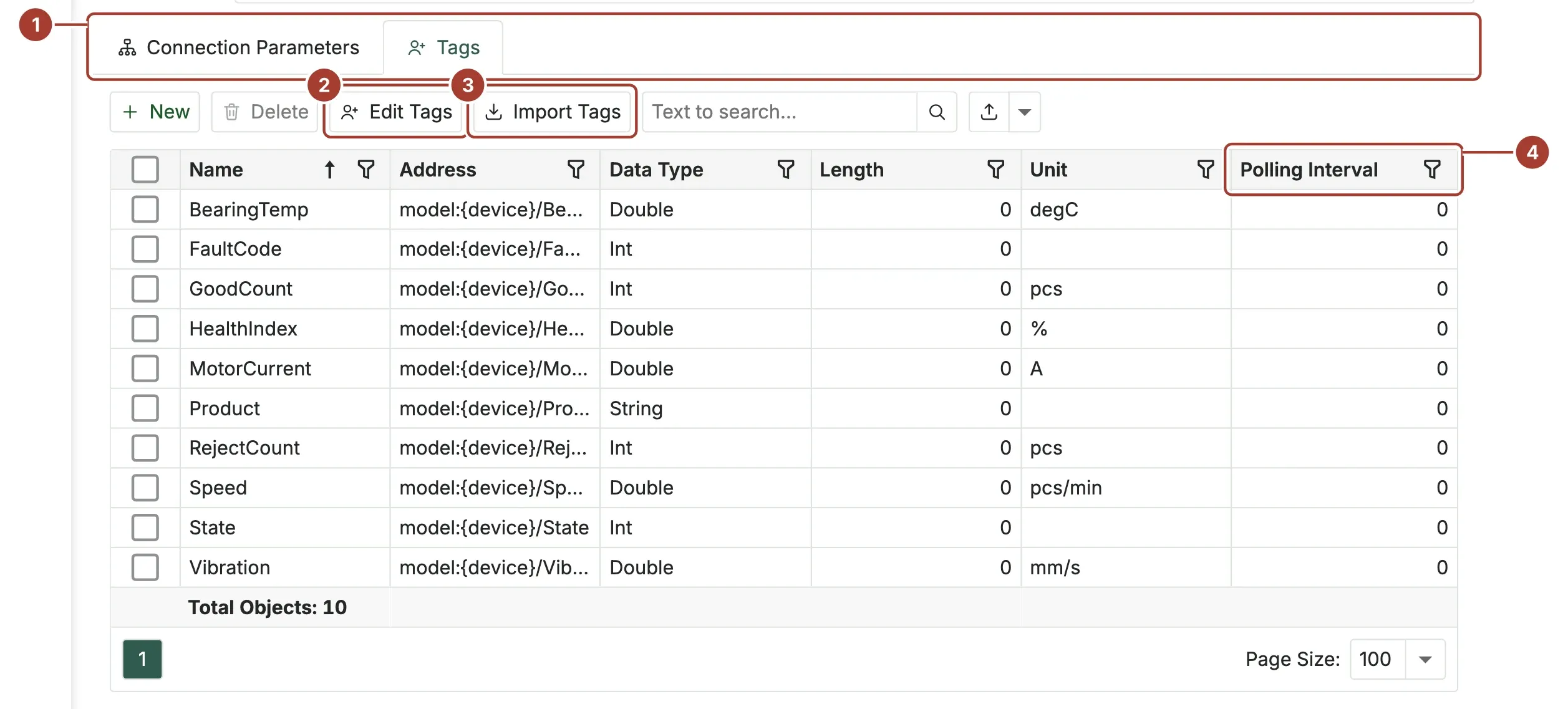
- Two tabs: Connection Parameters and Tags.
- Edit Tags opens the Tag Editor, where you add and change tags in a table.
- Import Tags reads tags from pasted text or a CSV file in a PLC tag-table format. You pick the tags to add; a tag whose address is already on the profile is marked as a duplicate.
- Polling Interval of a tag.
0means the tag is read at the profile's polling interval.
Connection Parameters is a list of Key and Value pairs: the address, the port and the protocol's own settings. The keys depend on the protocol. A value that is a password or a key is masked. The key PollingInterval is the time between reads, in milliseconds.
Tags has one row per value to read:
| Column | What it is |
|---|---|
| Name | The tag name. It is the name the value has everywhere in Proxus: trends, rules, the Unified Namespace. |
| Address | Where the value is in the device. Its form depends on the protocol, for example x=3;0 for a Modbus holding register or ns=2;s=Line1.Speed for an OPC UA node. |
| Data Type | Bool, Short, UShort, Int, UInt, Long, ULong, Float, Double, String, Bytes or DateTime. |
| Length | The length in bytes, for String and Bytes. |
| Unit | The engineering unit, such as °C or rpm. Pick one from the list or type your own. |
| Polling Interval | How often this tag is read, in milliseconds. 0 uses the profile's interval. |
For a Simulator profile, each tag also has a Generation Type: how the simulated value moves.
For an OPC UA profile, the Tags toolbar also has Discover Servers and Browse Tags, which open the OPC UA connection wizard. See OPC UA.
Change a profile that devices use
When you save a profile that devices use, and the save changes its protocol, a connection parameter or a tag, Proxus first shows Before you save this profile. It lists:
- how many devices get the change as soon as it is saved;
- each change, for example a tag that is removed or renamed;
- rules, pipelines and saved trend views that read a tag you remove or rename, by name.
Tick the confirmation and select Save the change, or Cancel.
Share profiles between hubs
- Export to File (on the list, select the profiles first; or on a profile page) saves the profiles with their connection settings and tags as a JSON file. Passwords are left out.
- Import from File (on the list) adds the profiles of such a file. Profiles that already exist are not changed. Tags without a name or an address, and repeated names, are left out; the message says how many.
What's next
- Add a device with an existing profile: select it under Start from.
- Devices, profiles and tags: how the pieces relate.
- Protocols: every protocol a gateway can read.
Was this page helpful?
Evaluating Proxus? See it on your own machines in a 30-minute technical session.