How-to guide · for Administrators, Engineers
Install an edge gateway
Run an edge gateway on a Linux machine next to your machines. The hub gives you a one-line command, and shows each install stage live.
At the end of this guide, a new edge gateway runs on a machine in your plant, is connected to the hub, and is ready to read devices. An edge gateway is the Proxus runtime that sits close to the machines: it reads them, keeps the data when the hub cannot be reached, and sends it on.
The hub has its own gateway, SYSTEM. You need an edge gateway only for machines that the hub cannot reach, or to keep reading when the network to the hub is down.
Before you start
You need:
- A Linux machine (Ubuntu, Debian, Red Hat Enterprise Linux or an industrial PC) on the network of the machines. Windows is not supported yet.
- Docker 20.10 or later with the Compose plugin on that machine, and a user who may run
sudo. - From that machine, outbound access to the hub on port 7422 and on the hub's HTTPS port (8443 by default). The gateway connects out to the hub; no port has to be opened towards the plant network.
- Ports 8083, 1883 and 8883 free on that machine. The gateway uses them for its local web service, its MQTT broker and its MQTT broker over TLS.
- Access to Docker Hub from that machine, so it can download the gateway image. Without it, load the image on the machine beforehand with
docker load, as in Install without internet access. - A user role that may create edge gateways.
Step 1: Create the gateway in the hub
- Go to Connect > Edge Gateways and select New.
- Enter a Name, for example
Rotterdam Edge 01, and optionally a Location, for exampleRotterdam, filling hall. Both are under Configuration. - Select Save.
The install window opens by itself after the first save. To open it later, select Install on the gateway's page.
Step 2: Choose the environment
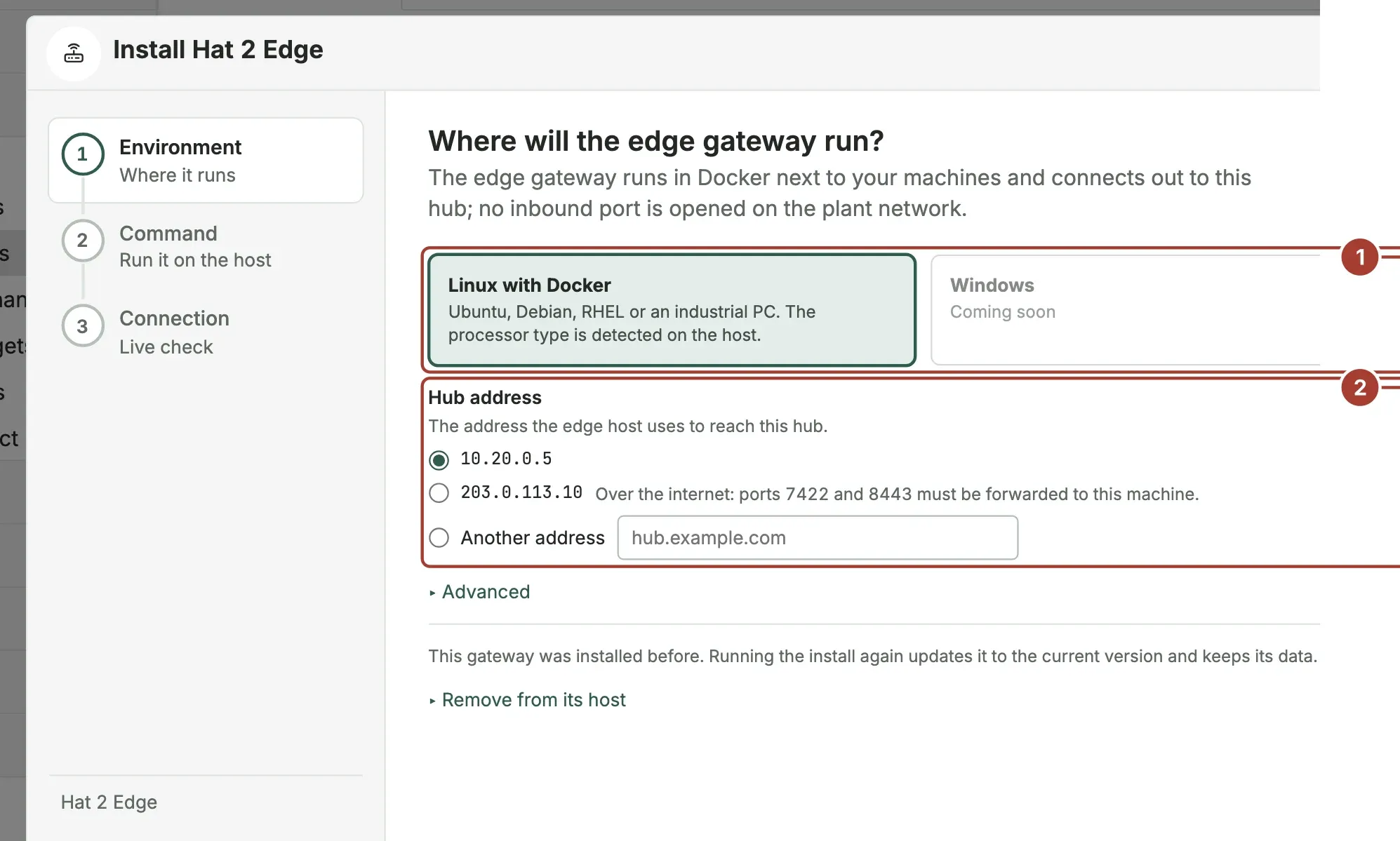
Linux with Docker is selected. The machine's processor type is detected during the install.
Hub address: the address the edge machine uses to reach the hub. The list offers, in this order, the address you opened the hub on (when it is not
localhost), the machine's address that the hub installer detected, and the hub's public internet address. For an edge machine on another site, choose the public address and forward ports 7422 and 8443 to the hub, or select Another address and enter a DNS name. When you create the command, the hub adds this address to the certificate of its NATS server, so the gateway's TLS check succeeds.If the list is empty, the hub could not tell which address other machines reach it on. Enter the machine's IP address or host name in Another address.
Advanced shows the ports used on the edge machine, the outbound connection to the hub and the folder the gateway is installed in (/opt/proxus/proxus-edge-<id>).
Select Continue.
Step 3: Run the command on the edge machine
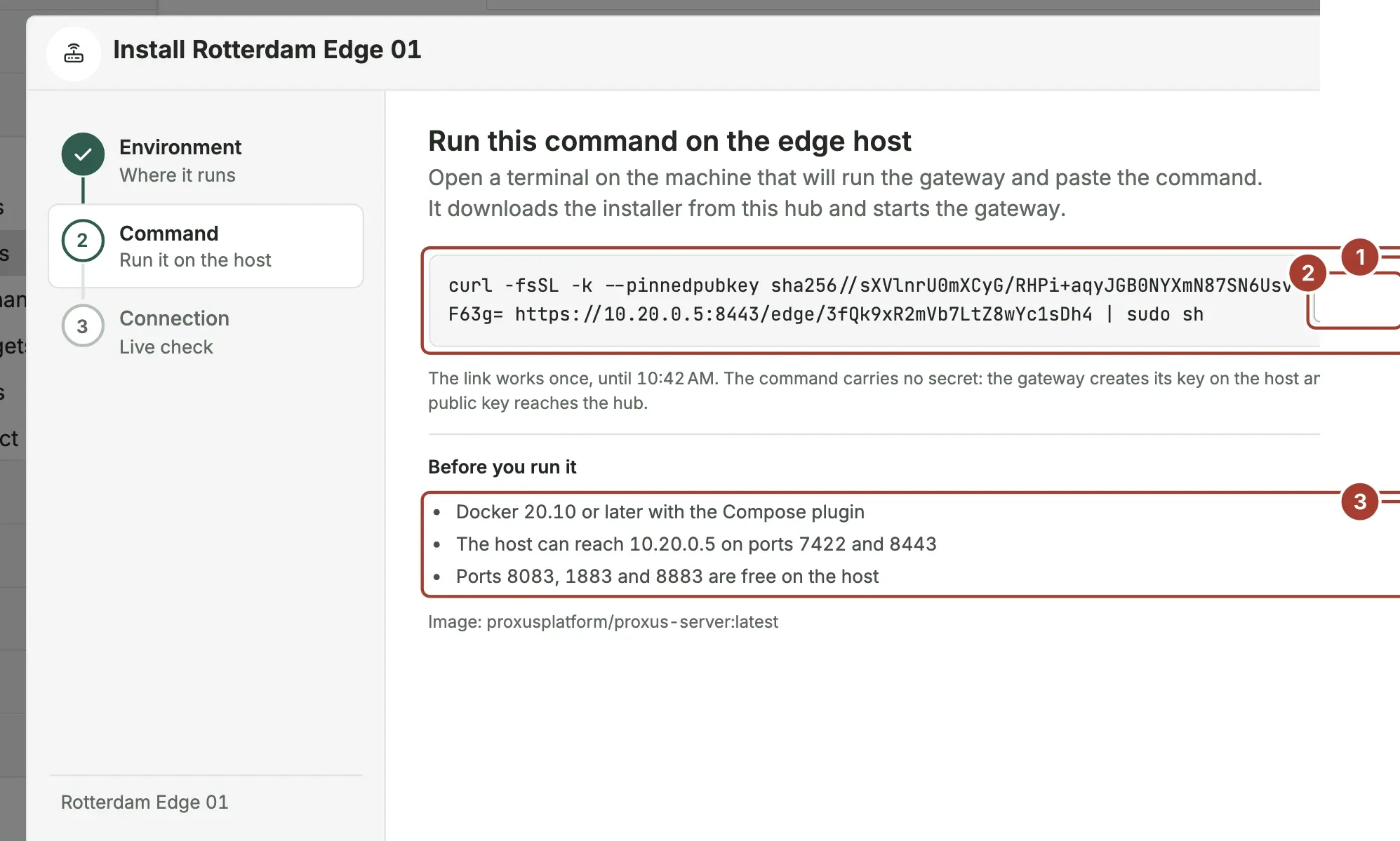
- The install command. It downloads an installer from the hub and runs it.
- Copy puts the command on the clipboard.
- Before you run it: the requirements, with the hub address you chose.
Open a terminal on the edge machine, paste the command and run it. It looks like this:
curl -fsSL -k --pinnedpubkey sha256//<pin> https://hub.example.com:8443/edge/<one-time-link> | sudo shThe command downloads the installer over HTTPS and is pinned to the hub's HTTPS key (--pinnedpubkey). curl accepts only the hub that holds that key, whatever certificate the hub has, so nobody on the way can swap the installer or the gateway's identity. Every call the installer makes to the hub uses the same pin. When HTTPS is off on the hub, the command uses plain http:// on the hub's web port, as in earlier releases.
The link works once, and only for one hour. The command carries no secret: the gateway creates its own key on the edge machine, and only the public key is sent to the hub.
Select I ran the command, or wait: the window moves on by itself when the edge machine downloads the installer.
Step 4: Watch it connect
The last step follows the install live. Each line turns green in order:
- Installer downloaded on the host
- Gateway image downloaded
- Gateway key registered with the hub
- Gateway started
- Connected to this hub
When The gateway is connected appears, select Add devices to add the first device to this gateway, or Close. In Connect > Edge Gateways, the gateway now shows Online.
You can close the window at any time; the install continues on the edge machine, and the gateway's page shows when it connects.
What the installer does
On the edge machine, the installer:
- checks Docker, Compose and the free ports (the service port,
1883and8883); - creates the folder
/opt/proxus/proxus-edge-<id>with the gateway's settings; - downloads the images and creates the gateway's key;
- registers the public key with the hub, and reports the machine's names and addresses;
- sets up the gateway's link to the hub as TLS, checked against the platform CA that the installer brings along (public certificates only);
- starts two containers, the gateway and its local message broker, which restart by themselves after a reboot.
It touches nothing else on the machine.
The gateway's certificate
Each gateway gets its own certificate from the hub's Certificate Store, named "gateway name (gateway N)". It covers the names and addresses the installer reported, and it is used for the gateway's MQTT broker over TLS (port 8883) and its optional HTTPS port.
- The gateway asks for it when it starts and twice a day. The hub renews it in the store before it expires.
- The gateway keeps the last certificate it received, so it still has one after a restart while the hub cannot be reached.
- A gateway can only get its own certificate.
- When the certificate is renewed, the MQTT broker restarts for a few seconds and devices reconnect.
MQTT devices check the broker against the platform CA: install it on them from Security > Certificate Store, Download CA, and connect to a name or address that the certificate covers.
Troubleshooting
If a stage fails, the window says which, and the terminal on the edge machine shows the details. Fix the cause, then select Create a new command and run the new command.
| Message | What to do |
|---|---|
| Docker is missing, not running, or this user cannot use it. | Install or start Docker, then run a new command. |
| A port the gateway needs (8083, 1883 or 8883) is in use on the host. | Stop the program that uses the port. The terminal names it. |
| The gateway image could not be downloaded. | Check that the edge machine reaches Docker Hub, or load the image beforehand. |
| The gateway could not register its key with the hub. | The command was already used or has expired. Create a new command. |
| The containers could not start. | The terminal on the edge machine shows why. Fix it, then create a new command. |
If curl stops with an error about the public key, the hub's HTTPS certificate changed after the command was created. Create a new command.
If the gateway started but does not connect, check that the edge machine reaches the hub on port 7422. For more, see Troubleshoot gateways.
What's next
- Add a device and choose this gateway in the first step.
- Manage edge gateways: status, logs, buffer, update and remove.
Was this page helpful?
Evaluating Proxus? See it on your own machines in a 30-minute technical session.