How-to guide · for Engineers
Connect an MTConnect machine
Find the MTConnect agents on the gateway's network, pick a machine, and choose its data items from the agent's own list.
At the end of this guide, a CNC machine or other equipment that has an MTConnect agent is a device in Proxus, and its data items (execution state, spindle speed, part count and others) are read as tags.
Proxus reads the agent over HTTP: the machine's agent serves its data items, and the gateway asks it for new values at each read. Nothing has to be installed on the machine.
Before you start
You need:
- An MTConnect agent for the machine, running and reachable from the gateway over HTTP. Agents usually listen on port 5000. You may know its address, or let the gateway find it.
- A gateway on the agent's network. See Add a device for the general steps of the wizard.
Step 1: Choose MTConnect
In Connect > Devices, select New. Choose the gateway, type mtconnect in the protocol search box and select the MTConnect card. Select Next: Connection.
Step 2: Find the agent
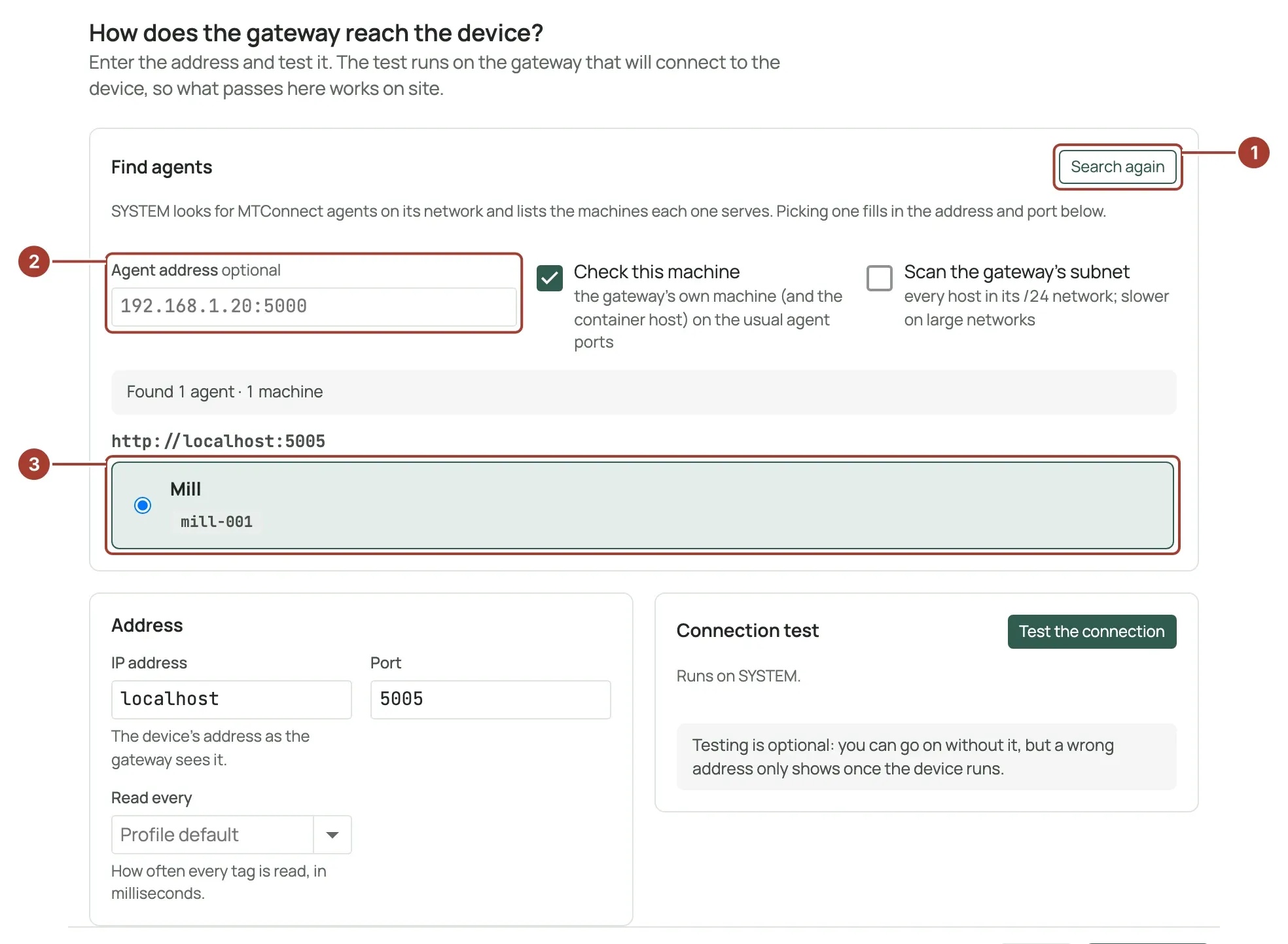
- Select Find agents. The gateway asks its network for MTConnect agents; with a subnet scan this can take up to 30 seconds.
- Agent address (optional): if you know the agent, enter it here, for example
192.168.1.20:5000. A host name alone is tried on every usual agent port. You can enter several, separated by commas. - Each agent found is listed by its URL, with the machines it serves: name, maker and model, and the machine's ID. Select a machine. Its address and port are filled in under Address.
What the gateway searches:
- Check this machine (on by default): the gateway's own machine, and the container host, on the usual agent ports.
- Scan the gateway's subnet (off by default): every host in the gateway's /24 network. Slower on large networks.
If no agent answers, enter the agent's address under Agent address, or type the IP address and Port of the agent directly under Address.
Select Test the connection to check that the gateway reaches the agent, then Next: Tags.
Step 3: Choose the data items
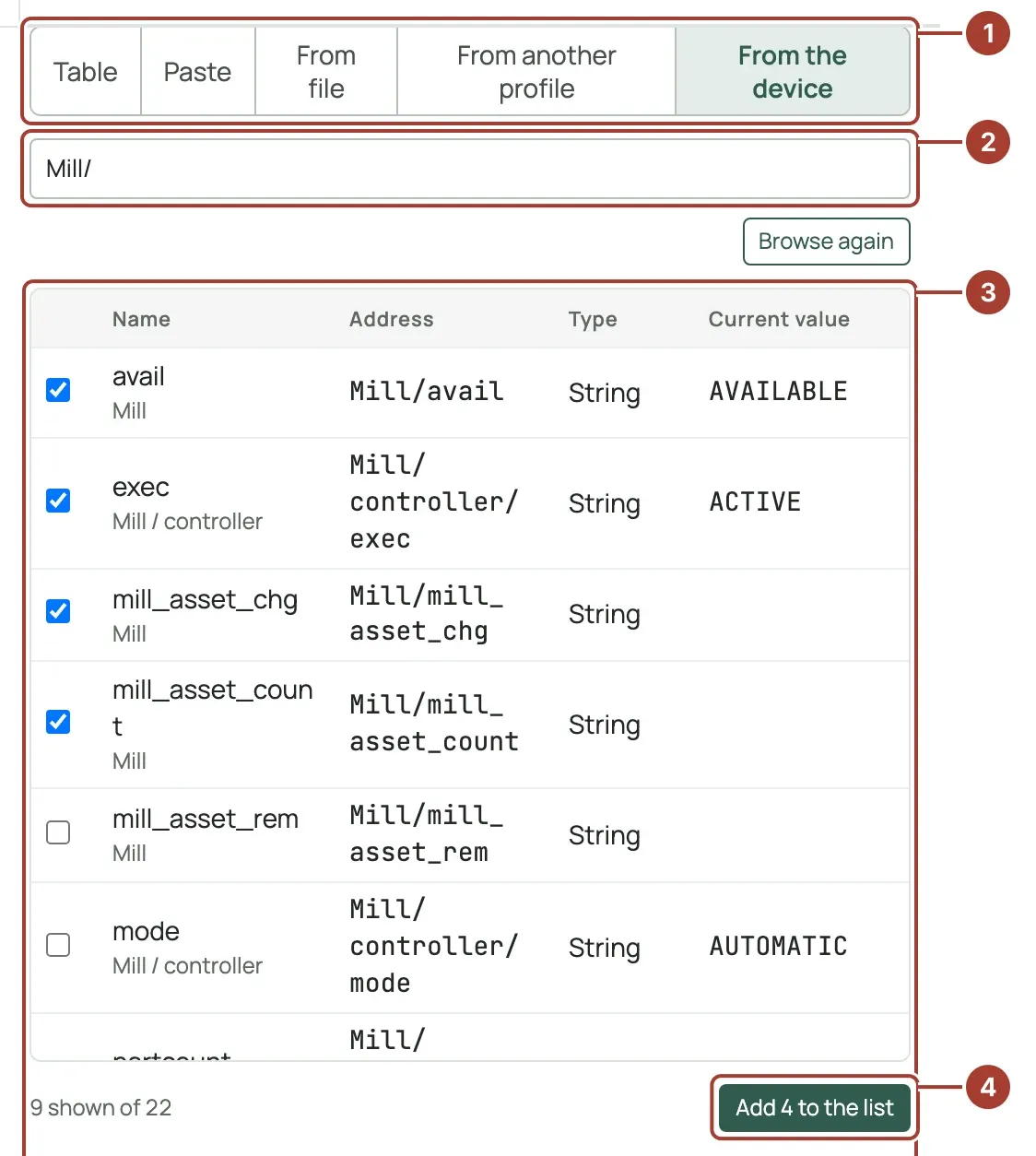
- Select the From the device tab.
- Select Browse the device. The gateway reads the agent's list of data items, with their current values. Use the filter box to find items by name or address.
- Tick the data items to read. Items the agent itself publishes (named after the agent) are listed too; you usually only need the machine's own.
- Select Add … to the list. The items become tags in the table.
Each tag's Address is the machine's name, the component path and the data item, separated by /, for example Mill/controller/exec or Mill/avail. Units come from the agent. The data type is chosen from the kind of data item: positions, speeds, temperatures and loads become numbers, counts become whole numbers, and states such as execution or availability become text.
Continue with Place and type and Save and verify as for any device.
How values are read
- At each read, the gateway asks the agent for the values since its last read, so short changes between two reads are not lost. If that fails, it reads the current values instead and tries again later.
- A data item that the agent reports as
UNAVAILABLEhas quality Uncertain. A condition in Fault has quality Bad; a condition in Warning has quality Uncertain.
The agent ports the gateway tries
Discovery tries these ports on each host: 5000, 5001, 5005, 5006 and 7000. To change the list, set MtConnectDiscoveryPorts in the [Browse] section of the gateway's configuration file:
[Browse]
MtConnectDiscoveryPorts = "5000, 5001, 5005, 5006, 7000"
As an environment variable, the same key is Browse__MtConnectDiscoveryPorts. The search runs on the gateway, so set it on the gateway that searches.
What's next
- The device page: check the machine's live values.
- Troubleshoot devices
Was this page helpful?
Evaluating Proxus? See it on your own machines in a 30-minute technical session.