Proxus 2.0 is the product rebuilt from the interface down to the data path. It has a new look, a new font and a new icon set, and the hub now speaks English and Turkish. Almost every screen was reorganized so that it first answers "is there a problem, and where?". The release adds Copilot, the Topology map, setup wizards for devices, gateways, Kepware and OPC UA, rebuilt pipelines, the Trend Workspace, built-in reports and dashboards, roles limited to a site, and TLS on every connection the platform opens or accepts. Outbound targets keep data while a target is down.
Highlights
Look and language
- A new design. One Proxus theme in steel green, a new logo, an icon set drawn for Proxus, the Inter font with aligned figures in tables, a colour-blind-safe chart palette and status colours that keep red for alarms. See the platform overview.
- English and Turkish. Choose the language on the sign-in page or in Settings. Menus, screens, dialogs, dashboards, reports and Copilot answers follow it. See A tour of the hub.
Seeing the plant
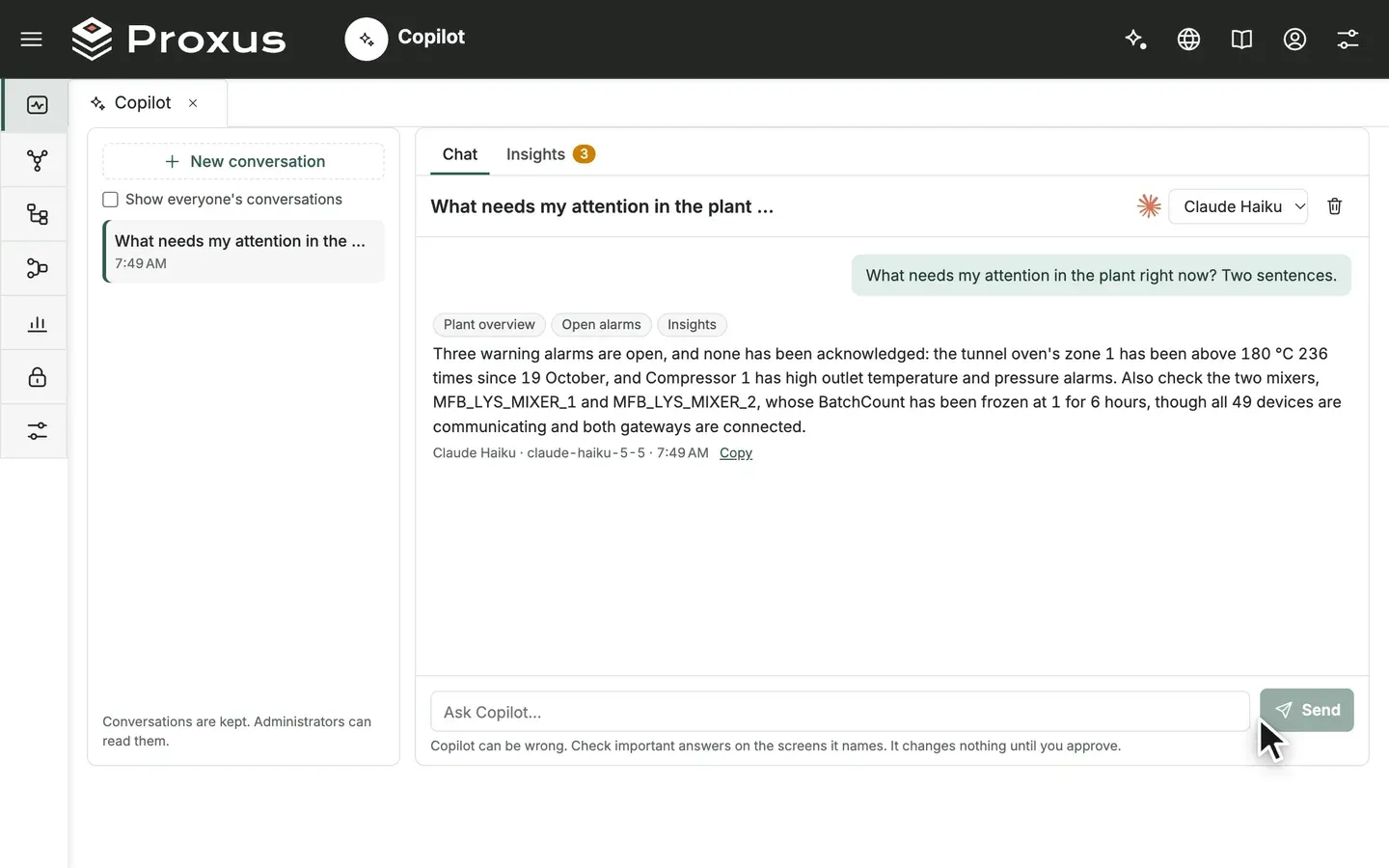
- Copilot, with your approval. A built-in assistant answers questions from the data you are allowed to see and prepares changes as a proposal card that you approve or reject. It changes nothing on its own. See Copilot and Copilot and AI access.
- Topology. A live map of sites, lines, devices, edge gateways, the hub and outbound targets, coloured by health, with Plant, Fleet and Flow views and a replay of the last 60 minutes. See Topology.
- Trend Workspace. Up to 8 tags from different devices on one time axis, with comparison periods, alarms and changes on the chart, a machine state band, saved views and CSV or Excel export. See Trend Workspace.
- Health Checks and dependencies. One verdict, findings that say what to do, a chain that shows where the data stops, and a warning that lists what depends on an object before you switch it off. See Health Checks.
- Built-in reports and dashboards. Ten reports and five operational dashboards that work on the day of installation, in the user's language. See Dashboards and reporting.
Connecting and automating
- Wizards for connecting equipment. One device wizard tests the connection from the edge gateway, reads tags from a file, another profile or the device itself, and watches the first values arrive. The Kepware Project Importer, the OPC UA connection wizard and the gateway installation were rebuilt as wizards. See Add a device, Import from Kepware and Connect an OPC UA server.
- Pipelines rebuilt. Build covers what used to need the canvas: new triggers and steps, a Conditions step with "all" or "any" and a duration, a formula editor that checks as you type, and API connections set up without leaving the step. See Pipelines.
- Alarm rules you can try before saving. Conditions are written as a sentence, replayed over the last 24 hours before you save, and can wait for a duration or close themselves. See Create a rule.
- Outbound targets that keep data during outages. Data waits in the gateway's queue while a target is down and is written in order when it is back. See Outbound targets.
Security and access
- A platform CA and TLS everywhere. The hub runs its own certificate authority or uses your corporate CA, renews certificates by itself, serves HTTPS on 8443, encrypts all hub and gateway traffic and offers MQTT over TLS on 8883. Targets and OPC UA connections verify the server. See Certificates and Security.
- Roles and site scope. Eight built-in roles, capabilities for buttons that affect the plant, and roles that limit users to the devices of their own site everywhere, including dashboards and reports. See Users and roles.
- Secrets protected. Passwords, keys and tokens are masked and never sent to the browser, gateways sign in with their own key, and API tokens are signed with a key made for each installation.
See it in the product
Look and brand
- The product ships with a single theme, Proxus. The earlier themes and the theme and size selector were removed.
- The primary colour is steel green; terracotta is kept for the brand, so no Save button looks like an alarm. Every screen uses the same status palette (OK, Warning, Critical, Info, Offline): Offline is now neutral grey and red is used only for alarms. The colours pass contrast checks.
- Charts, maps, dashboard items, the terminal and reports use a new 8-colour data palette that stays readable for colour-blind users. Dashboards use it by default, replacing the old purple and blue palette. Existing dashboard items keep their saved colours; new defaults apply to new items.
- The product font is Inter, in the interface, reports, PDF output and Copilot summary e-mails; code areas use JetBrains Mono. The font ships with the product and needs no internet. Figures in tables line up, and short columns were widened so values are not cut off. Reports saved with the earlier font still print with it.
- One corner radius scale across all components, a dark header with a white logo, a new sign-in page and a new loading animation.
- The new Proxus logo appears in the header, on the sign-in page, in the browser tab and at the top right of every PDF report (not on white-label licences). PDF reports take their headings, lines and chart series from the same palette.
- All icons were replaced by Proxus Symbols, a set drawn for Proxus, including the 66 pipeline node icons. Icons take the text colour of their button. Acknowledge, Resolve and Ignore now have distinct icons, and vendor logos on Outbound Targets keep their own colours.
- The product is now named Proxus Industrial Data Platform. White-label installations keep their own application title.
- Gateway CPU and memory charts were simplified, the Timeline and Map dashboard items take their colours from the palettes, and a metric keeps the same colour every time Data Inspector opens.
- Upper-case headings no longer show a dotted İ ("LİCENSE CAPACİTY") when the browser language is Turkish.
More: A tour of the hub, Platform overview.
Interface and navigation
- On wide screens the left menu collapses to a narrow strip of group icons, which frees about 200 pixels. Hovering or clicking an icon opens that group's screens, the group of the open screen is marked, and the menu remembers whether it was collapsed. Tablets and phones keep the earlier menu.
- The interface is available in English and Turkish, and Turkish is written so that an operator who does not read English understands every screen. Screen names describe what the screen does rather than translating word for word. Only abbreviations known on the shop floor (PLC, MQTT, OPC UA, OEE, API) and brand names stay in English.
- On first sign-in the browser language is used; if it is neither language, the installation's language opens. The choice is stored in the browser.
- The dashboard viewer and designer, the report preview and designer, the query builder and the expression editors are translated too. The "[Proxus Built-in]" dashboards and reports show their titles, columns and status values in the user's language, while text that users typed (alarm messages, device and rule names) is shown as written.
- Computed values in lists, pipeline issue codes, alarm messages from pipeline goals and the License Info window are shown in the user's language. Dates and numbers follow the user's regional settings.
- The top bar icons share one size and style, the product and version information at the bottom of the menu became a plain footer, and hovering over a line chart no longer changes its fill.
More: A tour of the hub.
Lists, windows and confirmations
- List rows stay on one line with "…" for long text and the full text on hover; rows have equal height.
- A column can no longer be narrower than its header, so headers are not cut off. Unclear headers were renamed, for example Devices instead of "Used By" on device profiles.
- Lists inside a record show only the columns that matter there. A target's Devices tab, for example, shows device, type, data state, last value and gateway instead of 10 columns.
- Confirmation dialogs name the action in their title and button, such as "Delete certificate" with Delete, instead of a general "Confirm".
- Empty lists say what to do next, in the user's language. English counts use the right singular or plural ("1 tag", "used by 1 device").
- Wizards and the pipeline test screen use the same cards, tables and colours as the rest of the platform, and the "Before you continue" box stays visible above the buttons.
Operations Center
- The Operations Center answers whether anything is wrong, where, and what to do, with a one-line verdict and a Needs attention list. See Operations Center.
- Live updates are drawn in each user's own language and number format.
- The data lag check uses each device's own expected data interval instead of a fixed 120 seconds and leaves out disabled devices.
- Alarms show the same title and reason as in the alarm list, and a silent edge gateway shows the reason it is not connected.
- The page no longer fails when it is opened while the hub is starting or right after an import, and closing it quickly no longer writes an error to the logs.
More: Operations Center, Find what stopped.
Topology
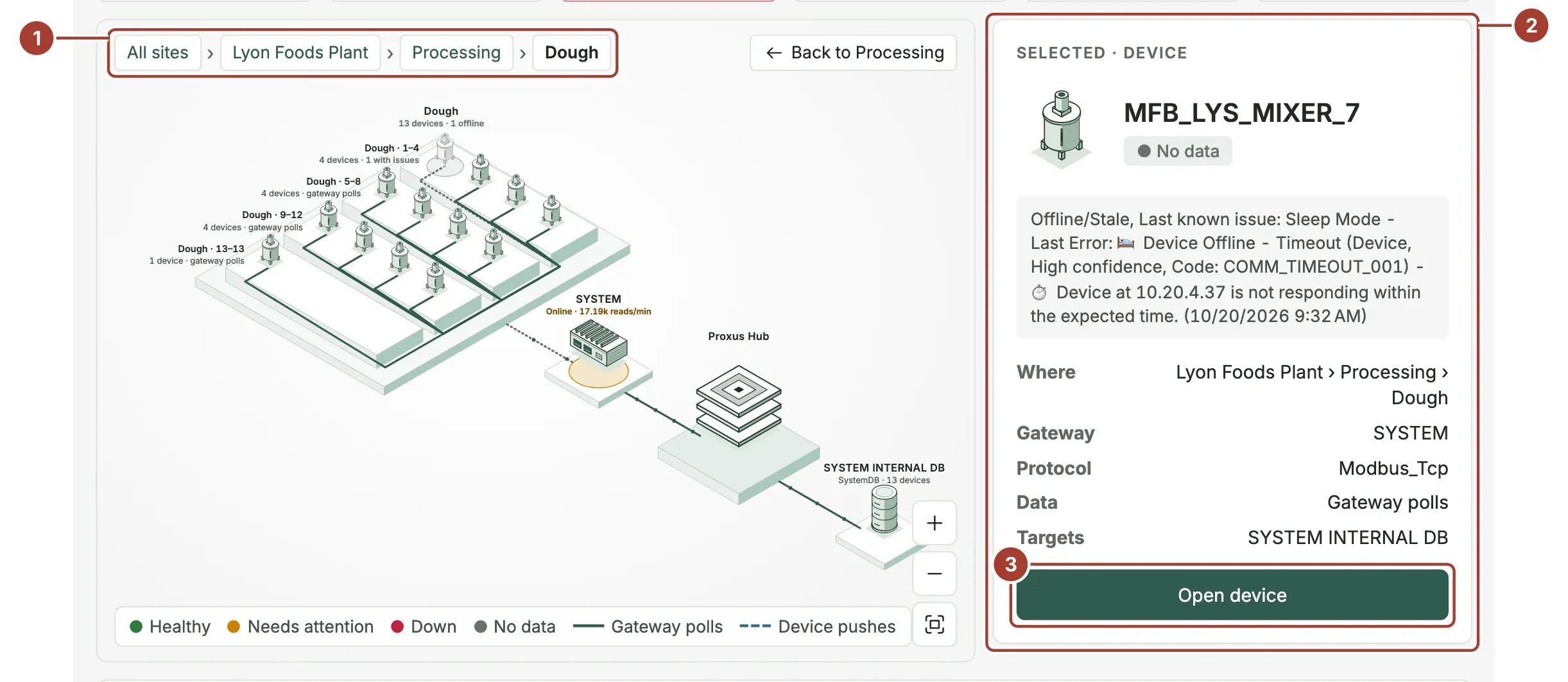
- Topology (Monitor > Topology) draws the plant as a map: sites, areas and lines with their devices, the edge gateways that read them, the hub and the outbound targets. Everything is coloured by health, so you can see where data stops.
- Plant is an isometric map you can step into, Fleet shows one column per site, and Flow shows the data as bands from devices through the gateways and the hub to the targets.
- Issues lens fades everything that is healthy, and a search box jumps to a site, line or device. Selecting an item shows its details and what depends on it.
- A timeline of the last 60 minutes shows the number of devices that wrote data in each minute; drag along it to replay a minute on the map.
- The header no longer jumps while the "updated" time changes.
More: Topology, Find what stopped.
Alerts
- Each alarm is linked to its device once, when it is raised, so the device page, the trend screens and Copilot all show the same alarms for a device. Existing alarms are linked once on first start.
- When the same rule matches on two devices, each device gets its own alarm. Before, the second device increased the count of the first device's alarm.
- An alarm that someone has acknowledged is no longer raised a second time while its condition lasts; repeats increase its Count. A new alarm opens after it is resolved or ignored.
- The reasons on the alarm page, the reason column of the alarm list, the Operations Center cards and the full report are shown in the user's language, with long decimals rounded. The one-line reason now shows the condition that raised the alarm rather than the device condition.
- The alarm page has a new Alarm moment section that shows the tag around the time of the alarm, the machine state, what changed before it and how often it fired in the last 7 days.
- The time of the "previous value" in rule alarm reasons is written in the gateway's time zone instead of UTC. This applies to new alarms once gateways are updated.
More: Alerts, Acknowledge and resolve an alert.
Devices
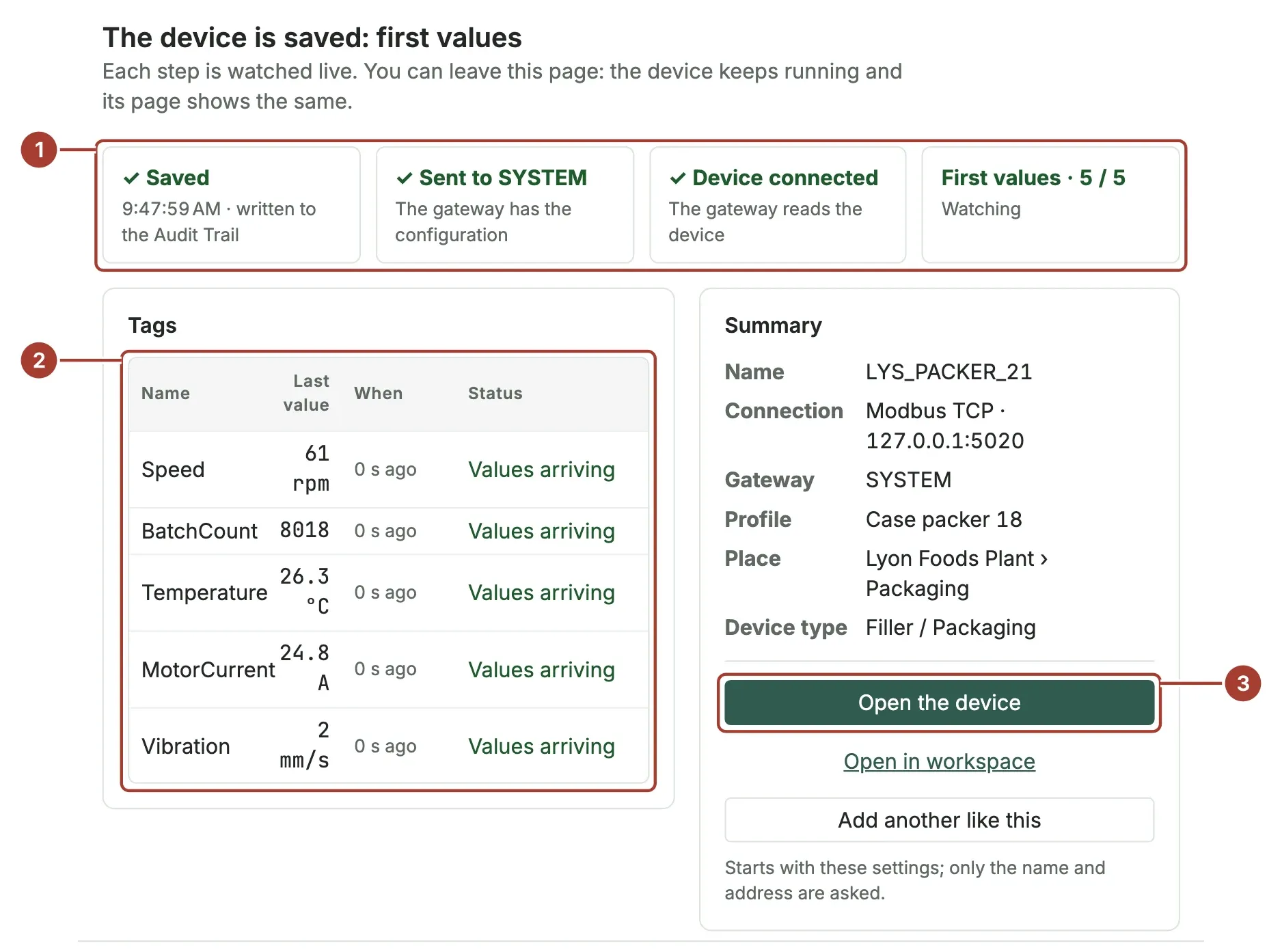
- New in the device list opens the device wizard: protocol and edge gateway, connection, tags, place and type, then save and verify. Add another like this starts a device with the same profile, gateway and place, and Configure with wizard edits an existing device with the same steps.
- The connection test runs from the edge gateway that will reach the device and shows each step. If the device cannot be reached, the gateway lists its own networks, so a wrong address can be told apart from a routing or firewall problem.
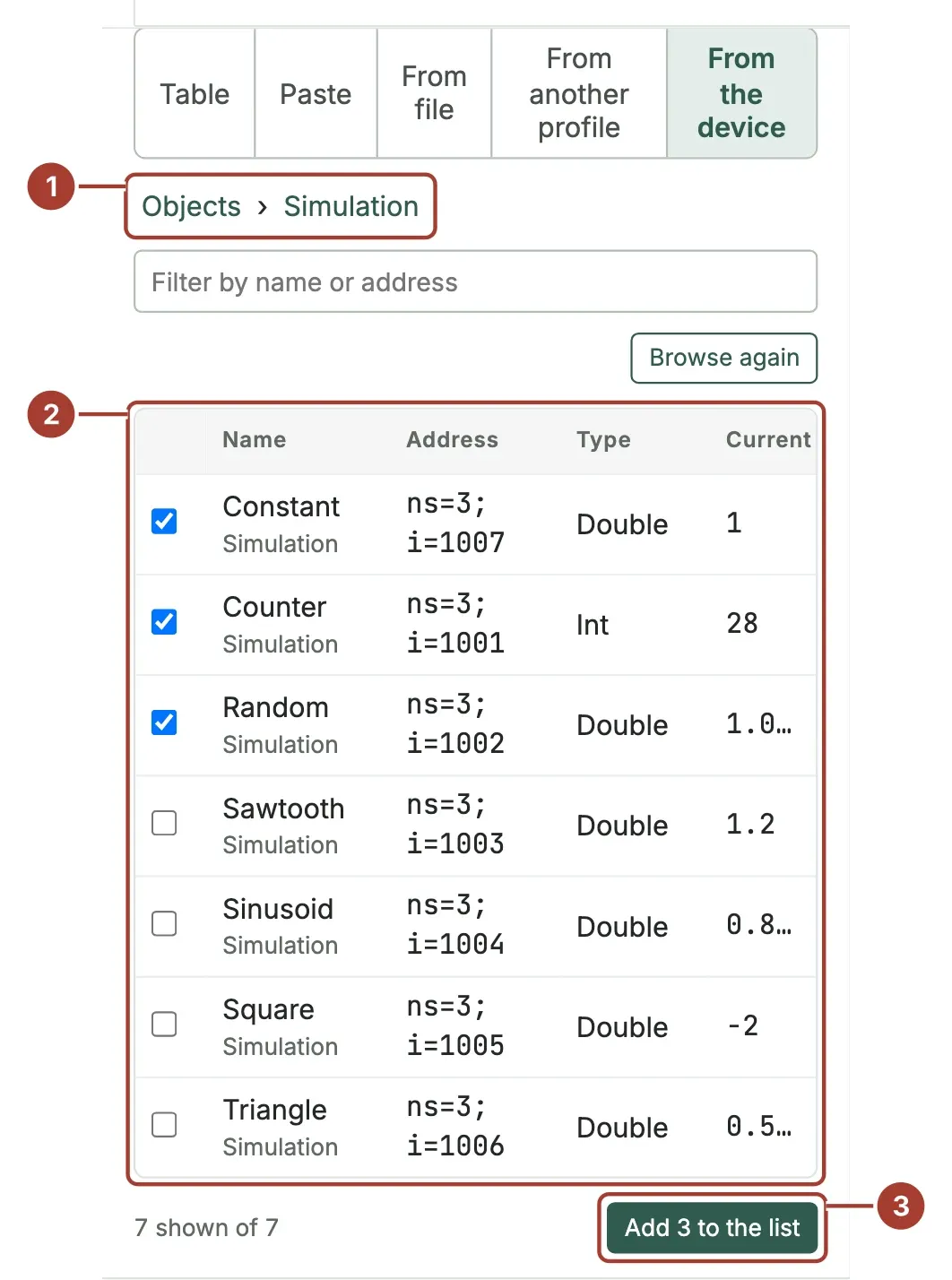
- Tags can be typed, pasted from Excel or TIA Portal, built with the address helper, read from a CSV or Excel file (including TIA Portal "PLC tags" exports), copied from another profile, or browsed from the device for OPC UA, SNMP, Allen-Bradley and MTConnect. Read all once reads every tag before saving.
- Nothing is saved until the last step, and an unfinished setup is kept as a draft without passwords.
- In the wizard, OPC UA servers and MTConnect agents can be discovered on the gateway's network. OPC UA values browsed from the server keep their real data type. SNMP asks for the community, and TimeTicks values are read as numbers. The simulator has value patterns (sine, ramp, square wave and others) instead of random values only.
- Devices saved with an empty port now connect on the protocol's own port, and MTConnect devices use their Port field. Before, such devices could pass the test but fail after saving.
- Your company's naming pattern for devices can be switched on in the configuration file. When it is on, new device names are checked in the wizard, in bulk import and in the device form. It is off by default.
- Import Devices adds or updates devices in bulk from an Excel or CSV file with English or Turkish column headers. A dry run shows what will be added, changed, left unchanged or rejected, and the connections can be tested before anything is applied.
- A running device can be removed from an outbound target without stopping it, and devices that never sent data show "no data yet" instead of a date from 1970.
- Mitsubishi Melsec A1E ASCII devices now use the A1E ASCII protocol and connect, and XINJE TCP and XINJE Serial over TCP each use their own driver. No setting change is needed once the gateway is updated.
More: Add a device, Import devices from a spreadsheet, Platform: Connectivity.
Device types
- The device type is always chosen by the user; Proxus does not guess it from the name, profile or protocol. The wizard and the import file require it.
- The "Proxus IoT Edge" device type is now named "Proxus Edge"; devices of that type are unchanged.
- Health Checks and Topology draw a device with the icon of its chosen type, and vendor logos in the wizard are large enough to read.
Device profiles
- Before a profile change that affects how devices are read is saved, a window lists what changes, which devices receive it and which rules, pipelines and saved trend views read a removed or renamed tag.
- Device profiles can be exported to a JSON file without passwords, tokens or keys, and imported as new profiles. Imported profiles never overwrite existing ones and can be used at once in the wizard's From another profile tab.
- Unit lists show readable names ("degC - Degree Celsius") and can be searched by part of the name.
More: Device profiles.
Trend Workspace
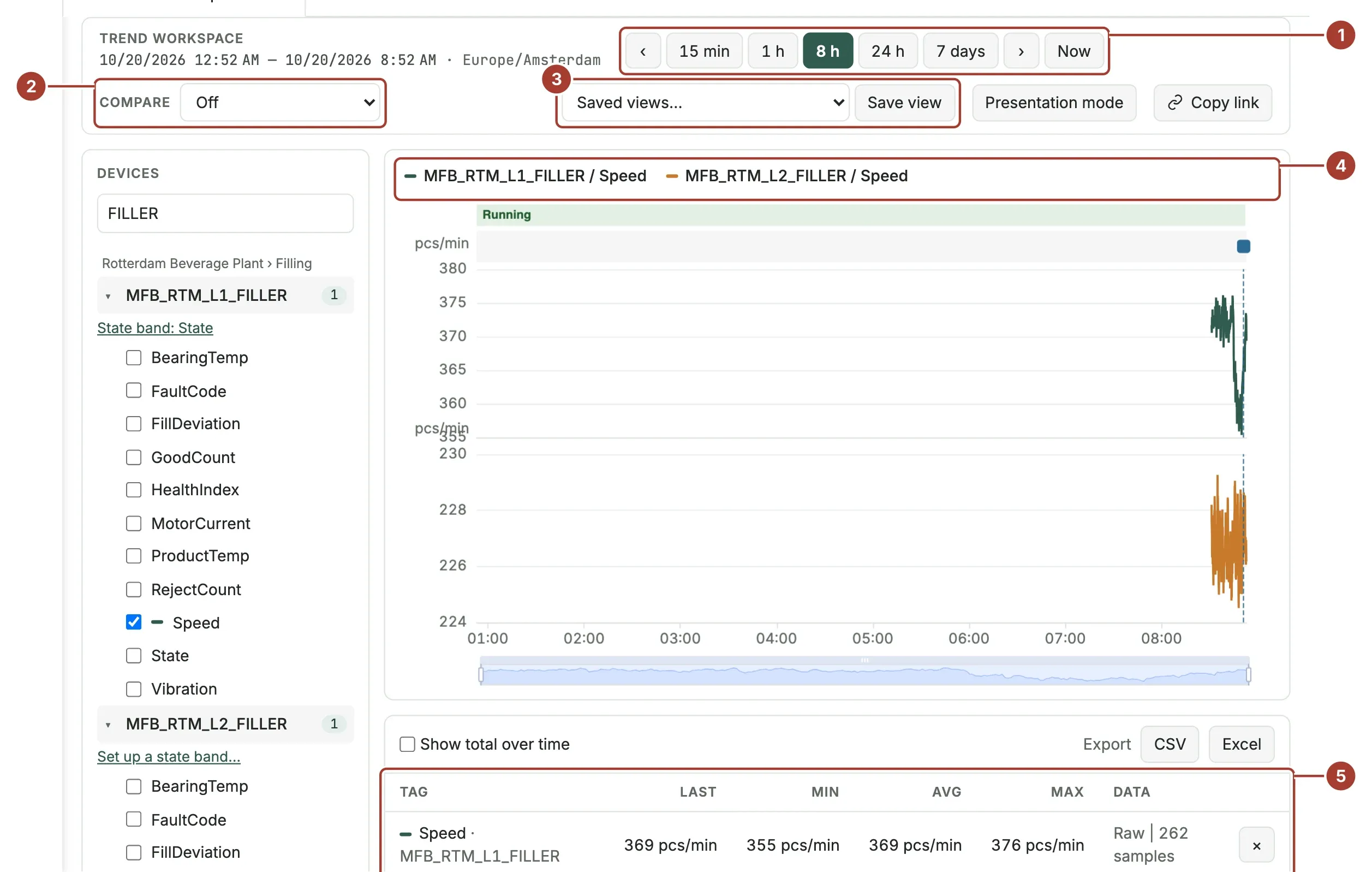
- Monitor > Trend Workspace shows up to 8 tags, from different devices if needed, in stacked panels with a shared time axis, zoom and cursor.
- Ranges from 15 minutes to 7 days or a custom range, with a comparison against the previous period, yesterday or last week. A table shows the last, minimum, average and maximum value for each tag; averages are time-weighted, and an optional total over time turns kW into kWh.
- Alarms, platform changes, pipeline publishes, gateway connection events and notes can be shown on the chart. Click a moment to add a note that everyone sees.
- A machine state band shows when a machine ran and stopped. You give each state value its name and colour; Proxus does not guess what the values mean.
- Views can be saved and shared with everyone, links reopen the same view, and the data on the chart can be exported to CSV or Excel. Presentation mode shows the first tag full screen for a display on the shop floor.
- A quick-look panel opens from the device page and from the UNS Explorer. The old full-screen trend window was removed.
More: Trend Workspace, Compare tags over time, Platform: Historian.
Copilot
- Open Copilot from Monitor > Copilot, from the Copilot button in the header or with Ctrl+K (Cmd+K on a Mac). Opened on a record, it understands "this device" as the record in the front tab, and Ask Copilot in a record's toolbar asks a ready-made question about it.
- Copilot reads only what the asking user may see. It can read devices and their live state, alarms and alarm history, tag history, dependencies, change history, system logs and the records of every screen the user can open. Passwords, keys, tokens, licence data and connection settings are never read. Every source it used appears above the answer, and records are named, not numbered.
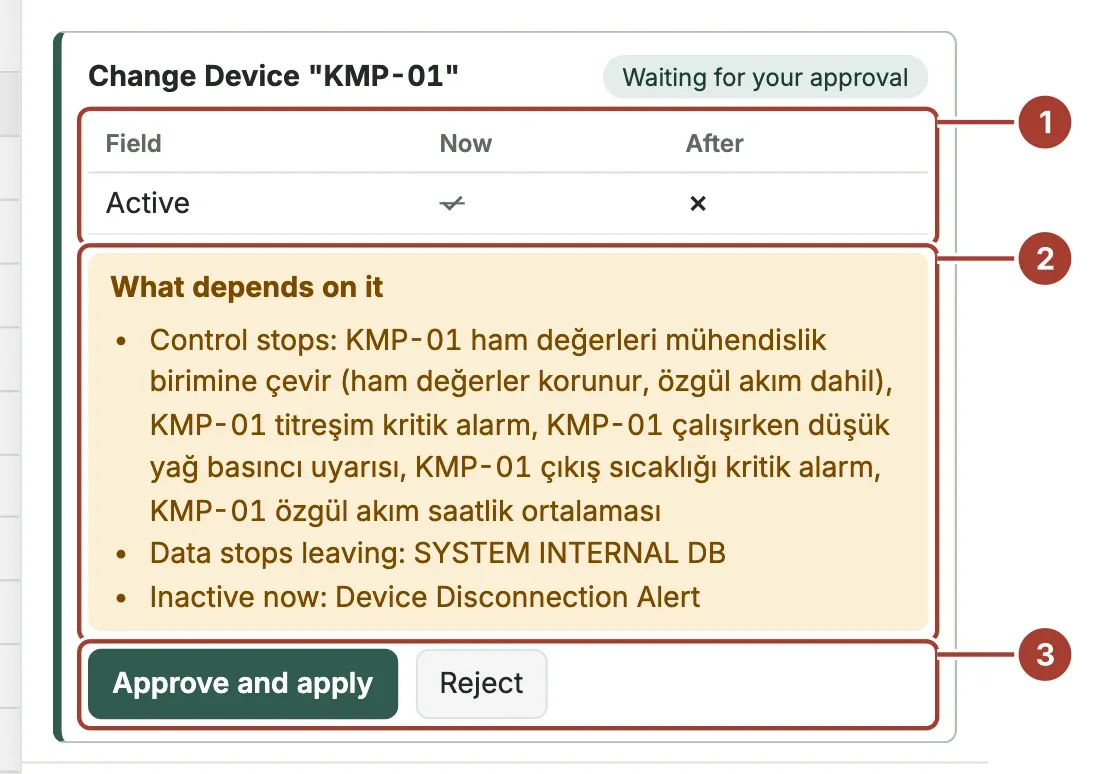
- Copilot prepares changes as a proposal card with the current and new value of each field and what depends on a record. Nothing is applied until the person who asked chooses Approve and apply; Reject discards it. The change is made with that person's permissions, reaches the gateways at once and appears in the change history under their name.
- Copilot can propose changes on any record the user may edit, in bulk or as a plan of related steps, and applied changes can be undone. Deletions, changes to five or more records and changes to users, roles and certificates ask for a second approval, and a proposal expires after 24 hours.
- With the access level Ask, propose changes and run actions, Copilot can also press buttons such as publishing a pipeline or deploying a function, with the same approval card. Each action needs the button's own capability.
- Copilot can add a machine through the device wizard's own services, build or change a pipeline as a draft, and turn a sentence into an alarm rule condition, trying it on the last 24 hours first. Device diagnosis checks every link from a device to the hub and names the first broken one. It also answers from the product documentation, which ships with the hub and works without internet.
- The Insights tab lists issues found by fixed background checks, without AI: noisy alarms, alarms without an owner, unstable gateway connections, certificates about to expire and tag values that are frozen or unusual. Insights can be sent to a notification channel, and scheduled deliveries can send a Copilot shift summary or weekly health report.
- Administrators choose the AI service in Platform > Copilot Settings: Anthropic Claude, OpenAI, Azure OpenAI, Claude on Amazon Bedrock, Claude on Google Vertex AI or a local Ollama model. With Ollama no data leaves the site; with Bedrock, Vertex AI and Azure OpenAI the data stays in your own cloud account, and the hub can sign in with its cloud identity without a stored key. Test connection loads the available models and says what is wrong.
- Each role has a Copilot access level and a daily token limit. Each service can have prices and a monthly budget, and Platform > Copilot Usage shows answers, tokens and estimated cost per service and per user.
- Data written by users and devices, such as device names and alarm texts, is treated as data only: Copilot does not follow instructions found in it. Answers are in the interface language and use the names shown on screen.
More: Copilot, Set up Copilot, Platform: Copilot and industrial AI.
Edge Gateways
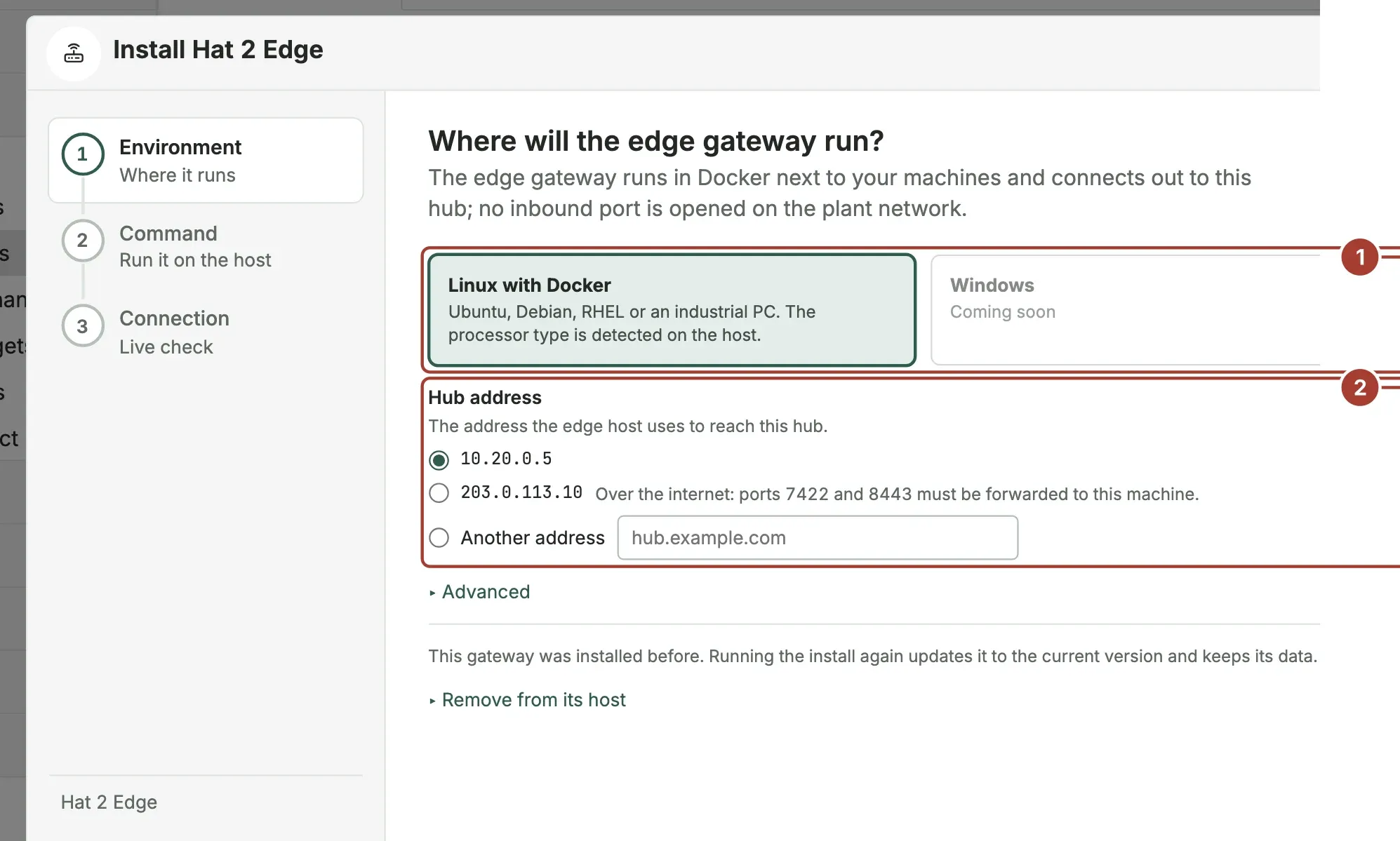
- Install opens a three-step wizard: environment, a one-line command to copy, and a live view of the installation until the gateway connects. If the installation stops, the wizard says why (no Docker, port in use, image not downloaded) and a new command can be created with one click. A new gateway opens the wizard when it is saved.
- The wizard suggests hub addresses that another machine can actually reach, leaves out container-internal and localhost addresses, and shows the ports the command really uses.
- Edge gateways now connect to the hub with their own key instead of a shared user name and password. The secret half of the key never leaves the gateway's machine, and each gateway sees only its own traffic.
- Revoke access disconnects a gateway from the hub within seconds and its key stops working. The new Access history tab lists installations, revocations, connections, disconnections and refused connection attempts.
- When a gateway is not connected, its page, the gateway list and the Operations Center say why: access revoked, connection refused, not responding or connection lost.
- Buffer retention (hours) on the gateway's Configuration sets how long a gateway keeps data while it cannot reach the hub: 48 hours by default, up to 720 hours (30 days). The setting survives a restart while the hub is unreachable.
- Reinstalling an installed gateway updates it and keeps its data. Remove from its host removes only that gateway's containers, data and folder; the old "Clean" action, which removed every Docker container on the machine, was removed.
- Gateway logs are written in the machine's local time after the installation is run again.
- Before a licence is entered, a new gateway waits connected to the hub instead of restarting every 5 minutes, and starts as soon as the licence is activated.
- The gateway's NATS port is no longer published on the host, so it does not clash with another NATS server on the same machine.
More: Install an edge gateway, Manage edge gateways, Platform: Edge.
UNS Explorer
- The summary line stays on one line and the tree no longer jumps while values change.
- Decimal values are shown with 6 significant digits ("186.68 A"); copied and exported values stay raw.
- The trend button of a tag opens the quick-look panel, from which the Trend Workspace opens. Tag counts show only what the user's role can see.
- Trends are correct with several pages open, and device names and targets fill in right after a hub restart. See UNS Explorer.
More: UNS Explorer, Platform: Unified Namespace.
Pipelines
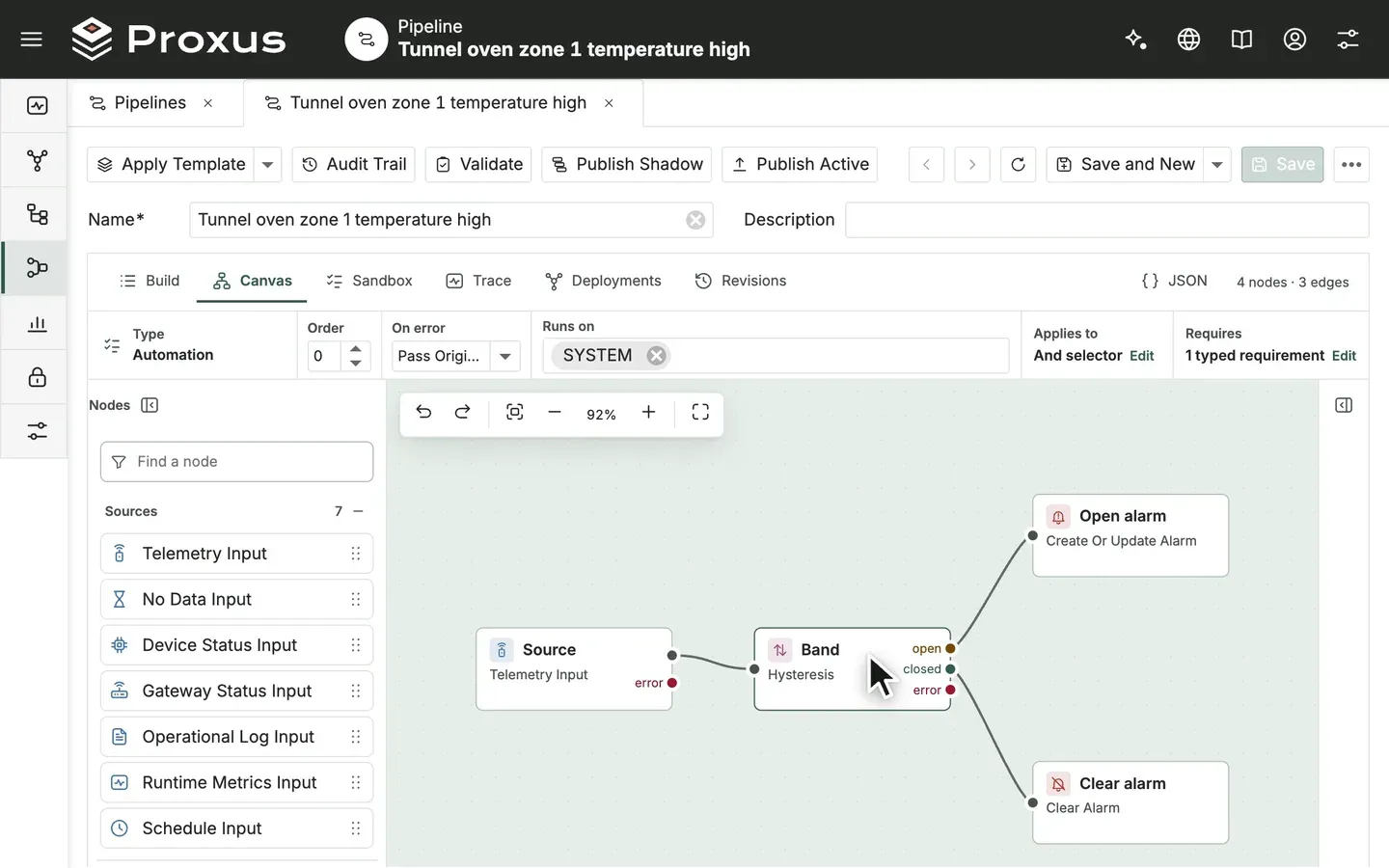
- The module is called Pipeline everywhere. Old links to pipeline screens open the new addresses.
- Build gained steps that were only in the canvas: new triggers (a gateway starts or stops, the gateway reports its load, a log entry is written, a custom schedule) and steps to set data quality, set aside data for review, set or copy a value, write a value to a device and keep a sample for Trace. A new gallery group watches the gateways.
- The new Conditions step combines several conditions with "all of these hold" or "any of these holds", chosen from lists, with an optional duration the conditions must last. A value with Bad quality never satisfies a numeric limit.
- A formula editor builds formulas from tags, operators and functions, checks them as you go and shows the result with the latest values. Formulas can still be typed in text mode.
- Average over time averages a value over the last N minutes, and Combine two devices pairs the latest values of two devices on the same line, equipment, area or site.
- In Build, an API connection can be created, tested and added to the devices that need it without leaving the step, and a value in the response is chosen by clicking it.
- Values changed in the canvas are read back into the Build story when the story can express them exactly; Build has Undo and Redo.
- The canvas, inspector and lists were aligned with the rest of the platform. The inspector uses plain language and lists instead of internal paths, output names are written next to their ports, and the designer uses the full width of the window.
- Alarm status route and Latest join work again, and acknowledging a pipeline alarm on the hub now reaches the gateway.
- Pipeline alarms whose condition lasts are refreshed on the gateway at most once a minute instead of on every reading; opening and closing are not delayed. A pipeline closes an alarm only when it is open.
- The pipeline list shows Runs On, Last Activity and an Issue in plain words, and the revision command is named Revert to previous revision.
More: Build a pipeline, Platform: Edge.
Functions
- The list shows the function name, deployment status, the gateways it runs on and its line count. The code editor sits at the top of the detail page at full width.
More: Write a function.
Rules, rule actions and notification channels
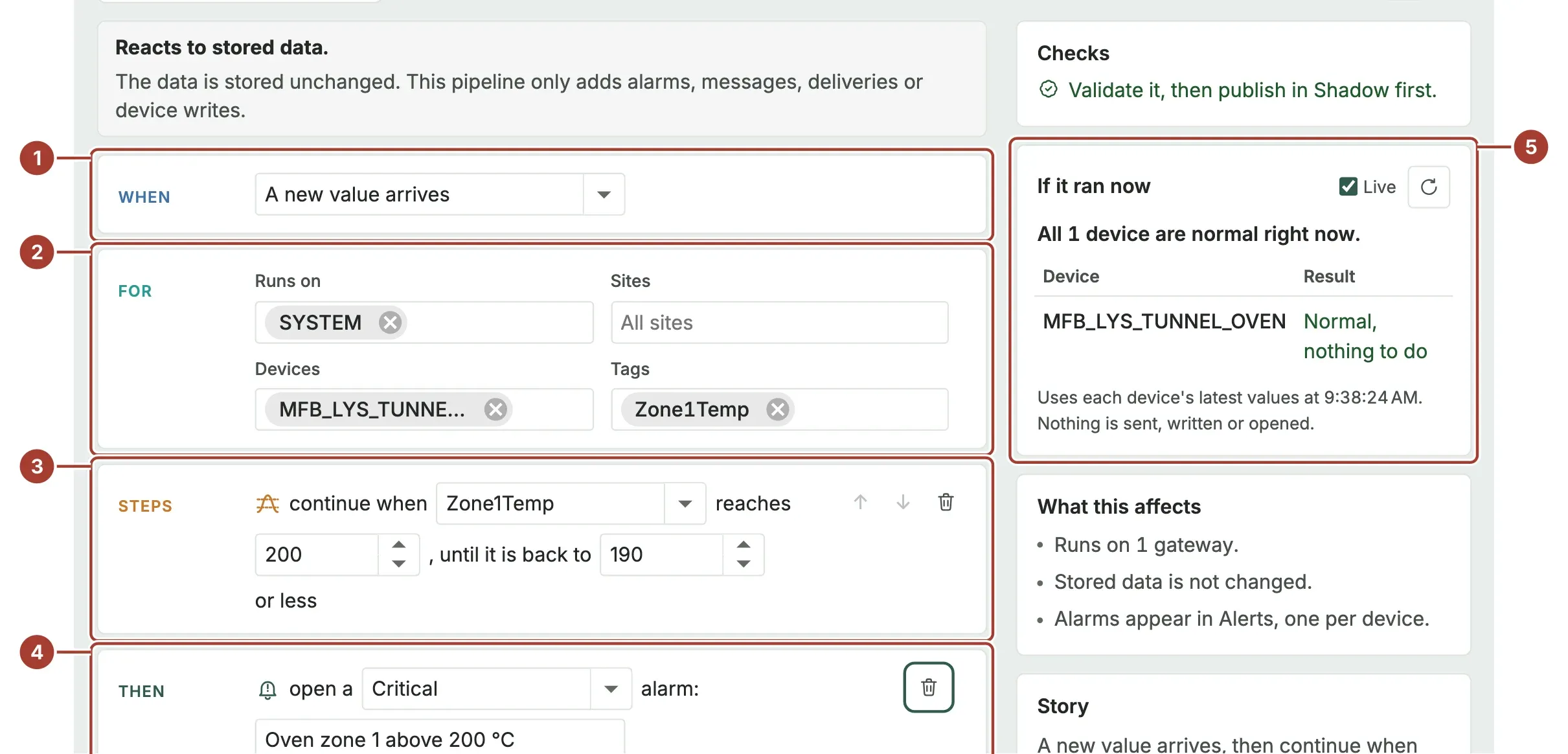
- The new condition editor builds a rule's condition as a sentence: scope, tag, comparison and limit, with the last 24 hours' minimum, average and maximum shown under each comparison. The Condition column of the rule list shows the same sentence, and the expression view stays available.
- Before saving, the editor shows whether the condition holds now and how often the rule would have fired over the last 24 hours, and warns when it would fire too often or never.
- Wait before the alarm fires a rule only when the condition holds for a set time on the same device, so short spikes do not raise alarms.
- Close the alarm chooses who resolves a rule's alarm: By hand, When the condition ends, or with a margin so that a value moving around the limit does not open and close the alarm repeatedly.
- A condition can be described in your own words and turned into a condition by Copilot, and new rules can start from templates such as above a limit, outside a range, connection lost, error log and read errors.
- The rule list and rule page show open alarms, last fired and the gateways the rule runs on, and whether the gateways actually apply it.
- Rule actions list where they send and how many rules use them. Notification channels show whether they are configured, still carry sample values or failed to send, with the last successful and failed delivery.
More: Create a rule, Add a rule action, Notification channels.
Outbound targets
- Database, MQTT, Kafka, REST API, InfluxDB, AWS IoT, Azure IoT, Splunk, RabbitMQ, Redis, TDengine and Sparkplug B targets keep data while the target cannot be reached. Data waits in the gateway's queue for the gateway's buffer retention and is written in order when the target is back. A record the target never accepts is skipped after a few attempts and named in the status, so the data behind it does not wait.
- The target page shows how many records are waiting in the gateways' queues and how many were skipped. Records held for a target that no device uses any more are shown separately with the time until which they are kept.
- The list shows targets in use by default, with devices, last success, last failure and last error. The target page opens with a summary, and the last success time stays current while data is sent.
- When several edge gateways send to one target, each reports its own status in a table on the target page, and the target's overall status is calculated from them. A stopped target shows a grey Stopped badge, not a warning.
- InfluxDB receives numbers as numbers and true/false values as booleans, with each value's read time. Kafka headers carry the device ID and read time, and Splunk events carry the time the value was read.
- The AWS IoT Core check no longer reports a missing certificate when the certificate is chosen from the store, and the Certificates button sorts uploaded files by their content rather than their names.
- TLS settings and certificate checks for targets are listed under Security below. A new guide, Secure connections to targets, explains the TLS setup for each target type.
More: Outbound targets, Secure connections to targets, Platform: Integrations.
Operational Graph and Health Checks
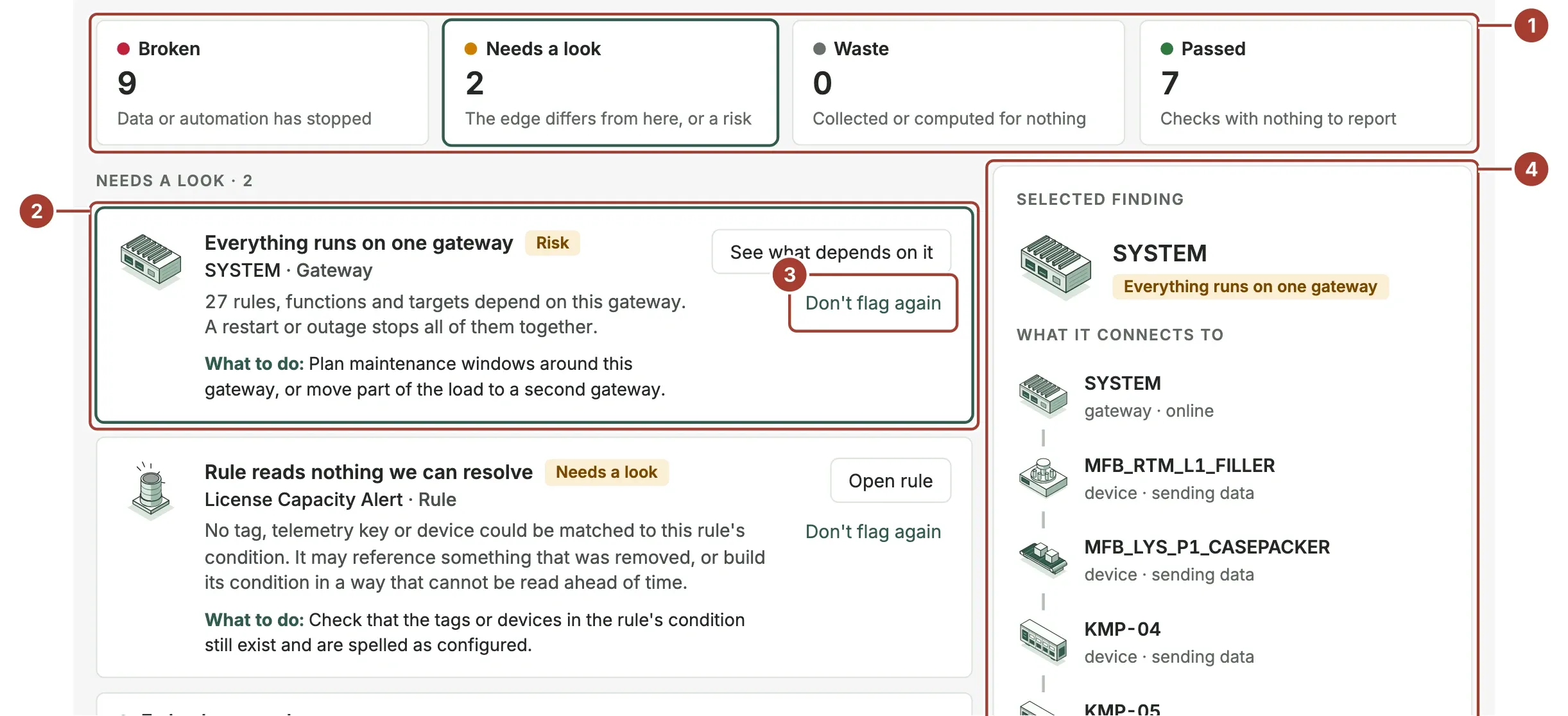
- Health Checks (formerly Graph Findings) was redesigned: a one-sentence verdict, four cards (Broken, Needs a look, Waste, Passed), findings with what to do and a button to open the object, and the passed checks listed too.
- Where the data stops shows the path of a finding as a chain, and Trace an object follows a device, gateway, rule, function, pipeline or target to what it depends on and what it feeds, with site and area on each card.
- New findings report devices that stopped sending data, devices that never sent data, pipelines that are published but run nowhere and pipelines that read no device. Pipelines are now part of the graph, and findings cover the whole configuration.
- Don't flag again hides a "Needs a look" or "Waste" finding for one object, with who did it and when; Flag again brings it back.
- Deactivating a device, rule or function first shows what depends on it and asks you to confirm, from the list and from the detail page. Inactive objects are listed in their own group, and a gateway is no longer counted as affected by the objects that run on it.
More: Health Checks, See what depends on an object.
Kepware Project Importer
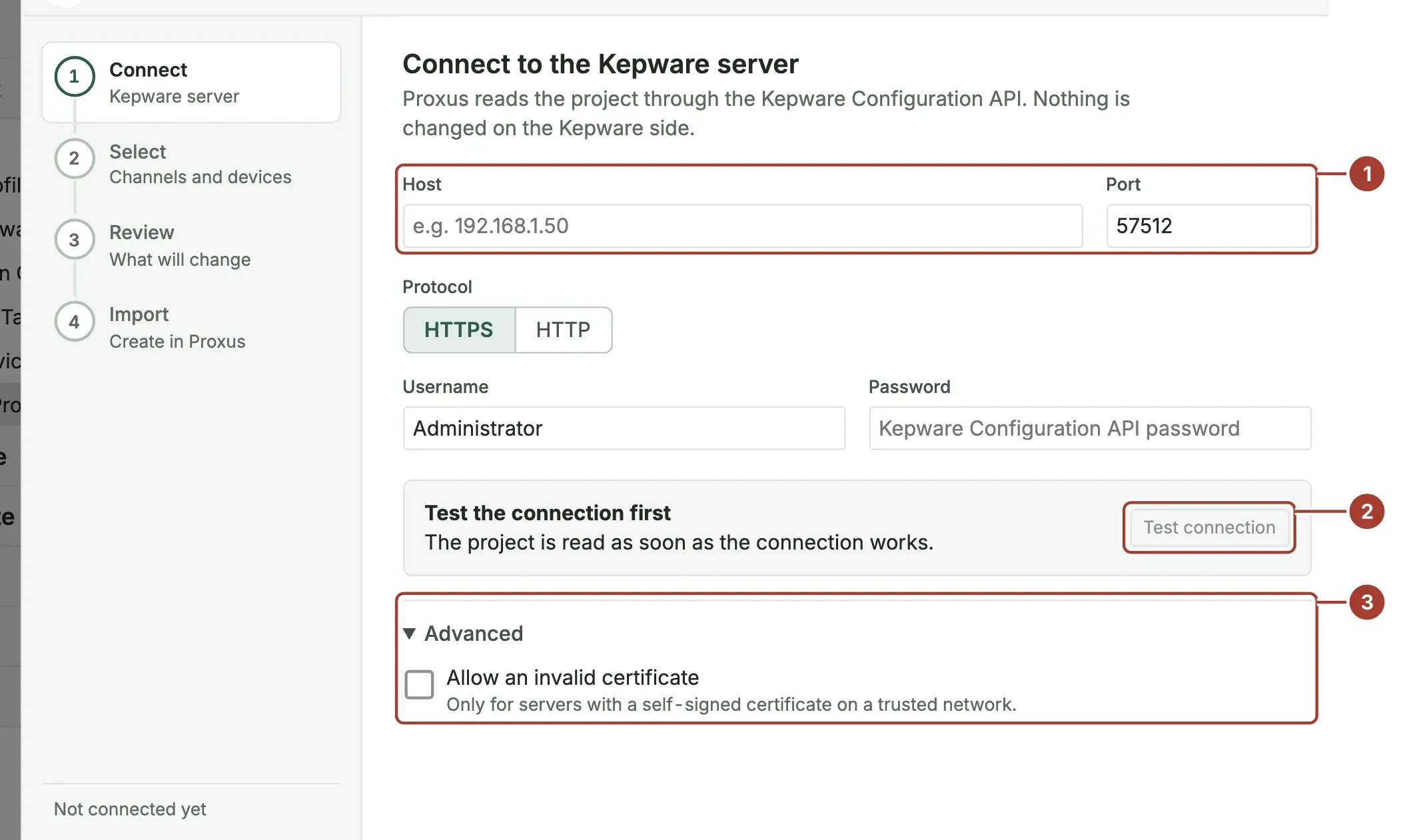
- The importer was redesigned as a wizard with four steps: connect, select channels and devices, review the plan and import with a live log. Devices with the same name are updated in place.
- Modbus TCP, Siemens S7 and OPC UA settings are carried over to the Proxus profile, including byte and word order, S7 model, rack and slot, and OPC UA security. The profile's polling interval follows the device's most used scan rate.
- Tags in deeply nested groups are read, a second name for the same address no longer stops the import, and unsupported drivers are marked Not supported instead of being converted. Other Kepware drivers, such as CODESYS, are not converted yet.
More: Import from Kepware, Platform: Connectivity.
OPC UA connection wizard
- Discover Servers and Browse Tags on an OPC UA profile open one wizard, Connect to OPC UA: discover, connection, sign in, trust, tags and review.
- Each connection option says what it costs (sign and encrypt, sign, or no security), and the secure option is recommended. The trust step shows both sides: the server's certificate and whether the server accepts Proxus.
- Tags load folder by folder with live values, and Save to profile saves the connection and tags together. The wizard only adds tags; it no longer removes tags that were not selected.
- Each gateway has a single OPC UA client certificate, used for discovery, browsing and device connections, so trusting it once on the server is enough. The wizard no longer falls back silently to an unsecured or anonymous connection; it states the real reason a connection failed.
- OPC UA devices respect the connection timeout on an unreachable address.
More: Connect an OPC UA server.
System logs, Audit Trail and Data Query Studio
- System Logs opens at high log volumes, with Problems, Errors and All logs filters. Clicking a row opens the full entry with copy buttons and the IDs needed for support.
- Repeat counts in logs show the real number of repeats, and gateways that cannot reach the hub no longer flood their log with one error per reading.
- Each new Audit Trail entry records where the change came from in a new Source column: a browser session with IP address and browser, the Web API or a background task. Operation names and field names are shown in plain words.
- Data Query Studio places filters, query and results side by side.
More: System logs, Audit trail.
Users and roles
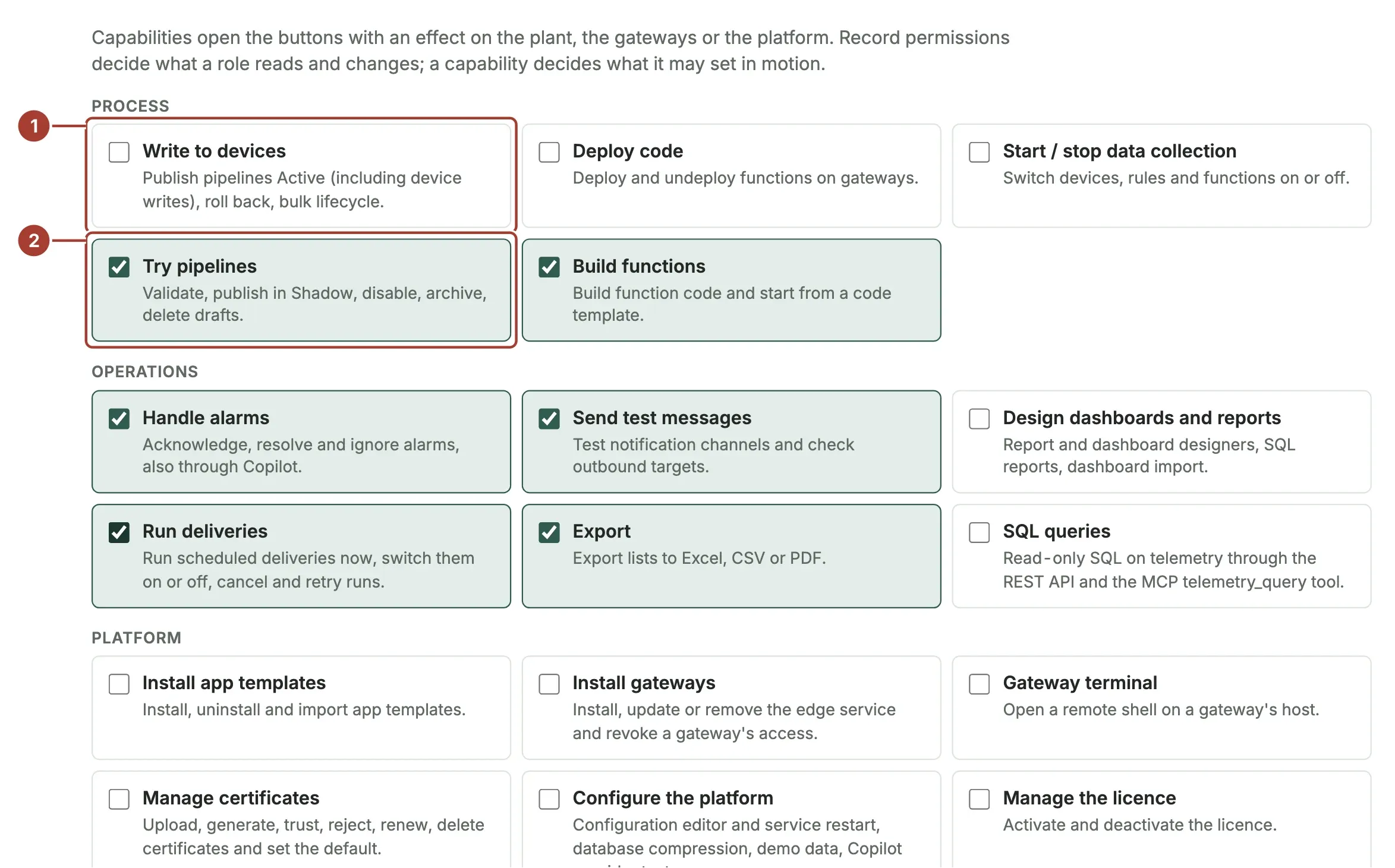
- Eight built-in roles are available: Viewer, Operator, Analyst, Engineer, Commissioning Engineer, IT Administrator, Auditor and Integration. They are not assigned to anyone automatically. A built-in role you change is marked as customized and updates leave it alone.
- The Capabilities tab grants buttons that affect the plant, the gateways or the platform, such as writing to devices, deploying code, the gateway terminal or managing certificates. A role without a capability does not see the button, and the API, MCP and Copilot refuse it too. Roles from earlier versions keep what they could do.
- New from Built-in Role, Compare with Built-in Role and Revert to Built-in Role make it easier to keep your own roles close to the built-in ones.
- A role's UNS permissions now limit devices everywhere: device lists and pages, Operations Center, Topology, Trend Workspace, Alerts and Copilot. Dashboards, reports and scheduled deliveries read only the rows of that site's devices, and a scheduled delivery is prepared with the scope of the user who created it.
- The user list shows status, online state, roles and last sign-in, and the role list summarizes each role's permissions in one line.
More: Users and roles, UNS permissions.
Platform screens
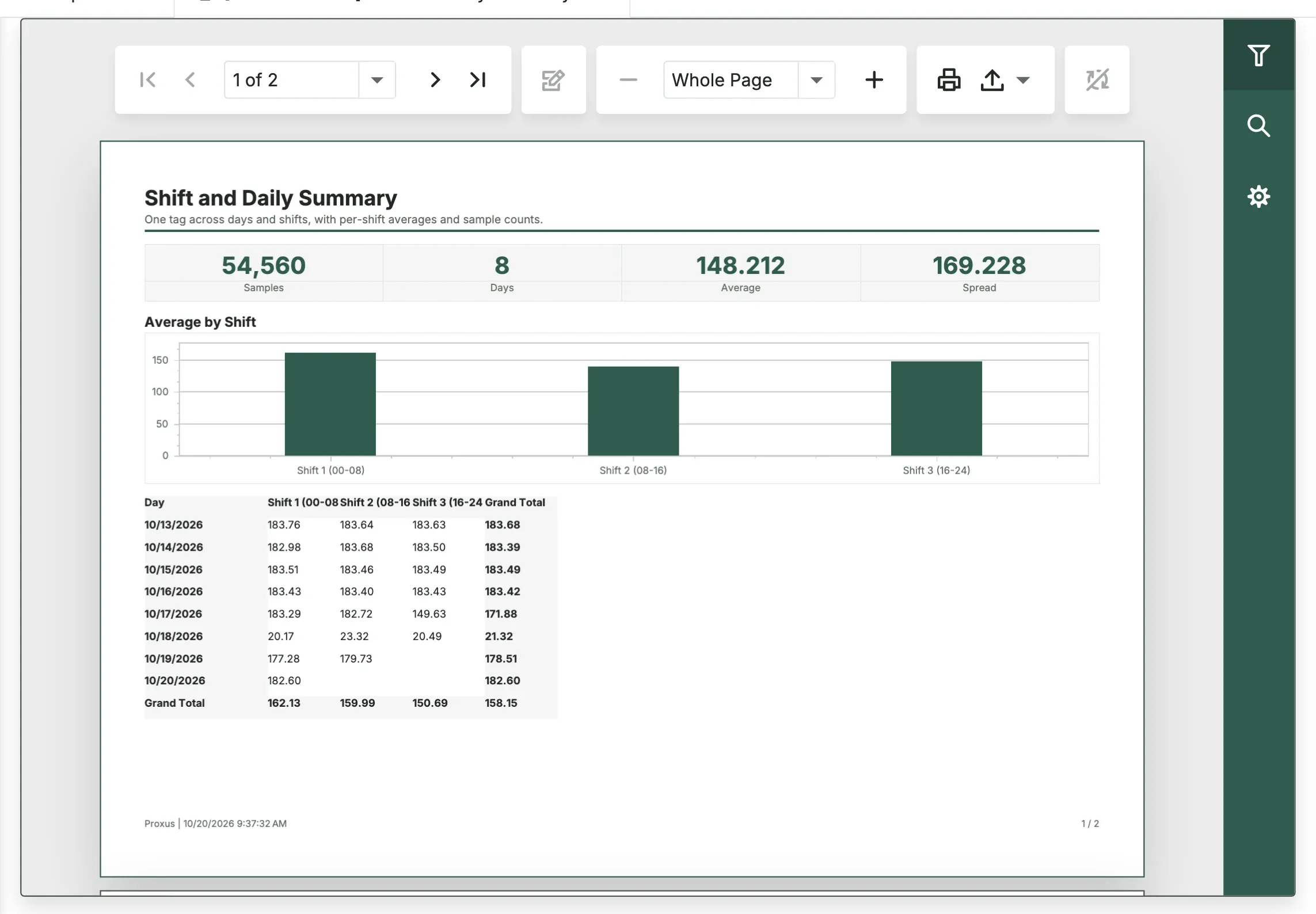
- Built-in reports. Ten reports work from the configuration and telemetry the platform already collects: Fleet Health Executive Summary, Data Quality Scorecard, Alert Pareto and Summary, Device Connectivity and Uptime, Telemetry Freshness and Gaps, Rule Effectiveness and Operational Log Summary, plus Tag Trend and Statistics, Shift and Daily Summary and Consumption and Counter, which take a device and tag chosen by name. They share one layout, keep a relative time window and export to PDF and Excel. See Reports.
- Built-in dashboards. Five dashboards replace the earlier single-item starting points: Operations Overview, Fleet Availability, Telemetry Freshness, Alert Operations and Data Quality. They list devices, gateways, rules and alarm states by name, combine headline cards, a chart and a detail grid, and keep a relative time window. See Dashboards.
- The licence activation screen was redesigned. Errors such as an invalid key or a key for another installation are explained on the screen, and the licence agreement is accepted on the same screen.
- The licence agreement (EULA) is now required for each user, with the date each user accepted it.
- A new demo, Meridian Foods & Beverages, models a fictional beverage plant and food plant with 43 devices, shifts, planned maintenance and energy balance. It installs five dashboards and three reports, and the import window lets you choose 7, 30 or 90 days of history.
- Two new dashboard items: Line status, showing each line's machines in flow order, and an Asset health matrix. The OEE, Sankey and other chart items were improved, and cross tables in reports print data text in the user's language.
- Application Templates install and uninstall cleanly: a template that contains a rule installs, uninstalling keeps the template's object list, and a failed installation leaves nothing half-saved.
- Scheduled Deliveries, License Info, White Labeling, Database Health and Demo Data lists were tidied, with readable schedules, regional dates and meaningful descriptions.
More: Run and export reports, Use and build dashboards, License, Platform: Dashboards.
Security
Secrets
- Secret values in the parameter tables of notification channels, outbound targets, device profiles and devices are masked and never sent to the browser. Device and gateway tokens are masked, with Show and Copy.
Certificate Store and platform CA
- A new Security menu group holds Users, Roles and the Certificate Store, which were under Platform.
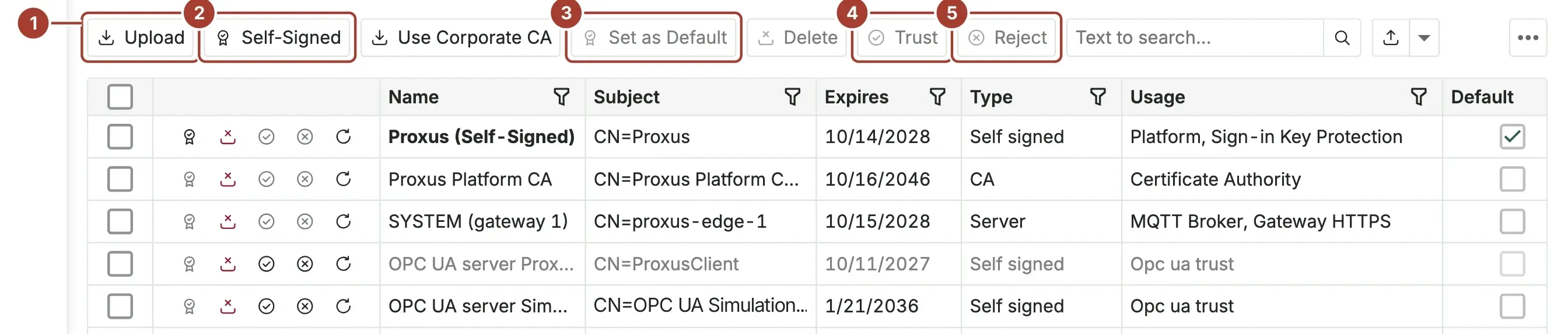
- On first start the hub creates the Proxus Platform CA, which issues the certificates the platform needs for itself: hub HTTPS, the hub's message server, and each gateway's HTTPS and MQTT broker certificates. Use Corporate CA lets your organization's CA sign them instead, and Download CA exports the CA certificates, without private keys, for browsers, SCADA systems and devices.
- Certificates issued by the platform renew themselves 30 days before they expire, and Renew replaces one on demand. Everything that used the old certificate moves to the new one; a new hub HTTPS certificate takes effect within a minute, without a restart and without signing anyone out. Used By lists every place a certificate is used.
- Private keys in the store are encrypted. A CA still in use, and certificates used by a target or a device profile, cannot be deleted.
- Old versions of a renewed certificate are removed after 30 days, certificates no longer pile up when Docker containers are recreated, and the certificates of a deleted gateway are removed. Trust and Reject apply only to OPC UA server certificates, so platform certificates cannot be disabled by mistake.
- Uploads sort the certificate, key and CA by content, corporate CAs without a Subject Key Identifier can issue certificates, and Use Corporate CA opens correctly again.
Encrypted connections
- Traffic between the hub and its gateways is encrypted: the hub's message server uses TLS on every port (4222, 7422 for edge gateways, and 6222 between servers in Kubernetes HA), and every connection checks the server against the platform CA. The certificate renews without a restart and connected gateways stay connected.
- The hub serves HTTPS on port 8443 by default; HTTP on 8080 remains for local access. The gateway install and uninstall commands are fetched over HTTPS and pinned to the hub's HTTPS key, so the script and the gateway's identity cannot be swapped on the way.
- Each gateway receives its own certificate, covering the names and addresses of its host. The built-in MQTT broker accepts TLS on port 8883 with that certificate; port 1883 remains for devices without TLS, and
[MQTTBroker] PlainEnabled = falseaccepts TLS only. - HTTP-to-HTTPS redirection goes to the public HTTPS port, and the container health check is no longer redirected. A new guide, Serve the hub on your domain, covers HTTPS on port 443 with your own certificate.
Outbound targets and OPC UA
- Target connections always verify the server: its certificate must match the address and chain to the target's Trusted Server Certificate from the store or to the operating system's roots. AWS IoT, Splunk and the connection test no longer accept any certificate.
- MQTT, AWS IoT and Sparkplug B targets have a Trusted Server Certificate field, replacing MQTT's CA file path. Kafka, RabbitMQ, Redis, ClickHouse, REST API, InfluxDB, Splunk, TDengine, PostgreSQL and MySQL targets gain TLS settings.
- Targets read their certificates from the store at every send, so a renewed or replaced certificate reaches them without any change on the target. Uploading a certificate to a target also stores its CA and sets it as the trusted server certificate.
- OPC UA connections and tag browsing no longer accept an unknown server certificate. Trust is decided in the Certificate Store and reaches every gateway within a minute. A refused certificate appears in Trust View > Rejected, where Trust lets the device connect at its next retry.
Sign-in and access
- New installations no longer create the APIAdmin user, and REST API tokens are signed with a key created for each installation.
- The Telemetry API, which runs free SQL, is limited to administrators. API requests without a token receive 401 and requests without permission receive 403, instead of the sign-in page.
- Each user's Session Length now applies to that user only and signs out a browser left idle for that long.
- Password policy rules apply when a password is changed at sign-in, with Change My Password and with Reset Password, including password history, expiry and rejection of common passwords.
- The Request a free license tab was removed from licence activation. Licence checks are unchanged and work without internet.
- Settings that were never read were removed from
Proxus-config.toml.
More: Certificates, Security, Secure connections to targets, Platform: Security and deployment, Trust and compliance.
Reliability and data accuracy
- Deleted or renamed tags no longer come back in live values after a hub restart, and a tag's latest value is not overwritten by an older one.
- A message left in transit during a hub restart is processed again within half a minute instead of an hour.
- A device's status and whether it is online are now decided in one place, so the device list, Operations Center, Topology, Health Checks and Copilot agree.
- Trend and history screens no longer stay empty or shift by hours on installations where the database runs in a local time zone.
- List search finds text with underscores, such as most device names.
- A gateway's "Online since" is no longer reset by a hub restart, and the browser loads the new theme, icon and style files after an upgrade.
- On macOS, a client that resets its connection no longer stops the hub or gateway web port from accepting connections.
- Components were updated for security vulnerabilities published in October 2026.
More: Troubleshoot.
Upgrade notes
Certificates and encrypted connections
- After the hub has started for the first time, restart the
hub-servercontainer once (docker restart hub-server; on Kubernetes, restart the hub-server pods). Until then the hub cannot reach its message server over TLS. - Existing edge gateways cannot connect until their install command is run again: open the gateway in Edge Gateways, choose Install and run the new command on its host. This also switches the gateway to key-based sign-in and to local-time logs. Meanwhile the gateway keeps its data in its buffer (48 hours by default) and sends it once connected.
- Open ports 8443 (hub HTTPS) and 8883 (MQTT over TLS on reinstalled gateways) in the firewall. The hub's existing self-signed HTTPS certificate stays; select it in the Certificate Store and choose Renew to get one from the platform CA that covers the hub's names and addresses.
- Targets that connect to an MQTT broker, Splunk or an AWS IoT endpoint with a self-signed or private-CA certificate worked before only because nothing was checked. Upload the server's CA to the Certificate Store and choose it as the target's Trusted Server Certificate, or the connection is refused.
- OPC UA devices using Sign or Sign & encrypt send no data until their server certificate is trusted in the store; trust given locally on a gateway no longer counts. Right after the upgrade, open Security > Certificate Store > Trust View > Rejected and choose Trust for each server you recognize. Devices with security mode None are not affected.
- Each gateway uses a single OPC UA client certificate. A server that trusted a different certificate of the gateway may need you to trust the new one once.
- Back up the certificate store key,
keys/STORE/certificate-store.keyin the configuration folder (or thePROXUS_CERTIFICATE_STORE_KEYvariable), together with the configuration folder. Without it, the certificates in a database backup cannot be read. - Users, Roles and Certificate Store moved from the Platform group to the new Security group.
Sign-in and access
- REST API tokens issued before the upgrade stop working once, because the hub moves to its own signing key. Clients sign in again to get a new token. Installations that already configured their own strong key are not affected.
- Users who do nothing for their Session Length (30 minutes by default) are signed out. For control-room screens that must stay open, set that user's Session Length to
00:00:00. - Every user is asked to accept the licence agreement (EULA) once again at the first sign-in after the upgrade.
- The Telemetry API is limited to administrators; other users receive 403. API calls without a token receive 401 instead of a redirect to the sign-in page.
- Password policy rules now also apply to Change My Password and Reset Password. The age of existing passwords starts counting at the first start, so nobody is locked out by the upgrade.
- Upgraded installations keep an existing APIAdmin user. If its password was never changed, the hub warns in System Logs: reset its password or clear Is Active, and create a separate user for API access.
- Every role starts with a Copilot daily limit of 200,000 tokens, which administrators can change. A Claude API key entered before 2.0.0 must be entered again.
- Users limited to one site cannot run free SQL and cannot open a report whose query was built by selecting tables; write that report's query in SQL.
Gateways and pipelines
- New pipeline steps and numeric comparisons, the duration in Conditions, rule waiting times and automatic closing, and the once-a-minute refresh of pipeline alarms work on 2.0 gateways. A pipeline published to an older gateway shows Failed with the reason.
- Pipeline screens have new addresses; old links and bookmarks open the new ones.
- A gateway's "Online since" value corrects itself at its next real disconnection.
Interface and configuration
- The theme is no longer a setting. A theme section left in
Proxus-config.tomlby an earlier version is removed on first start, after a backup copy is saved. - Dashboards use the new palette by default. If your
Proxus-config.tomlstill has the old purple and blue dashboard palette line, comment it out to use the new palette. - Some lists have a new fixed column layout. If columns look different from what you expect, use Reset View Settings in that list. In the Audit Trail window, users with a saved layout may need to tick Source once in the Column Chooser.
- The language list is set to English and Turkish automatically, unless several languages were already configured.
- The old full-screen trend window was removed, together with its analysis, CSV and PNG export and rule draft. Trends open in the quick-look panel and in Trend Workspace.
- Settings that were never read were removed from
Proxus-config.toml. If they remain in your file, they have no effect.
Alarms and data
- A rule now opens one alarm per device. An acknowledged alarm is not raised a second time while its condition lasts; repeats increase its count.
- Alarms handled before the upgrade do not show who acknowledged them or the separate steps.
- An InfluxDB target that already received data must write to a new Measurement name, because InfluxDB refuses numbers in a field that earlier held text.
- Log entries written before the upgrade may show inflated repeat counts until they reach the end of their retention (45 days).
- If you imported the Meridian demo before, import it again to see its descriptions in Turkish.
More: Upgrade, Platform: Security and deployment.
Known issues
- A user function that enriches the incoming data in place and then calls
Saveon it writes the data twice. Changes made in place are saved automatically; useSaveonly for data created inside the function. - With several hub pods on Kubernetes, live health comes from each pod's own cache, so Topology, Operations Center and live values can differ between pods.
- The Kepware importer converts Siemens S7, Modbus TCP and OPC UA channels only, and selects by channel and device, not by tag.
- In the Topology replay, the Flow view draws band width by device count, not by the amount of data in that minute.