Explanation · for Operators, Engineers, Administrators
A tour of the hub
What you see after you sign in to the Proxus hub, and what each menu group and main screen is for.
The hub is the web application you sign in to. Everything you set up in Proxus, and most of what you watch, is here. This page walks through the screen and the menu, so you know where things are before you start.
The screen
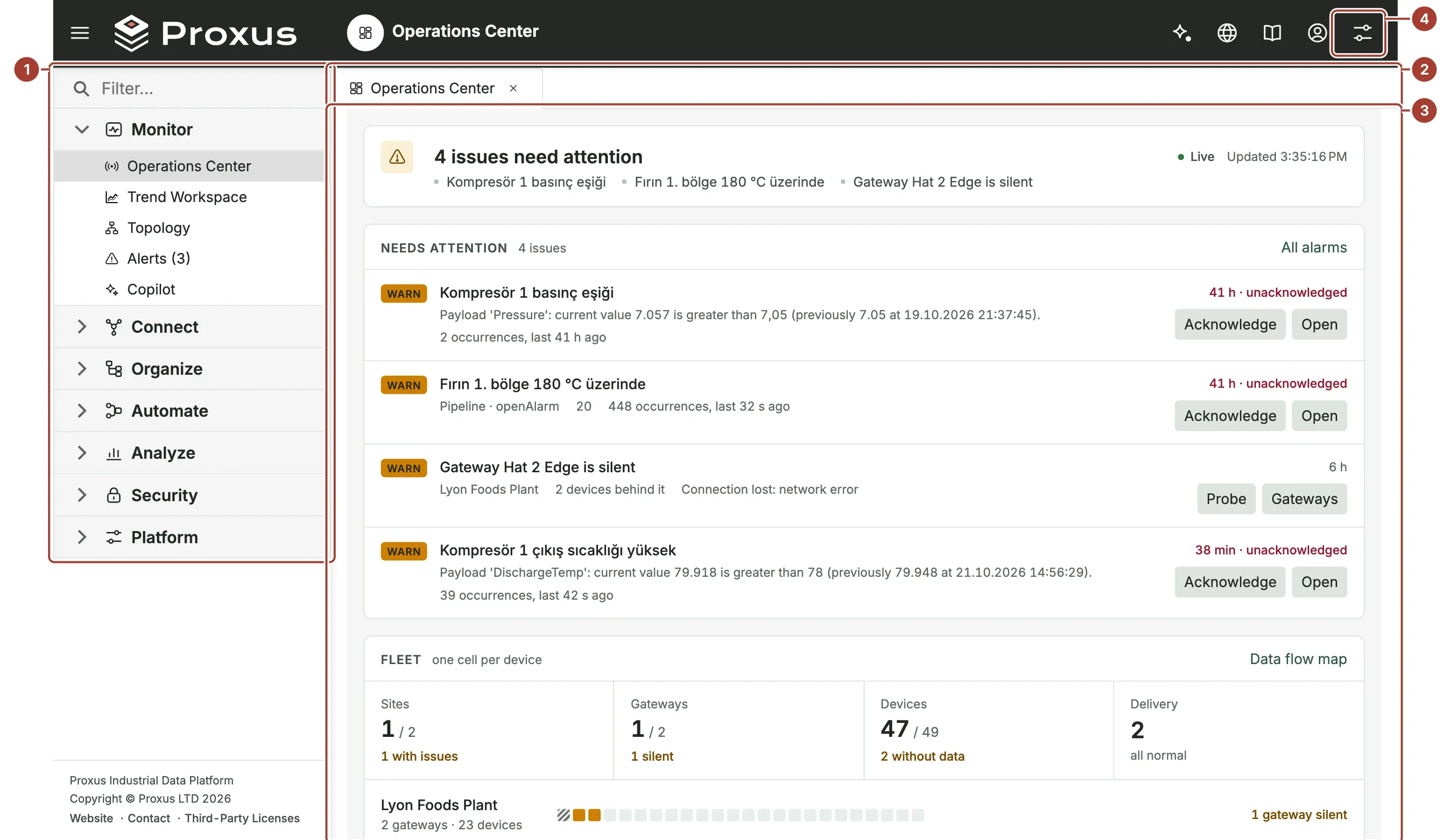
- The menu on the left holds every screen, in seven groups. The Filter... box at its top finds a screen by name. The icon at the top left of the header hides and shows the menu.
- Tabs. Each screen you open gets a tab, so you can keep a device, a trend and a rule open side by side and switch between them. Close a tab with its ×.
- The work area shows the screen of the active tab.
- The header icons, from left to right: Copilot, the assistant that answers questions about your plant (also Ctrl+K, see Copilot), a link to the Proxus website, a link to this documentation, your user menu (My Details, where you change your password, and Log Off), and Settings, where you choose the language of the interface.
Lists in the hub work the same way everywhere: New adds an entry, a click opens it, and the toolbar of an open entry has Save, Delete, Refresh and the Audit Trail of its changes.
The menu
The groups follow the order of the work: watch the plant, connect machines, organize their data, automate reactions, analyze the history, control access and certificates, and run the platform. What you see depends on your role; an administrator sees every group.
Monitor: what is happening now
| Screen | What it is for |
|---|---|
| Operations Center | The start screen: whether everything is within limits, what needs attention, every site and device at a glance, and how data moves through the platform. |
| Trend Workspace | Draw the values of any tags over time, compare periods, and see machine state, alarms and changes on the same axis. |
| Topology | A map of the sites, gateways, hub and outbound targets, with their live health. |
| Alerts | Every alarm that rules and pipelines have raised, to acknowledge and follow up. |
| Copilot | Ask questions about the plant in plain language; the answers come from live data, with your permissions. |
Read more in Monitor.
Connect: bring machines in, send data out
| Screen | What it is for |
|---|---|
| Devices | One entry per machine, PLC, robot or sensor that Proxus reads. |
| Device Profiles | How to talk to a kind of device: protocol, connection settings and tags. |
| Edge Gateways | The runtimes that read devices. The hub's own is called SYSTEM. |
| Notification Channels | Ways to reach people: email, SMS, chat services. |
| Outbound Targets | Databases, brokers and cloud services that receive copies of the data. |
| Import Devices | Add many devices at once from a spreadsheet. |
| Kepware Project Importer | Bring devices and tags over from a Kepware project. |
Read more in Connect.
Organize: give the data a structure
| Screen | What it is for |
|---|---|
| UNS Explorer | The Unified Namespace as a live tree: enterprise, site, area, device, tag. |
| Health Checks | Findings about how the platform is set up, a map of how its parts depend on each other, and a trace of where a value goes. |
| Application Templates | Ready-made applications you can install into the hub. |
Read more in Organize.
Automate: react to the data
| Screen | What it is for |
|---|---|
| Pipelines | Clean, convert, enrich and route values, or react to them, from a goal in plain sentences or on a canvas. |
| Functions | Your own C# code, run on the gateways you choose. |
| Rules | Conditions on values or logs that raise alarms and start actions. |
| Rule Actions | What a rule does when it fires: notify people or trigger an outbound target. |
Read more in Automate and, for the choice between them, Pipelines, rules and functions.
Analyze: look back
| Screen | What it is for |
|---|---|
| Dashboards | Charts and figures built on the historian and the configuration. |
| Reports | Printable reports, built in or designed by you. |
| Scheduled Deliveries | Send reports by email on a schedule. |
| Reporting Federation | The connection that lets reports and dashboards combine values from the historian with device and alarm data. |
Read more in Analyze.
Security: who may sign in, and the certificates
| Screen | What it is for |
|---|---|
| Users and Roles | Who may sign in, and what each role may see and change. |
| Certificate Store | The platform's certificate authority and every certificate the hub, the gateways, OPC UA connections and outbound targets use. |
Read more in Administer.
Platform: run Proxus
| Screen | What it is for |
|---|---|
| My Profile | Your own account. |
| Demo Data | Load example plants to try Proxus. |
| White Labeling | Your own title, logo and styling on the hub. |
| License Info | The license of this installation and what it allows. |
| Config Editor | The configuration file of the platform. |
| System Logs | What the hub and the gateways have logged. |
| Database Health | A report on the state of the databases. |
Read more in Administer.
What's next
- Connect your first machine to see these screens fill with your own data.
- How Proxus is built explains what runs where behind these screens.
Was this page helpful?
Evaluating Proxus? See it on your own machines in a 30-minute technical session.