Reference · for Operators, Engineers, Administrators
Copilot
Ask about your plant in plain language and approve the changes Copilot prepares. What it reads, what it can change and how conversations are kept.
Copilot is an assistant built into the hub. You ask a question in your own words, for example "Which devices are not communicating, and why?", and Copilot answers from the plant data that you are allowed to read. It is in Monitor > Copilot, and on every screen as a side panel.
Copilot needs an AI service before it can answer. An administrator adds one in Platform > Copilot Settings. See Set up Copilot.
Where to open it
| Place | How |
|---|---|
| Monitor > Copilot | The full page: your conversations on the left, the open one on the right. |
| Side panel | The Copilot button, first of the icons at the top right, or Ctrl+K (Cmd+K on a Mac). Esc closes it. |
| Ask Copilot on a record | On a record's toolbar, next to Save (in the … menu on a narrow screen): Is something wrong?, What does it depend on, and what does it affect?, What changed in the last 7 days? and What is this screen for? Choosing one opens the side panel and asks it about that record. |
The side panel knows the screen you are on. When you open it on a record, for example a device's page, "this device" in your question means that device.
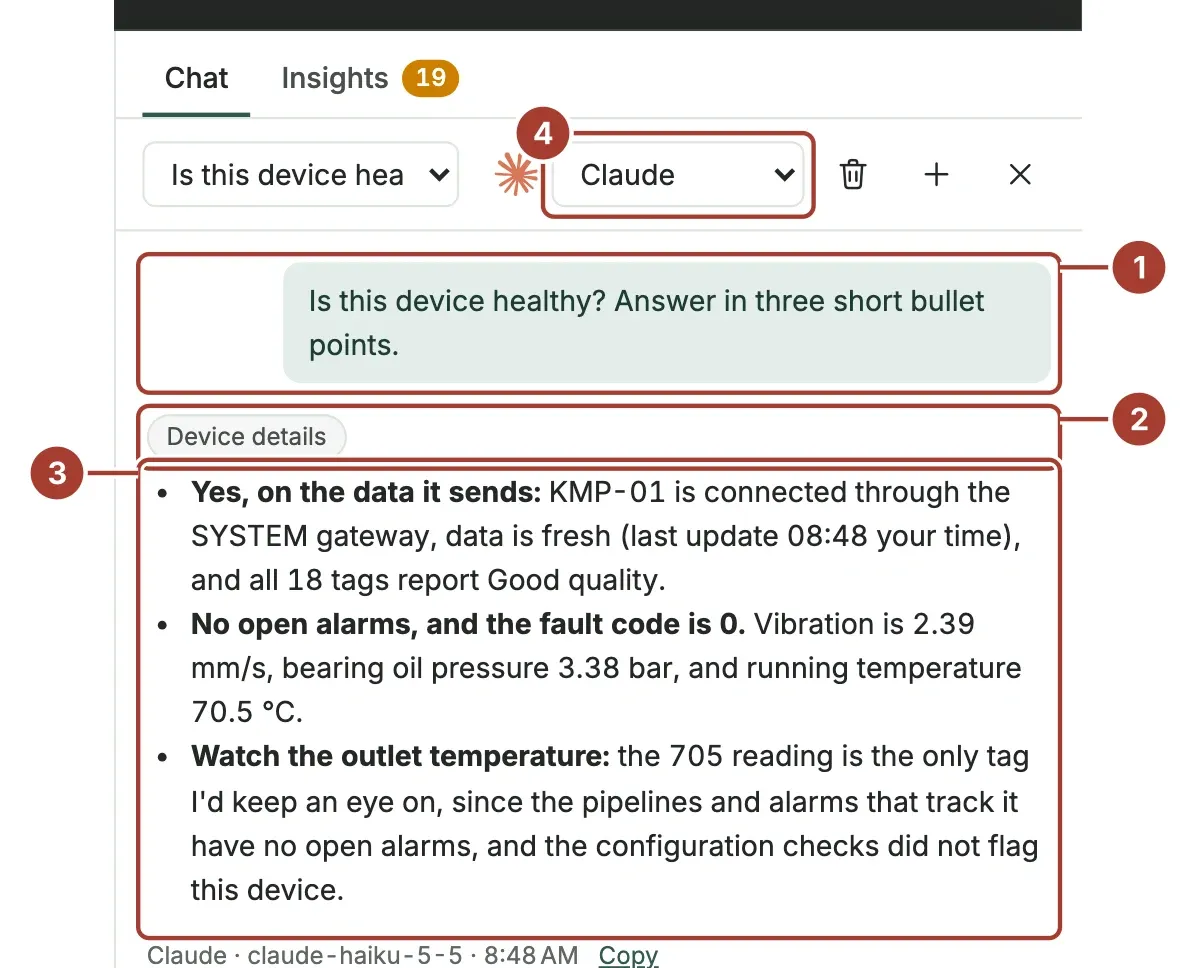
- Your question.
- The sources Copilot read for this answer.
- The answer, with the AI service, the model and the time under it.
- The AI service that answers. You can change it between questions.
What Copilot reads
Copilot answers from the hub, not from memory. For each question it reads what it needs, and the answer shows a label for every source it used.
| Source | What it gives Copilot |
|---|---|
| Plant overview | The plant at a glance: devices communicating and not, edge gateways, open alarms by level, configuration findings, and how many rules, pipelines, functions, targets, dashboards, reports and deliveries there are. |
| Plant tree | Enterprise, site and area, with how many devices each has and how many are communicating. |
| Devices | Every device you can see: location, edge gateway, profile, and whether it is communicating. Devices with problems come first. |
| Device details | One device: its state, its latest tag values with quality and time, and its open alarms. |
| Edge gateways | Whether each gateway is connected, when it was last seen and how many devices it runs. |
| Open alarms | New and acknowledged alarms with level, device, rule and how often each occurred. Critical first. |
| Alarm history | Open and closed alarms of a period (up to 90 days): who acknowledged and resolved each, the note on how it was fixed, or that the rule closed it on its own. |
| Device tags and Tag history | The tags a device reported, and how they moved over a time range: lowest, highest, average and last value, and the curve, as in the Trend Workspace. |
| Record types, Find records and Record values | Any record of any screen you can open: profiles, rules, pipelines, functions, templates, dashboards, reports, deliveries, users, roles, certificates and settings. Long lists come in pages. |
| Dependencies | How a device, gateway, rule, pipeline or target is wired: what it depends on and what uses its data, up to three steps away. |
| Audit Trail | Who changed what and when, with the old and new value, from the Audit Trail. Sign-ins and screen layouts are left out. |
| System logs | The newest lines of the hub's and the edge gateways' logs, for roles that may open System Logs. |
| Health checks | The configuration health checks: what breaks data flow, what drifted, what is unused, why it matters and how to fix it. |
| Device diagnosis | Why a device does or does not deliver data: each link from the device to the hub is checked (enabled, edge gateway, profile, connection to the machine, data arriving, tag quality, open alarms), and the first failing link is named as the likely cause, with the device's health findings, recent changes and log lines. |
| Search the docs and Docs page | This documentation, in the language of the interface. It ships with the hub, so it works without internet access. Copilot answers "how do I" and "what is" questions from it and links to the page it used. |
Copilot reads with your permissions. If your role cannot see a device, Copilot cannot see it either, and it says that something may be outside your permissions rather than that it does not exist. A role limited to part of the plant (see Users and roles) limits Copilot the same way: its devices, alarms, history and records, and the logs of its own edge gateways only.
Passwords, keys, tokens and other secrets are never read, nor are the license details, raw telemetry rows or the connection settings of profiles, channels and targets.
Changes you approve
Copilot can prepare changes, but it never makes one on its own. Ask in plain language, for example "Disable Pump 2" or "Resolve alarm 1204, we replaced the sensor". Copilot shows a proposal card under its answer:
- what changes: each field with its value now and after the change (for a new record, its values);
- what depends on the record, when you switch it off or delete it, the same list the change guard shows;
- why it cannot be done, when your role does not allow it or a rule of the record is not met.
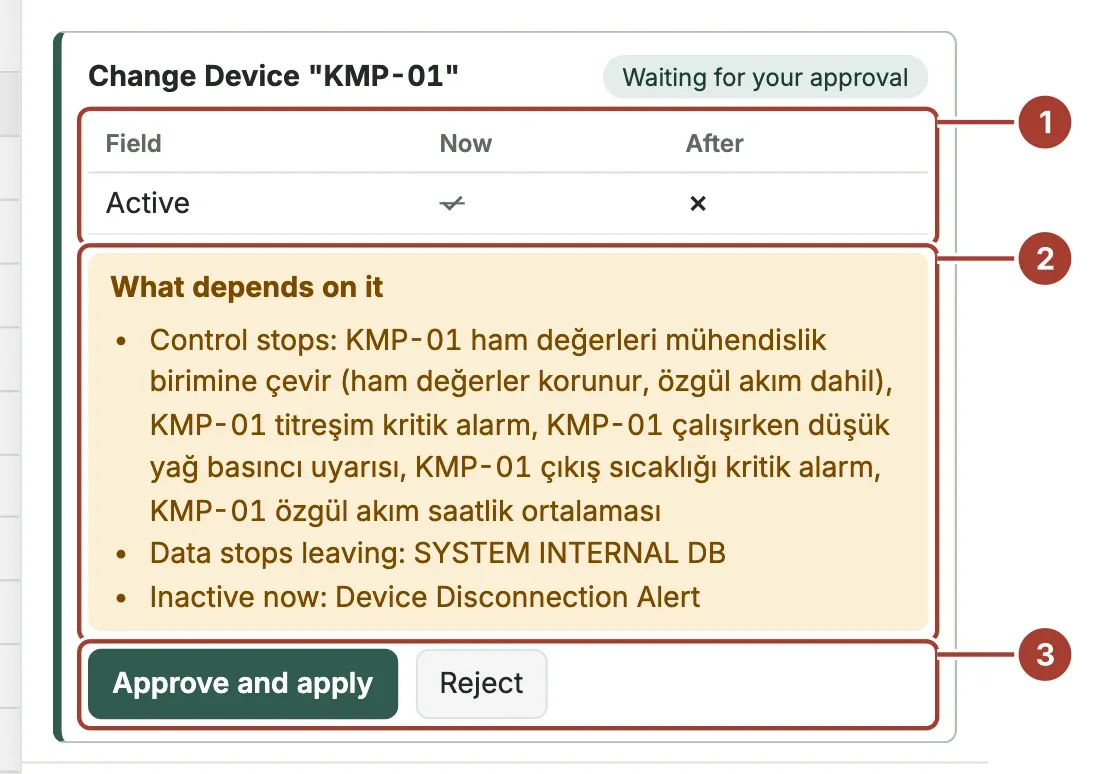
- What changes: each field, now and after.
- What depends on the record, when it is switched off or deleted.
- Your decision.
Select Approve and apply (for a delete: Approve and delete) to make the change, or Reject. Only the person who asked can decide, once.
| Copilot can | Records |
|---|---|
| Acknowledge or resolve an alarm | Resolving needs a note on what was done. The alarm is taken or closed in your name. |
| Create, change or delete a record | Any record of a screen you may edit: devices, profiles and their tags, edge gateways, alarm rules and actions, pipelines, functions, outbound targets, notification channels, dashboards, reports, scheduled deliveries, users, roles, UNS permissions, certificates and settings. |
| Change several records at once | The same change on many records of one kind, for example "disable these 12 devices". One card, applied to all of them together or to none. |
| Prepare a plan | Several related changes on one card, for example a device profile, then a device that uses it, then an alarm rule. Approved once, made together or not at all. Up to 50 changes. Adding a machine, building a pipeline, trusting a certificate and actions each have a card of their own and are not part of a plan. |
| Try an alarm rule first | From your sentence ("alarm if the oven stays above 200 °C for 5 minutes") Copilot writes the condition, replays it over the last hours of stored data as the rule editor does, tells you how often it would have fired, and then proposes the rule. |
Copilot never sets passwords, keys or other secrets, never changes an administrator, an administrator role or your own account, and never changes what the platform writes itself (deployments, statistics, logs).
When you approve, the change is made again with your permissions and the record's own rules, exactly as if you had saved it on its screen. If the record changed after Copilot proposed, nothing is written and the card says so: ask again for a new proposal. The Audit Trail records the change under your name, with "Copilot" and the conversation number as its source.
Add a machine
Ask, for example, "There is an OPC UA server on my computer: add it as a device and read its simulation values". Copilot uses the device wizard's own buttons, on the edge gateway that will read the machine:
- It finds the server (Discover servers, for OPC UA and MTConnect) or, for other protocols, tries the address (Test the connection). Discovery looks at the edge gateway's own machine and the address you give; ask it to search the whole network of the gateway when the server is elsewhere (slower). These only read and need no approval.
- For OPC UA it opens the server's folders and shows the current values of the variables you asked for.
- It proposes the device on one card: the edge gateway, the protocol, the connection parameters and the data points. Approve and apply saves it as the wizard's Save and verify does: the profile, then the device, switched on. The device starts reading at once, and Undo removes the device and its profile. One card takes up to 50 data points; ask for the rest afterwards.
Data point names must start with a letter and use only letters, digits and _ (for example DischargePressure_raw), because pipelines, functions and rules read a value by its name. Copilot keeps the unit or the scale in its answer.
On a secure OPC UA endpoint (Sign or Sign and Encrypt), the gateway and the server must trust each other first. When the gateway does not trust the server yet, Copilot proposes to trust its certificate: the card shows the certificate and its SHA-1 fingerprint, and you confirm twice. This needs the Ask, propose changes and run actions level. The server must also trust the gateway's certificate in its own settings, and Copilot gives you that fingerprint. A trusted certificate lets that server talk to every edge gateway, and trusting cannot be undone from Copilot: to withdraw it, reject the certificate in the Certificate Store. A server that needs a user name and password is added in the device wizard, because Copilot never handles passwords.
Copilot offers this to roles with Ask and propose changes (or more) whose role may also create devices and device profiles.
Build a pipeline
Ask, for example, "On the mixer, divide HR01 by 10 and keep it as a new tag HR01_scaled". Copilot builds the pipeline the way the pipeline builder does: it picks the goal and steps from the builder's own list, fills in When, For, Steps and Then, and lets the builder check it. It tells you what the builder's preview shows on each device's latest values, then proposes the pipeline on one card.
Copilot designs the alarms as an engineer would: a noisy value gets a dead-band limit, and a condition that depends on a machine running gets a lasting time, so a start-up surge raises no alarm. To change a pipeline built this way, ask Copilot to change it: it reads the pipeline and proposes the new version on one card, each part shown before and after. The change goes to the draft and can be undone; the running revision stays until the pipeline is published again.
Approve and apply saves it as a draft, with its story, so it opens in the builder as if you had built it there and you can change it. A draft does not run. Copilot then offers to publish it in Shadow, and only after that Active; each is a separate card, and Active asks you to confirm twice. Undo deletes a draft that was never published.
A pipeline has up to 12 steps and results. Copilot offers this to roles with Ask and propose changes (or more) whose role may also create pipelines. Publishing is an action, so it needs Ask, propose changes and run actions and the capability of each publish button: Try pipelines for Shadow, Write to devices for Active (see Actions).
Confirming twice
Some changes ask you to confirm a second time, after Approve and apply. The card says why:
- something is deleted (a delete cannot be undone);
- a record is switched off and something depends on it (the card lists what);
- five or more records change at once;
- the change touches who may do what, or the whole platform (users, roles, UNS permissions, certificates, settings, brand settings, Copilot services and their allowed roles).
Actions
Roles with Ask, propose changes and run actions (see Set up Copilot) can also have Copilot press buttons for them, on the same approval card. Each needs the button's capability, exactly as on its screen:
| Area | Actions |
|---|---|
| Pipelines | Validate, Publish Shadow, Publish Active, roll back to an earlier revision, disable |
| Functions | Build, deploy, undeploy |
| Alarms | Ignore (acknowledge and resolve are changes, above) |
| Notifications and targets | Send a test message, check a target's connection |
| Scheduled deliveries | Run now, pause or resume, retry or cancel a run |
| Templates | Install, uninstall |
| Edge gateways | Revoke a gateway's access |
| Certificates | Renew, trust, reject, make the default |
Approve and run presses the button with your permissions, and the card shows its result. An action cannot be undone. Actions that reach the plant or the gateways (Publish Active, roll back, deploy, undeploy, templates, revoke, certificates) ask you to confirm a second time. Buttons that need a file, a designer or a person's own decision (export, import, the gateway terminal, passwords, the license) are never pressed by Copilot.
Undo
An applied change that created or changed records has an Undo button on its card. Undo deletes what the change created and sets the fields it changed back to their earlier values, in one step, again with your permissions. If someone changed one of those fields after Copilot did, nothing is undone and the card says so. Deletes and alarm decisions cannot be undone; the card says this before you approve.
Proposals expire
A proposal nobody approved within 24 hours expires: the plant may have changed since. Its card shows Expired. Ask again for a new proposal.
Insights
The Insights tab next to Chat lists things that need a look, found by background checks without anyone asking. Everyone who may use Copilot sees the insights about what they can see: a role limited to one site sees the insights about its own devices and gateways. An insight that counts across the whole plant (open alarms without an owner) is shown to roles that see the whole plant. The checks are fixed rules: no AI service is used and no data leaves the hub until you select Ask Copilot on an insight.
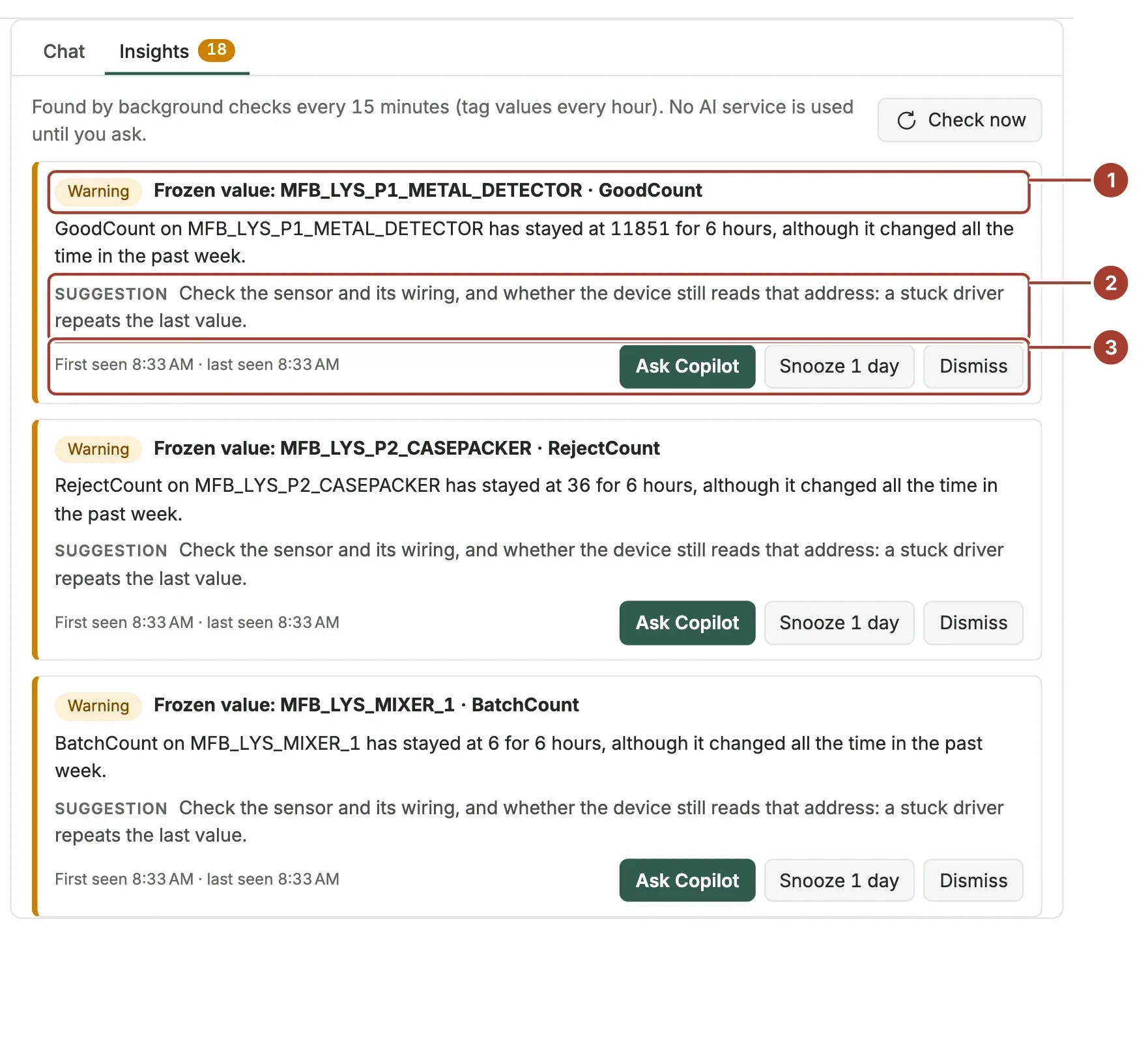
- The level and what was found.
- The suggested next step.
- When it was first and last seen, and what you can do with it.
| Insight | When it appears |
|---|---|
| Noisy alarm | A rule raised its alarm 10 times or more in the last 24 hours. |
| Open alarms without an owner | Open alarms nobody acknowledged: after 24 hours, or 4 hours for critical ones. |
| Unstable link | An edge gateway lost its link to the hub 3 times or more in the last 24 hours. |
| Hub refuses a gateway | The hub refused an edge gateway's connection in the last 24 hours. |
| Certificate expires | A certificate expires within 30 days and will not renew by itself. A platform certificate that should renew itself appears when 7 days are left. |
| Frozen value | A tag of a continuously varying signal has not moved for 6 hours. A tag resting at its most common value (a stopped flow at 0) is not reported. |
| Unusual value | In the last hour, a tag averaged far outside what it did in the past week. Counters and ramps are not reported. |
| Copilot budget | An AI service used 80 percent of its monthly budget (see Prices and budget). Shown to roles that may read Copilot Settings. |
Each insight is a warning, or critical when it is urgent: a rule raised its alarm 50 times or more in a day, one of the unowned alarms is critical, a gateway lost its link 10 times or more, a certificate has 7 days or less, or a service spent its whole budget. A notification channel can send only the critical ones (see below).
At most 15 frozen and 15 unusual values are listed at a time, the most telling first.
Alarms, gateway links and certificates are checked every 15 minutes, tag values every hour; the first check runs 3 minutes after the hub starts. Check now runs the checks at once. An insight closes by itself when its condition is gone, and closed insights are removed after 30 days.
Each insight says why it appeared and suggests a next step:
- Ask Copilot starts a conversation about it. Copilot looks at the record and can prepare a change for you to approve.
- Snooze 1 day hides it until tomorrow. It comes back if the condition is still there.
- Dismiss hides it for as long as the condition lasts.
Snoozing and dismissing hide the insight for everyone, so only administrators have these buttons and Check now.
When insights are waiting, the Copilot button at the top right shows a dot, and its tooltip gives the count.
Copilot going first
- Guided setup: ask to connect a first machine, create a first alarm rule or a first dashboard. Copilot checks where you stand (is an edge gateway connected, is there a profile, does data arrive…), names the next step with its screen and docs page, and prepares the records for you to approve.
- Shift and week: "How was the night shift?" gives the last 8 hours (or the last week): silent devices, disconnected gateways, alarms against the period before, the noisiest rules and devices. The same summary can be e-mailed on a schedule: see Scheduled deliveries.
- Recurring problems: "What keeps going wrong?" finds the same alarm returning on the same device, edge gateways whose link keeps dropping, and insights that reopen, and suggests a lasting fix (for example a wait before the alarm, tried on past data first) instead of acknowledging the same alarm every day.
- Insights to a channel: new insights can be sent to an e-mail, Teams or other channel: see Notification channels.
What it does not do
It does not open dashboards or run reports, and it does not query the telemetry database with SQL. It reads up to 90 days back; for longer periods, use the Trend Workspace.
Conversations
- New conversation starts an empty one. The first question becomes its title.
- Select a conversation to continue it. Copilot remembers the questions and answers in it, up to the last 40 messages; start a new conversation for a new subject. It reads the plant data again for every question, so answers use current values.
- The list at the top of the conversation chooses the AI service that answers, from the services the administrator enabled. You can change it between questions.
- Delete conversation removes it after you confirm.
- Stop ends an answer that is still being written.
Conversations are stored in the hub until someone deletes them. Only you can continue or delete yours. Administrators can read every conversation with Show everyone's conversations, but cannot write in someone else's. Copilot shows this note next to the conversations.
What is stored: your questions, the answers, the name of each source Copilot used, each proposal with your decision, and any error. The data Copilot read is not stored.
Limits
Copilot keeps what it reads short, so that answers stay fast and cheap:
| What | Limit |
|---|---|
| Reads for one answer | 16. A question that needs more gets the answer so far; ask a narrower one. |
| Devices in one list | 100, those with problems first. |
| Alarms, Audit Trail entries, records in one page | 50 each. |
| Tag history | 5 tags and 200 points per curve in one read, up to 90 days back. |
| Log lines | The newest 100. |
| Dependencies | 3 steps away. |
| Conversation memory | The last 40 messages. |
| Changes on one card | 50. A device takes 50 data points, a pipeline 12 steps and results. |
| Proposal lifetime | 24 hours. |
Language and time
Copilot answers in the language of the hub's interface unless you write in another language. Times are shown in your browser's time zone.
When there is no answer
| Message | What to do |
|---|---|
| Copilot is not set up yet | No AI service is enabled. An administrator adds one in Platform > Copilot Settings. |
| Your roles do not allow the Copilot | An administrator sets Copilot Access on one of your roles in Security > Roles. |
| You have used today's Copilot limit | Your roles' Copilot Daily Token Limit is spent. It resets at midnight (UTC), or an administrator raises it. |
| The monthly budget of a service is spent | Choose another service, or an administrator raises the Monthly Budget. |
| The AI service is not set up completely | A field of the service is missing, for example its endpoint or region. An administrator completes it and selects Test Connection. |
| The service rejected the API key | An administrator enters a new key for the service. |
| The service is busy or the usage limit was reached | Try again in a minute, or choose another service. |
| The service cannot be reached from the hub | The hub has no internet access, or the Ollama address is wrong. |
| The AI service stopped before writing an answer | Ask again, or ask a narrower question. |
| Stopped. | You selected Stop. |
| The answer failed | The message gives the service's reason. |
The error stays in the conversation, so you can see later why a question had no answer.
Safety
Device names, alarm texts and other plant data were typed by people or sent by machines. Copilot treats them as data and does not follow instructions written inside them. Answers are shown without HTML, and only web links (http and https) stay clickable.
What's next
- Copilot settings: add the AI service Copilot answers with, and set its limits.
- MCP server: let your own AI agents read the plant model with the same permissions.
Was this page helpful?
Evaluating Proxus? See it on your own machines in a 30-minute technical session.