How-to guide · for Operators, Engineers
Compare tags over time
Put tags of several machines on one chart in the Trend Workspace, compare them with yesterday, and save the view so you or others can open it again.
At the end of this guide you have the speed of two fillers on one time axis, compared with the same time yesterday, saved as a view your colleagues can open.
Before you start
- The devices store their data in the Proxus historian. A tag is listed only when it has data in the last 7 days.
- A user role that may read the devices.
Choose the tags
- Open Monitor > Trend Workspace.
- Type part of a device or area name in Search devices or plant areas, for example
FILLER. - Select a device to list its tags, and tick the tags to chart.
- Do the same for the next device.
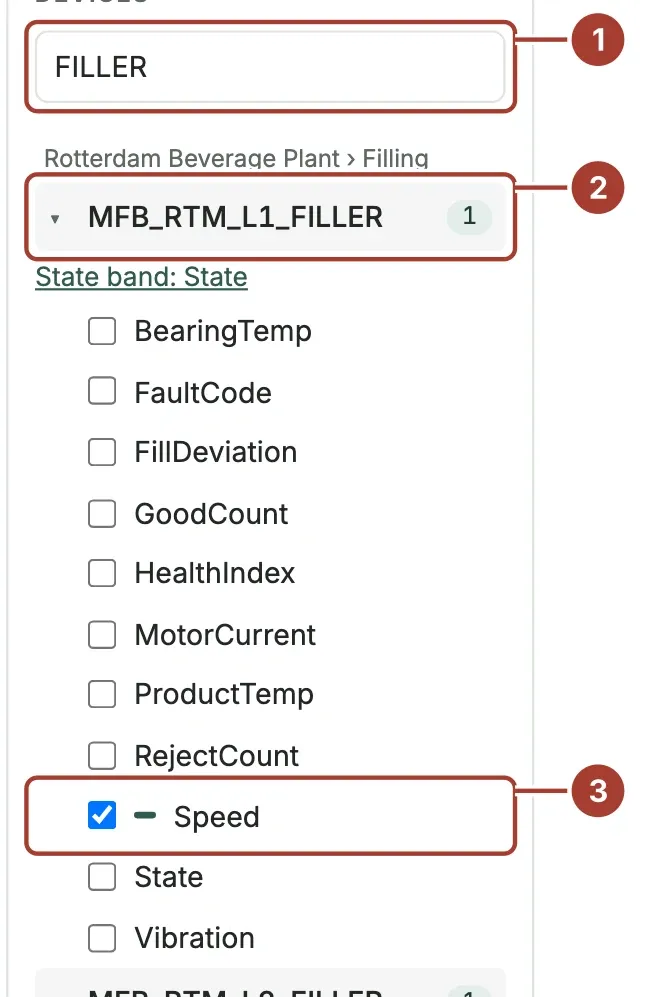
- The search box.
- The device, with the number of its tags on the chart.
- A ticked tag. Its colour is the colour of its line.
Each tag gets its own pane on the same time axis. Up to 8 tags fit on the chart.
Choose the time and compare
- Choose a range: 15 min, 1 h, 8 h, 24 h or 7 days. Use ‹ and › to step to earlier or later ranges, and Now to come back.
- In Compare, choose Same time yesterday (or Previous period, or Same time last week).
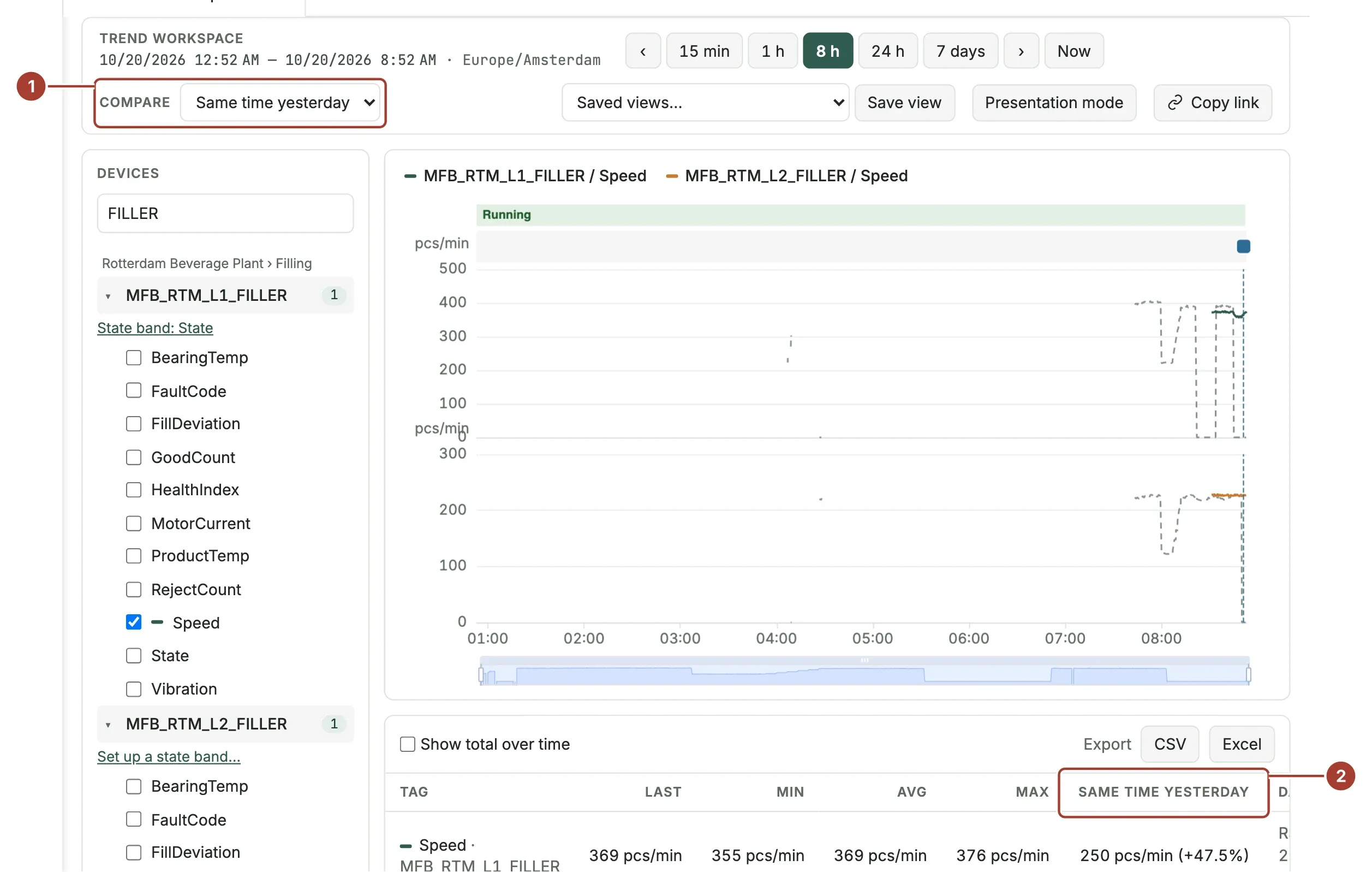
- Compare set to Same time yesterday.
- The table's new column: yesterday's average and the change in percent. In the chart, yesterday is the dashed grey line.
Point at the chart to read the values of all panes at the same moment. Scroll inside the chart to zoom in.
Save the view
- Select Save view.
- Enter a View name. Tick Share with everyone if others should see it in their list.
- Select Save.

- View name. A view with the same name of yours is replaced.
- Share with everyone.
- Save.
The view now appears in Saved views…. To send the view to someone without saving it, select Copy link and paste the address in a message.
What's next
- Export a trend
- Show machine state on a trend
- Trend Workspace: every control of the screen.
Was this page helpful?
Evaluating Proxus? See it on your own machines in a 30-minute technical session.