How-to guide · for Operators, Engineers
Use and build dashboards
Open a dashboard, change its period, refresh it, export it, import one from a file, and the rules a dashboard's own SQL query must follow.
This guide shows how to open a dashboard and read it, change the period it covers, keep it up to date, and bring in a dashboard someone else made. The last part is for people who build dashboards with their own SQL queries.
Before you start
- A user role that may view dashboards. To change or create one, the role must also allow editing them.
- Data in the history: dashboards show what the gateways have stored.
Open a dashboard
Go to Analyze > Dashboards and select a dashboard in the list (2).
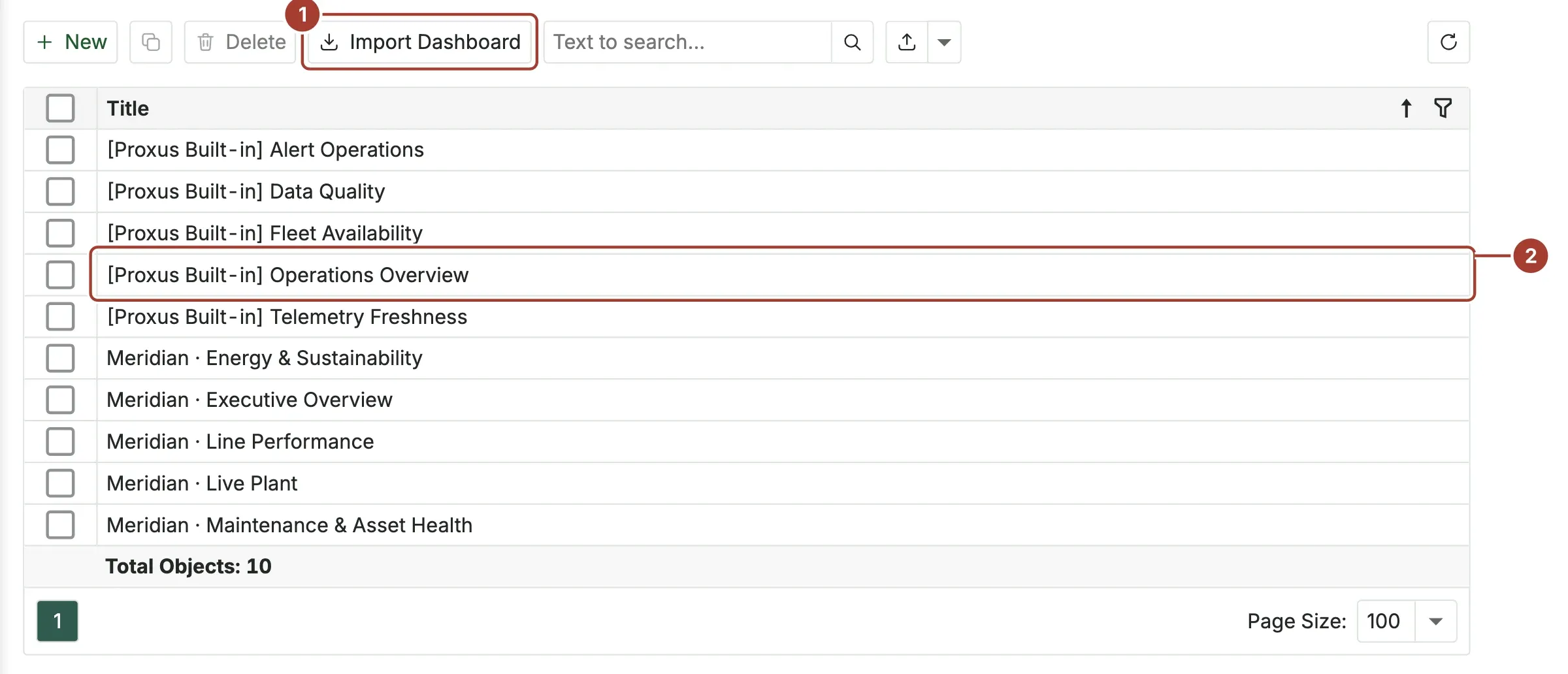
- Import Dashboard brings in a dashboard from a file. See Import a dashboard.
- Dashboards whose names start with [Proxus Built-in] come with the product:
| Dashboard | What it shows |
|---|---|
| Operations Overview | Gateways, devices, reporting devices, stored values and errors; values stored over time; values per device. |
| Fleet Availability | Gateways, devices, enabled devices and profiles; devices per gateway; the device list. |
| Telemetry Freshness | Devices that report, configured tags and value streams; the devices seen least recently. |
| Alert Operations | Alerts, occurrences and rules firing; alerts by state and by rule. |
| Data Quality | Data quality scores, their spread, and the devices with the lowest scores. |
Read and filter it

- Switch to Design Mode opens the dashboard designer, if your role allows it.
- Auto Refresh reloads the data by itself: Off, every 1s, 5s, 10s, 30s or 1 min.
- Refresh reloads the data now.
- Export To (in the dashboard's title bar) saves the dashboard or one item as a file.
- Dashboard Parameters sets the values the dashboard asks for, such as the number of Days it covers.
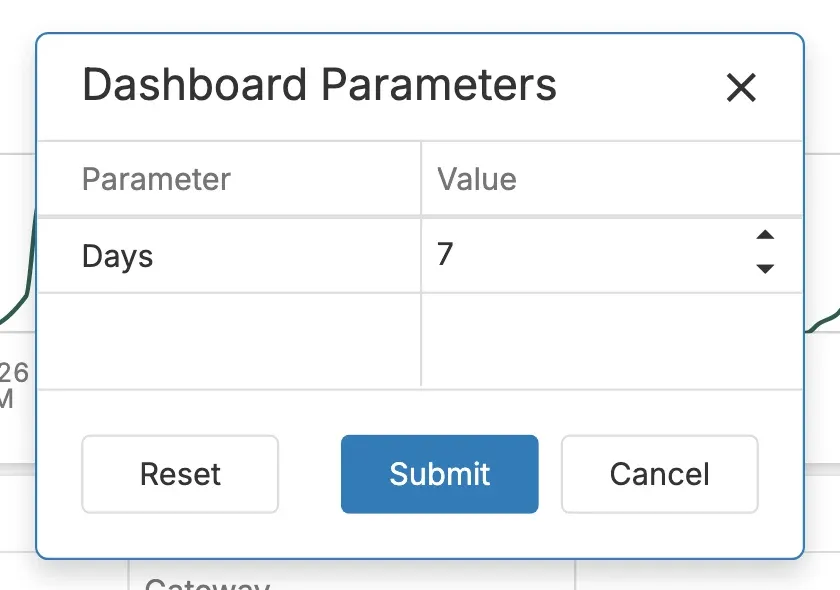
Change Days and select Submit. Reset goes back to the dashboard's own value. Operations Overview and Telemetry Freshness have this parameter; it starts at 7.
Inside the dashboard, select a bar, a row or a slice to filter the other items by it, where the dashboard was built that way. Hover over a chart to see the exact values. The full-screen button in an item's title shows that item alone.
Make your own
Do not change a built-in dashboard: it is replaced when the product updates it. Make a copy instead.
- Open the dashboard and select Clone.... Give the copy a name.
- Open the copy and select Switch to Design Mode.
- Add items, change their data, and save. Switch to View Mode goes back.
To start from an empty page, select New in the dashboard list.
Data a dashboard can use
The designer offers the hub's telemetry database. With the default ClickHouse telemetry database you can use:
DeviceRawData: every stored tag value, with its time, device, tag name (Key) and value (NumericValue,StringValue).DeviceMetricsandLogs: device read statistics and log entries.- When the reporting federation is Ready: the lists from the hub, such as
proxus_reporting.Device,proxus_reporting.Gateway,proxus_reporting.Ruleandproxus_reporting.Alert, so that a query can show device names next to their values.
If the telemetry database is PostgreSQL, only tables and views whose name contains Device are offered.
Rules for your own SQL
A dashboard may use a query you write. Before it runs, Proxus checks it, and refuses it with a message when it breaks one of these rules:
| Rule | Message when broken |
|---|---|
| The query is not empty. | "Empty SQL." |
It starts with SELECT, WITH, a comment or SET TIMEZONE. | "Only SELECT/CTE (WITH), comments, or 'SET TIMEZONE' are allowed at the beginning." |
It is one statement. A second statement after a ; is refused. | "Multiple statements are not allowed." |
After WITH parts, the query itself is a SELECT. | "After CTEs, only a SELECT statement is allowed." |
It contains none of these words: UPDATE, DELETE, INSERT, MERGE, UPSERT, DROP, CREATE, ALTER, TRUNCATE, RENAME, ATTACH, DETACH, OPTIMIZE, SYSTEM, KILL, GRANT, REVOKE, COPY, CALL, EXEC, EXECUTE. | "Security violation: The SQL keyword '...' is not permitted." |
The words are checked as whole words, outside quotes and comments, in any case. A column named Created is fine; a column named System is not, unless it is quoted.
The check adds no time limit and no row limit. Filter by time and add a LIMIT yourself, so a dashboard does not read the whole history:
SELECT Time, NumericValue
FROM DeviceRawData
WHERE Key = 'Zone1Temp'
  AND Time > now() - INTERVAL 24 HOUR
ORDER BY Time
LIMIT 10000
Import a dashboard
- In the dashboard list, select Import Dashboard.
- Choose the file. It must be a dashboard saved as XML, for example with Export to XML on another hub.
The dashboard is added under the title stored in the file. If the file is not a dashboard, the message says so ("XML root is not a valid Dashboard definition.").
To move a dashboard to another hub, open it, select Export to XML, and import that file on the other hub.
What's next
- Reports: page-based documents to print, export or send.
- Reporting federation
- Trend workspace: look at a few tags over time without building anything.
Was this page helpful?
Evaluating Proxus? See it on your own machines in a 30-minute technical session.