How-to guide · for Engineers
Import from Kepware
Bring channels, devices and tags from a running Kepware server into Proxus, converted to the matching Proxus protocol, after a review of every change.
At the end of this guide, the Kepware devices you chose exist in Proxus as devices with their tags, and they run on the edge gateway you picked. Proxus reads the project directly from the Kepware server. Nothing changes on the Kepware side.
Before you start
You need:
- A Kepware server with its Configuration API turned on, and a user name and password for that API. The hub must reach the server on the API's port (57512 by default, with HTTPS).
- The edge gateway that will read the imported devices. It must reach the same machines that Kepware reads.
- A user role that may create devices and device profiles.
What can be imported
Each Kepware channel uses a driver. The importer converts these drivers:
| Kepware driver | Proxus protocol |
|---|---|
| A Siemens driver | Siemens S7-200, S7-300, S7-400, S7-1200 or S7-1500, from the device model. S7-200 SMART is recognised by its model name. A device without a model becomes S7-1500. |
| A Modbus Ethernet driver | Modbus TCP |
| The OPC UA client driver | OPC UA |
Other drivers, Siemens NetLink models and Modbus serial channels are listed but cannot be selected.
Step 1: Connect
Go to Connect > Kepware Project Importer. The importer opens in a window.
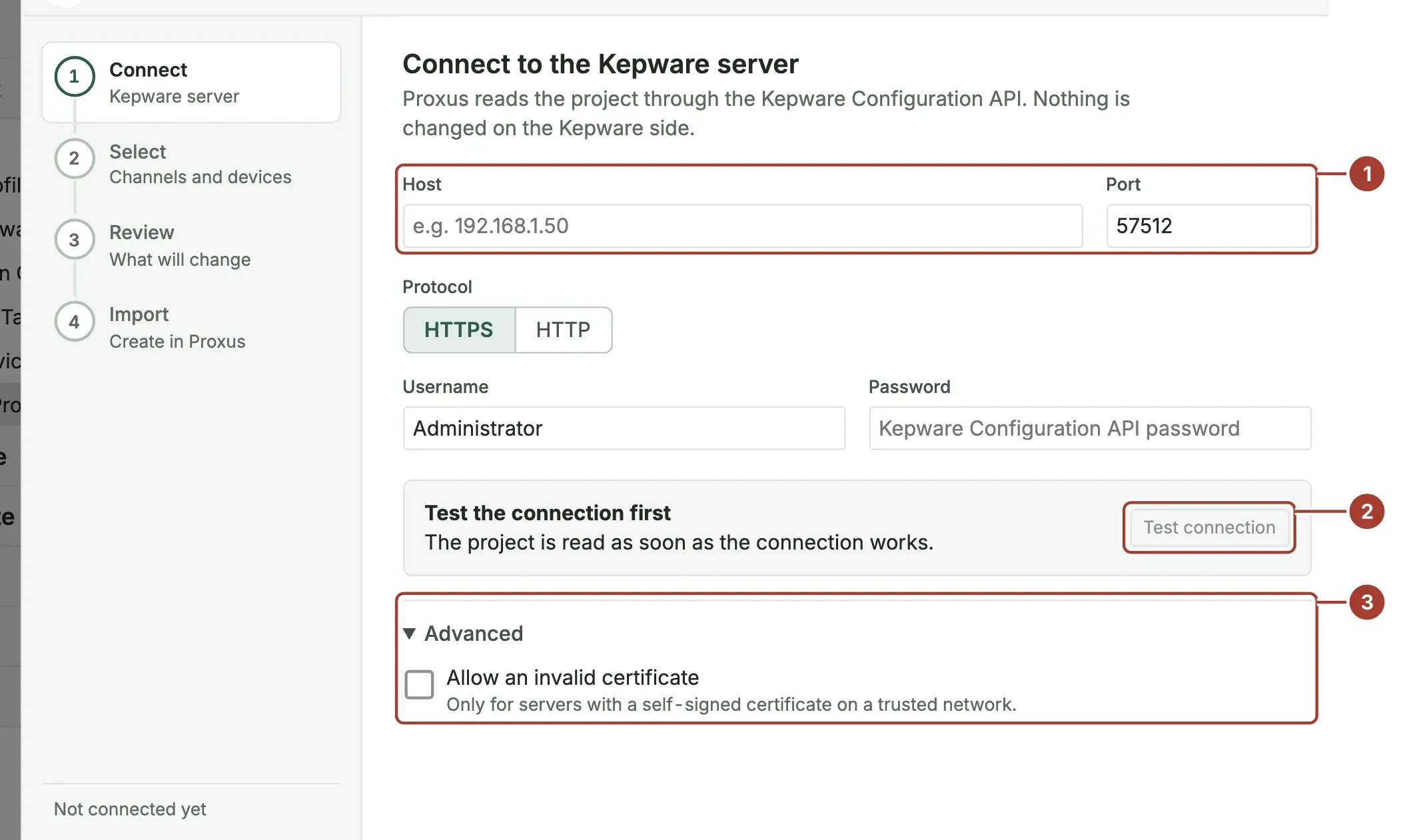
- Enter the Host of the Kepware server and its Port. Choose HTTPS or HTTP under Protocol, then fill in Username and Password for the Configuration API.
- Select Test connection. When it works, the box shows the project name and how many channels, devices and tags it holds.
- Advanced: if the server uses Kepware's own self-signed certificate, tick Allow an invalid certificate. Do this only on a network you trust.
Select Continue.
If the test fails, the message says why. "The server's certificate is not trusted" means a self-signed certificate (see point 3). "The TLS handshake failed" means the port does not serve HTTPS: switch to HTTP or check the port.
Step 2: Select
The project is shown as a tree of channels and their devices. Each line shows the Proxus driver it becomes and its number of tags.
- Tick the channels or single devices to import. Use the search box to find them by name, and Select all or Clear for the whole list.
- Lines marked Not supported use a driver the importer cannot convert.
- The counter shows how many tags in how many devices you selected.
Select Review. The button shows the number of tags.
Step 3: Review
The importer reads every selected tag and checks its address and data type. Nothing is written yet.
- The tiles show the New devices, the Updated devices (a device with the same name already exists in Proxus) and the number of Tags.
- Errors stop the import, for example a tag address that cannot be converted. Go back and leave the device out, or fix it in Kepware.
- Warnings do not stop the import. They list tags that are imported with a different data type (see below).
- Run on gateway: the edge gateway that reads the new and updated devices. SYSTEM is chosen by default. You can move devices to another gateway later.
Select Import. The button shows the number of tags.
Step 4: Import
A progress bar and a log show each device as it is created or updated. You can select Run in background and close the window; a notification tells you when the import ends.
When it is done, select Open devices. The devices start sending values as soon as their gateway picks up the new configuration.
How Kepware items become Proxus items
- Each Kepware device becomes one device profile and one device, both named
Kepware_<channel>_<device>. Characters other than letters, digits,_and-become_. - Each Kepware tag becomes a tag of that profile. Tag groups are flattened; the tag keeps its Kepware name.
- Addresses are converted to the form Proxus reads, for example a Modbus
400001becomesx=3;0. - The connection settings come with the device: address, port, unit ID and byte order for Modbus; rack, slot and timeouts for Siemens; endpoint and security for OPC UA.
- The profile's polling interval is the scan rate most tags of the device use (1000 ms if none is set). A tag with another scan rate keeps its own.
- Importing again updates the same devices in place: profiles and devices are matched by name, tags by address.
Data types
| Kepware | Proxus |
|---|---|
| Boolean | Bool |
| Byte | Bytes (1 byte) |
| Char | String (1 character), with a warning |
| Short | Short |
| Word | UShort |
| Long | Int |
| DWord | UInt |
| LLong | Long |
| QWord | ULong |
| Float | Float |
| Double | Double |
| String | String |
| Date | DateTime |
| BCD, LBCD | UShort, UInt: the raw register value, not decoded. Proxus has no BCD type, so a warning is shown. |
Arrays are imported as bytes or as text, with a warning. An unknown type becomes String, with a warning.
What's next
- The device page: check that each imported device sends values.
- Device profiles: adjust the imported connection settings and tags.
- Import devices from a spreadsheet: add more machines of the same kinds.
Was this page helpful?
Evaluating Proxus? See it on your own machines in a 30-minute technical session.