How-to guide · for Engineers, Administrators
See what depends on an object
Before you change, switch off or delete a device, rule or target, see which rules, dashboards and targets depend on it and where its data goes.
At the end of this guide you know which objects depend on the one you want to change, and what stops if you switch it off. Proxus keeps track of how gateways, devices, tags, rules, functions, pipelines, dashboards and targets connect. You can ask from three places.
Before you start
- The object exists and you may open it.
- What you see is limited to what your role may read. Objects outside your permissions are counted separately and not listed.
Ask from the object's page
The Dependencies action is on the page of a device, a tag, a rule, a function, a dashboard or an outbound target.
- Open the object, for example Connect > Devices and a device.
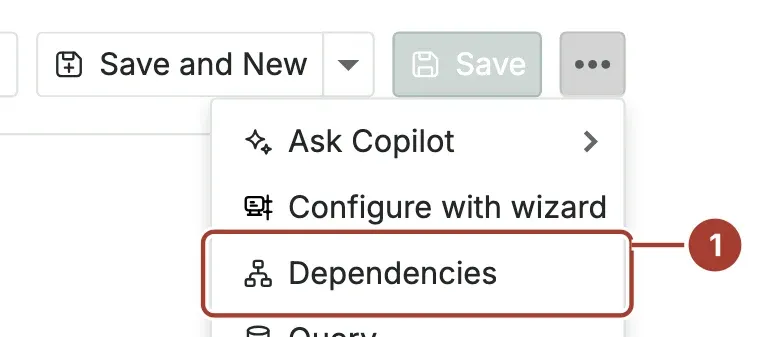
- Select Dependencies. On the device page it is in the … menu at the end of the toolbar.
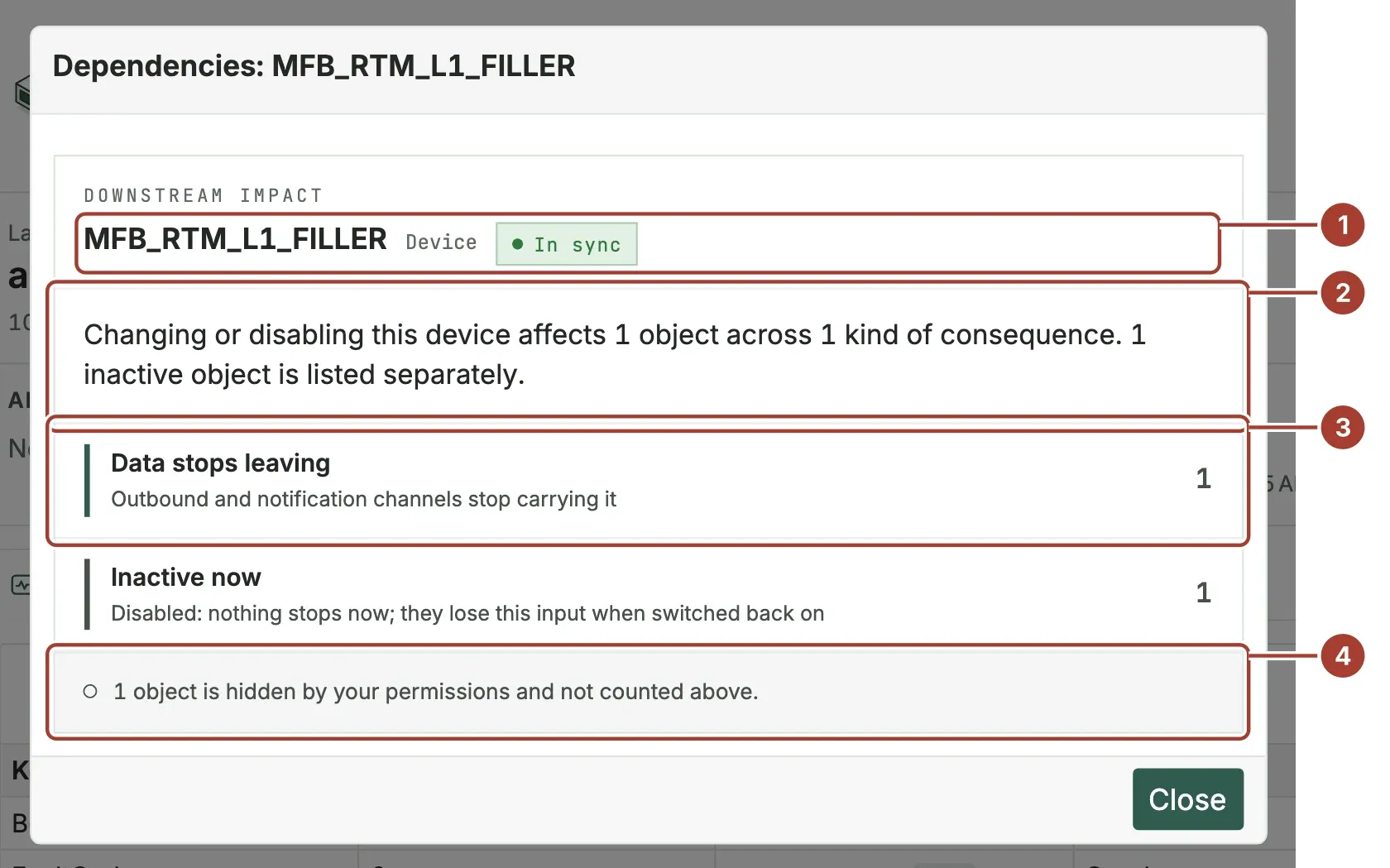
- The object, its kind and whether the edge runs the configured version (In sync).
- The summary: how many objects a change affects, and in how many kinds of consequence.
- A group of consequences with its count. Select it to list the objects; select an object to open it.
- Notes on what is not counted: objects hidden by your permissions, and links that could not be proven.
The groups are named by what would happen:
| Group | Meaning |
|---|---|
| Control stops | Rules and functions lose their input. |
| You go blind | Dashboards and alerts lose their source. |
| Data stops leaving | Outbound targets and notification channels stop carrying the data. |
| Also connected downstream | Reached from here, with no specific failure. |
| Inactive now | Disabled objects: nothing stops now, but they lose this input when switched back on. |
A link is Proven when Proxus read it from the configuration, and Inferred when it was worked out, for example from a rule's condition. When links could not be proven, the dialog says how many: check those by hand. Select Close when you are done.
The warning before a change
When you switch off or delete a device, a tag, a rule, a function, a dashboard or an outbound target, Proxus shows what depends on it before anything happens. This applies to one object on its page and to several selected in a list (Status > Deactivate Selected, Delete).
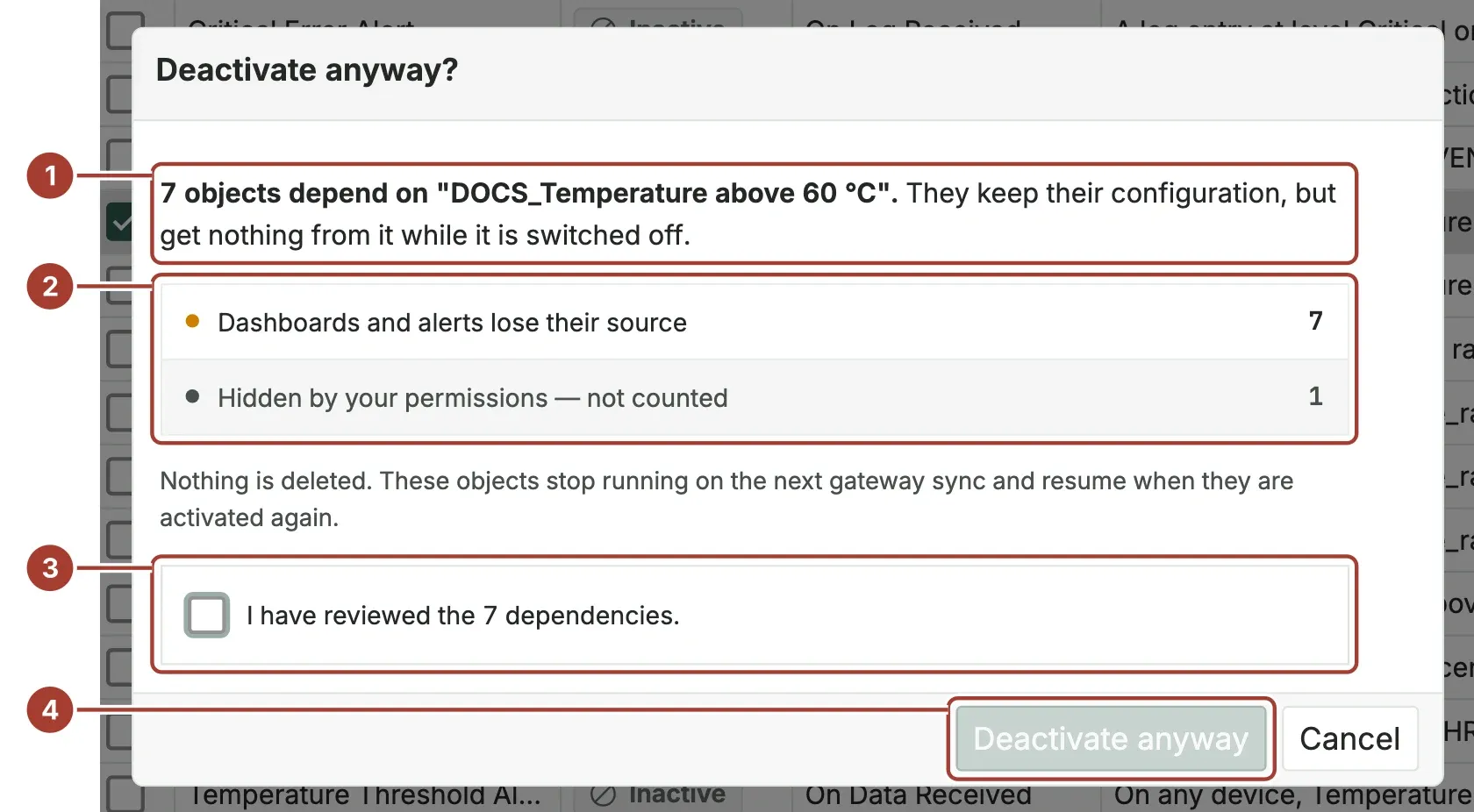
- How many objects depend on it and what happens to them.
- The consequences by group, with counts.
- Tick the box to confirm you have reviewed the list.
- Deactivate anyway (or Delete anyway) is available after you tick the box. Cancel leaves everything as it was.
Switching off deletes nothing: the dependent objects stop on the next gateway sync and resume when the object is switched on again. Deleting keeps the historical data already written, but leaves the dependent objects pointing at something that no longer exists.
Trace an object
Organize > Health Checks has a Trace an object tab that shows one object in the middle of its chain.
- Open Organize > Health Checks and select Trace an object.
- Type a device, gateway, rule, function, pipeline or target name in the search box and choose it.
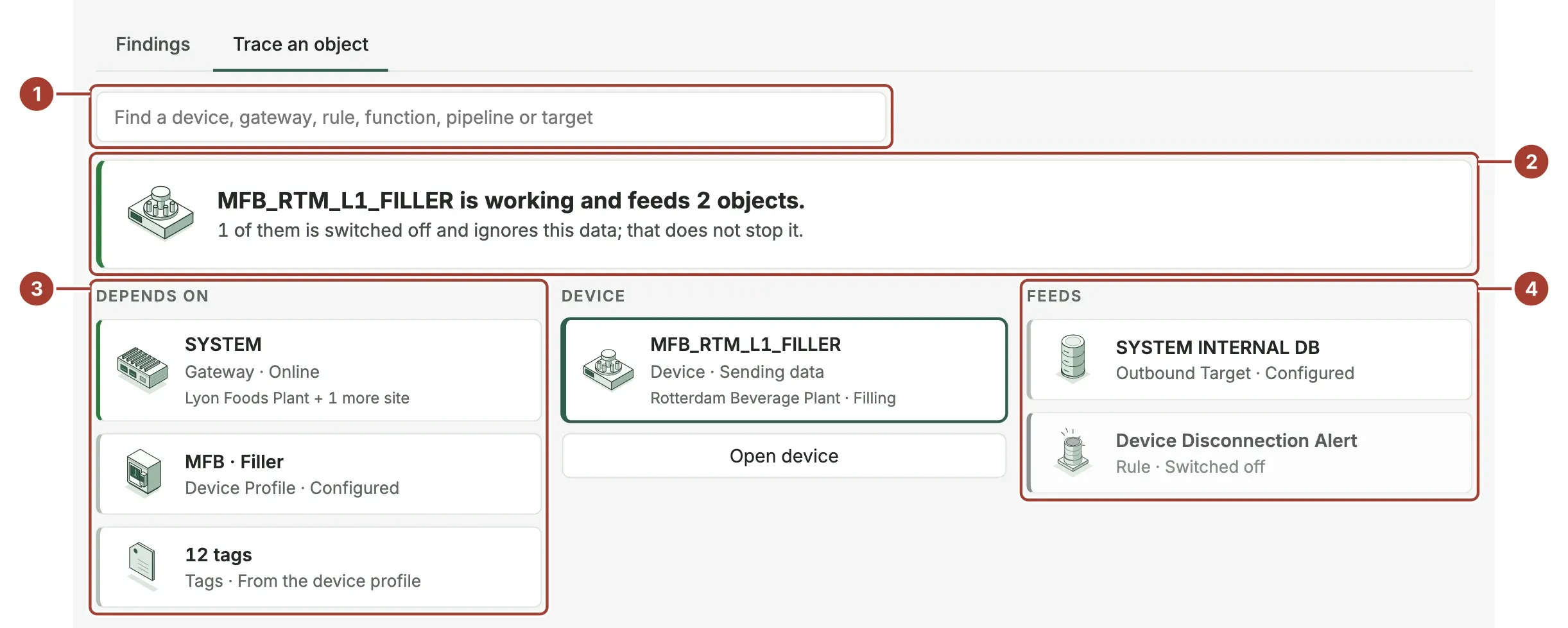
- The search box.
- The verdict: whether the object works, and what it feeds. When the data stops, it says where and why.
- Depends on: what the object needs to work, here the gateway, the device profile and its tags.
- Feeds: what uses the object, and what those feed in turn. Switched-off objects are shown faded.
Each card shows the object's kind and state. Select Open device (or the button for the object's kind) to open it.
What's next
- Health Checks: what is broken across the whole setup.
- Topology: the same connections drawn as a map.
Was this page helpful?
Evaluating Proxus? See it on your own machines in a 30-minute technical session.