Reference · for Operators, Engineers
Topology
What the Topology screen shows. The plant, fleet and flow views of sites, devices, gateways and targets, the inspector, and the replay of the last hour.
Topology draws the plant as a map: sites, areas and lines with their devices, the edge gateways that read them, the Proxus hub and the outbound targets that receive the data. Everything is coloured by health, so you can see where data stops. It is in Monitor > Topology and updates by itself.
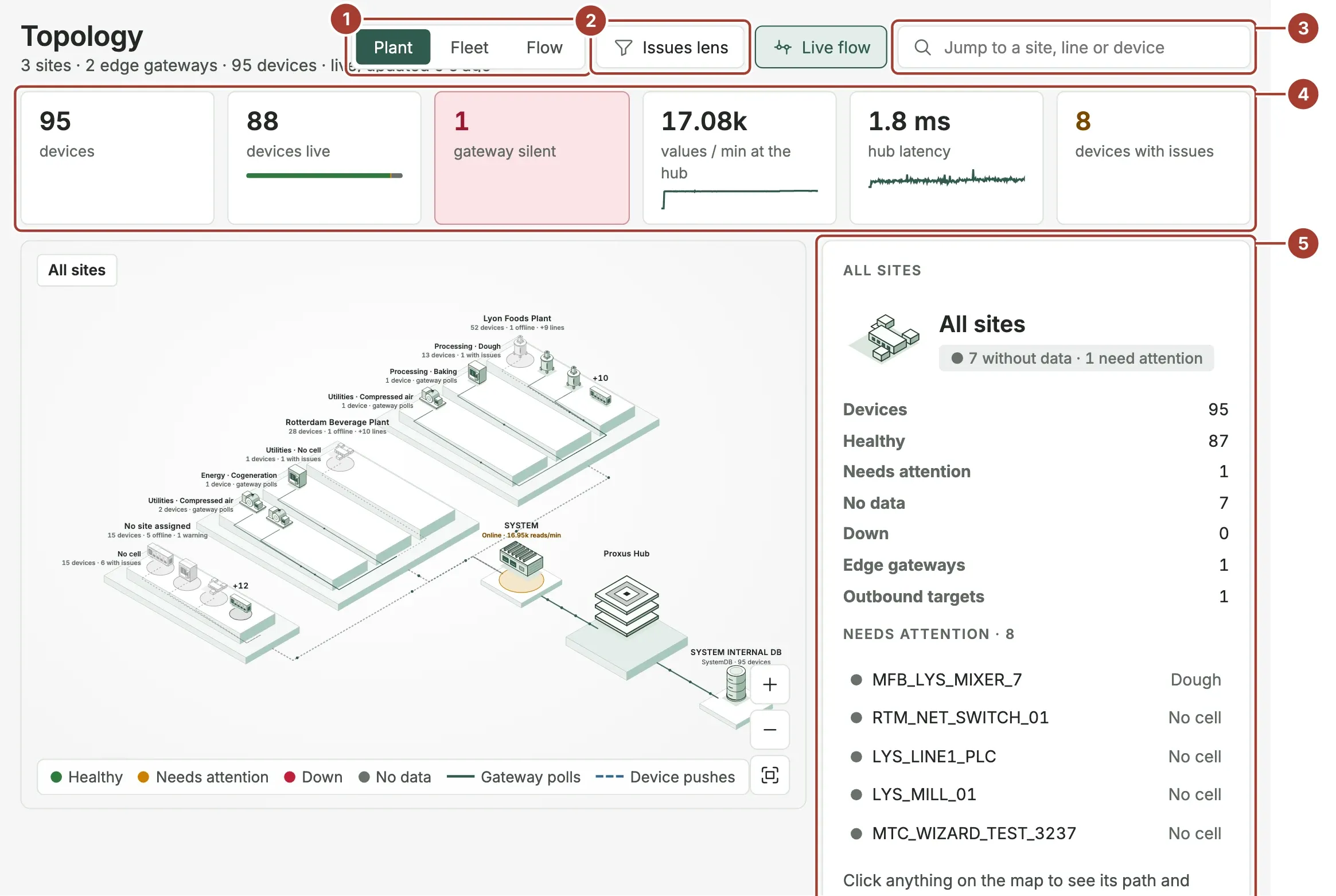
- The views: Plant, Fleet and Flow.
- Issues lens fades everything that is healthy. Live flow, next to it, animates the data moving along the links.
- Jump to a site, line or device: type a name and choose a result to go to it on the map.
- The figures: devices, devices live, gateways silent, values / min at the hub, hub latency and devices with issues. The small lines show the recent rate and latency.
- The inspector: what is selected, its counts and the devices that need attention.
Health colours
| Colour | Name | Meaning |
|---|---|---|
| Green | Healthy | The device sends data and reports no problem. |
| Amber | Needs attention | The device sends data but warns or retries, or a group has devices with issues. |
| Red | Down | The device reports an error. |
| Grey | No data | No data arrives from the device. |
| Disabled | The device is switched off. |
A solid link means the gateway polls the device; a dashed link means the device pushes its data to Proxus.
Views
Plant is the isometric map. It starts at All sites. Double-click a site, area or line to step into it; the breadcrumbs at the top of the map lead back, as does Back to …. The zoom buttons and Fit to screen sit at the bottom right. A level with too many items shows +… for the rest; use search or the Issues lens to find one.
Fleet shows one column per site. The tallest columns have the most devices with issues.
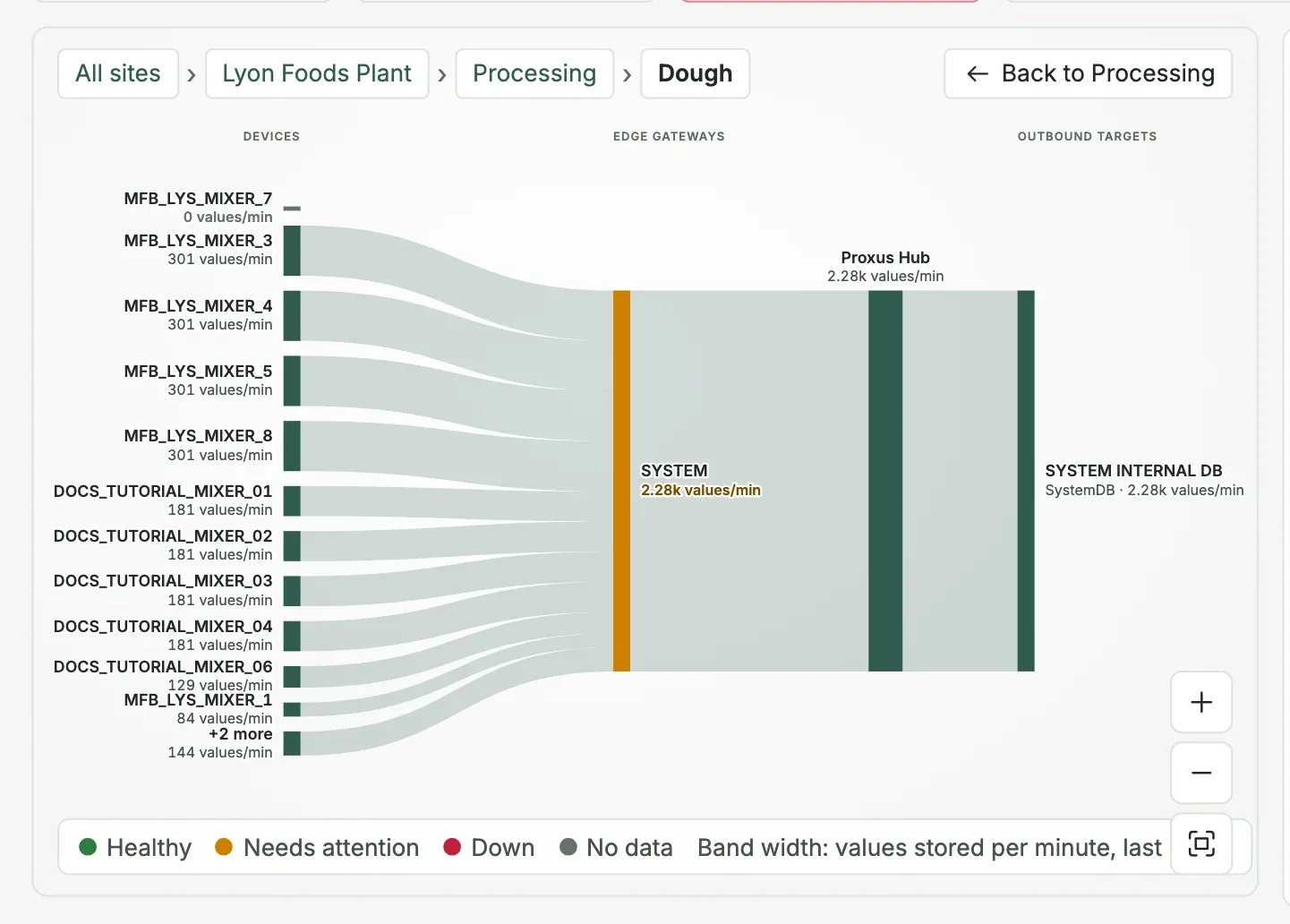
Flow shows the data as bands from devices (or sites, areas and lines) through the edge gateways and the hub to the outbound targets. The width of a band is the number of values stored per minute over the last 5 minutes. When nothing has been stored yet, the width is the number of devices. A cross marks a place where the data stops.
The inspector
Click anything on the map to select it. The inspector on the right shows it, and the map dims everything that is not on its data path.
| Selected | What the inspector shows |
|---|---|
| A site, area or line | Its devices by health, its gateways and targets, and up to five devices with issues, worst first. Select one to go to it. Step into … opens the level. |
| A device | Its state and last message, Where, Gateway, Protocol, Data (gateway polls or device pushes) and Targets. Open device opens the device page. |
| An edge gateway | Its sites, Last heartbeat, reads per minute, memory, the devices behind it and the rules on it. Depends on it lists what stops if the gateway stops. Open gateway opens it. |
| The Proxus Hub | Values per minute, latency, gateways, devices and targets. |
| An outbound target | The devices feeding it, how many of them have issues and the gateways the data comes through. |
When a gateway goes silent, the inspector says so: the devices behind it went quiet with it, so the gateway host or its link to the hub is the likely cause, not the devices.
The last 60 minutes

- One bar per minute: how many devices wrote data to the Proxus historian in that minute. A line marks a minute where devices stopped reporting or came back, and the newest such minute is listed under the bars.
- Live means the map shows now. Drag along the bars to replay a minute: the map shows which devices reported then, and Back to live returns.
Devices whose data is not stored in the Proxus historian (devices removed from SYSTEM INTERNAL DB) cannot be replayed; the replay shows them in their current state and says how many there are.
What's next
- Find what stopped
- See what depends on an object
- Health Checks: what in the setup is broken, not only what is offline now.
Was this page helpful?
Evaluating Proxus? See it on your own machines in a 30-minute technical session.