How-to guide · for Administrators, Engineers
System logs
Find the warnings and errors behind a problem, from the hub and every edge gateway, and set how much Proxus logs and for how long.
At the end of this guide, you have found the log entries that explain a problem, such as a device that stopped sending data or a rule that did not fire. The hub and every edge gateway send their warnings and errors to one list, so you do not have to sign in to each machine.
Before you start
- A user whose role may open Platform > System Logs.
- An idea of when the problem started and where (a gateway, a device, a rule).
Find the entries
Go to Platform > System Logs.
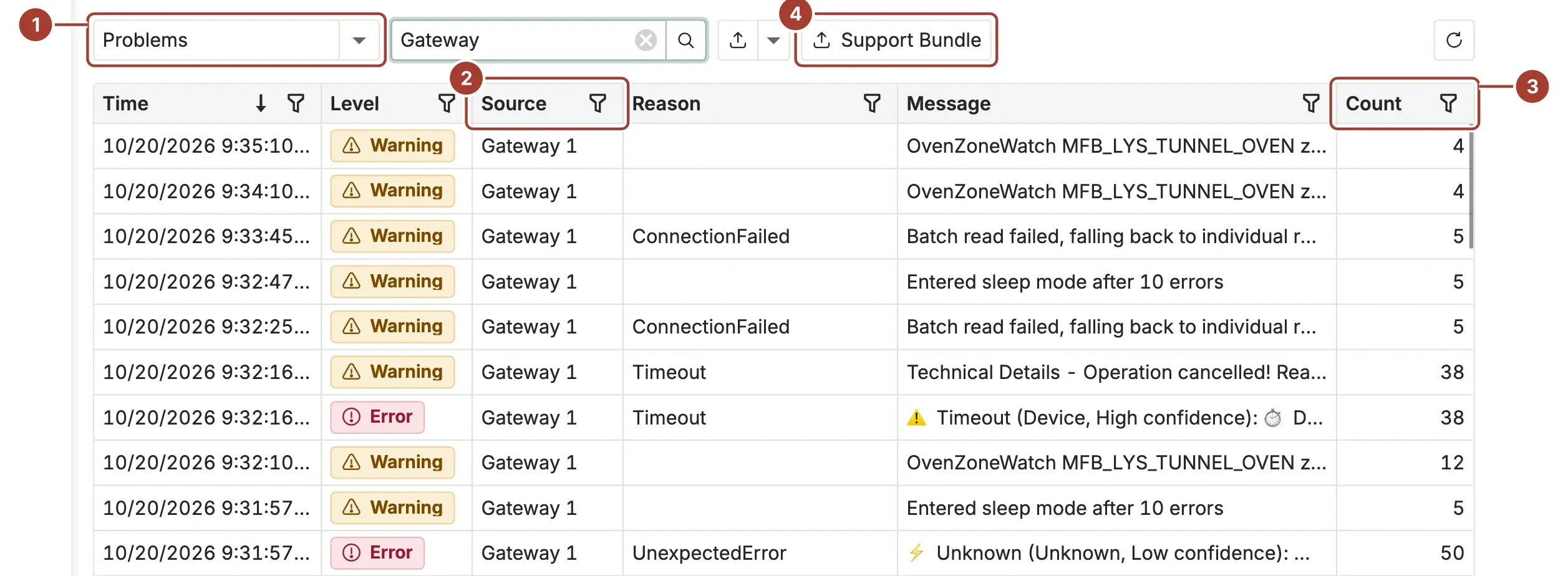
- The view selector: Problems (warnings, errors and critical entries, the default), Errors (errors and critical entries) or All logs (every level).
- Source says where the entry comes from: Platform for the hub, Gateway 1 and so on for each edge gateway (by its ID).
- Count is how often the same entry happened. Repeats are shown once, with the time of the latest one.
- Support Bundle packs the logs for Proxus support. See Support bundle.
To narrow the list:
- Type a device name, tag name, rule name or gateway in Text to search... and press Enter.
- Use the filter icon in a column header, for example to show one Level or one Source.
Reason is a short code for the kind of problem, where Proxus knows one, for example a notification limit that was reached.
Read an entry
The list cuts each message to one line. Select an entry to open it.
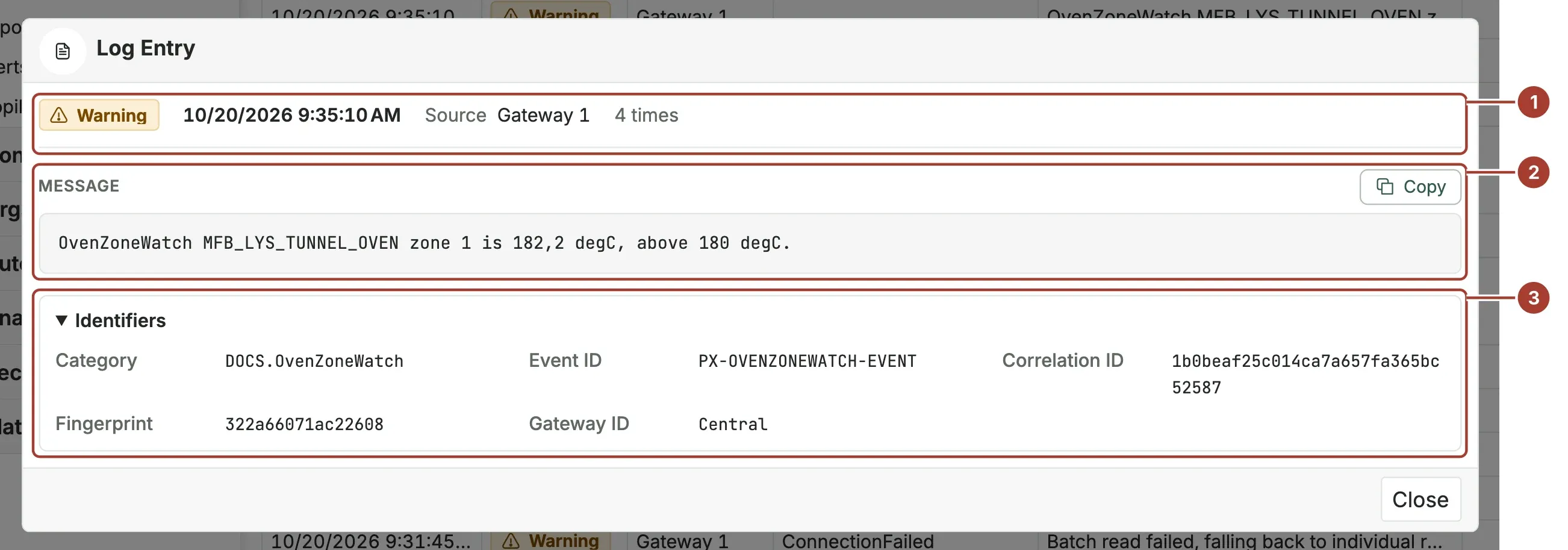
- The level, the time of the latest occurrence, the source, the reason and how often it happened.
- The whole message. Copy puts it on the clipboard, for example for a support case. When the entry has a Diagnostic (more technical detail, see
IncludeDiagnosticDetailsbelow), it follows with its own Copy. - Identifiers: the category, event ID, correlation ID, fingerprint and gateway ID of the entry. Proxus support may ask for them.
Close returns to the list.
The list shows the last day by default and at most 1,000 groups of entries; the footer says how many groups are shown. To look further back, change LogsTimeRange in the [Data] section of the configuration file, for example LogsTimeRange = "7d".
How much is logged
Loglevel in the [Logging] section sets the lowest level that is stored:
| Value | Level |
|---|---|
0 | Trace |
1 | Debug |
2 | Information |
3 | Warning (default) |
4 | Error |
5 | Critical |
With the default, only warnings and worse are stored, so All logs shows the same as Problems most of the time. Lower the level only while you look for a problem, then set it back: lower levels write much more.
Other keys in [Logging]:
| Key | Default | Meaning |
|---|---|---|
OperationalLogDedupeWindowSeconds | 60 | The same warning or error within this many seconds is stored once, then every tenth time. Each stored entry carries how many times it happened since the one before, so Count in the list is the real number. |
IncludeDiagnosticDetails | false | When true, entries keep more technical detail. Turn it on only for a support case. |
LogToFile | true | Also write log files on disk (see below). |
LogSqlQueries | false | Log every database query. Only for support cases: it writes a lot and can contain data. |
How long logs are kept
| Where | Kept for | Set by |
|---|---|---|
| The System Logs list (telemetry database) | 45 days | ClickHouseLogTTLExpression in [ClickHouse] |
| Log files on disk | Until you delete them | One file per day, a new one after each 1 MB |
The log files are in the configuration folder (/app/config in the containers), named by date, for example 2026-10-15_000.log. They are part of the config volume. Delete old ones from time to time, or keep them small by leaving Loglevel at 3.
What's next
Was this page helpful?
Evaluating Proxus? See it on your own machines in a 30-minute technical session.