How-to guide · for Engineers
Add a rule action
Make a rule send a notification through a channel or forward the matching data to an outbound target, and reuse the same action on many rules.
At the end of this guide, the oven rule from Create a rule sends a Microsoft Teams message each time it fires. A rule action is defined once and can be linked to as many rules as you like.
Before you start
You need:
- A rule. See Create a rule.
- For a notification: a notification channel (email, Teams, Slack, SMS and others). See Notification channels.
- For forwarding data: an outbound target. See Outbound targets.
The two kinds of action
| Action Type | What it does when the rule fires |
|---|---|
| Notification Action | Sends a message through the chosen Notification Channel. The message is written by Proxus: it names the rule, the time and why it fired, and quotes the rule's condition. |
| Trigger Outbound Target | Forwards the message that matched (all its tag values and its place) to the chosen Outbound Target. Works only for rules on On Data Received. |
An action runs each time its rule fires, within the rule's throttle. Nothing runs when the condition stops being true.
Step 1: Create the action
- Go to Automate > Rule Actions and select New.
- Fill in the form.
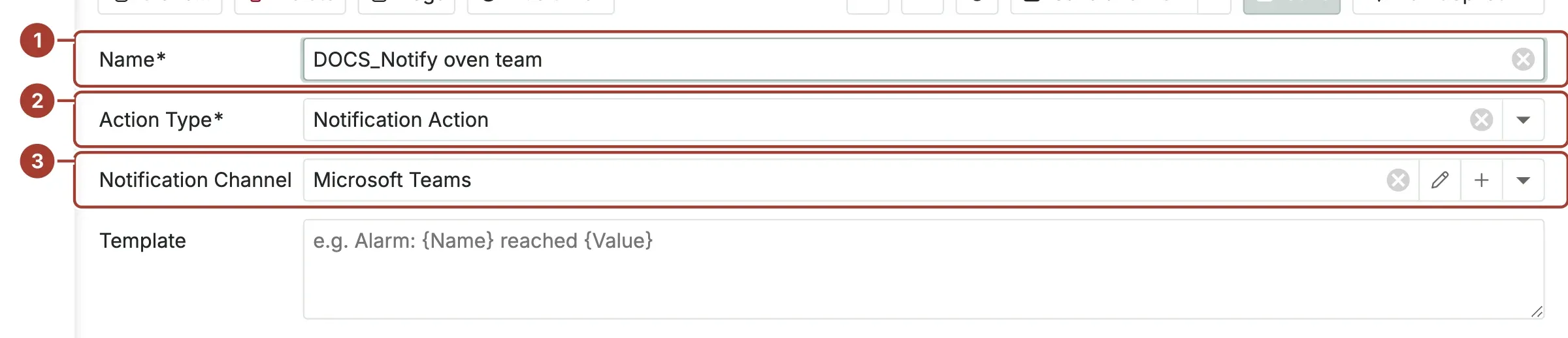
- Name: a unique name that says what it does, for example
Notify oven team. - Action Type: Notification Action.
- Notification Channel: the channel to send through, here Microsoft Teams. For Trigger Outbound Target this field is Outbound Target instead.
Select Save.
Step 2: Link it to the rule
- Open the rule in Automate > Rules.
- Open the Actions tab (1) below the form.
- Select Link (2) and select the action in the list. It is added to the rule.
- Select Save.
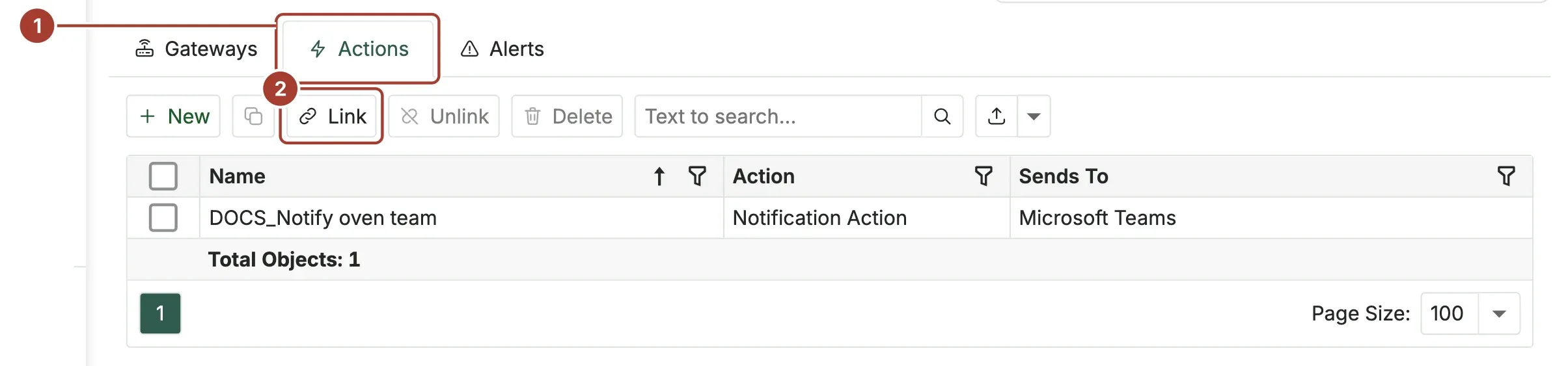
New on the same tab creates an action and links it in one go. Unlink removes the action from this rule only. The Rules column tells you how many rules use an action.
If the rule is active, its settings are locked: clear Active, save, link the action, then turn it on again.
When a message does not arrive
- A failed delivery is tried again a few times, with growing pauses, before it is given up.
- Logs in the rule action's toolbar opens the log entries of the notification sender, with the reason a message failed (a wrong address or token on the channel, for example).
- Check that the rule fired: its Alerts tab and Last fired show it.
- Check the rule's Trigger Limit and Throttle Period: matches over the limit run no action.
What's next
Was this page helpful?
Evaluating Proxus? See it on your own machines in a 30-minute technical session.