Reference · for Operators, Engineers
Alerts
The Alerts list and the alarm page: statuses, levels and sources of an alarm, how repeats are counted, and what the page shows around the moment it fired.
An alarm is raised when a rule matches its condition, or when a pipeline raises one. Monitor > Alerts lists them. While alarms are open, the menu item shows how many, for example Alerts (1).
Alarms cannot be created, edited or deleted by hand. You change their status with the toolbar actions.
The list

- Acknowledge, Resolve and Ignore: tick one or more alarms, then choose an action. An action is available only when it applies to the selected alarms.
- The filter: Open, Acknowledged, Resolved & ignored or All. The list opens on Open.
- An alarm. Select it to open the alarm page.
| Column | Meaning |
|---|---|
| Alarm | The rule's name, or the name the pipeline gave the alarm. |
| Reason | Why it fired, from the alarm's report. |
| Device | The device it fired for. |
| Status | Where the alarm is in its life (below). An open alarm shows New in this column. |
| Last Activity | When it last matched. |
| Count | How many times it matched while it was open. |
More columns, such as the level and the owner, can be added from the column chooser.
Status
| Status | Meaning | How it gets there |
|---|---|---|
| Open | Raised and not yet taken. | Raised by a rule or pipeline. |
| Acknowledged | Someone took it and follows it up. | Acknowledge. Only an open alarm can be acknowledged. |
| Resolved | Closed, with a note on how it was fixed. | Resolve asks How was it fixed? and needs an answer. A pipeline alarm is also resolved by itself when the pipeline clears it, and a rule alarm when the rule closes it. |
| Ignored | Closed without action. | Ignore, after a confirmation. |
Resolve and Ignore work on open and acknowledged alarms. A resolved or ignored alarm cannot be reopened. Every change is recorded with who made it and when; Audit Trail on the alarm page lists the changes.
Level and source
The level is shown as a badge: CRIT, WARN or NOTE. A pipeline sets the level of the alarms it raises. Rule alarms are shown as warnings.
The source is a Rule or a Pipeline. A pipeline alarm also records which step of the pipeline raised it and the alarm key, and has an Open Pipeline action that opens the pipeline.
Repeats
An alarm that matches again is not listed again. Its Count goes up and Last Activity moves on.
- A rule alarm keeps counting while it is open or acknowledged, for the same device: taking an alarm whose condition goes on does not raise a second one. The same rule matching on another device raises a separate alarm for that device. Once it is resolved (by itself or by a person) or ignored, the next match raises a new alarm.
- A pipeline alarm keeps counting while it is open or acknowledged, for the same device and alarm key. While its condition holds, the edge gateway repeats it at most once a minute, so Count goes up once a minute rather than on every reading. Once it is resolved or ignored, the next match raises a new alarm.
The alarm page
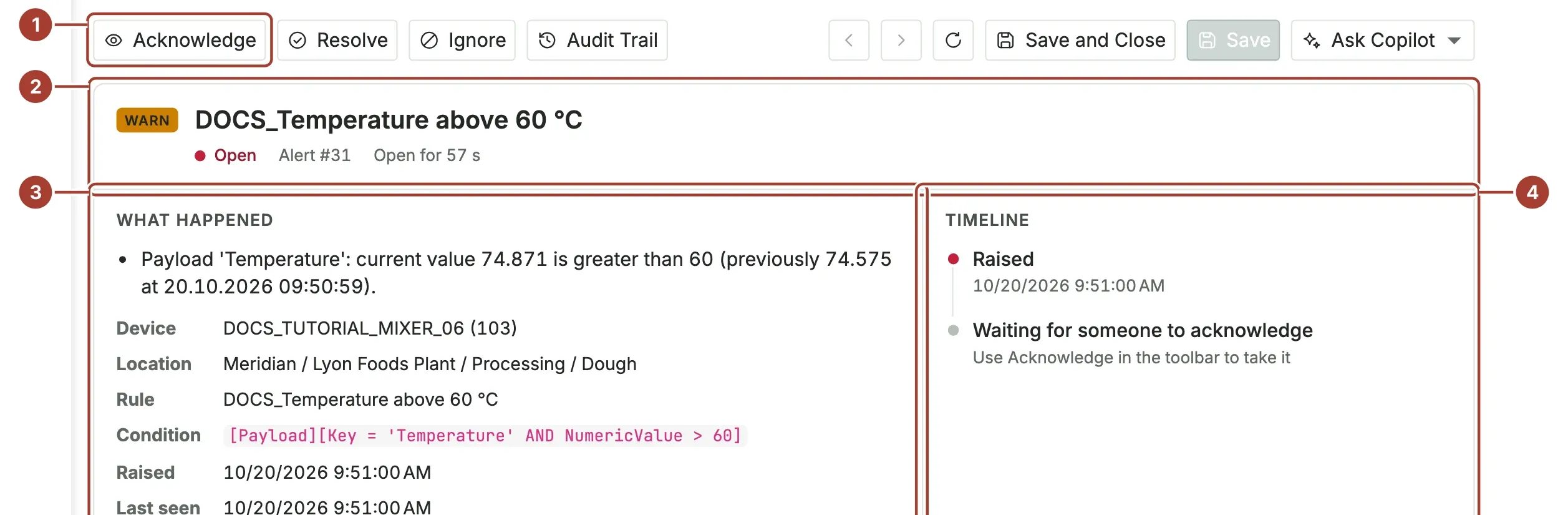
- The status actions, as in the list, and Audit Trail.
- The header: level, title, status, alarm number, how long it has been open and the source.
- What happened: the reasons from the report, then Device, Rule or pipeline step, Condition, Raised and Last seen.
- Timeline: raised, matched again, acknowledged and closed, each with who and when. While nobody has taken the alarm, it says Waiting for someone to acknowledge.
Below these, Solution holds the note given when the alarm was resolved, and Full report the text the rule or pipeline wrote. The reasons and the full report are shown in your interface language, with long decimals rounded; notification channels receive the report as the Edge Gateway wrote it, in English.
Around the alarm
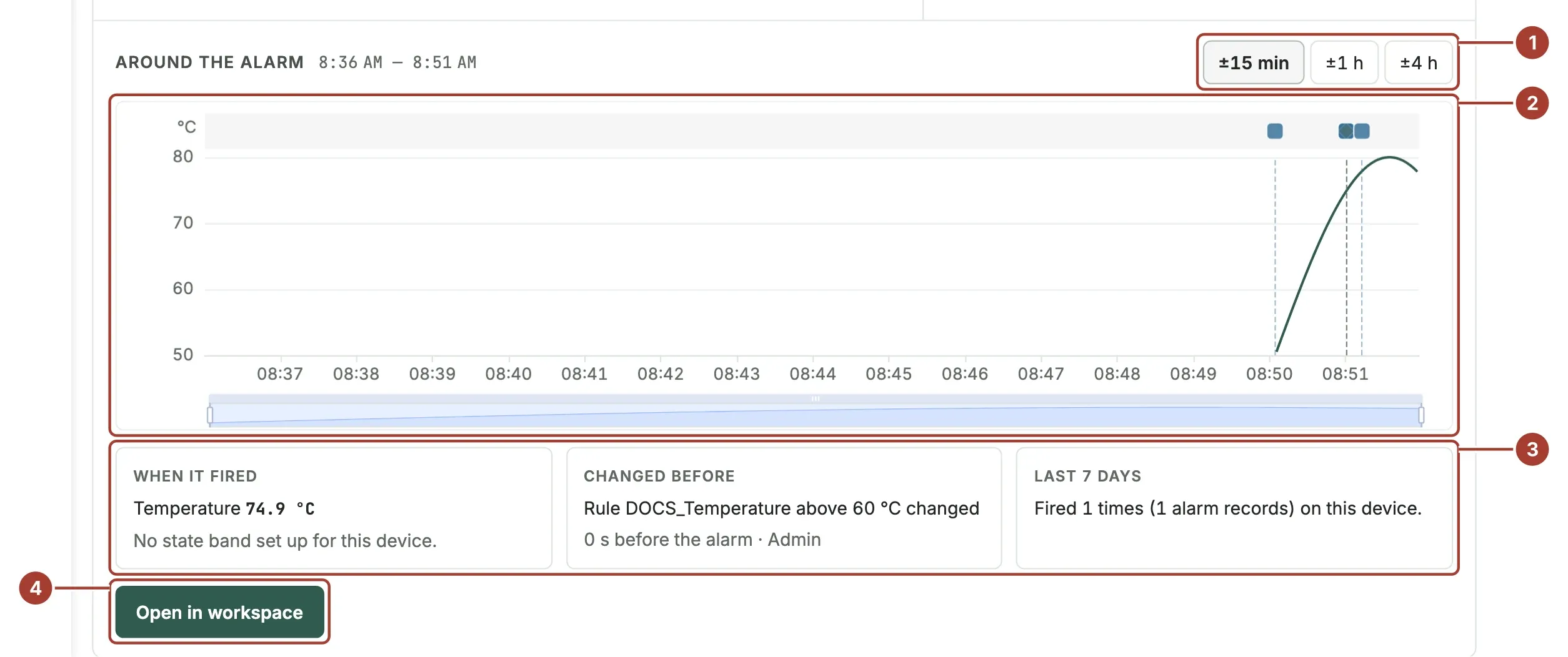
- The window: ±15 min, ±1 h or ±4 h around the moment the alarm fired.
- The chart of the tag the alarm names, with the device's state band and the alarms and changes in the window. Only tags named in the alarm's report are used; when it names none, the device's state tag is shown.
- Three cards: When it fired (the tag's value and the machine state at that moment), Changed before (the last platform change in the 24 hours before the alarm, and who made it) and Last 7 days (how often this alarm fired on this device).
- Open in workspace opens the same tag and window in the Trend Workspace.
What's next
- Acknowledge and resolve an alert
- Rules: what raises an alarm.
- Rule actions: send a message when an alarm is raised.
Was this page helpful?
Evaluating Proxus? See it on your own machines in a 30-minute technical session.