How-to guide · for Engineers
Import devices from a spreadsheet
Add or update many devices at once from a CSV or Excel file. A dry run shows every change before anything is saved.
At the end of this guide, the devices listed in your spreadsheet exist in Proxus, or have been updated, and are running on their gateways. The import never saves anything before you have seen a dry run of every row.
Before you start
You need:
- The device profiles the devices will use. The import does not create profiles, and it does not take tags: every device gets its protocol, connection settings and tags from its profile. Create a profile first with the setup wizard or on Device Profiles.
- The edge gateways that will read the devices. The import does not create gateways either.
- A user role that may create and change devices.
Prepare the file
The file is a CSV file or an Excel workbook (.xlsx) with one device per row and a header row. Only the first sheet of a workbook is read. A CSV file may use a comma, a semicolon or a tab between columns. The file can be up to 5 MB.
The quickest start is a template: open Connect > Import Devices and select Download Excel template or Download CSV template. Each has the header row and one example device.
| Column | Required | What to enter |
|---|---|---|
DeviceName | Always | The device name. It must appear only once in the file. A device that already has this name is updated. |
Profile | For a new device | The name of an existing device profile, as on Device Profiles. |
Gateway | For a new device | The name of an existing edge gateway, as on Edge Gateways. |
Host | No | The device's IP address or host name. Saved for the device only when it differs from the profile's. |
Port | No | A whole number. Saved for the device only when it differs from the profile's. |
Enterprise, Site, Area, ProcessCell, EquipmentModule | No | Where the device sits. Free text, the same levels as in the setup wizard. |
DeviceType | No | What the machine is, as the device type list shows it, for example Filler / Packaging or Motor / Drive. |
Enabled | No | true or false (1, 0, yes and no also work). A new device is enabled when the cell is empty. |
Headers are not case-sensitive, and the Turkish headers of the template are read as well. A column the import does not know is ignored, and the first step says which ones.
For a device that already exists, an empty cell keeps its current value. So a file with only DeviceName and Site moves devices to another site and changes nothing else.
DeviceName,Profile,Gateway,Host,Port,Enterprise,Site,Area,ProcessCell,EquipmentModule,DeviceType,Enabled
LYS_PACKER_04,Case packer,SYSTEM,127.0.0.1,5020,Meridian,Lyon Foods Plant,Packaging,Line 4,,Filler / Packaging,true
LYS_PACKER_21,Case packer,SYSTEM,10.20.4.41,502,Meridian,Lyon Foods Plant,Packaging,Line 5,,Filler / Packaging,true
Step 1: Choose the file
Go to Connect > Import Devices.
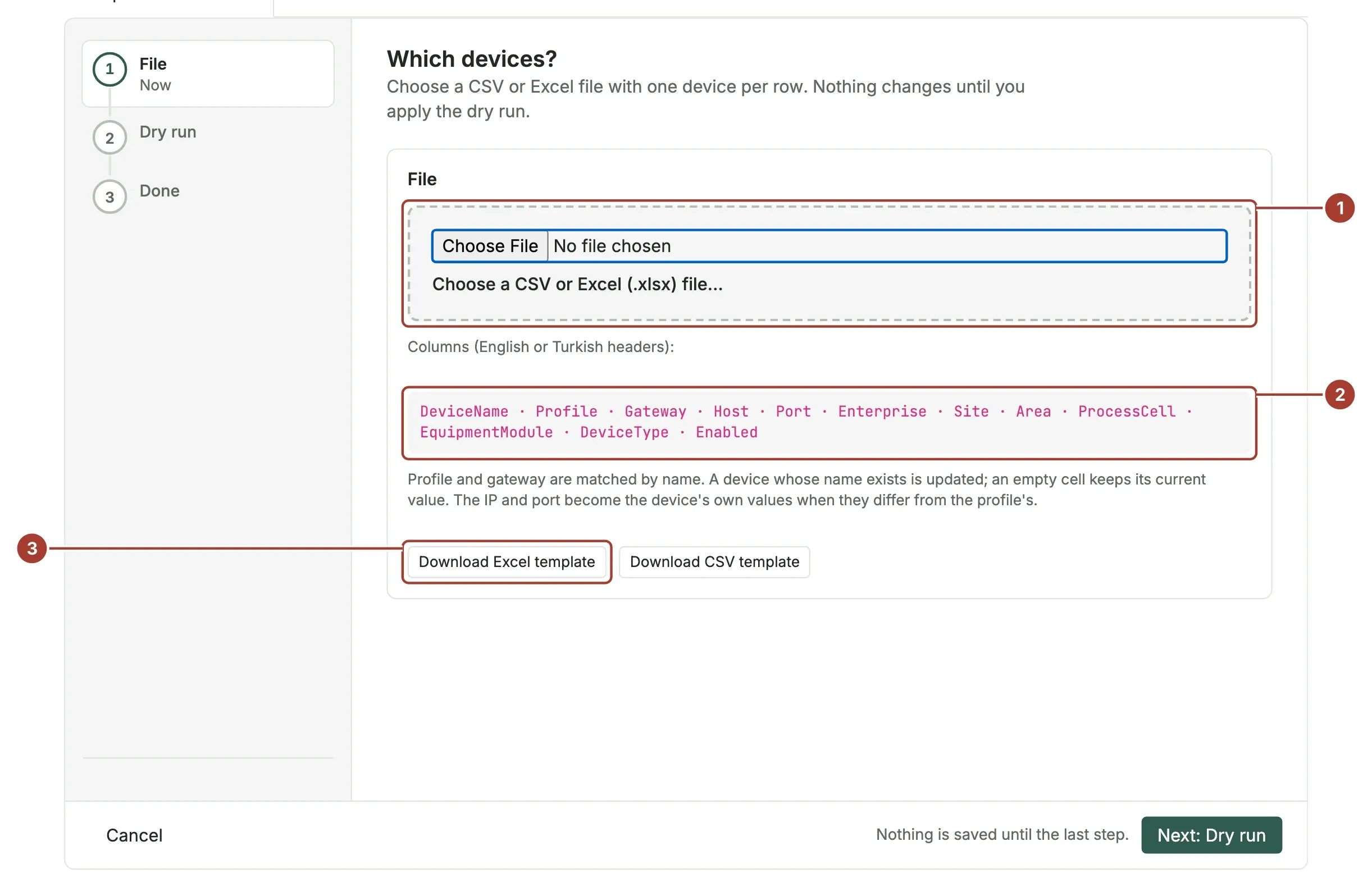
- Select the file box and choose your file. It then shows the file name and the number of rows.
- The columns the import reads, for reference.
- The template buttons, if you do not have a file yet.
Select Next: Dry run.
Step 2: Check the dry run
Each row is compared with what already exists in Proxus. Nothing is saved yet.
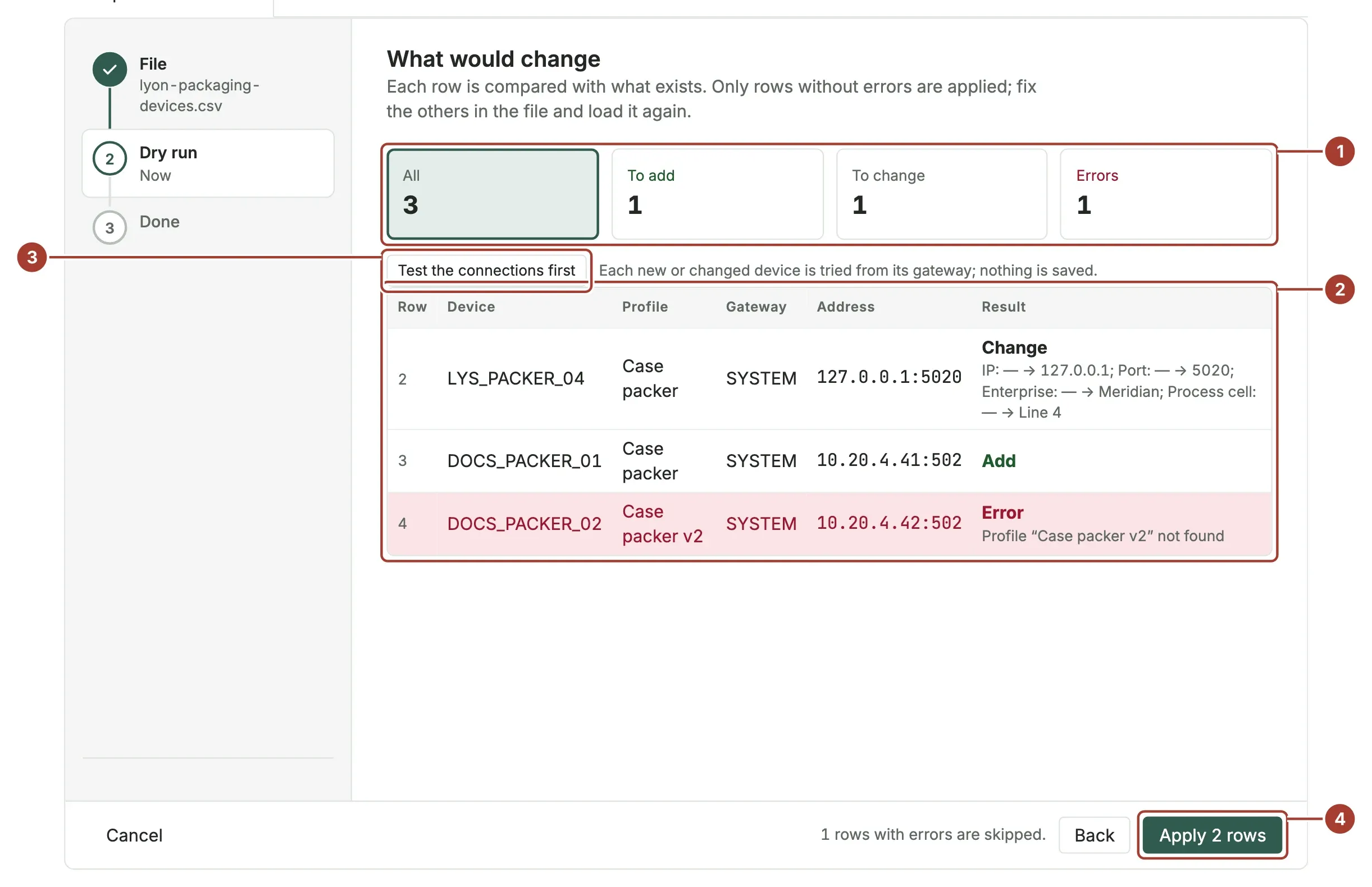
- The counters filter the table: All, To add, To change and Errors. When there are errors, the table opens on Errors.
- Each row shows its device, profile, gateway and address, and the result: Add, Change (with each change listed, old value and new value), No change or Error (with the reason).
- Test the connections first (optional): each new or changed device is tried from its own gateway, and the row shows Connection OK or the reason it failed. Nothing is saved by the test.
- Apply saves the rows that are to be added or changed. The button shows how many.
Rows with an error are skipped. To include them, fix the file, select Back and choose the file again.
Errors the dry run reports
| Message | What to do |
|---|---|
| No device name | Fill in DeviceName. |
| “…” appears more than once in the file | Keep each device name on one row only. |
| “…” does not follow the naming rule | Your administrator set a naming rule for new devices. Rename the device to match it. |
| No profile / Profile “…” not found | Enter the exact name of an existing device profile. |
| No gateway / Gateway “…” not found | Enter the exact name of an existing edge gateway. |
| Port “…” is not a number | Enter the port as a whole number, or leave it empty. |
| Device type “…” not known | Use a device type as the list shows it. |
| Active must be true or false | Enter true or false in Enabled. |
| Address … is already used by … | Two devices cannot have the same address and port. Check the Host and Port columns. |
Step 3: Done
The last step says how many devices were added and changed. All of them are saved together. The devices are on their gateways right away; select Open the device list to see them, and open a device to see its first values.
What's next
- The device page: check that each device sends values.
- Change a device: adjust one device with the setup wizard.
- Import from Kepware: bring devices and their tags over from a Kepware server.
Was this page helpful?
Evaluating Proxus? See it on your own machines in a 30-minute technical session.