Reference · for Operators, Engineers
Operations Center
What the Operations Center shows. The verdict, the Needs attention list, the fleet, the data pipeline and the events of the last changes.
The Operations Center answers three questions in order: is anything wrong, where, and what should you do. It is the first item of the Monitor menu. The page refreshes by itself; Live and Updated in the top right corner show when it last did.
The page keeps normal things grey. Only something that needs you gets a colour and a place in the list.
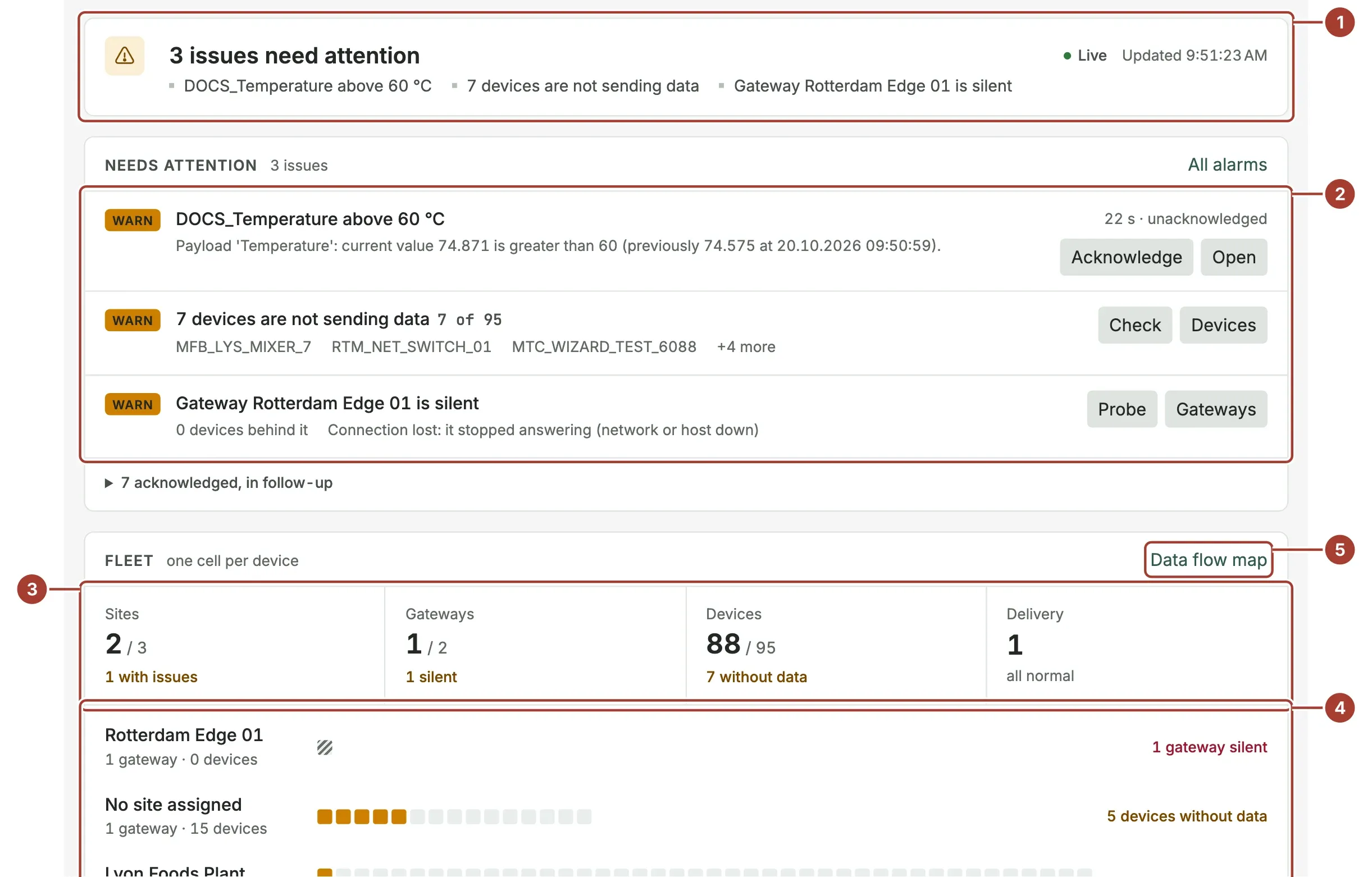
- Verdict: one line that sums up the hub. All systems within limits when nothing needs you, otherwise the number of issues and what they are.
- Needs attention: the open alarms and system problems, worst first.
- Counts: sites, gateways, devices and delivery targets, each with a short note when something is wrong.
- Fleet: one row per site with one cell per device.
- Data flow map: opens a full-screen map from each gateway to its devices and their targets.
Verdict
When nothing needs attention, the verdict lists how many devices are sending data, the values per second and the latency, that there are no open alarms, and how many notes are below. When something needs attention, it says how many issues there are and lists them. Its colour follows the worst item: amber for a warning, red for a critical issue.
Needs attention
The list holds real alarms and problems the hub finds by itself, in one list. Critical items come first; within the same level, the oldest comes first, because it has waited longest. Each item has a level badge (CRIT, WARN or NOTE), a title, where it is, how long ago it started and the buttons that fit it.
| Item | When it appears | Buttons |
|---|---|---|
| An open alarm | A rule or a pipeline raised an alarm that nobody has acknowledged yet. The age shows unacknowledged. | Acknowledge takes the alarm. Open opens it on the alarm page. |
| Gateway … is silent | An edge gateway stopped reporting. Its devices are not counted again as devices without data. | Probe sends a test message to the silent gateways and shows which ones answer. Gateways opens the gateway list. |
| … devices are not sending data | Enabled devices that sent no data, for a reason other than a silent gateway. It is a NOTE while fewer than 5% of the devices are affected, and a warning above that. | Check lists the devices without an active stream and the last error of each. Devices opens the device list. |
| No device is sending data | There are devices, but none of them sends data. | Check, Devices |
| Critical log entries, or errors logged in the last minute | At least one critical log entry, or five or more errors, in the last minute. | Open logs opens System Logs. |
| License capacity near its limit or exceeded | A gateway's outbound data points per second are close to, or above, what the license allows. Above the license, outbound data points are dropped. | Gateways |
| Streaming devices have no delivery target | Devices send data, but no device has a target, not even the historian (SYSTEM INTERNAL DB). Values are visible live, but are not forwarded or stored. | Targets opens the outbound targets. |
Check and Probe only look; they do not restart or change anything. Their result stays under the item until the page is opened again.
Below the list, … acknowledged, in follow-up opens the alarms someone has acknowledged but not closed yet, with who took each one and when. Select one to open it. All alarms opens the Alerts list.
Fleet
| Count | What it shows |
|---|---|
| Sites | Sites with no issue, out of all sites. No site assigned is listed below but not counted as a site. |
| Gateways | Connected gateways, out of all gateways. |
| Devices | Devices sending data, out of all devices. |
| Delivery | Active outbound targets. |
Select a count to open the matching list.
Below the counts, each site has a row: its gateways and devices, a cell per device and a short state such as Normal or 1 device without data. A grey cell is a device sending data, an amber cell a device without data, and a striped cell a device behind a silent gateway. A site with very many devices shows a bar with the share of devices sending data instead of cells. With more than eight sites, the panel shows one tile per site and lists only the sites with problems.
Data flow map opens a full-screen tree: each gateway, the devices it reads and the targets their data goes to. Select Close to go back.
Data pipeline
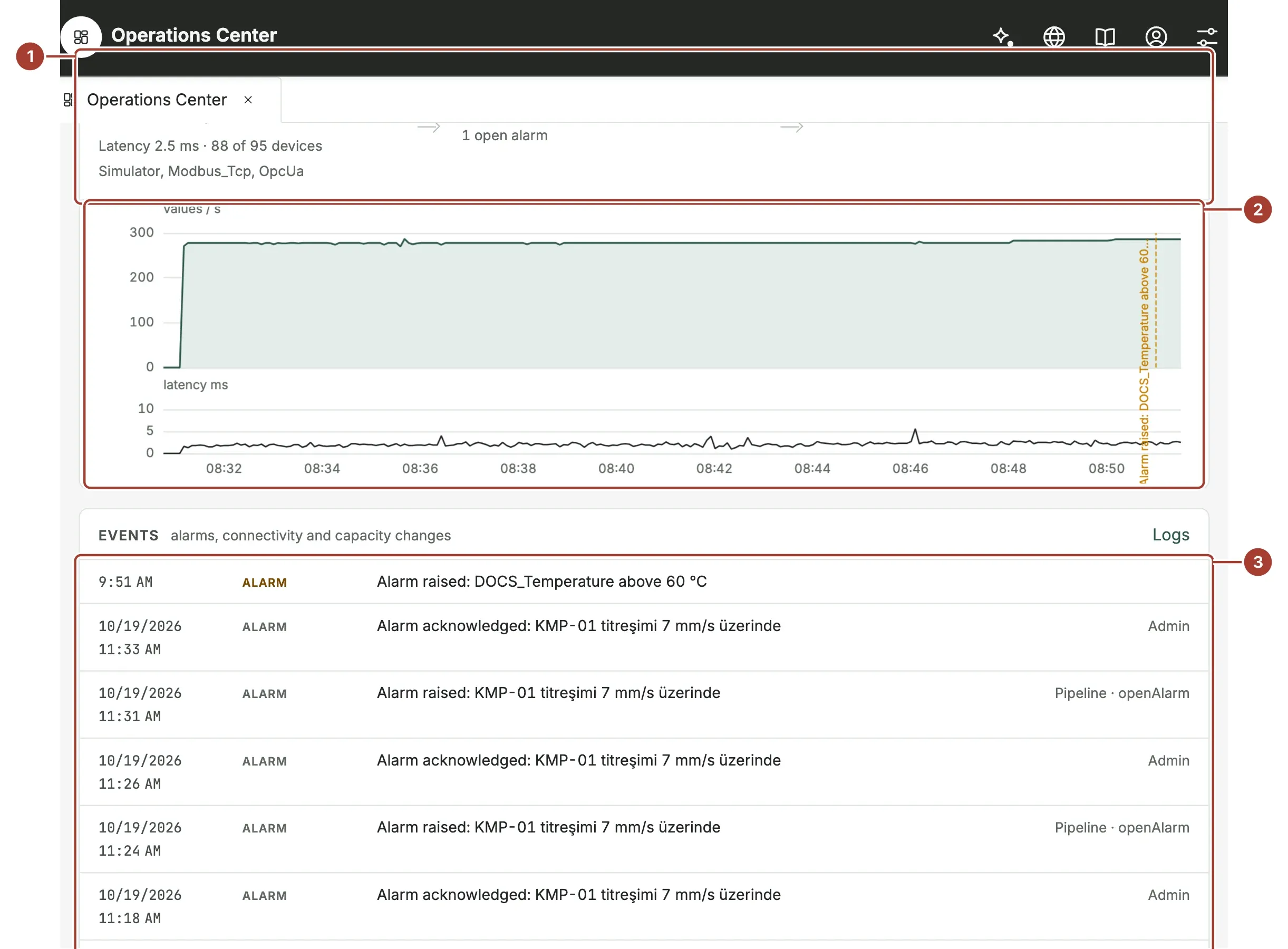
- Ingest, Processing and Delivery: the three stages of the data. Ingest shows the values per second, the latency, how many devices send data and the protocols in use. Processing shows the active rules and functions and the open alarms. Delivery lists up to five active outbound targets and how many devices each one receives.
- The chart: values per second and latency over the time shown next to the section title (up to the last hour). A dashed line marks the moment an alarm was raised. The chart appears after the first minute of data.
- Events: see below.
Events
Events lists the latest changes of state: alarms raised, acknowledged, resolved or ignored, gateways that went silent or reconnected, devices that stopped or resumed sending data, license capacity changes and error bursts. Each line has the time, the kind (Alarm, Connectivity, Delivery, Capacity or System), the message and, for alarms, who changed it. Logs opens System Logs.
What's next
- Find what stopped: follow a warning to the device and its error.
- Acknowledge and resolve an alert
- Topology: the same health, drawn as a map.
Was this page helpful?
Evaluating Proxus? See it on your own machines in a 30-minute technical session.