How-to guide · for Administrators
UNS permissions
Limit a role to parts of the plant. Allow or deny a branch of the Unified Namespace, such as one site or one line, for everyone with that role.
At the end of this guide, users of a role see only the sites, areas and devices of the Unified Namespace (UNS) you allowed, and across the platform only those devices, their alarms and their values. For example, the team in Lyon sees Meridian/Lyon_Foods_Plant and everything under it, and nothing of Rotterdam.
Before you start
- Sign in with a user that has the Administrators role.
- The role exists and is not administrative. See Users and roles.
- The devices have a place (enterprise, site, area...) so that they appear in the UNS. See Unified Namespace.
How the rules work
A UNS permission is a rule on a role: a path in the UNS and an Access of Allow or Deny.
- A path covers itself and everything under it.
Meridian/Lyon_Foods_Plantcovers every area, line and device of that site. There are no wildcards: MQTT signs such as+and#are removed when the rule is saved. - Paths are compared segment by segment and are case-sensitive.
Meridian/Lyondoes not coverMeridian/Lyon_Foods_Plant. - Deny wins over Allow. Allow a site and deny one line in it to hide only that line.
- A user with several roles gets what any of them allows: two site roles open both sites, and one role without UNS rules that reads devices opens every device.
- A role with no rule is not limited to a site: it sees every device it may read, but nothing in the UNS Explorer. A role with only Deny rules sees every device except the denied branches, and nothing in the UNS Explorer.
- Administrative roles always see everything; their rules are not used.
The rules decide which part of the plant a role works in; what it may do there (read, change) comes from its other permissions. A device cannot be saved outside the role's paths, for example moved to another site.
Allow a branch from the UNS Explorer
- Go to Organize > UNS Explorer.
- Right-click the node you want to give access to, for example the site
Lyon_Foods_Plant. - Select Allow Access to Role..., or Deny Access for Role... to hide it.
- In the dialog, select the role and then Apply.
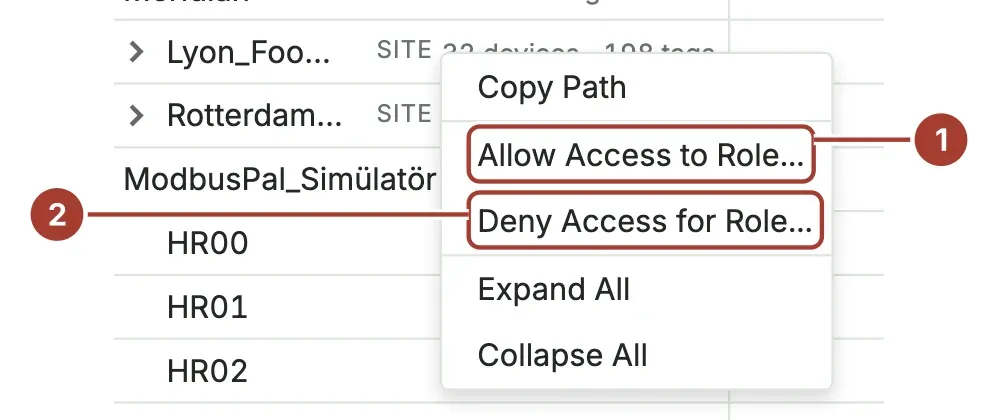
- Allow Access to Role... adds an allow rule for this node and everything under it.
- Deny Access for Role... adds a deny rule.
These menu items are only shown to administrators.
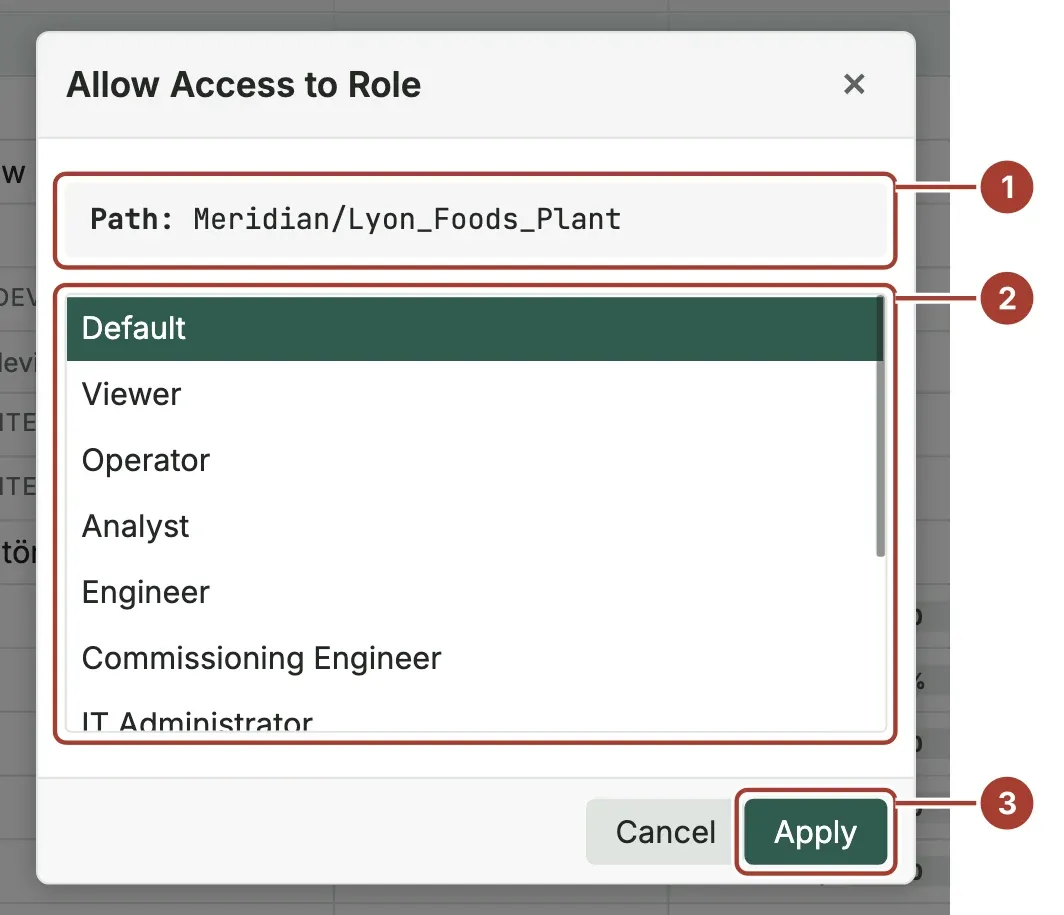
- Path is the UNS path of the node you clicked.
- The list shows every role that is not administrative.
- Apply saves the rule. If the role already has a rule for this path, it is updated and turned on again.
Add or change rules on the role
Go to Security > Roles, open the role and look at UNS Topic Permissions below the permission tabs.
- New adds a rule by hand: type the ISA-95 Topic Prefix (the path, such as
Meridian/Lyon_Foods_Plant/Packaging) and choose the Access. - Paste UNS Path adds an allow rule for a path you copied with Copy Path in the UNS Explorer right-click menu.
- Clear Is Enabled to switch a rule off without deleting it.
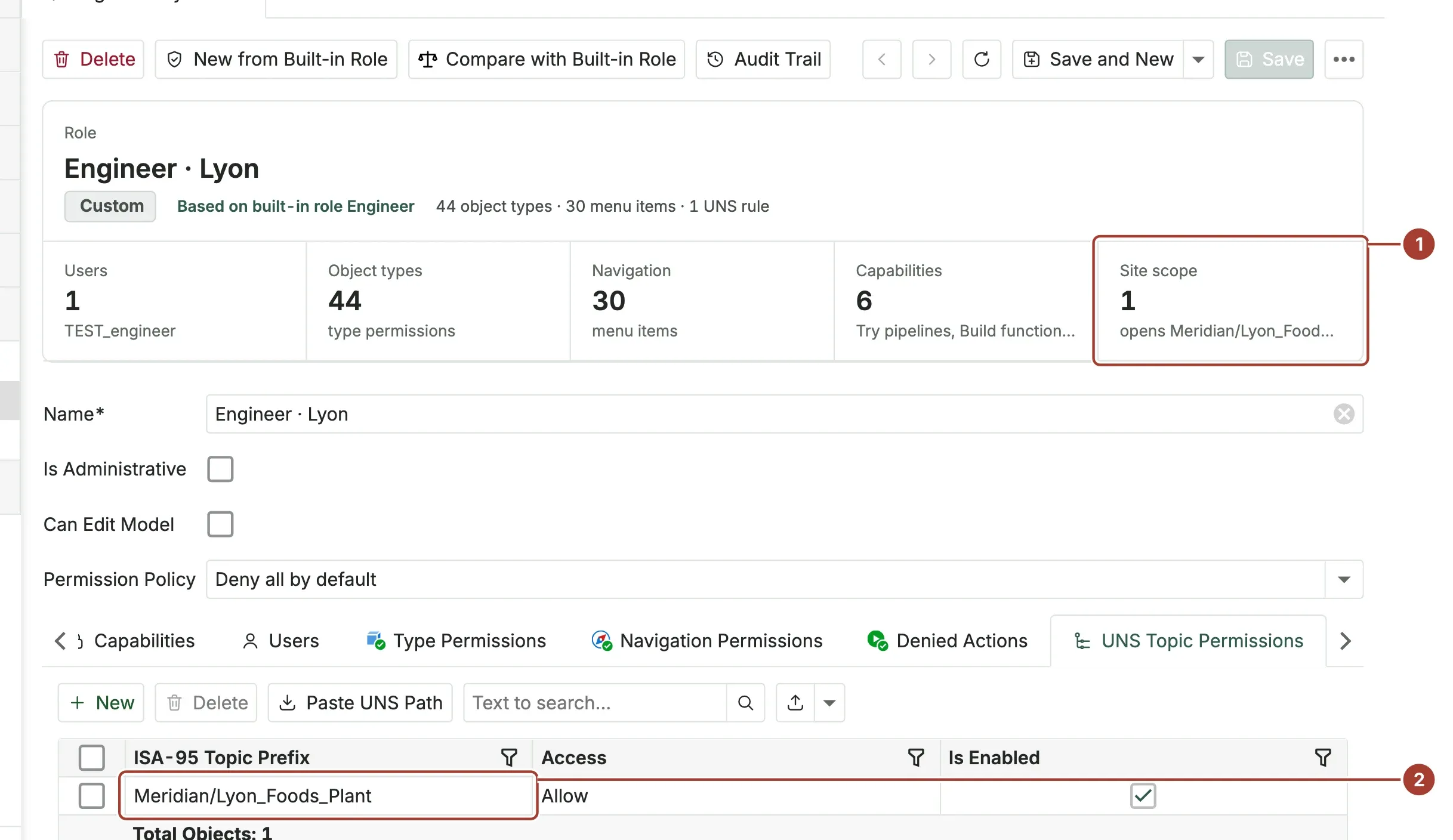
- Site scope in the summary at the top of the role page: how many rules the role has and which paths they open and close, or All sites when it has none.
- Each rule shows its path (ISA-95 Topic Prefix), its Access and whether it is enabled.
Where the rules apply
| Place | Effect |
|---|---|
| UNS Explorer | Nodes outside the allowed paths are hidden. The parents of an allowed node stay visible so the user can open it. Device and data point counts count only what the user sees. |
| Devices: device list and page, Operations Center, plant map, Trend Workspace, Copilot | Only devices in the allowed paths are listed. A device page opened by its link is refused. |
| Alerts | Only the alarms of those devices. An alarm without a device belongs to no site and is hidden. |
| Device telemetry and trend notes | Only the rows of those devices. |
| AI agents through the MCP server | Devices and values outside the allowed paths are not returned. |
| Dashboards and Reports | Every query reads only the rows of those devices: telemetry, device metrics, devices, alarms and device statistics. Pipeline signal tables return no rows. A SQL query with its own SETTINGS, a table function (such as remote or url) or system tables is refused, and a query built by picking tables instead of SQL returns no rows (a report with one is refused). |
| Scheduled deliveries | A delivery runs with the site scope of the user who set it up (its owner): its recipients get what that user sees. |
Free SQL: the MCP telemetry_query tool and the telemetry query of the REST API | Closed to a user whose roles are limited to a site, even with the SQL queries capability: a query cannot be limited to a site. |
Gateways, outbound targets, notification channels, rules, pipelines and functions do not carry a site; the role's record permissions decide them.
What's next
Was this page helpful?
Evaluating Proxus? See it on your own machines in a 30-minute technical session.