How-to guide · for Administrators
Users and roles
Add users, give them roles, build a role from an existing one, and set the password, lockout and session rules of the hub.
At the end of this guide, a new person can sign in to the hub and sees only what their role allows. A user is one account. A role is a set of permissions. A user can have several roles, and gets everything those roles allow together.
Before you start
- Sign in with a user that has the Administrators role.
- Decide what the new person must be able to do: which screens, which records (devices, rules, reports), and which parts of the plant.
The roles Proxus starts with
A new hub has ten roles: Administrators, Default and eight built-in roles for the usual jobs in a plant. Give people one of the built-in roles, combine several (a user gets everything their roles allow together), or copy one and change it.
| Role | For | Typical person |
|---|---|---|
| Administrators | Everything. Is Administrative is ticked, so no other permission is checked. The user Admin has this role. | Whoever installed the hub; an emergency account |
| Viewer | Watches; changes nothing. | Control-room screen, plant manager, visitor |
| Operator | Takes and resolves alarms, keeps trend views and notes. | Shift operator, maintenance technician |
| Analyst | Designs dashboards and reports, sets up scheduled deliveries, runs read-only SQL. | Quality, efficiency or energy lead |
| Engineer | Builds devices, profiles, rules, pipelines and functions and tries them; does not put them live. | Automation engineer, integrator |
| Commissioning Engineer | Everything the engineer does, and puts it live: pipelines that write to devices, function deployment, switching collection on and off. | Senior automation engineer |
| IT Administrator | Users, certificates, configuration, license, gateway installation and terminal; reads the process settings but does not change them. | IT / OT infrastructure team |
| Auditor | Reads everything, the audit trail included; changes nothing. | Quality assurance, internal audit, cyber security |
| Integration | No menu; reads through the REST API, OData and MCP. | MES or ERP link, BI tool, AI assistant |
| Default | Almost nothing: the user's own My Profile, changing their own password, their own screen layout, their own entries in the audit trail and reading the license. No user has this role when the hub is new. | none |
Two rules hold across the roles. Who builds does not put it live: an engineer publishes a pipeline in Shadow and sees what it would do; only a commissioning engineer publishes it Active (where it can write to devices) or deploys function code. Who runs the infrastructure does not run the process: the IT administrator installs gateways and opens their terminal but cannot change devices, rules or pipelines.
Built-in roles stay current: when Proxus adds a screen, the update gives it to the built-in roles that should have it. A built-in role you change shows customized at the top of its page, and updates leave it as you made it. A role of your own with a built-in role's name is left alone, and that built-in role is not created.
What each role sees and changes
read: sees the records · edit: also changes them · full: also creates and deletes them · own: only the records the user made (their trend views, deliveries, profile and audit entries) · none: not in the menu.
| Area | Viewer | Operator | Analyst | Engineer | Commissioning Engineer | IT Administrator | Auditor | Integration |
|---|---|---|---|---|---|---|---|---|
| Operations Center, topology, Copilot | read | read | read | read | read | read | read | none |
| Trend Workspace | read | own | own | own | own | read | read | read |
| Alerts | read | edit | read | edit | edit | read | read | read |
| Devices, device profiles, import | read | read | read | full | full | read | read | read |
| Edge gateways | read | read | read | read | read | full | read | read |
| UNS Explorer, health checks | read | read | read | read | read | read | read | read |
| Outbound targets, notification channels | none | none | read | full | full | read | read | none |
| Rules, rule actions | read | read | read | full | full | read | read | read |
| Pipelines | none | read | read | full | full | read | read | none |
| Functions | none | none | none | full | full | none | read | none |
| App templates | none | none | none | read | full | read | read | none |
| Dashboards, reports | read | read | full | read | read | read | read | read |
| Scheduled deliveries | none | none | own | own | own | none | read | none |
| Users, roles | own | own | own | own | own | full | read | none |
| Certificate store | none | none | none | read | read | full | read | none |
| System logs, database health | none | none | none | read | read | read | read | none |
| Configuration, license, brand, demo data | none | none | none | none | none | full | read | none |
| Copilot settings and usage | none | none | none | none | none | full | read | none |
| Audit trail | own | own | own | read | read | read | read | none |
UNS Topic Permissions decide which part of the plant a role sees: the UNS Explorer, and the devices, alarms and values everywhere else. Built-in roles start with none (every site, empty UNS Explorer), so add the plant paths each role should see. See UNS permissions.
Capabilities
Some buttons have an effect beyond the record: they write to devices, run code on gateways or change the platform. They need a capability as well as the record permission: an engineer may change a pipeline, but publishing it Active needs Write to devices. A button the role has no capability for is hidden, and refused if called through the API or Copilot.
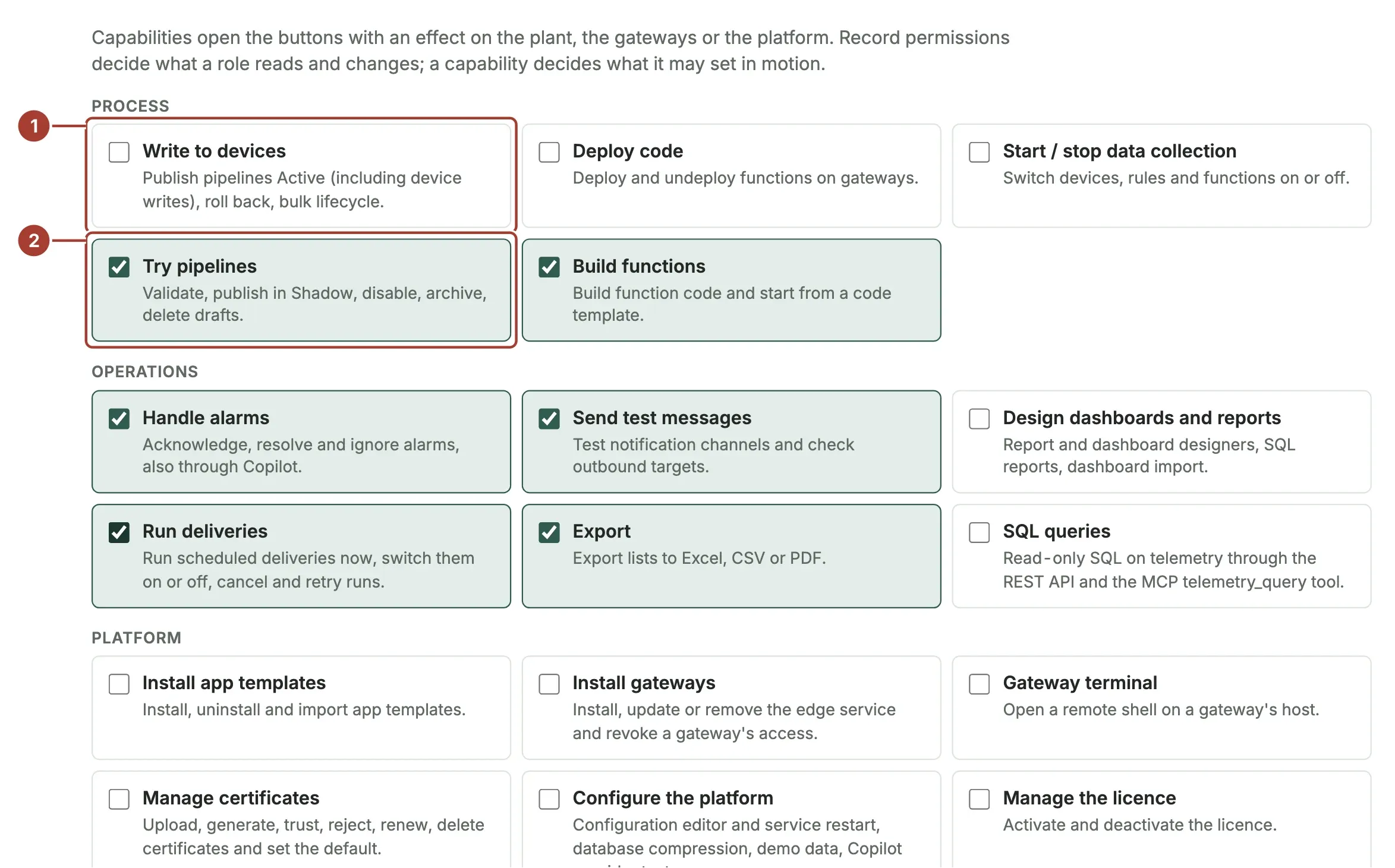
- Write to devices is not ticked for the Engineer: the Publish Active button is hidden for engineers.
- Try pipelines is ticked: engineers validate and publish in Shadow.
| Capability | Viewer | Operator | Analyst | Engineer | Commissioning Engineer | IT Administrator | Auditor | Integration |
|---|---|---|---|---|---|---|---|---|
| Write to devices | ✓ | |||||||
| Deploy code | ✓ | |||||||
| Start / stop data collection | ✓ | |||||||
| Try pipelines | ✓ | ✓ | ||||||
| Build functions | ✓ | ✓ | ||||||
| Handle alarms | ✓ | ✓ | ✓ | |||||
| Send test messages | ✓ | ✓ | ||||||
| Design dashboards and reports | ✓ | |||||||
| Run deliveries | ✓ | ✓ | ✓ | |||||
| Export | ✓ | ✓ | ✓ | ✓ | ✓ | ✓ | ||
| SQL queries | ✓ | |||||||
| Install app templates | ✓ | |||||||
| Install gateways | ✓ | |||||||
| Gateway terminal | ✓ | |||||||
| Manage certificates | ✓ | |||||||
| Configure the platform | ✓ | |||||||
| Manage the license | ✓ | |||||||
| Manage users and roles | ✓ | |||||||
| Support bundle | ✓ | |||||||
| The built-in roles' Copilot Access: Ask questions for Viewer, Operator, Analyst, IT Administrator and Auditor; | ||||||||
| Ask and propose changes for Engineer; Ask, propose changes and run actions for Commissioning Engineer; **No | ||||||||
| access** for Integration. Running an action through Copilot still needs the button's capability above. |
Add a user
Go to Security > Users and select New (1).
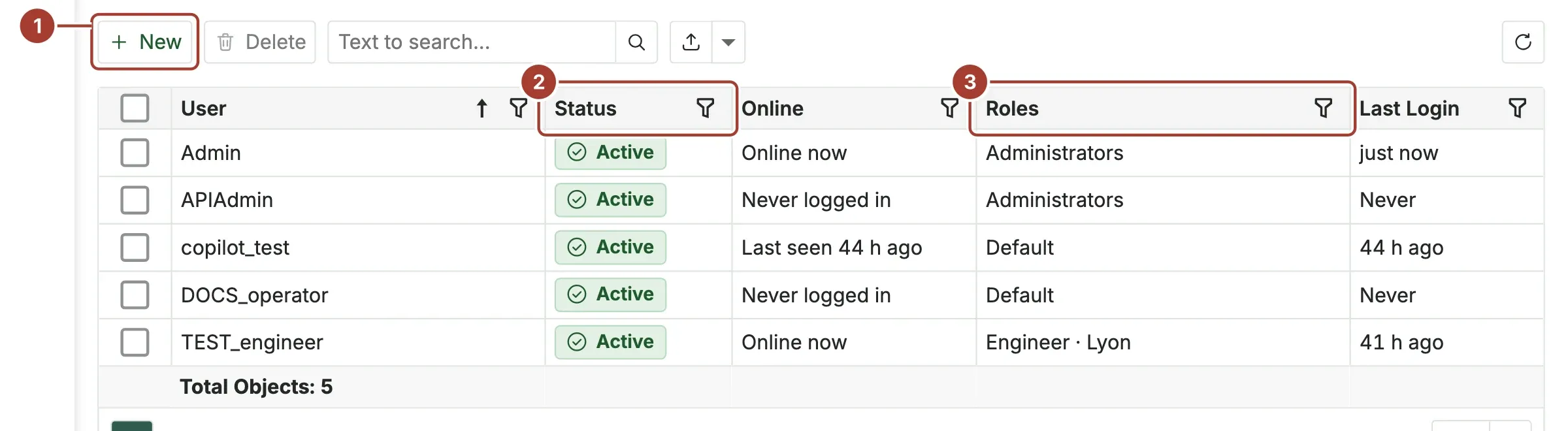
- New opens an empty user.
- Status shows Active, Disabled or Locked (too many wrong passwords).
- Roles lists the roles of each user, or No role.
On the new user:
- Enter the User Name. This is the name the person types to sign in.
- Leave Is Active ticked. Clear it later to stop the user from signing in without deleting the account.
- Tick Force Password Change. At the first sign-in, Proxus asks the user to choose a password that follows the password rules.
- Under Roles, select Link and pick one or more roles.
- Select Save.
Change a user
Open the user from the list.
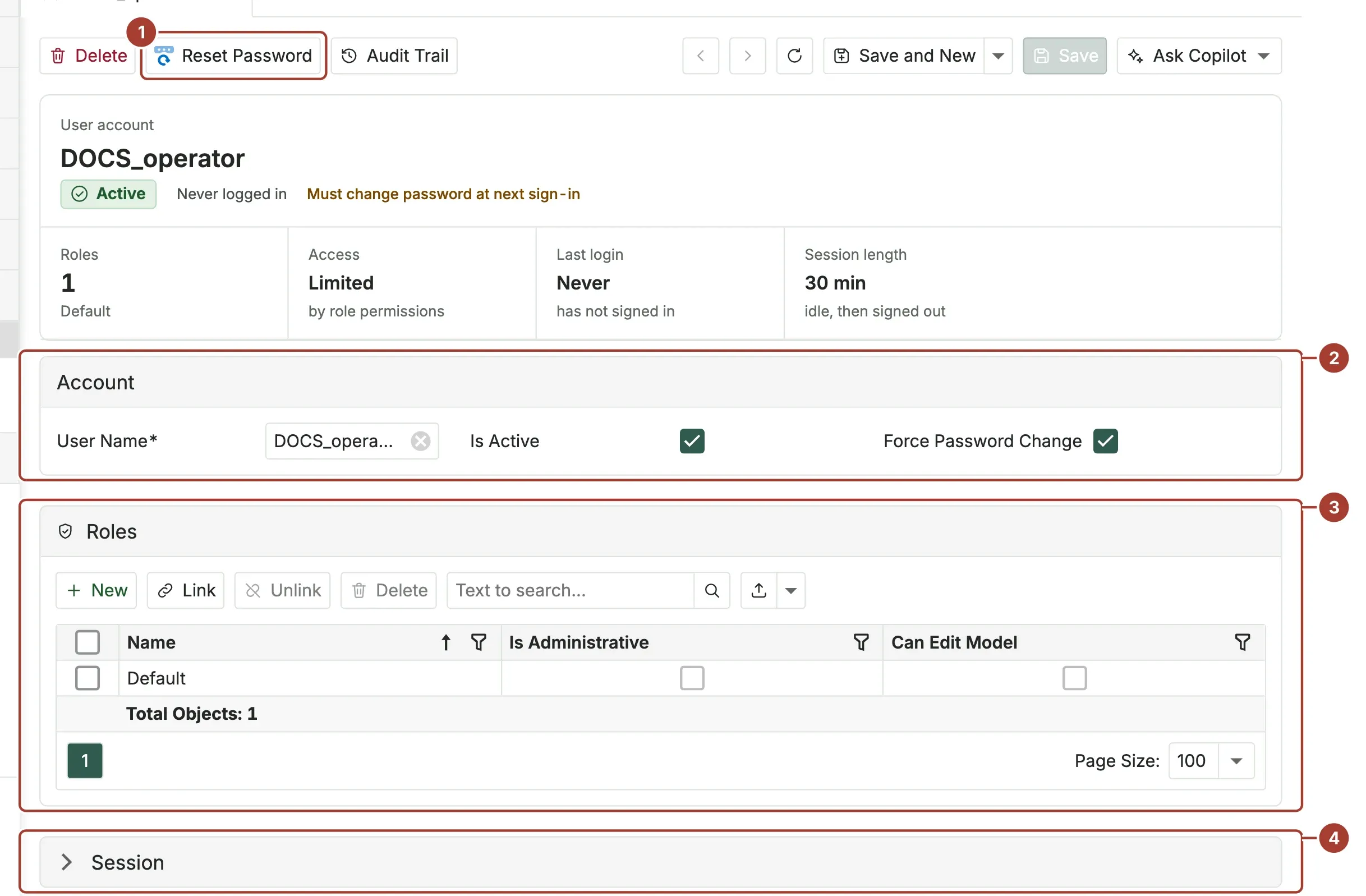
- Reset Password sets a new password for this user. Use it when someone forgot theirs.
- Account: the user name, Is Active and Force Password Change.
- Roles: Link adds a role, Unlink removes it.
- Session: Session Length is how long the user stays signed in without any input. The browser then signs out. It is also shown at the top. The default is 30 minutes.
00:00:00means no limit.
Users change their own password on Platform > My Profile with Change My Password.
Start from a built-in role
The quickest role is a copy of a built-in one, changed where your plant differs: for example an operator role that sees only one site.
- Go to Security > Roles and select New from Built-in Role.
- Pick the Built-in Role and give the new role a Name (left empty: the built-in role's name with "(copy)").
- Select Create. The new role opens with the built-in role's permissions, capabilities and Copilot access. Change what differs and add its UNS Topic Permissions.
A role made from a built-in role says so at the top of its page (Based on built-in role), and customized once it differs. Two more buttons work on such a role and on the built-in roles themselves:
- Compare with Built-in Role lists what differs: what the role sees and changes per area, capabilities added or removed, menu items, Copilot access, and how many other rules (field, record and action rules) only one of them has.
- Revert to Built-in Role undoes those differences after a confirmation. The role's users and UNS Topic Permissions stay. It is available when the role differs, or when its built-in role has a newer version (the top of the page then says so).
A copy you have not changed (UNS rules and users do not count) is brought up to date with its built-in role like the built-in role itself.
Build a role
Go to Security > Roles, select New, give the role a Name and save it. Then add permissions.
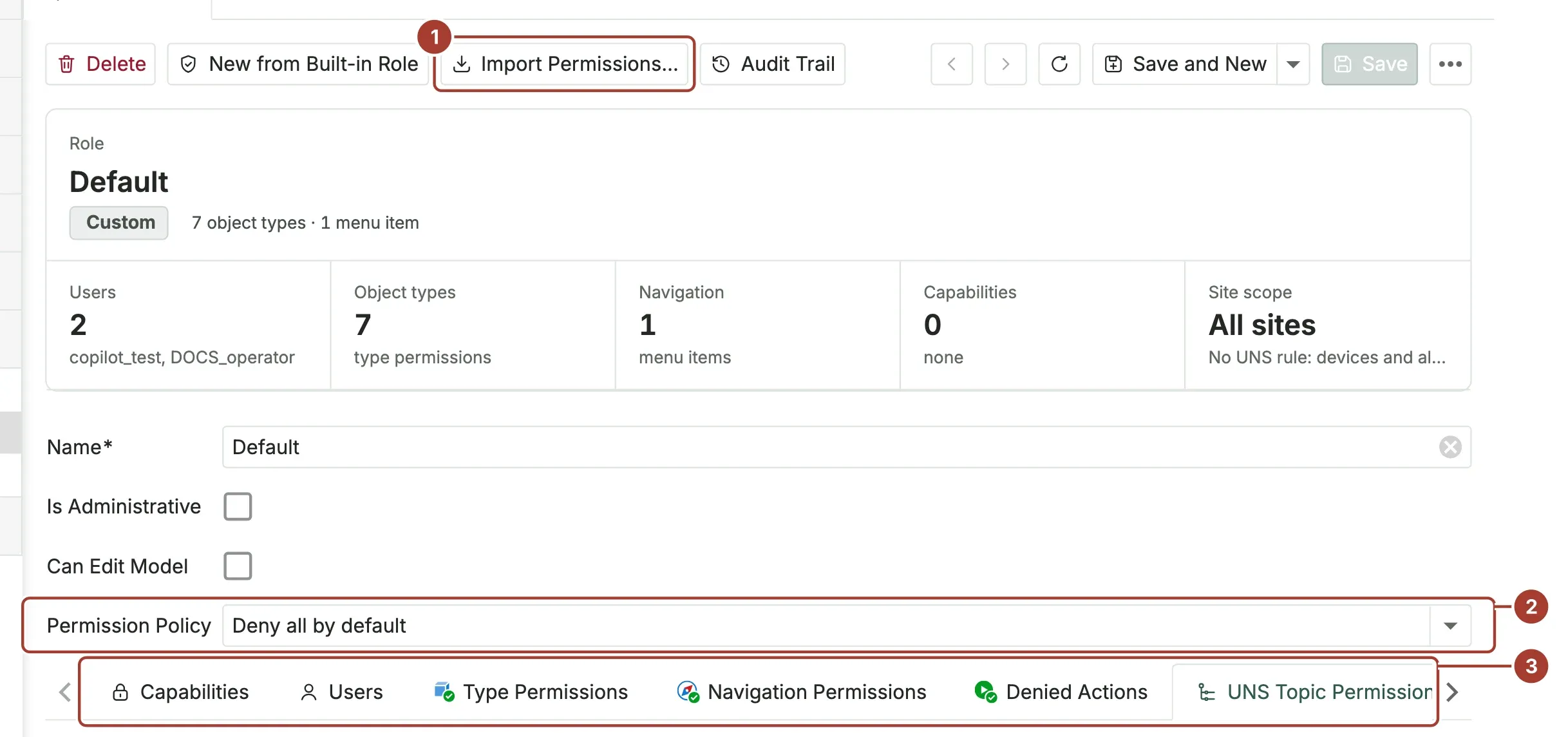
- Import Permissions... copies permissions from another role into this one. See the next section.
- Permission Policy is what the role may do with anything you have not listed: Deny all by default, Read only all by default or Allow all by default. Start from Deny all by default and add what is needed.
- The permission tabs:
- Users: who has this role.
- Type Permissions: one row per kind of record (Target Type), for example devices or rules, with Read, Write, Create, Delete and Navigate.
- Navigation Permissions: which menu items the role sees.
- Denied Actions: buttons the role may not use, even where it may change the record.
- Capabilities (the first tab): the buttons with an effect on the plant, the gateways or the platform, in three groups (Process, Operations, Platform), each with what it opens. A new role has none. Roles made before 2.0.0 kept what they could do: every capability their Denied Actions left open, except SQL queries.
Below the tabs, UNS Topic Permissions limits which parts of the plant the role sees. See UNS permissions.
The summary at the top of the page counts what the role has: users, object types, menu items, capabilities and its Site scope (the paths its UNS rules open and close, or All sites). A built-in role also shows which one it is, and customized once you changed it.
A user who manages users and roles without being an administrator (the IT Administrator role) cannot change the Administrators role or an administrator, cannot change a role they hold, and cannot change their own roles. Leave Is Administrative cleared for every role except one for administrators, and leave Can Edit Model cleared.
Copy permissions from another role
To make a role that is like an existing one, start from that role's permissions instead of adding them one by one.
- Create and save the new role (for example
Shift supervisor). - Select Import Permissions....
- Fill in the dialog and select Import Permissions.
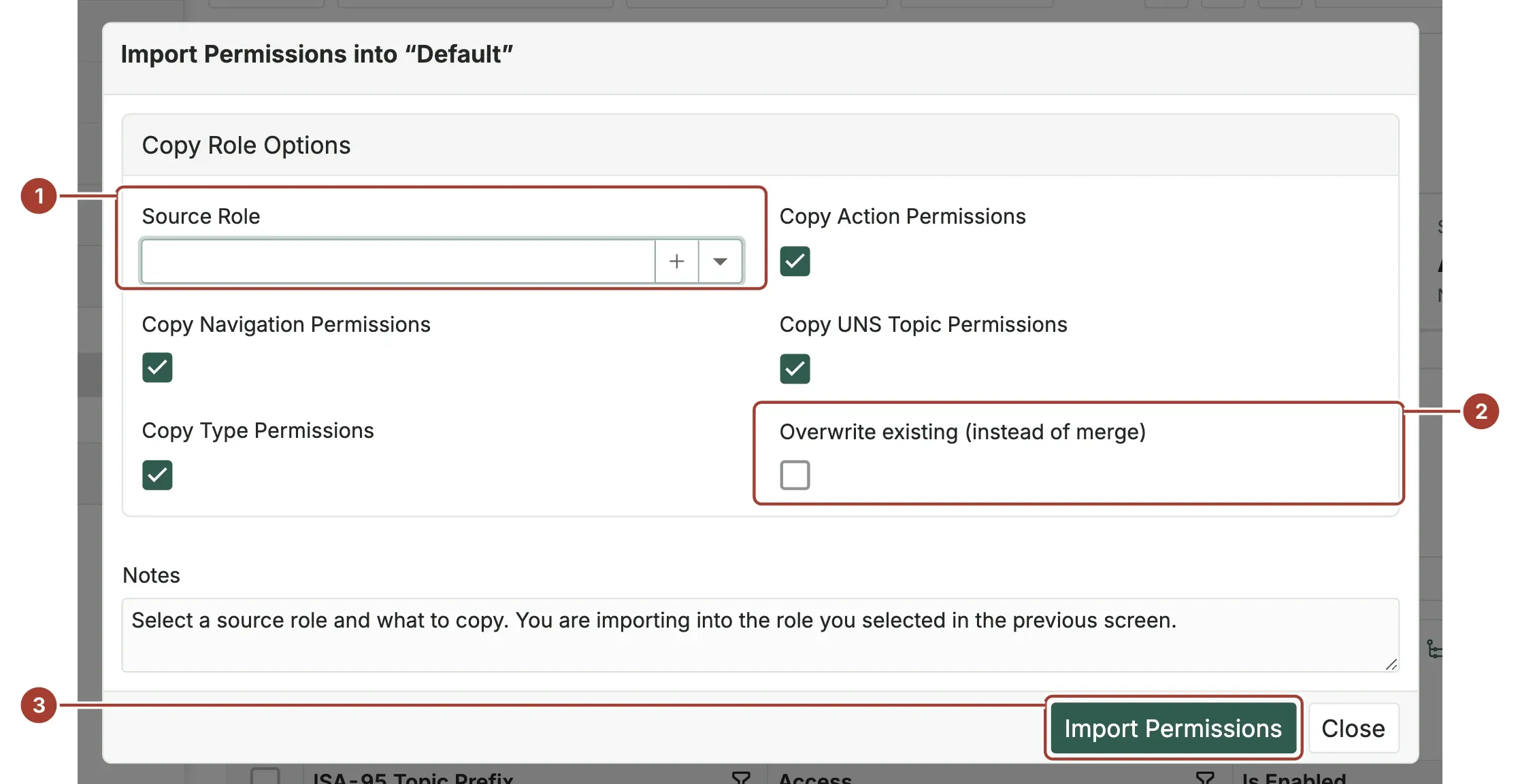
- Source Role: the role to copy from. The permissions are copied into the role you have open.
- The four Copy ... boxes choose what is copied: navigation, type, action and UNS topic permissions. All are ticked by default. Overwrite existing (instead of merge) first removes the chosen kinds of permission from this role. Without it, the copied permissions are added and exact duplicates are skipped.
- Import Permissions copies and saves. The message "Permissions imported into" and the role name confirm it.
After the import, adjust the role. The source role does not change, and later changes to it are not copied again.
Password rules
The password policy is in the [Security.Password] section of the configuration file. Proxus applies it in three places: when a user must choose a new password at sign-in, when a user changes their own password with Change My Password, and when an administrator sets one with Reset Password. A password that breaks a rule is refused with a message that says which rule. Restart the hub after you change the section.
[Security.Password]
MinLength = 6
MaxLength = 128
RequireUppercase = 0                # at least this many capital letters
RequireLowercase = 0
RequireDigits = 0
RequireSpecialCharacters = 0
AllowedSpecialCharacters = "!@#$%^&*()_+-=[]{}|;:,.<>?"
PasswordHistory = 5                 # the last 5 passwords cannot be chosen again
PasswordExpirationDays = 90         # a new password is required after 90 days
PasswordExpirationWarningDays = 14  # warning at sign-in 14 days before
PreventCommonPasswords = true       # refuse common passwords and the user name
PreventKeyboardPatterns = false     # refuse qwerty, asdfgh, 123456 and similar
PreventRepeatedCharacters = false
MaxRepeatedCharacters = 3
RequireChangeOnFirstLogin = true    # new users start with Force Password Change ticked
TempPasswordExpirationHours = 24    # a reset password stops working after 24 hours unused
For a stricter policy, set for example MinLength = 12, RequireUppercase = 1, RequireDigits = 1 and RequireSpecialCharacters = 1.
What the time-based rules do:
- Expiry: once a password is older than
PasswordExpirationDays, the user must choose a new one at the next sign-in. The check runs every hour. When a hub is upgraded to 2.0.0, the age of every existing password starts at that first start, so nobody is locked out by the upgrade. - Temporary passwords: a password set with Reset Password must be replaced at the next sign-in. If the user does not sign in within
TempPasswordExpirationHours, the password stops working and an administrator resets it again. - History: the user cannot choose any of their last
PasswordHistorypasswords again. Proxus keeps only their hashes, never the passwords themselves. A password set with Reset Password does not have to be new.
Lockout after wrong passwords
After a number of wrong passwords in a row, the account is locked for a short time and shows Locked in the user list. The [Security] section sets this:
[Security]
Lockout.Enabled = true
Lockout.MaxFailedAccessAttempts = 3
Lockout.DefaultLockoutTimeSpan = 30   # seconds
Sign-in time and automatic sign-out
When a user does nothing in the browser for their Session Length (see above), Proxus signs them out and shows the sign-in page. Input in any tab of the hub counts for all of them. For screens in a control room that must stay signed in, give that user 00:00:00 (no limit) and a role that can only read.
What's next
Was this page helpful?
Evaluating Proxus? See it on your own machines in a 30-minute technical session.