How-to guide · for Operators
Find what stopped
Go from a warning in the Operations Center to the device that stopped sending data, where it is, which gateway reads it and its last error.
At the end of this guide you know which device stopped sending data, where it sits in the plant and what its last error was, so you can tell the right person what to fix.
Before you start
- A user role that can open the Monitor screens and read the devices.
- The Operations Center shows an item such as 1 device is not sending data, or Gateway … is silent.
Check which devices stopped
- Open Monitor > Operations Center.
- In Needs attention, find the item about devices or a gateway.
- Select Check on a devices item (or Probe on a gateway item).
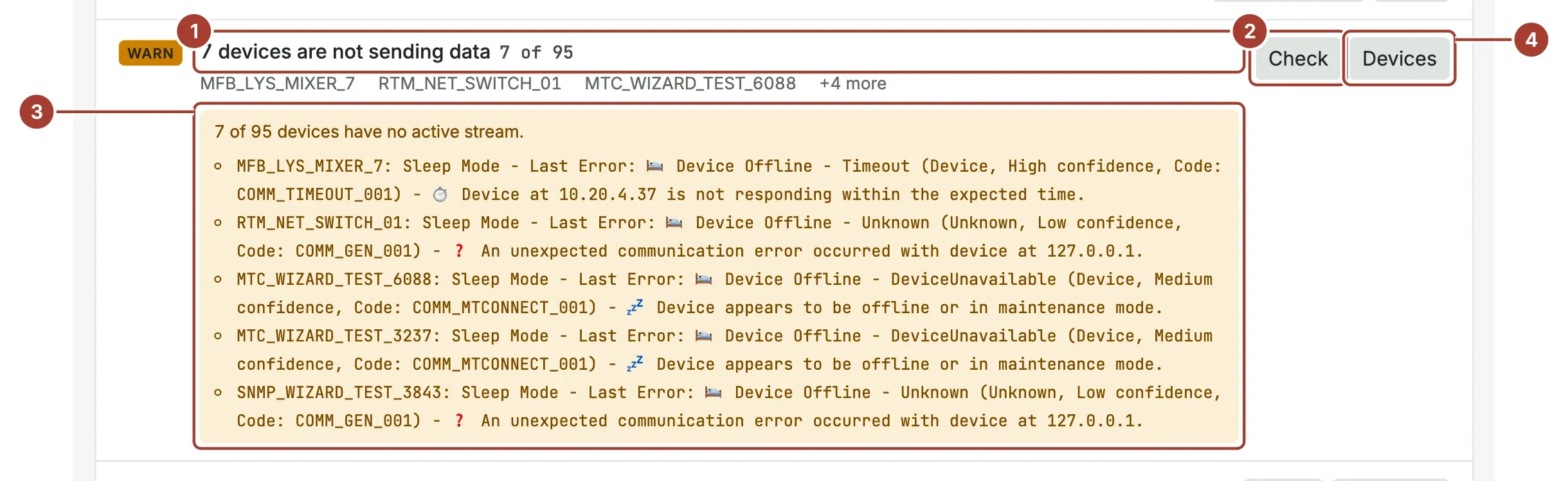
- The item says how many of the devices send no data, and names up to three of them.
- Check asks the hub which devices have no active stream. It does not restart anything.
- The result lists each device with its state and last error, here a timeout: the gateway cannot reach the device's address.
- Devices opens the device list.
If the item is Gateway … is silent, the devices are probably fine: the gateway itself stopped reporting. Probe sends a test message to each silent gateway and lists which ones answered. A gateway that does not answer is not running or cannot reach the hub. See Manage gateways.
Find the device on the map
- Open Monitor > Topology.
- Type the device name in Jump to a site, line or device and choose it from the results.
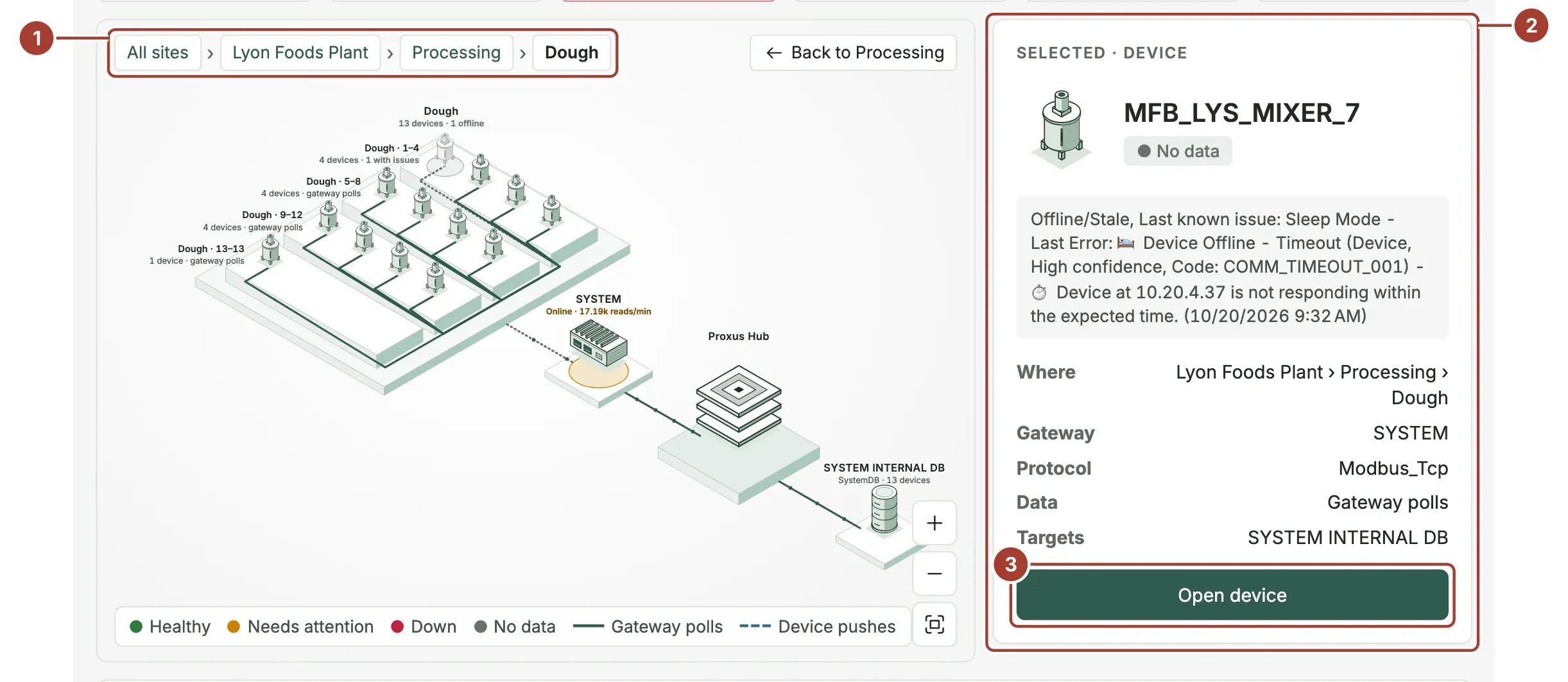
- The breadcrumbs show where the device is: site, area and line.
- The inspector shows the device's state (No data), its last message, Where, Gateway, Protocol, Data and Targets.
- Open device opens the device page with its live values, history and logs.
Look at the other devices on the same line or behind the same gateway. If they are all grey, the cause is shared (the gateway, a switch, the network). If only one is grey, the cause is that machine or its connection settings.
What's next
- The device page: connection status, logs and history of one device.
- Troubleshoot devices: cannot connect, wrong values, bad quality.
- Health Checks: which rules and targets get nothing because of it.
Was this page helpful?
Evaluating Proxus? See it on your own machines in a 30-minute technical session.