How-to guide · for Engineers
Build a pipeline
Build a pipeline from a goal, rehearse it on stored data, publish it in Shadow, then make it Active. The example alarms on a hot oven zone.
At the end of this guide, a pipeline watches the zone 1 temperature of a tunnel oven and opens a Critical alarm when it reaches 200 °C. You build it from a goal in plain sentences, check what it would have done over the last day, run it in Shadow on the gateway, and then make it Active.
The example uses the demo device MFB_LYS_TUNNEL_OVEN in Lyon Foods Plant. Use your own device and tag in its place. For what pipelines are and how publishing works, see How pipelines work.
Before you start
You need:
- A device that sends values, on an edge gateway that shows Connected. See Add a device.
- The tag you want to watch (here
Zone1Temp) and the limit you want to alarm on. - A user role that may create and publish pipelines.
Step 1: Start from a goal
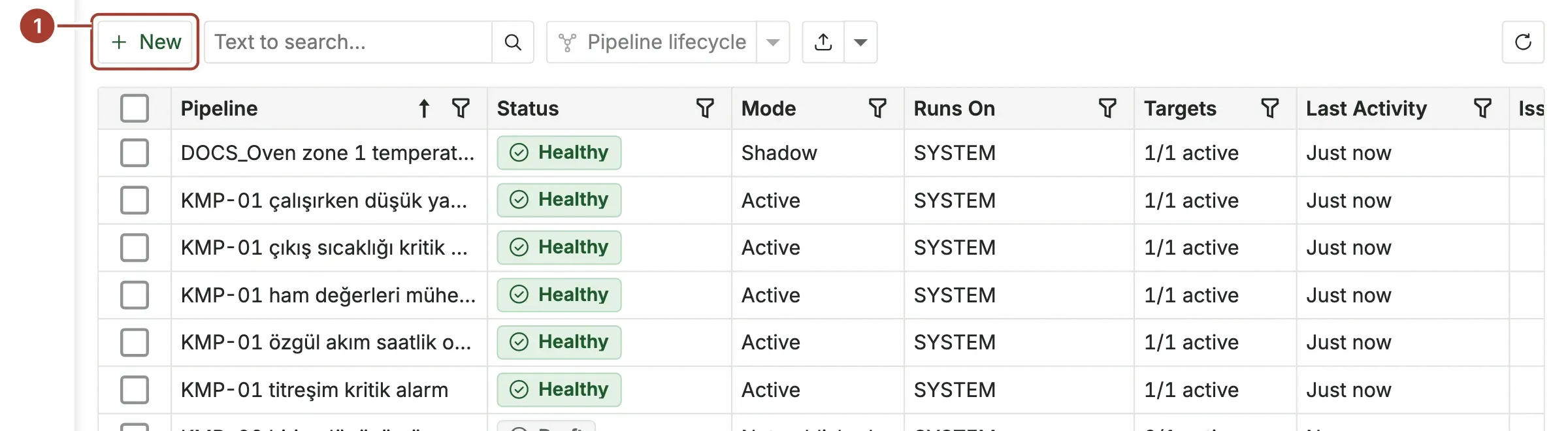
Go to Automate > Pipelines and select New (1).
The new pipeline asks What should this pipeline do? Select Alarm when a value crosses a limit (1). Type in Search goals to find a goal by name.
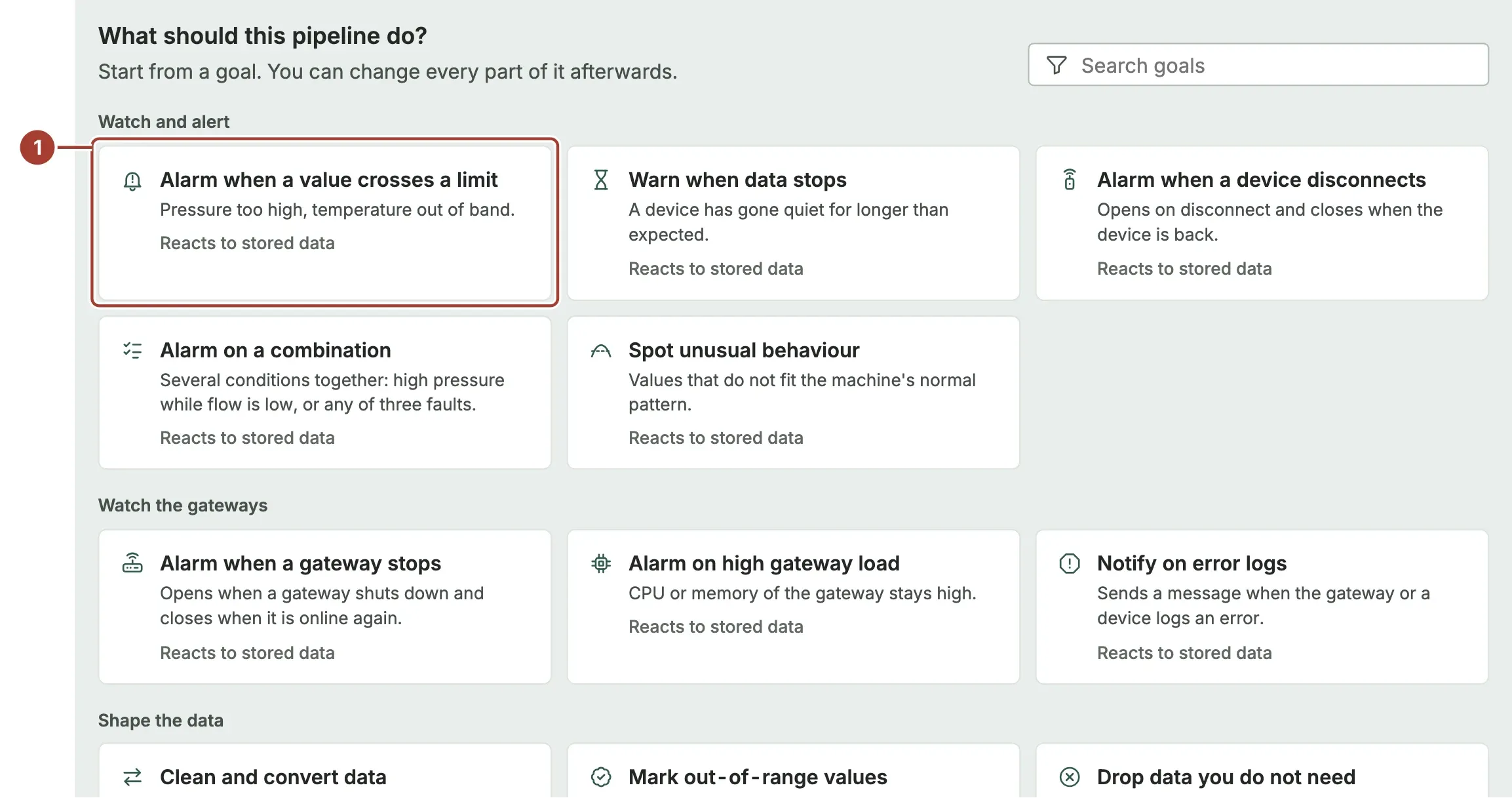
Each goal fills in a complete story that you then adjust.
The goals are grouped by what they do:
| Group | Goals |
|---|---|
| Watch and alert | Alarm when a value crosses a limit, Warn when data stops, Alarm when a device disconnects, Alarm on a combination, Spot unusual behaviour |
| Watch the gateways | Alarm when a gateway stops, Alarm on high gateway load, Notify on error logs |
| Shape the data | Clean and convert data, Mark out-of-range values, Drop data you do not need |
| Calculate and enrich | Compute a new value, Store a smoothed value, Hourly, shift or daily summaries, Add context to data |
| Connect and schedule | Send changes to a target, Run a scheduled task, Write to a device, Pull data from an API, Send data to an API |
Under each goal it says whether the pipeline Reacts to stored data or Changes data before it is stored. To build from nothing, select Start from an empty story at the bottom.
Step 2: Fill in the story
The Build tab shows the pipeline as a story that reads like a sentence. Type a Name at the top, for example Oven zone 1 temperature high, then fill in the story from top to bottom.
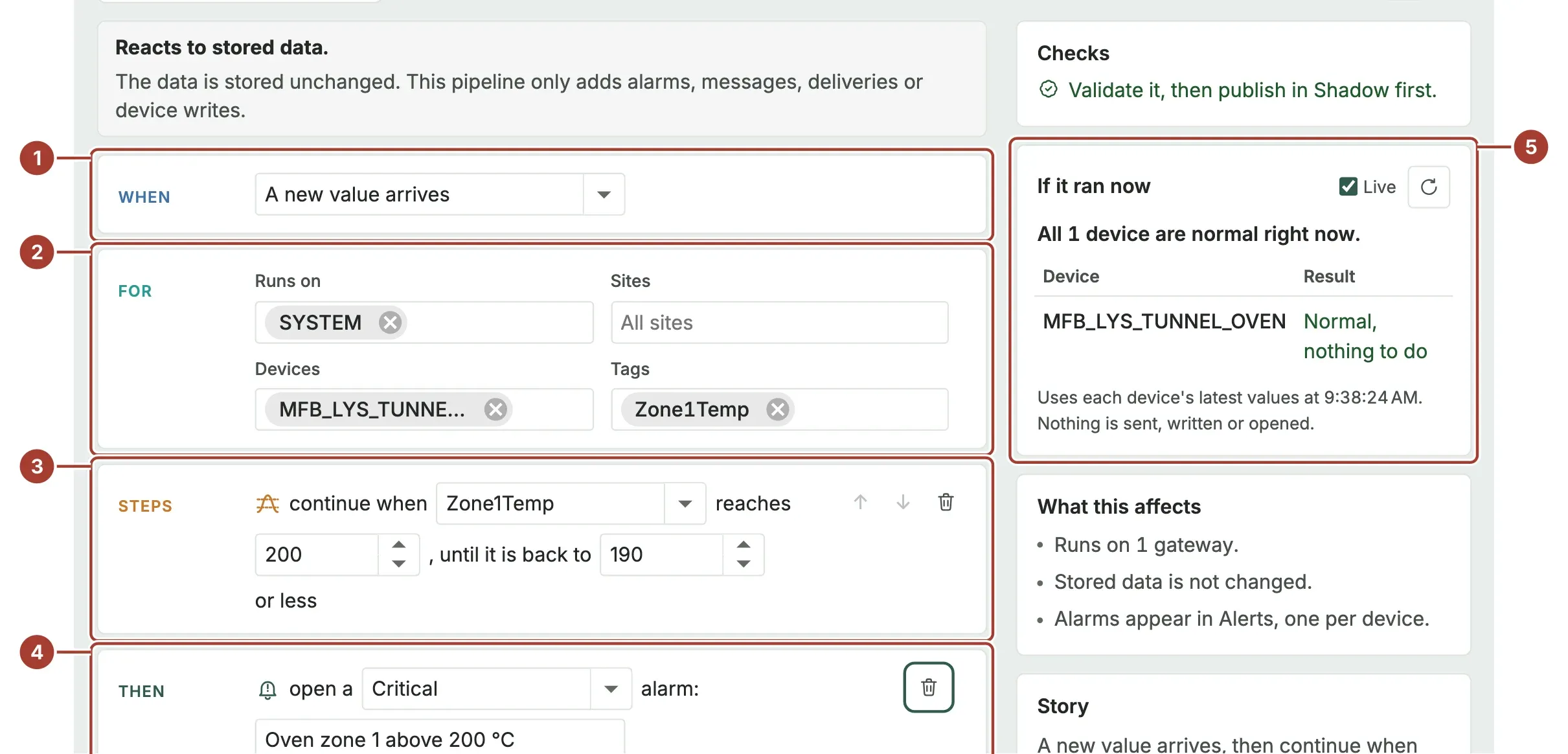
- When (1) is what starts the pipeline. This goal uses A new value arrives.
- For (2) decides where it runs and what it watches:
- Runs on: the gateways that run the pipeline. Choose these first; the other lists offer what those gateways have.
- Sites, Devices: leave empty for all, or narrow it down.
- Tags: the tags the pipeline reads, here
Zone1Temp.
- Steps (3): set the limit. "continue when
Zone1Tempreaches200, until it is back to190or less". The second value is the dead band: the alarm stays open until the value has dropped to it, so a value that hovers around 200 does not open and close the alarm again and again. - Then (4): choose the severity (Critical) and type the alarm message.
- If it ran now (5) applies the story to the latest value of each device and tells you what would happen. With Live ticked it refreshes by itself. Nothing is sent, written or opened.
Otherwise is what happens when the value is back to normal; here nothing happens. Use Add step for more steps, for example Notify to send a message through a notification channel.
The Checks panel lists what is still missing ("Choose the gateways it runs on.", "Give the pipeline a name above."). When it says the story is complete, go on.
Step 3: Rehearse on stored data
Select Review & publish at the top of the story.
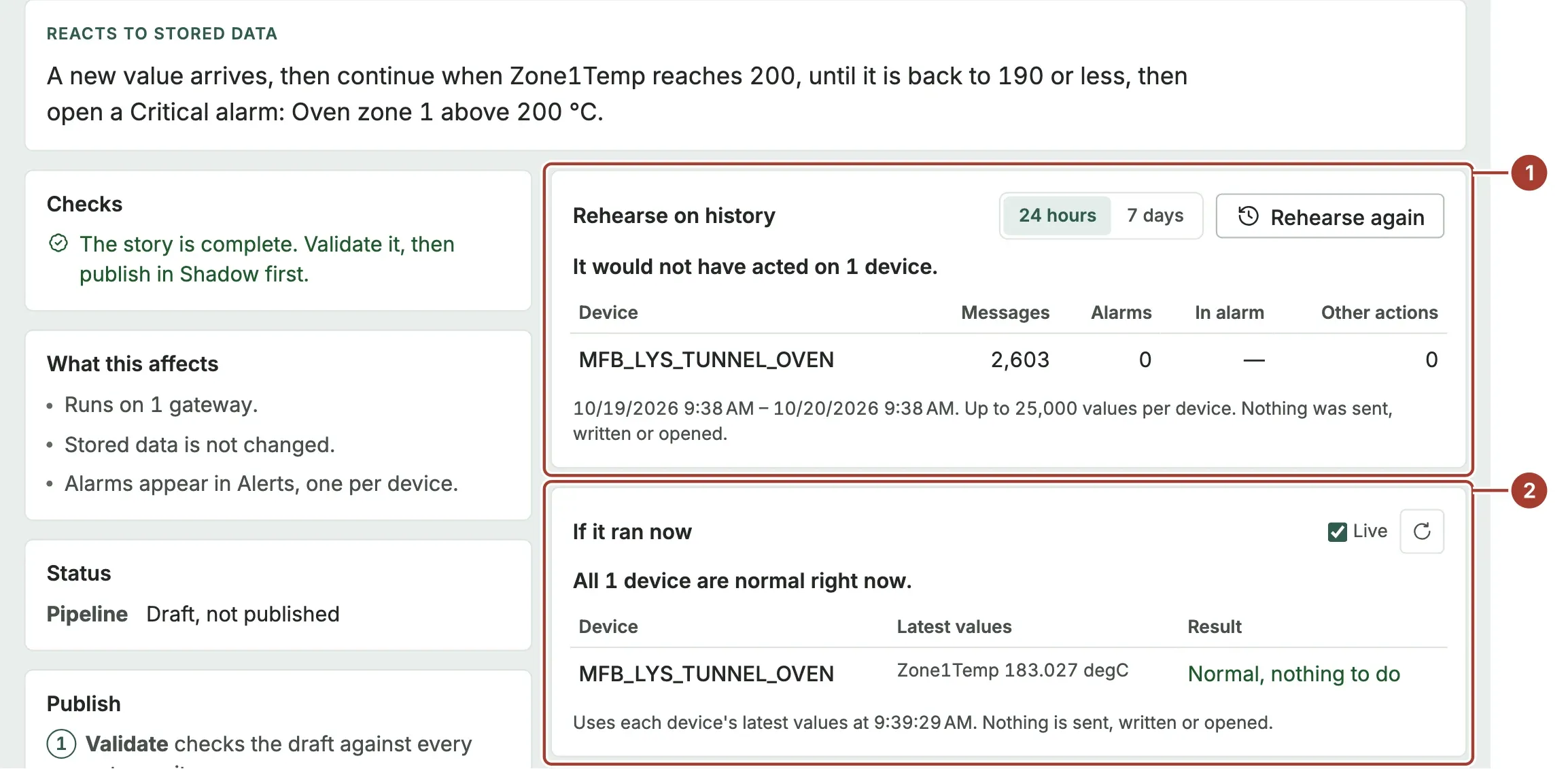
- Rehearse on history (1): pick 24 hours or 7 days and select Rehearse. The draft runs over the stored values of that period, step by step as the gateway would have run it, and counts per device the messages, alarms and other actions it would have produced. Nothing is sent.
- If it ran now (2) shows the result for the latest values again.
If the rehearsal opens far more alarms than you expect, go back to Build and change the limit.
Step 4: Validate and publish in Shadow
Further down the review page is the Publish card.
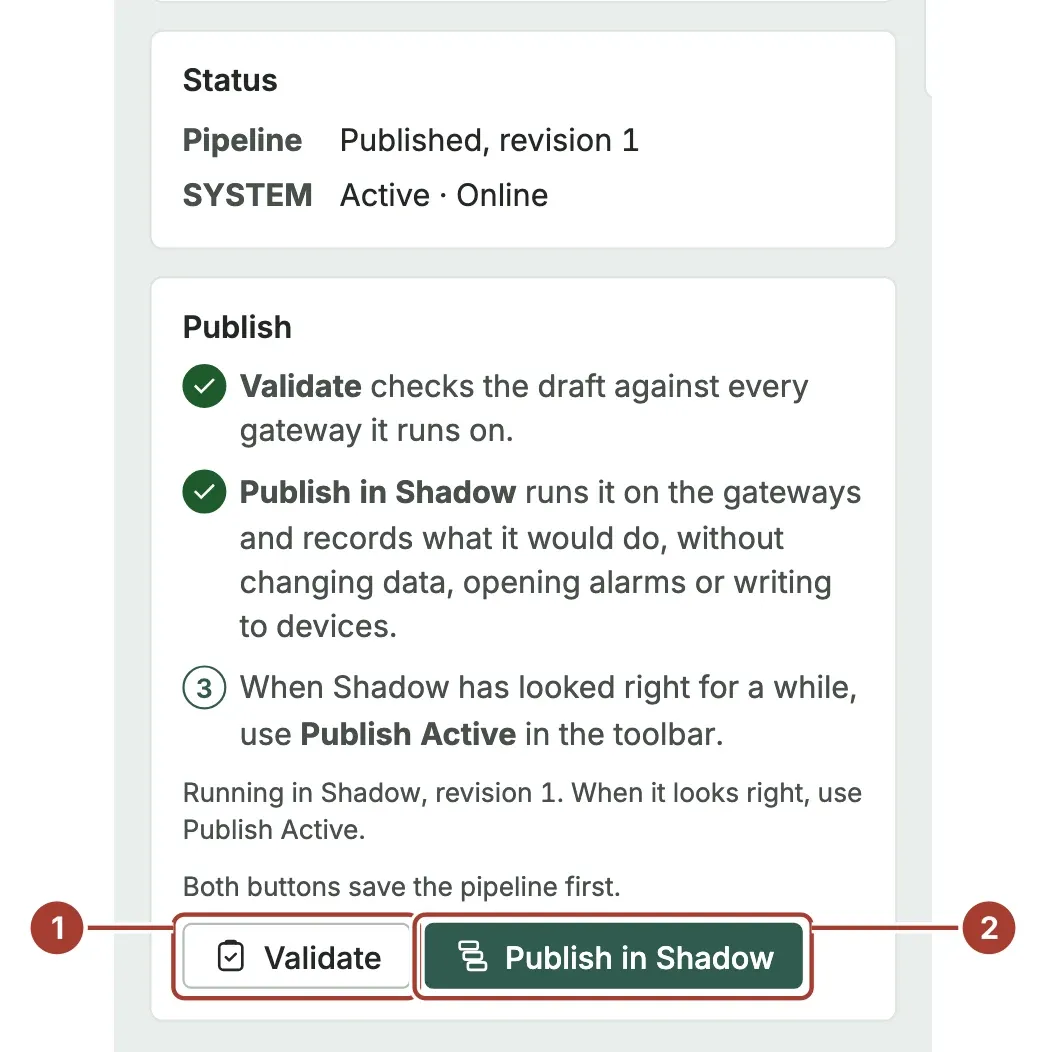
- Select Validate (1). The draft is checked against every gateway it runs on. A message says "Pipeline definition is valid.", or names what is wrong.
- Select Publish in Shadow (2). Both buttons save the pipeline first.
In Shadow, the gateway runs the pipeline on real data and records what it would do, without changing data, opening alarms or writing to devices. Each publish creates a numbered revision.
Step 5: Check the deployment
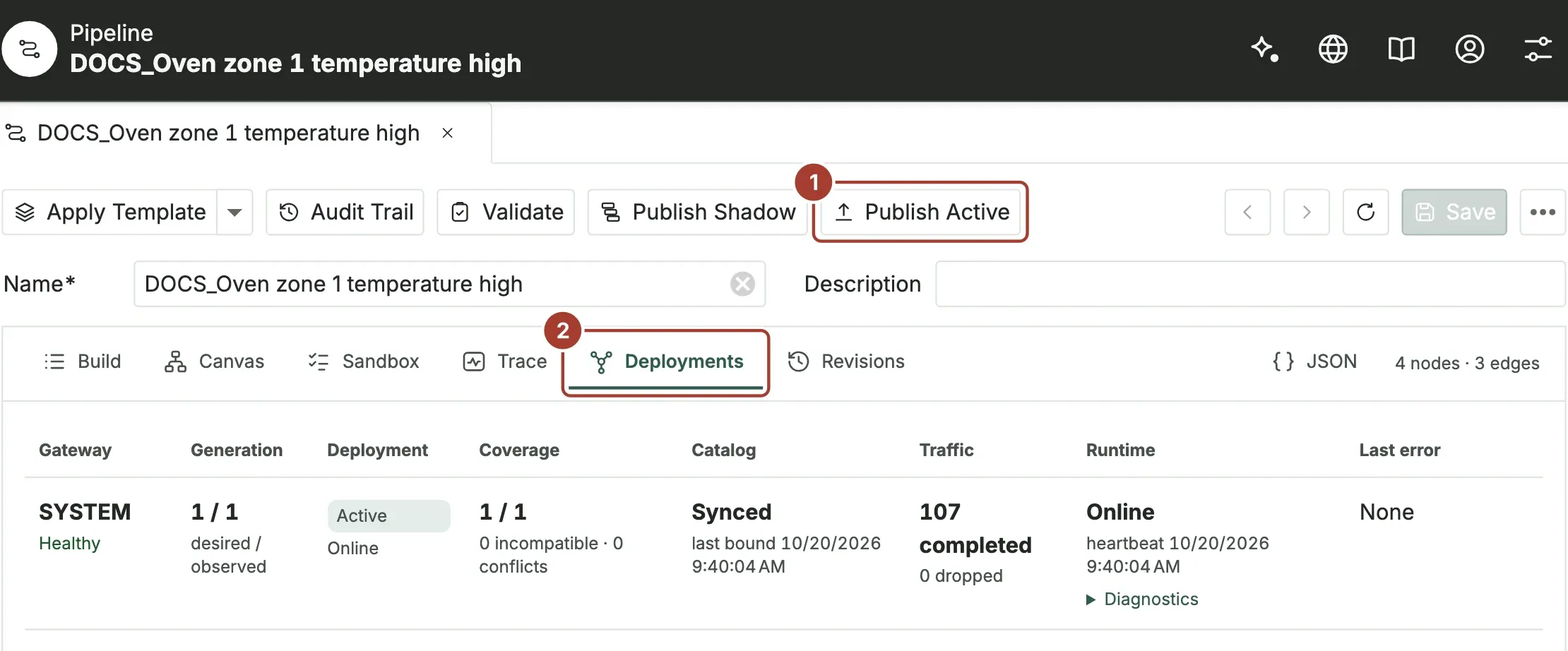
- Publish Active in the toolbar, for step 6.
- The Deployments tab. Open it.
Each gateway in Runs on has a row. Runtime shows Online when the gateway runs the pipeline and reports back. Coverage tells you how many devices it could bind, and Last error shows the reason when a gateway could not apply it.
The Revisions tab lists each published revision with its mode, the time and who published it.

Step 6: Make it Active
When Shadow has looked right for a while, select Publish Active in the toolbar and confirm. From now on the pipeline opens real alarms; they appear in Alerts, one per device.
Change or stop a pipeline
- Change it: edit the story or the canvas, then publish again. The running revision stays as it is until you publish. If nothing changed, publishing says "The active revision already matches this definition."
- Go back: when there are earlier revisions, Rollback in the toolbar lists the earlier revisions ("Revision 2 - Shadow") and publishes the one you pick again.
- Stop it: Disable removes it from all its gateways. A disabled pipeline can be Archived.
- Delete it: Delete draft is only offered while the pipeline has never been published.
- Many at once: in the pipeline list, select several rows and use Pipeline lifecycle to publish them in Shadow, publish them Active or disable them.
Work on the canvas
The Canvas tab shows the same pipeline as connected steps. Use it for what the story cannot say, such as several branches.
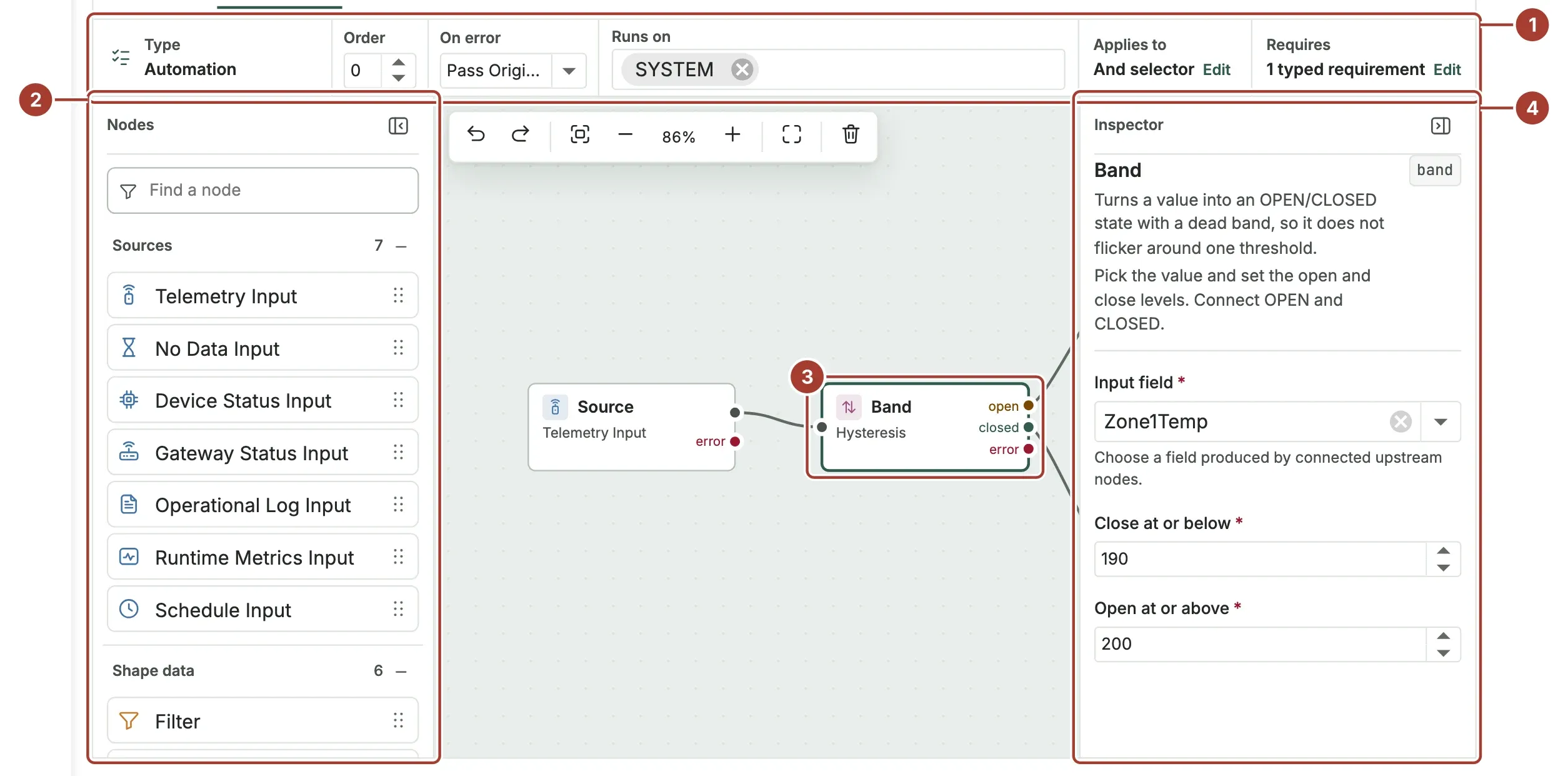
- The bar at the top shows the pipeline Type, Order, On error and Runs on.
- Nodes: drag a node onto the canvas, or select it and press Enter. Type in Find a node to search.
- Drag from an output port to an input port to connect two nodes. Select a node to configure it.
- The inspector on the right shows the selected node's settings.
The canvas will not connect a node to itself or make a loop. If you change the shape of the pipeline on the canvas, the Build tab shows "Changed in the canvas" and offers Rebuild from story. Every node is described in Pipeline nodes.
Test with your own sample
The Sandbox tab runs the draft on a sample you write, without any external effect.
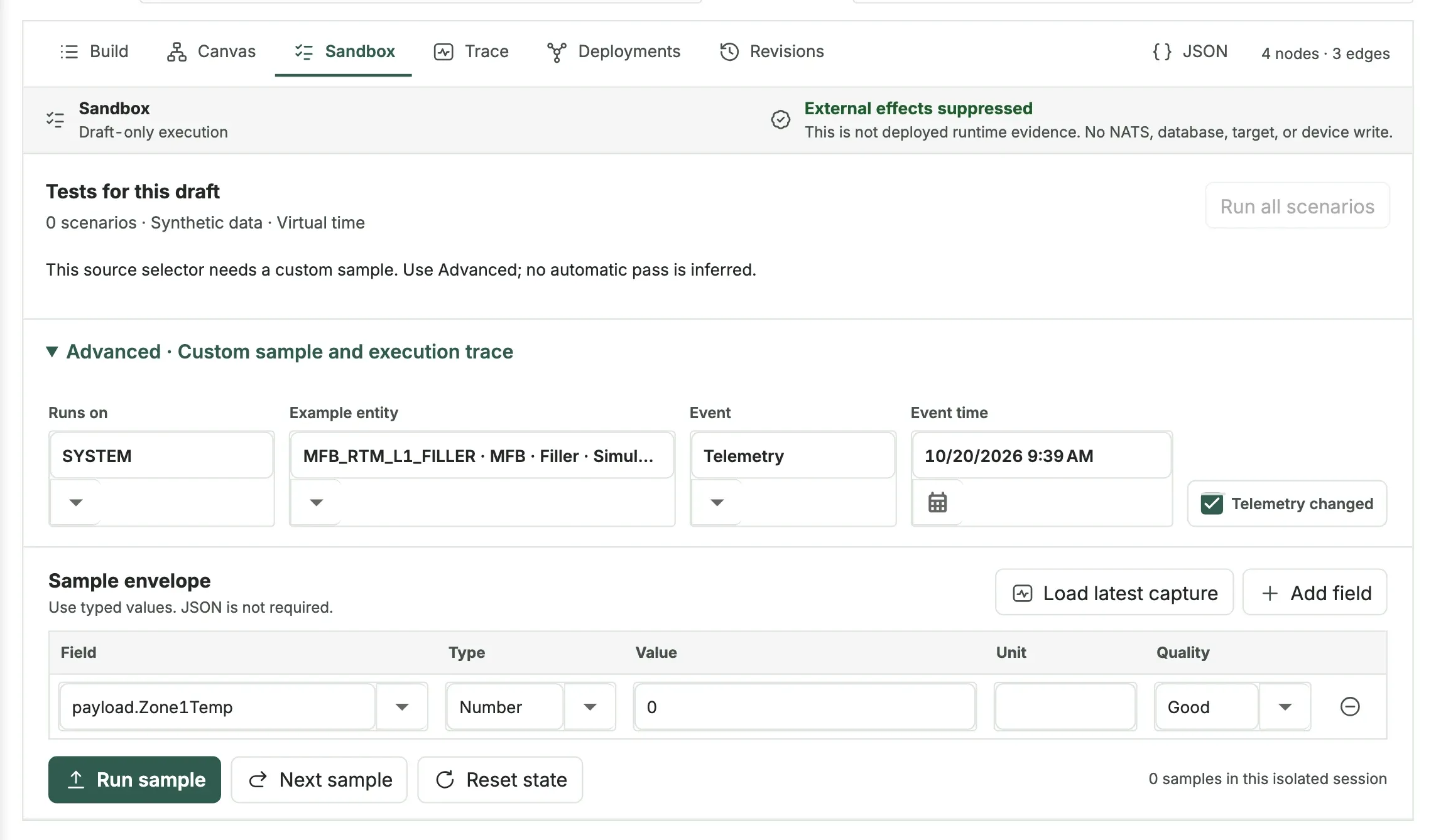
- Tests for this draft runs generated scenarios with Run all scenarios, where the pipeline type allows it.
- Advanced · Custom sample and execution trace: choose the gateway, an example device and the event, edit the values of the sample, and select Run sample. The result shows whether the pipeline matched, the path it took and the effects it suppressed. Load latest capture fills the sample from what a published pipeline has just seen on the gateway.
To see live samples from a published pipeline, add the step Keep a sample for Trace and open the Trace tab.
What's next
- How pipelines work: types, Shadow and Active, effects and limits.
- Pipeline nodes: every node and its settings.
- Alerts: where the alarms appear.
- Automation troubleshooting.
Was this page helpful?
Evaluating Proxus? See it on your own machines in a 30-minute technical session.