How-to guide · for Engineers, Administrators
Notification channels
Set up the email, SMS, Teams, Slack and other channels that rules and pipelines use to send messages to people, and send a test message.
At the end of this guide, Proxus can send messages through your email server, SMS provider or chat tool, and you have checked it with a real test message. A notification channel is one way of reaching people, with its settings. Rules, pipelines and scheduled deliveries then send through it.
Before you start
You need:
- The account details of the service: for example the SMTP server, user and password for email, or the incoming webhook URL for Slack, Teams or Discord.
- Outbound network access from the hub to that service.
- A user role that may create notification channels.
The channel list
Go to Connect > Notification Channels.
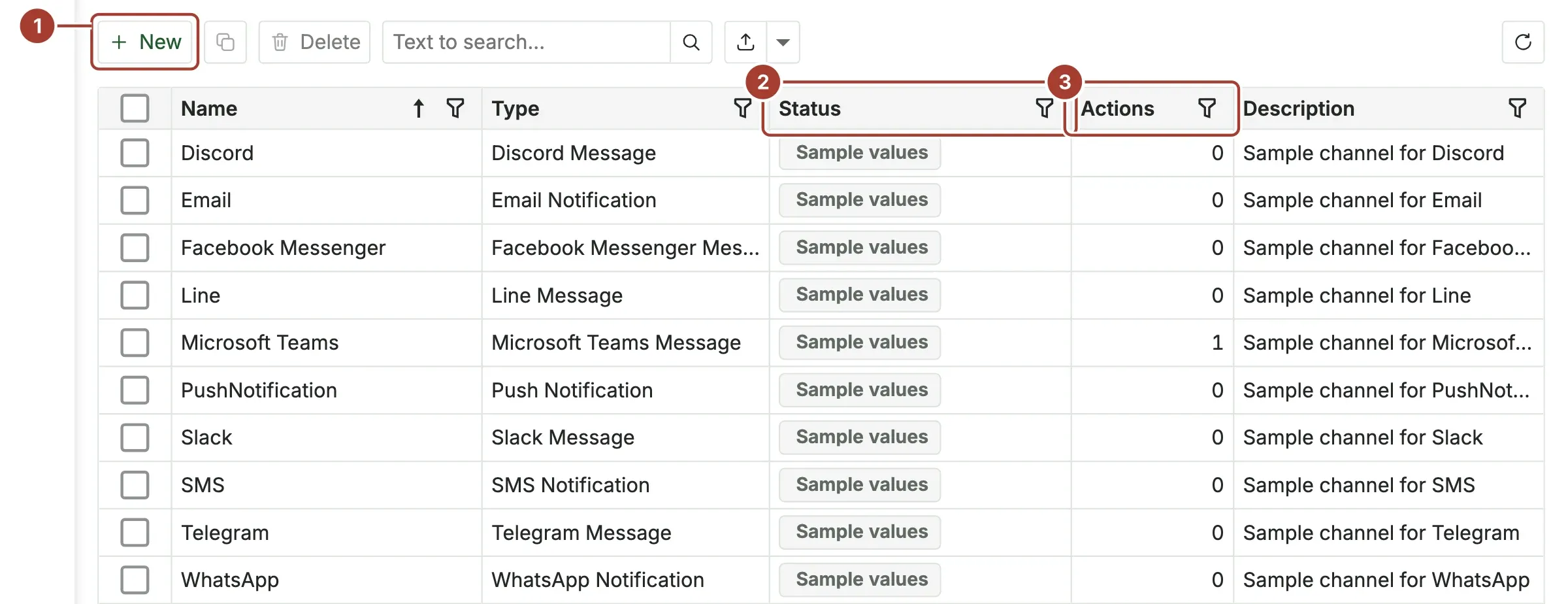
- New creates a channel.
- Status says whether the channel is ready:
- Configured: every required parameter is filled in.
- Sample values: the parameters still hold the placeholder values of a sample.
- Missing: …: the named parameters are empty.
- Delivery failing: the parameters are filled in, but the last notification sent through the channel failed after the last one that went out.
- Actions: how many rule actions send through the channel.
- Last Success and Last Failure: when a notification last went out through the channel, and when one last failed. Open the channel to read Last Error, the reason the provider gave.
Proxus comes with one sample channel per type. They hold placeholder values and do not work until you replace them.
Step 1: Create the channel
- Select New, or open the sample of the type you need and select Clone.... The sample has every parameter of its type already listed.
- Choose the Notification Type.
- Enter a Name (unique), for example
Ops Slack #alerts, and a Description. - Under Parameters, fill in a Key and Value for each setting. Values of passwords and tokens are masked.
- Select Save.
The keys each type reads (required ones in bold):
| Notification Type | Parameters |
|---|---|
| Email Notification | SmtpServer, SmtpPort (587 if empty), Username, Password, From, To, Cc, Bcc, UseSsl |
| SMS Notification | AccountSid, AuthToken, From, To (a Twilio account) |
| WhatsApp Notification | AccountSid, AuthToken, From, To (a Twilio account) |
| Push Notification | Token, and the Firebase Cloud Messaging settings: FCM_V1, ProjectId, AccessToken, ServerKey |
| Slack Message | WebhookUrl, BlocksJson |
| Microsoft Teams Message | WebhookUrl |
| Discord Message | WebhookUrl |
| Telegram Message | BotToken, ChatId, ParseMode |
| Line Message | AccessToken, UserId |
| Facebook Messenger Message | AccessToken, RecipientId |
Step 2: Send a test message
On the channel's page, select Test.
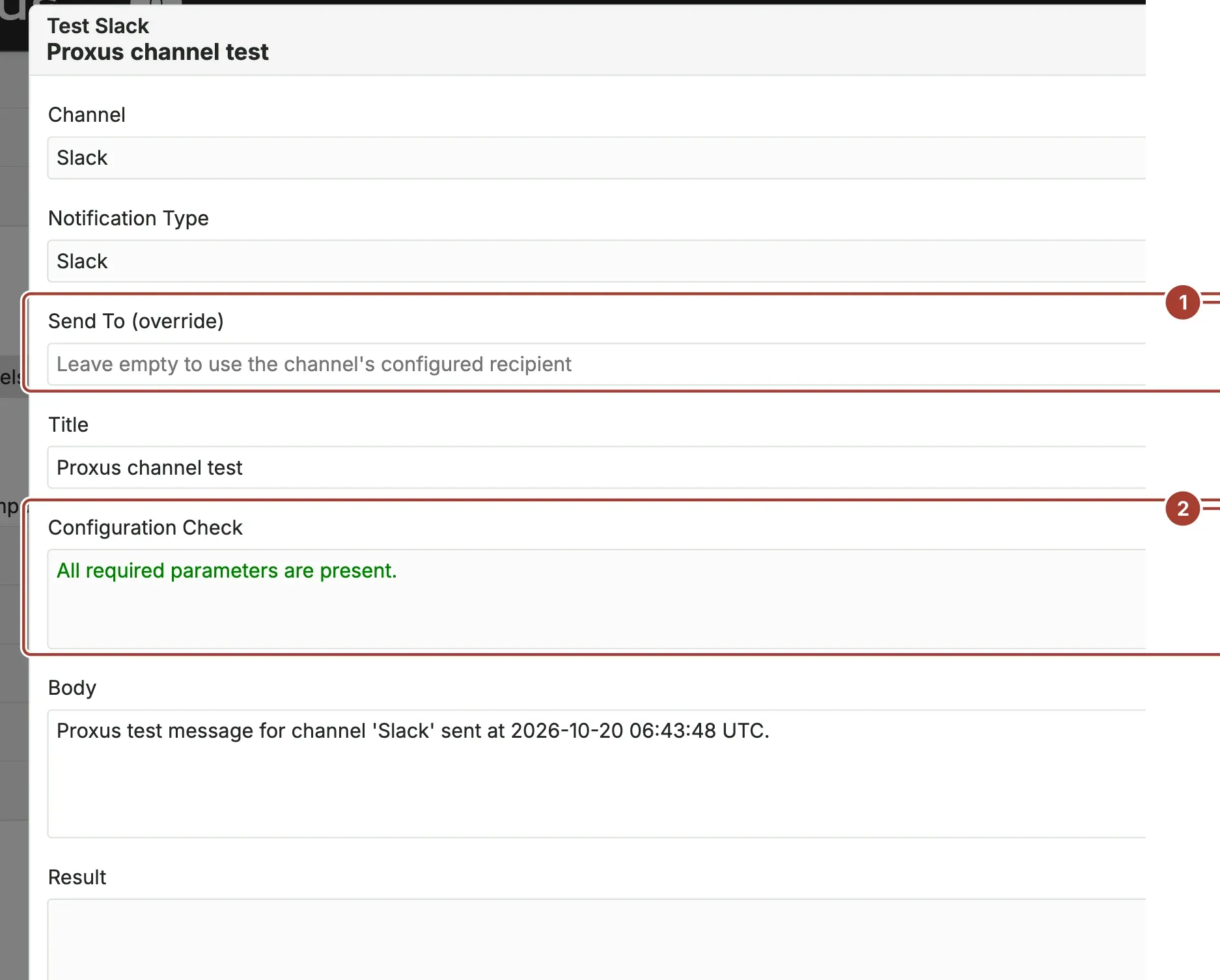
- Send To (override): send the test to another recipient than the channel's own, for example your own email address. Leave it empty to use the channel's recipient. This works for email, SMS, WhatsApp, Telegram, Line, Messenger and push channels.
- Configuration Check: whether every required parameter is present. Missing or invalid ones are listed.
- Send Test sends a real message, with the Title and Body shown. You can change both.
The Result box shows Sent successfully. The provider accepted the message., how long it took and the provider's reference. Acceptance by the provider does not prove that the message reached the inbox or the app: check that it arrived.
If it fails, the result says why, for example Not sent: channel parameters are incomplete. or Not sent: the attempt timed out. Tests are limited to one every 15 seconds.
Step 3: Use the channel
- Rules: a rule action of type Notification Action sends through the channel you choose in Notification Channel. See Rule actions.
- Pipelines: the Notification node sends through a channel. See Pipelines.
- Scheduled reports: a scheduled delivery can send its report through an email channel. See Scheduled delivery.
When messages do not arrive, select Logs on the channel's page: it shows the system log entries of sends through channels of this type.
Copilot insights through a channel
Copilot Insights on a channel sends it the new Copilot insights: Do not send (the default), Critical only or Warning and critical. Each insight is sent once, when it opens, with what was found and the suggested next step, in the hub's language. The checks are fixed rules: no AI service is used. Turning the option on does not send the insights that were already open.
What's next
Was this page helpful?
Evaluating Proxus? See it on your own machines in a 30-minute technical session.