How-to guide · for Operators, Engineers
Run and export reports
Run a built-in or your own report, fill in its parameters, export it, and the list of reports that come with Proxus.
This guide runs the built-in Shift and Daily Summary report for one tag of one machine and exports the result. Every report works the same way. The list of built-in reports is at the end.
Before you start
- A user role that may view reports. To change or create one, the role must also allow the report designer.
- Data in the history for the device and period you want.
Step 1: Open the report
Go to Analyze > Reports and select the report in the list (3).
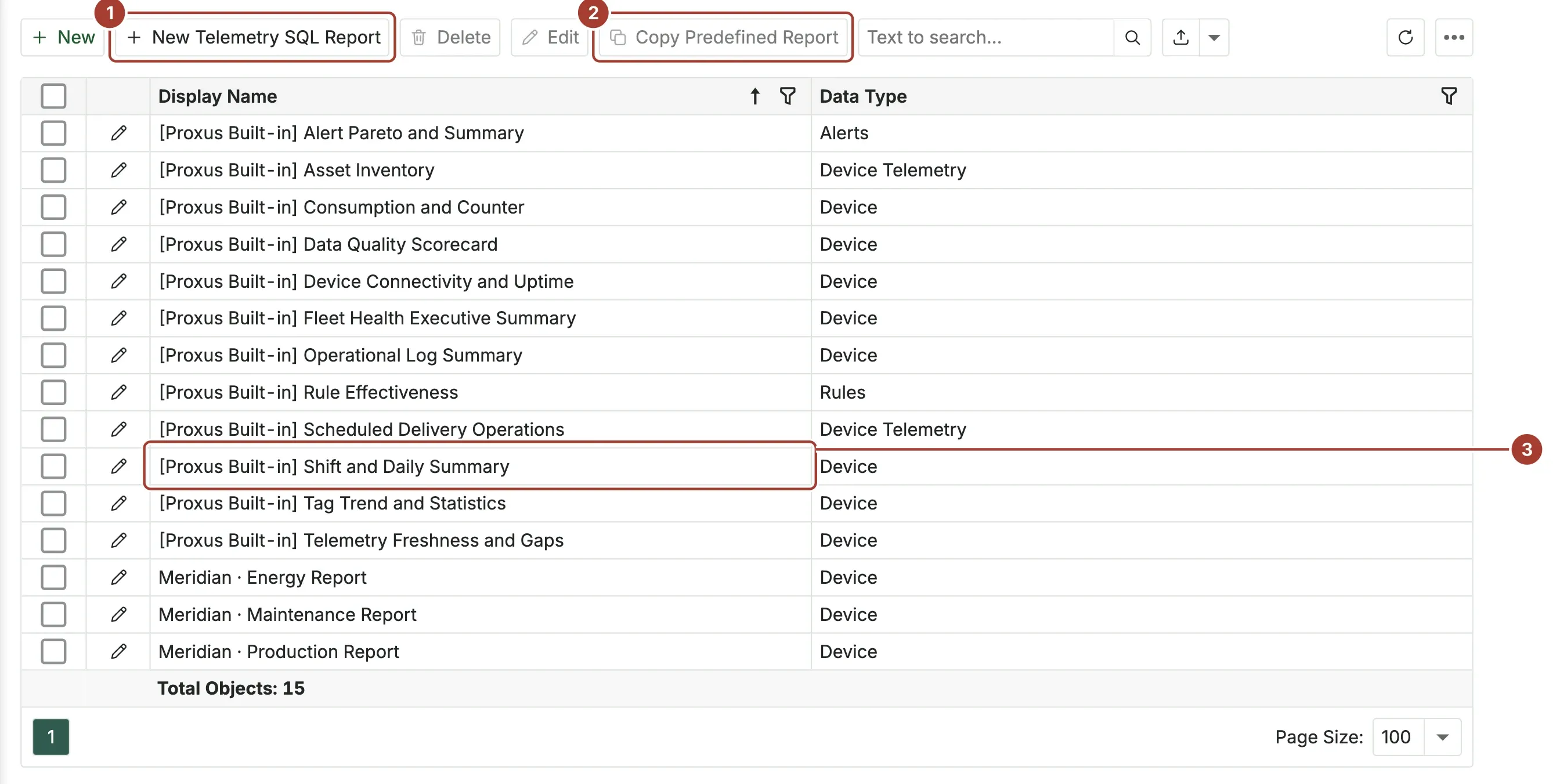
- New Telemetry SQL Report starts a new report on the telemetry database. See Make your own.
- Copy Predefined Report makes an editable copy of the selected report.
- The report to run. Reports whose names start with [Proxus Built-in] come with the product.
The report opens in a viewer. If it has parameters, the Parameters panel opens on the right and the page says "Waiting for parameter values...".
Step 2: Fill in the parameters
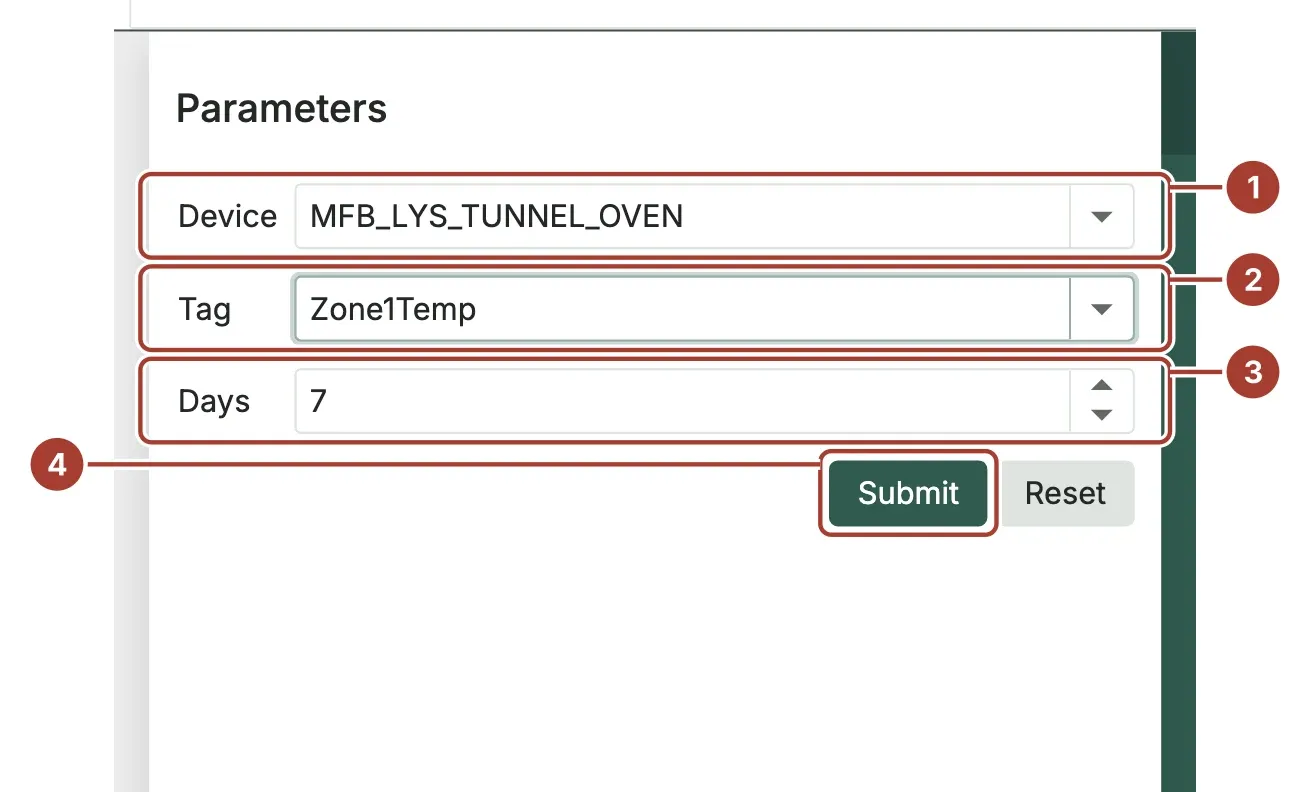
- Device: pick the device.
- Tag: pick the tag. The list offers the tags this device sent in the last 30 days.
- Days: how many days back the report covers. It starts at 7.
- Select Submit. Reset clears your choices.
Pick a device and a tag before you submit: the tag reports read the values of the one tag you choose.
Step 3: Read, print or export
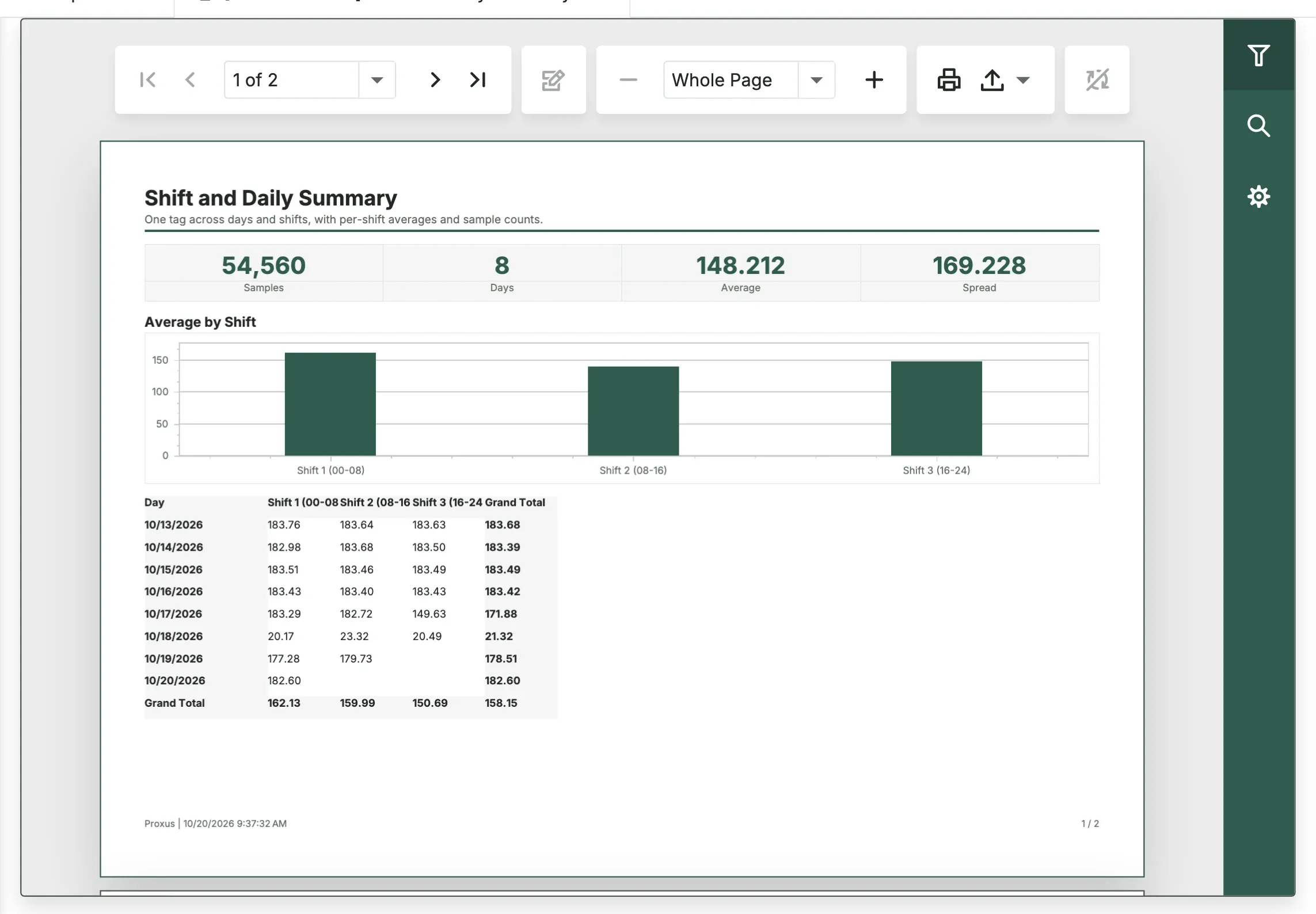
The toolbar above the page moves between pages, zooms, prints, and exports. Select the export button and choose a format to save the report as a file.
Shift and Daily Summary shows one tag across days and the three fixed shifts Shift 1 (00-08), Shift 2 (08-16) and Shift 3 (16-24), with the average and the number of values per shift.
To get a report by email at set times, see Scheduled delivery.
Built-in reports
| Report | What it shows | Asks for |
|---|---|---|
| Asset Inventory | Every device with its ID, gateway, profile and whether it is enabled. | Nothing |
| Fleet Health Executive Summary | Availability, data quality and activity of all devices over the last 30 days. | Nothing |
| Data Quality Scorecard | Accuracy, completeness, integrity and consistency per device, worst first. | Nothing |
| Device Connectivity and Uptime | Request success rate, response time and last contact per device. | Nothing |
| Telemetry Freshness and Gaps | Configured tags against the values actually received in the last 24 hours. | Nothing |
| Alert Pareto and Summary | Which rules cause most alerts, how alerts are progressing, and what repeats most. | Nothing |
| Rule Effectiveness | How often each rule fired, its latest activity, and rules that never fired. | Nothing |
| Operational Log Summary | Reason codes, severity mix and recurring log events over the last 7 days. | Nothing |
| Scheduled Delivery Operations | Every scheduled delivery and its runs. | Nothing |
| Tag Trend and Statistics | One tag over time, how its values are spread, and its statistics. | Device, Tag, Days |
| Shift and Daily Summary | One tag across days and shifts, with averages and value counts per shift. | Device, Tag, Days |
| Consumption and Counter | Daily consumption of a counter tag, as the difference between its last and first reading of each day. | Device, Tag, Days |
The periods of the reports without parameters are fixed (24 hours, 7 days or 30 days, as stated above). Built-in reports are added when the reporting federation is ready, and are updated with the product. To change one, copy it first.
Make your own
- Copy Predefined Report or Clone... makes a copy you can change. Open it with Edit to change it in the report designer.
- New Telemetry SQL Report creates a report named "Telemetry Report" with the date and time, with a starting query over the stored values of the last seven days, and opens the designer. It is offered when the telemetry database is ClickHouse and your role may use the report designer.
- New starts a report from the report wizard.
A query you write in a report follows the same rules as a dashboard query: one SELECT (or WITH ... SELECT) statement, no statements that change data. See Rules for your own SQL.
What's next
- Scheduled delivery: send a report by email every day.
- Dashboards
- Reporting federation
Was this page helpful?
Evaluating Proxus? See it on your own machines in a 30-minute technical session.