How-to guide · for Operators
Acknowledge and resolve an alert
Take an open alarm so others know you are on it, look at what happened around it, then close it with a note on how it was fixed.
At the end of this guide the alarm is closed as Resolved, with your name and a note on the fix, and it no longer appears in Needs attention.
Before you start
- An open alarm. It appears in the Operations Center under Needs attention and in Monitor > Alerts.
- A user role that may change alarms.
Take the alarm
Acknowledge an alarm as soon as you start working on it. Others then see that it is in follow-up and who has it.
- Open Monitor > Operations Center.
- Find the alarm in Needs attention.
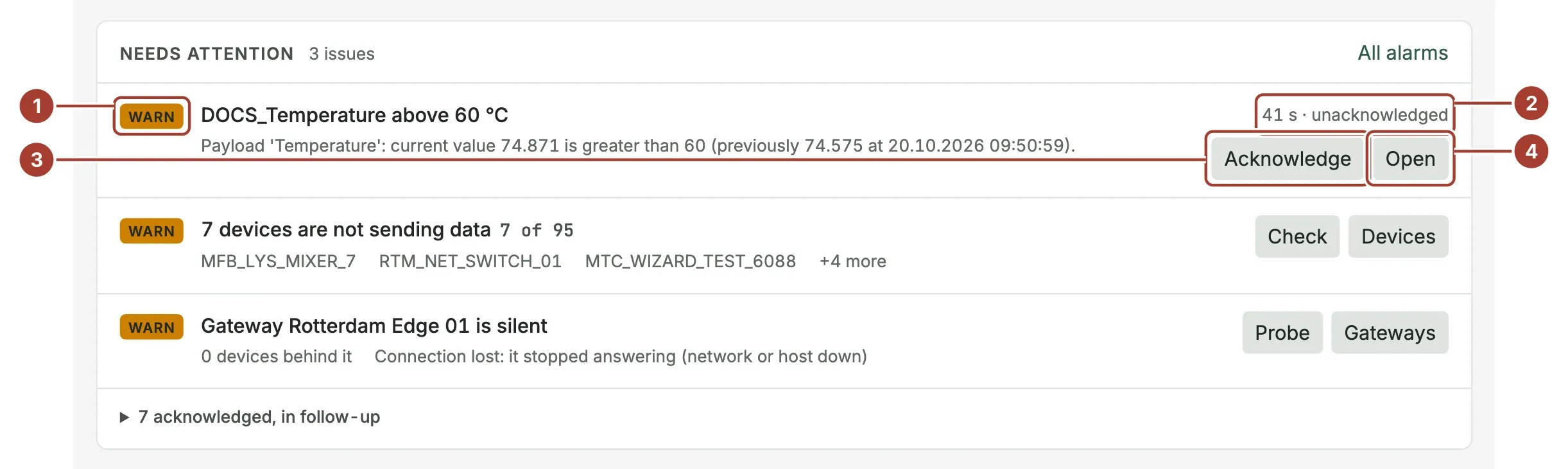
The level: CRIT, WARN or NOTE.
How long it has waited. It turns red after 15 minutes without anyone taking it.
Acknowledge takes it from here.
Open opens the alarm page.
Select Open to read the alarm first, or Acknowledge to take it straight away.
On the alarm page, What happened shows the reason, the device and the condition, and Around the alarm shows the tag's values and the machine state before and after the moment it fired. Changed before tells you whether someone changed a device, rule or gateway shortly before. See Alerts.
- Select Acknowledge in the toolbar.
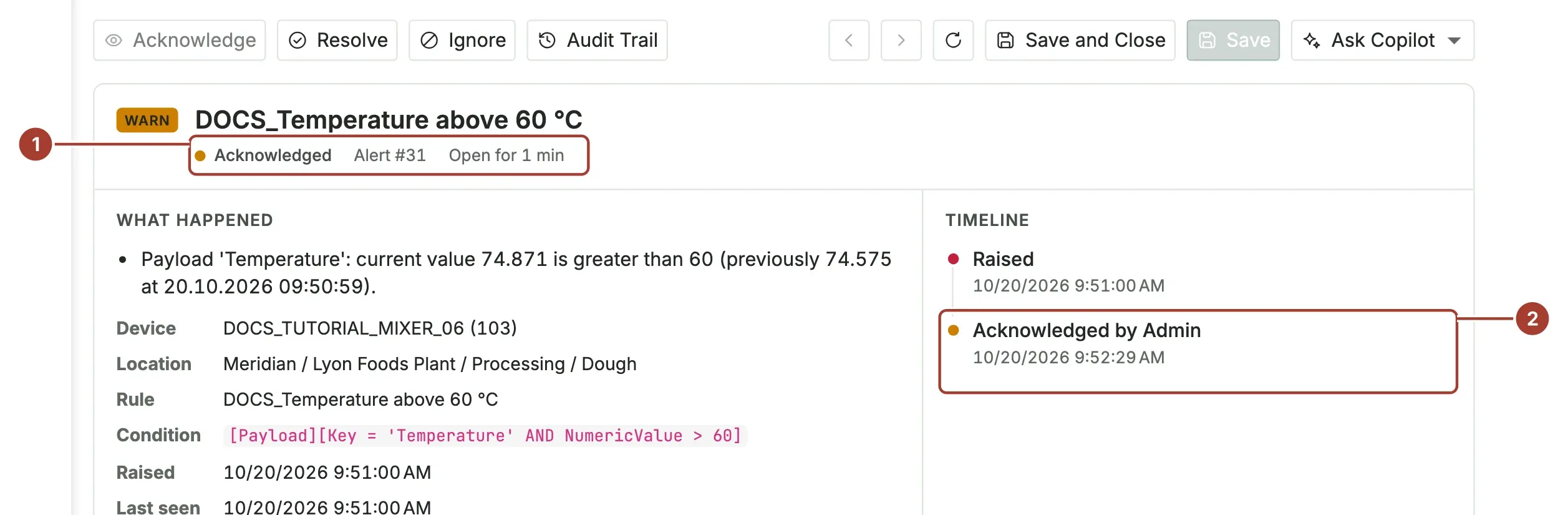
- The status is now Acknowledged.
- The timeline shows who acknowledged it and when.
The alarm leaves Needs attention and is listed under … acknowledged, in follow-up.
Close the alarm
When the cause is fixed:
- On the alarm page, select Resolve.
- In How was it fixed?, describe what you did. The field is required.
- Select Resolve.
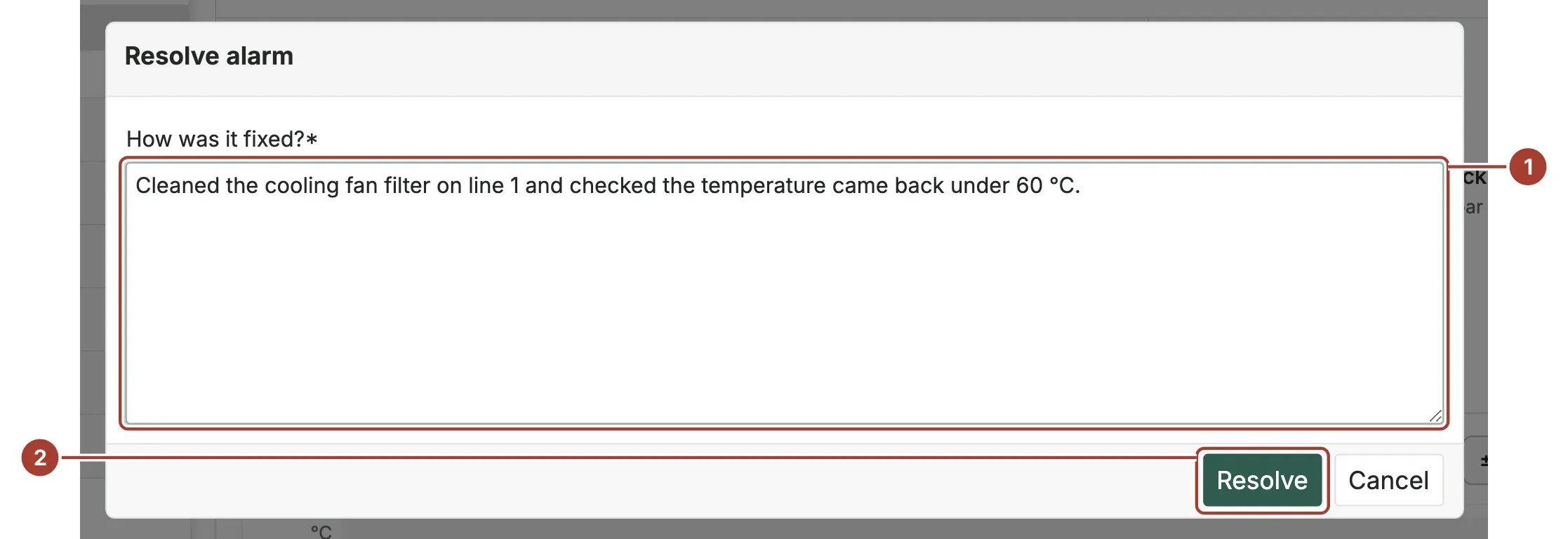
- How was it fixed? The text is kept with the alarm as Solution.
- Resolve closes the alarm.
If the alarm needs no action (a test, a known event), select Ignore instead and confirm. An ignored alarm is closed without a note. Neither a resolved nor an ignored alarm can be reopened.
To handle several alarms at once, tick them in Monitor > Alerts and use the same actions from the toolbar.
What's next
- Alerts: statuses, levels and repeats.
- Rule actions: send an email or a message when an alarm is raised.
Was this page helpful?
Evaluating Proxus? See it on your own machines in a 30-minute technical session.