Reference · for Operators, Engineers
Trend Workspace
The Trend Workspace: tags of several devices on one time axis, comparison periods, context layers, notes, saved views, export and presentation mode.
The Trend Workspace charts stored tag values from the Proxus historian. Tags of one or more devices share one time axis, each tag in its own pane, so you can see what several machines did at the same moment. It is in Monitor > Trend Workspace.
You can also reach it from other screens: Open in workspace on an alarm page, and on the trend panel that Open trend opens in the UNS Explorer and on the device page. Each of these opens the workspace with that tag and time range.
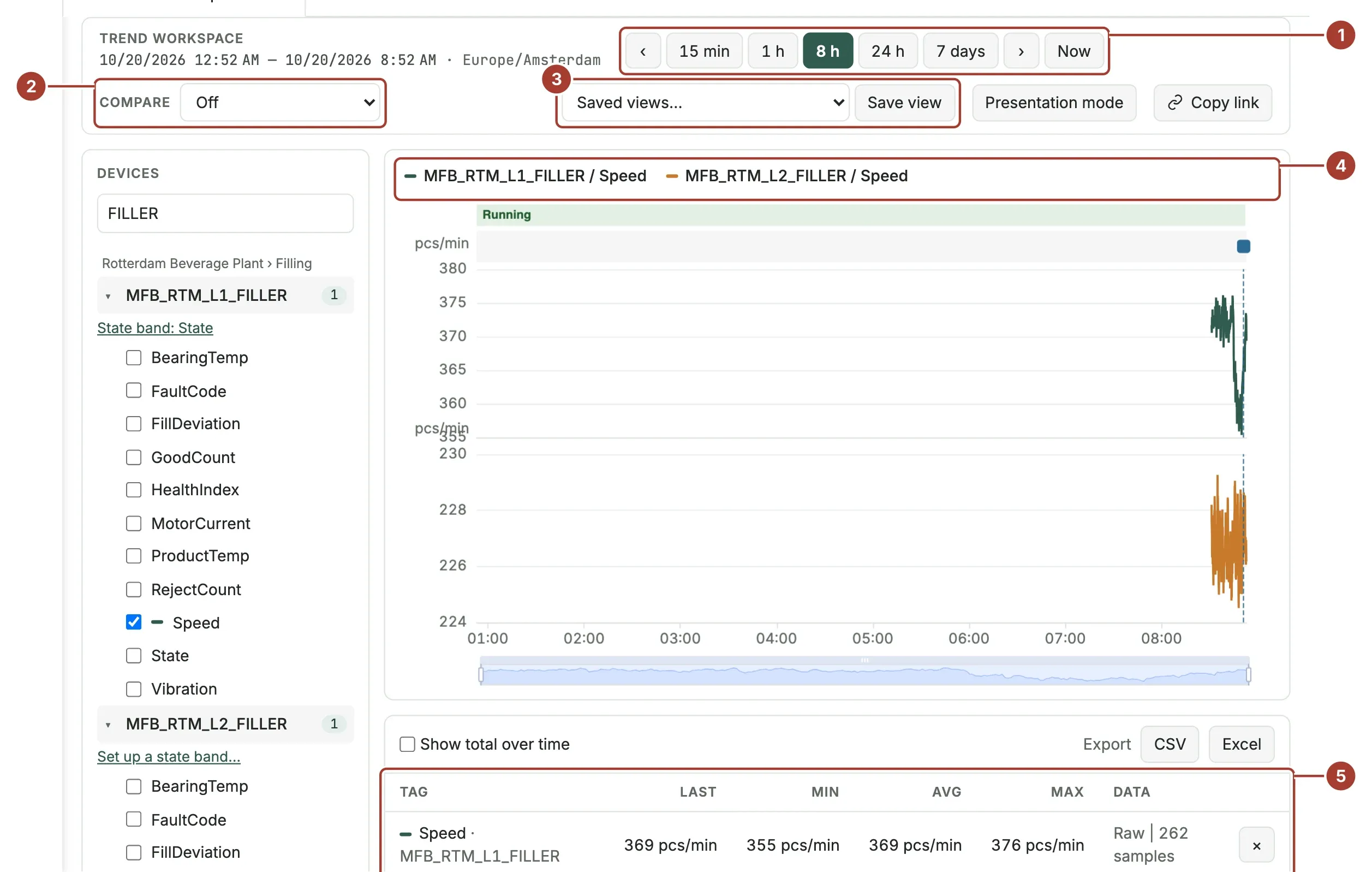
- Time range: the range buttons and the arrows.
- Compare: lays an earlier period over the chart.
- Saved views: open, save and delete views.
- The chart: one pane per tag, with the tags' colours in the legend.
- The figures table: one row per tag.
Choosing tags
The Devices panel on the left lists the devices you may read, grouped by site and area. Type in Search devices or plant areas to narrow the list. Select a device to list its tags, then tick the tags to chart. A tag appears in the list when it has data in the last 7 days. The number next to a device is how many of its tags are on the chart.
At most 8 tags can be on the chart at once. Remove a tag with its × in the table or by clearing its tick box.
Time range
| Control | What it does |
|---|---|
| 15 min, 1 h, 8 h, 24 h, 7 days | Shows that much time up to now. |
| ‹ and › | Moves the range one range width earlier or later. |
| Now | Goes back to a range that ends now. |
The range and the time zone are shown at the top left. Times are shown in your browser's time zone.
Inside the chart, scroll with the mouse wheel or drag the handles of the slider under the chart to zoom into part of the range. All panes zoom together.
Over long ranges, the chart does not draw every stored value. It draws the average with the minimum and the maximum of each time step instead. The Data column of the table says which: Raw with the number of samples, or the step (for example 1m avg + min/max) with the number of samples.
Compare
Compare draws an earlier period as a dashed grey line in each pane:
| Option | Earlier period |
|---|---|
| Off | No comparison. |
| Previous period | The range just before the one shown, of the same length. |
| Same time yesterday | The same range, one day earlier. |
| Same time last week | The same range, seven days earlier. |
The table gets a column with the earlier period's average and the change in percent.
The figures table
| Column | Meaning |
|---|---|
| Tag | The tag and its device. |
| Last | The last value in the range. |
| Min, Max | The lowest and highest value in the range. |
| Avg | The time-weighted average: each value counts for as long as it held. Gaps in the data are left out. |
| Total | Shown when Show total over time is ticked: each value multiplied by how long it held, added up. For a rate this is the amount (kW gives kWh, m³/h gives m³). It is not meaningful for other tags. |
| Data | How the values were drawn: raw or averaged, and the number of samples. |
Export with CSV or Excel downloads what the chart shows. See Export a trend.
Context layers and events
The workspace shows what happened around the charted devices, from what the platform already records:
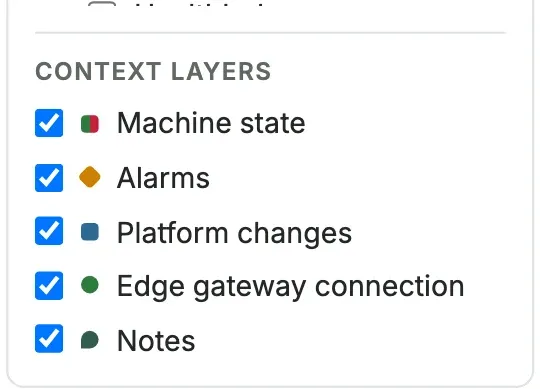
| Layer | What it shows |
|---|---|
| Machine state | A coloured band above each pane, from the device's state band. See Show machine state on a trend. |
| Alarms | Alarms raised for the charted devices. |
| Platform changes | Changes to the devices, and to the gateways, rules and functions they run on, and pipelines published to their gateways, with who made them. |
| Edge gateway connection | When the devices' gateway connected or disconnected. |
| Notes | Notes that users pinned to a moment. |
Each event is a marker above the panes and a dashed line through them. Untick a layer to hide its events.
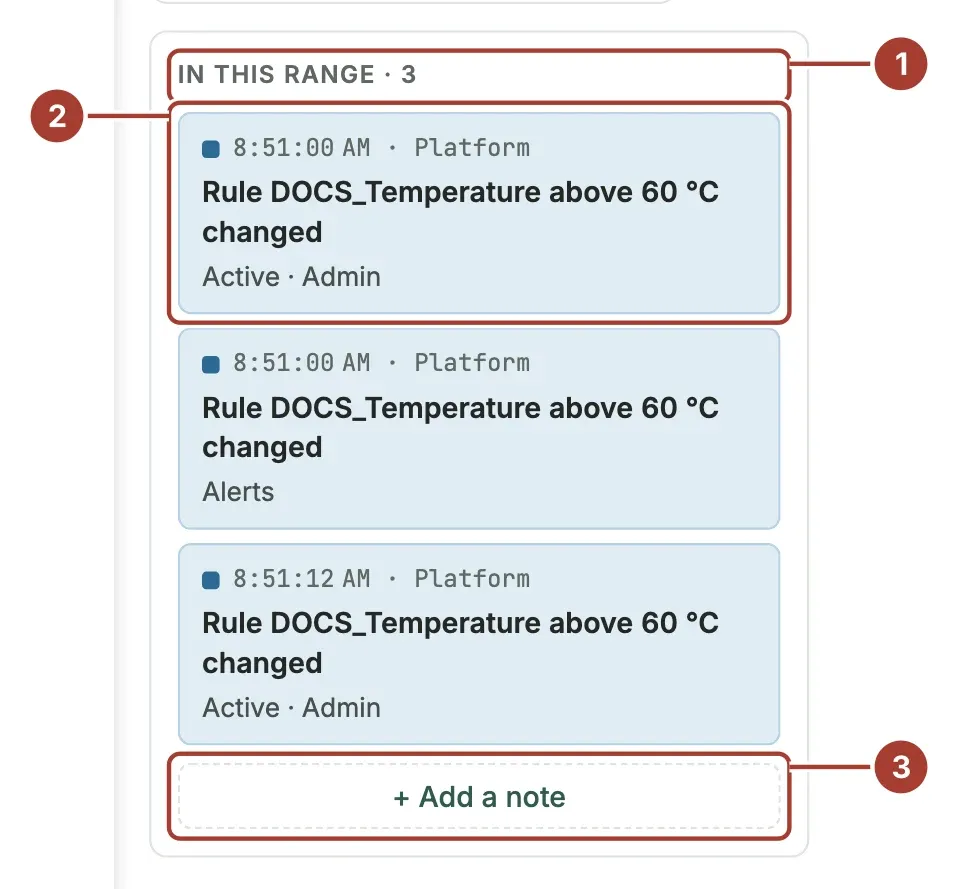
- In this range: the number of events in the range.
- An event. Select it to zoom the chart to that moment.
- + Add a note: write a Note, click the chart to pin it to a moment (otherwise it is pinned to now or the end of the range), choose the device if several are charted, and select Save. Everyone who charts that device sees the note.
Saved views and links
A view is the set of tags, the range, the comparison and the layers.
- Save view asks for a View name. Tick Share with everyone to let other users open it. Saving under a name you already used replaces that view.
- Saved views… lists your views and the views others shared, shown as "name (owner)". Choosing one opens it.
- Delete view appears when one of your own views is open. Shared views of others cannot be deleted by you.
- Copy link copies an address that opens the same view. The person who opens it needs access to the same devices.
Presentation mode
Presentation mode shows the first tag of the chart large on a dark screen that refreshes by itself, for a screen on the shop floor. The address it opens can be bookmarked to open the presentation directly.
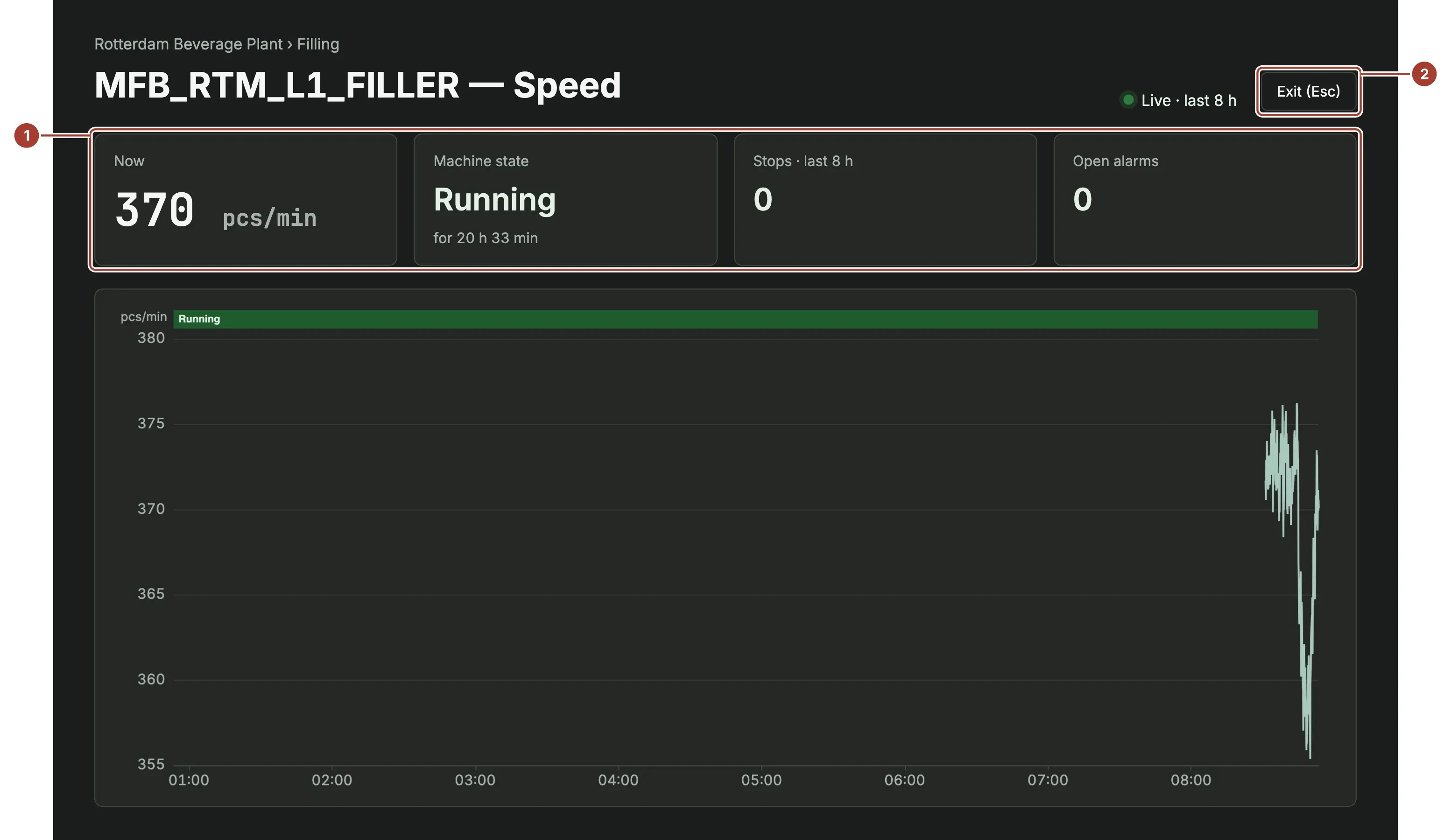
- The tiles: Now (the current value), Machine state and for how long, Stops in the range (the time spent in states coloured Stopped / fault), and Open alarms of the device.
- Exit (Esc) goes back to the workspace.
Machine state and stops need a state band on the device. The range follows the workspace's range button; a custom range is shown as the last hour.
What's next
Was this page helpful?
Evaluating Proxus? See it on your own machines in a 30-minute technical session.