Reference · for Engineers, Administrators
Forms
Design the forms people fill in on the shop floor. Drag fields onto the form, set when they show, try the form and publish it to the Apps page.
Forms is where the forms people fill in are designed: downtime reasons, quality checks, shift handovers or any record your plant keeps on paper today. It is in Organize > Forms. A form you publish appears for its roles in Monitor > Apps.
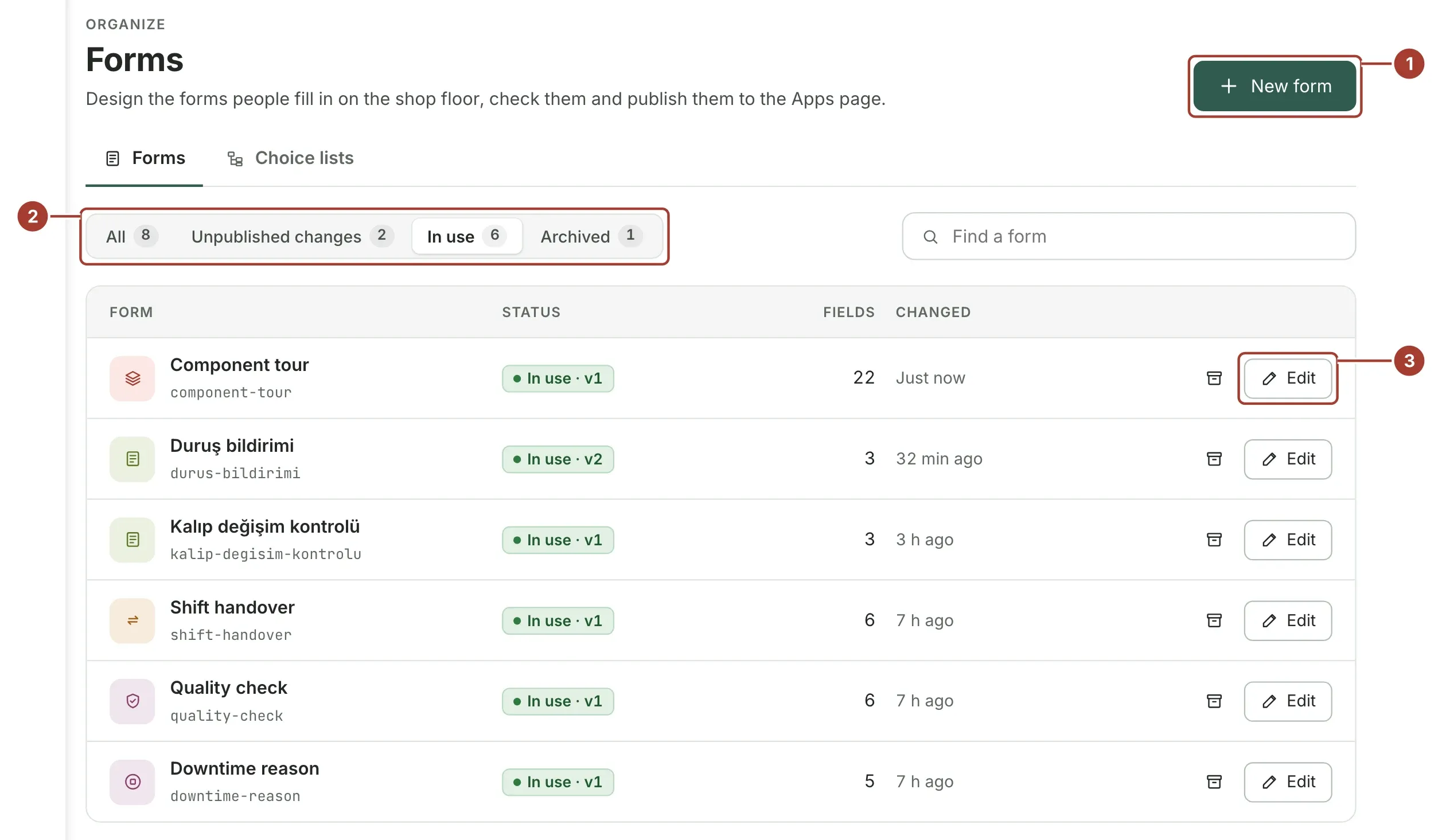
- New form creates a form, empty or from a sample form.
- The filters show all forms, the ones with Unpublished changes, the ones In use and the archived ones.
- Edit opens the form in the designer. The archive button next to it stops new records for the form.
The Choice lists tab next to Forms holds the lists many forms share.
Who can design and publish
| You want to | Your role needs |
|---|---|
| Create and edit forms | Full access to Forms, as the built-in Engineer role has |
| Publish a form, use an earlier version again or archive a form | Publish forms as well |
| Publish a form that writes to machines | Write to devices as well |
The designer is in the menu of the roles that may edit forms. Other roles fill forms in on the Apps page.
Create a form
- Open Organize > Forms and select New form.
- Type the name. The key the form's records are stored under is shown below it; it never changes.
- Choose Empty form, or one of the sample forms to start from a copy of it.
- Select Create and open. The designer opens on the new form.
The designer
The designer takes the whole window. The arrow at the top left returns to the forms list.
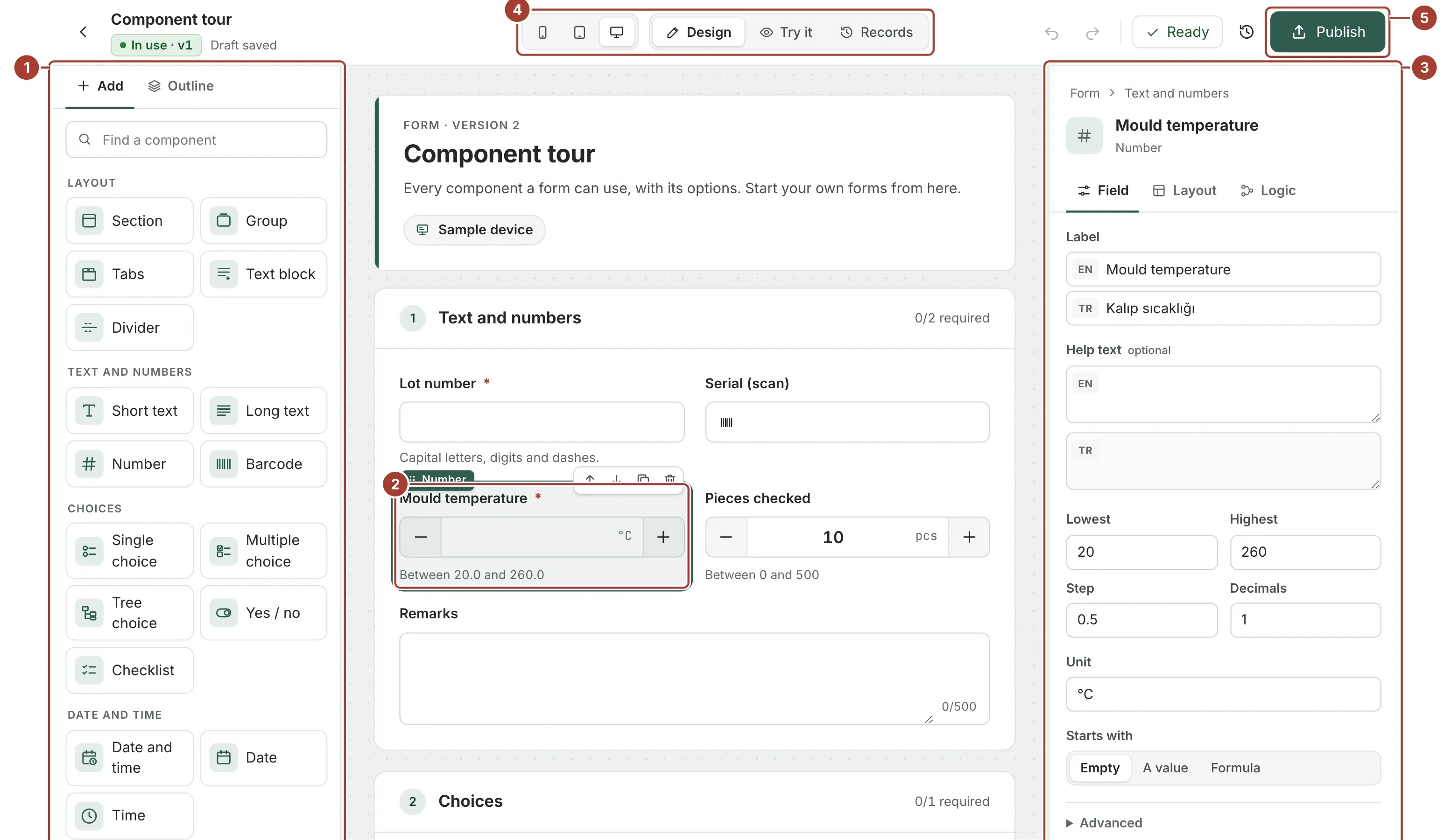
- Add holds the components, grouped by what they are for. Outline shows the form as a tree.
- The form is drawn exactly as people will see it. The selected item has a frame, its type and buttons to move it up or down, duplicate it and remove it.
- The selected item's settings, in three tabs: Field, Layout and Logic. With nothing selected, the panel holds the form's own settings.
- Preview the form at phone, tablet or desktop width, and switch between Design and Try it.
- Publish makes the draft the version people fill in.
Add and arrange items
- Drag a component from Add onto the form. A blue line shows where it will go. Clicking a component adds it next to the selected item, or into the selected section.
- Drag an item on the form, or a line of the outline, to move it, also into another section, group or tab.
- Double-click a label, a section title, the form's title or its description to change it in place.
- A tab is added with the + next to the tabs, or from the tabs' settings.
| Shortcut | What it does |
|---|---|
| Ctrl+Z / ⌘Z | Undo |
| Ctrl+Shift+Z / ⌘⇧Z, Ctrl+Y | Redo |
| Ctrl+D / ⌘D | Duplicate the selected item |
| Ctrl+C, Ctrl+V / ⌘C, ⌘V | Copy the selected item and paste it after the selected item |
| Delete or Backspace | Remove the selected item |
| Alt+↑ / Alt+↓ | Move the selected item up or down |
| ↑ / ↓ | Select the previous or next item |
| Esc | Select the section, group or tab that holds the selected item |
| Ctrl+S / ⌘S | Save the draft now |
Texts in two languages
Every text a person reads (labels, help, options, the form's title) is kept in English and Turkish. The first box is your own language. The other language takes the same text until someone translates it; a translate mark shows the texts still to translate.
Width
On the Layout tab, choose how much of the row an item takes on a phone, a tablet and a desktop: a quarter, a third, half, two thirds, three quarters or the whole row. A width shown with an outline is taken from the smaller screen.
Show, require or lock under a condition
On the Logic tab, an item can show only, be required only or be locked only when other answers say so. Choose When… and build the condition from lines such as Change reason is Mould wear or Pieces checked is above 10, joined by and or or. Edit as formula writes the condition as an expression on the form's fields, for example fields.reason == 'other'. An item that shows only under a condition is dimmed on the form while you design.
Formulas
A condition written as a formula and a field that Starts with a Formula use the same editor:
- Type part of a field's label or name: the fields are offered by their label, and the one you choose is written as
fields.<name>. Aftercontext.,user.,live.orMath., what they hold is offered. Ctrl+Space lists everything; ↑ ↓ move in the list, Enter or Tab takes a suggestion. - Fields are coloured; a name the form does not have is underlined in red.
- Under the formula: what is wrong with it in plain words, the fields it reads, and Now:, its result with the answers typed in Try it. How to write shows the operators and short examples.
| Formula | What it gives |
|---|---|
fields.good + fields.scrap | The sum of two number fields |
Math.round(fields.temperature * 10) / 10 | A number rounded to one decimal |
fields.reason == 'other' | Yes when Other is chosen |
fields.pieces > 10 && fields.result == 'fail' | Yes when both hold |
context.deviceName | The name of the device the form is opened for |
live.Speed | The tag's value now (a tag one of the form's machine items reads) |
Checks on the answer
Number, text, long text and barcode fields can refuse an answer outside a limit: At least, At most, a number of characters, or a pattern. Add them under Checks on the answer on the Logic tab, each with an optional message in every language. The message shows next to the field when the check fails; without one, the field says the limit it missed, such as At most 500 pcs. The server checks the same limits when a record is submitted.
Machine values and writes
Live value, counter, trend and machine state items show a tag; setpoint and write button items write to one. Select the item and Choose a tag:
- The form's device: the form reads the tag from the device it is opened for. The tags of every device profile are listed by name, with the values of a device you choose under Values from. A tag that is not in a profile yet can be typed and used as it is. Such a tag needs a form opened for a device; the settings offer to switch the form to it.
- A place in the plant: the form always reads the tag of one device, whatever it is opened for. The devices you may see are shown in the UNS tree (enterprise, site, area and so on); open a device to see its tags. The search looks through places, devices and tags at once.
Every tag shows its unit, whether it can be written and its value now, with a green dot when the value is good. A setpoint or write button can only take a tag that can be written. The chosen tag shows in the settings with its place and value; selecting it opens the picker again. Choosing a tag fills in the item's unit when it has none. A write can ask to confirm and can wait a number of seconds before the same write is sent again.
The form's settings
With nothing selected (or after selecting the form's title), the settings hold:
| Setting | Meaning |
|---|---|
| Title, Description | What the Apps page and the form show. |
| Opened for | Nothing, a device, or a place in the plant. A form for a device asks for the device when it is opened. |
| Look | Standard, or Touch with large controls for gloves and tablets. |
| Can see records, Can fill it in | The roles that use the form. |
| Records need approval | A record counts once one of the Can approve roles approves it. |
The form's key, its SQL view (proxus_forms.v_<key>) and the number of stored fields are shown below them.
Try the form
Try it turns the canvas into the form as people fill it in: type, choose, check. The panel on the right shows the values the record would store, by field name. Submit checks the answers as the Apps page does and shows what is missing; nothing is recorded.
Checks
The button left of Publish shows Ready or how many things there are to fix. Errors stop publishing; warnings, such as an empty section, do not. The list shows the problems item by item, those with errors first, the form's own settings at the top; select one to go to the item. Items with problems are also marked on the form and in the outline.
Rules
Rules make the form act on its own. Each rule says when it runs, only if what holds, and what it does. Select Rules in the designer's top bar (the number shows how many the form has). The Logic tab of an item lists the rules that watch or fill in that item, with a link to add one for it.
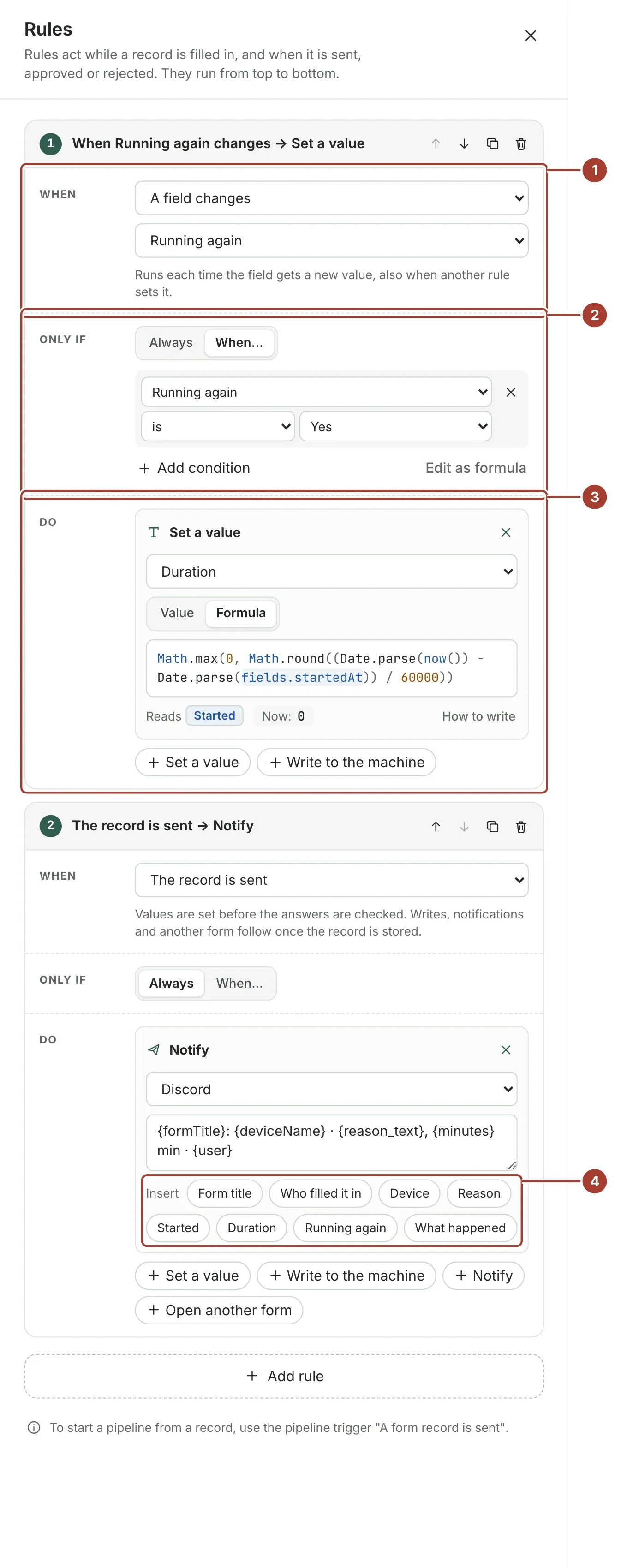
- When: what starts the rule.
- Only if: a condition on the answers, built from lines like the item conditions, or Always.
- Do: the actions, run in order.
- In a notification, select a value to insert it into the message.
| When | What the rule can do |
|---|---|
| The form opens (a new record only) | Set a value |
| A field changes (also when a rule sets it) | Set a value, write to the machine |
| A machine value changes (an item with a live value) | Set a value |
| At intervals (every 5 to 3600 seconds, while the form is open) | Set a value |
| The record is sent | Set a value, write to the machine, notify, open another form |
| The record is approved or rejected | Notify |
- Set a value fills in a field with a fixed value or a formula, for example
Math.round((Date.parse(now()) - Date.parse(fields.startedAt)) / 60000)for the minutes since a start time. - Write to the machine writes through one of the form's setpoints or write buttons, with that item's limits and minimum interval, and adds the write to the record's history. A setpoint writes the value in its box unless the action gives a formula. A timer or a machine value never writes.
- Notify sends a message through a notification channel once the record is stored. Write
{field}for an answer as stored,{field_text}for it as people read it, and{formTitle},{user},{deviceName},{decidedBy}and{reason}for the record. A name that is not a value stays as written. - Open another form opens that form for the same device after the record is sent. In kiosk mode the tablet goes back to its own form once that one is sent.
Rules run from top to bottom. A rule that sets a field starts that field's change rules; after five rounds in a row the form stops, so a rule that feeds itself cannot loop. Try it runs the rules as people will see them and tells what a write or another form would do. The Downtime reason sample form comes with a rule that works out the duration when the machine runs again.
To start a pipeline from a record, use the pipeline trigger A form record is sent.
Publish and versions
The draft is saved a moment after every change, so closing the designer never loses work. Publish shows what publishing changes before it does:
- How many items the new version adds, changes and removes, and each of them with what changed about it (label, required, limits and checks, tag, width, moved, …). Select an item to go to it.
- A field that now stores another kind of value (for example a text field replaced by a number field under the same name) is marked: records already made keep what they stored, and the SQL view reads the column as the new kind.
- Who uses it: what the form is opened for, who can fill it in, see, approve and export records, with the settings this version changes marked.
- Records: the SQL view (
proxus_forms.v_<key>), the number of stored fields, how many records were sent with earlier versions (they keep their version) and how many drafts are being filled in (they continue with the new version; answers to removed fields are left out). - A short note for the version history.
New records use the newest version. If there are errors, the dialog lists them instead, each a way to its item.
Versions (the clock button) lists the published versions, newest first: when and by whom each was published, its note, what it added, changed and removed against the version before (What changed), and how many records were made with it. Look at shows a version as people saw it. Compare with the draft lists what the draft changes against that version. Use this version again publishes an earlier version as the newest one, and makes it the draft.
A form that is archived from the forms list takes no new records. Its records and its SQL view stay readable.
Records and exports
Records (next to Design and Try it) lists the form's records you may see.
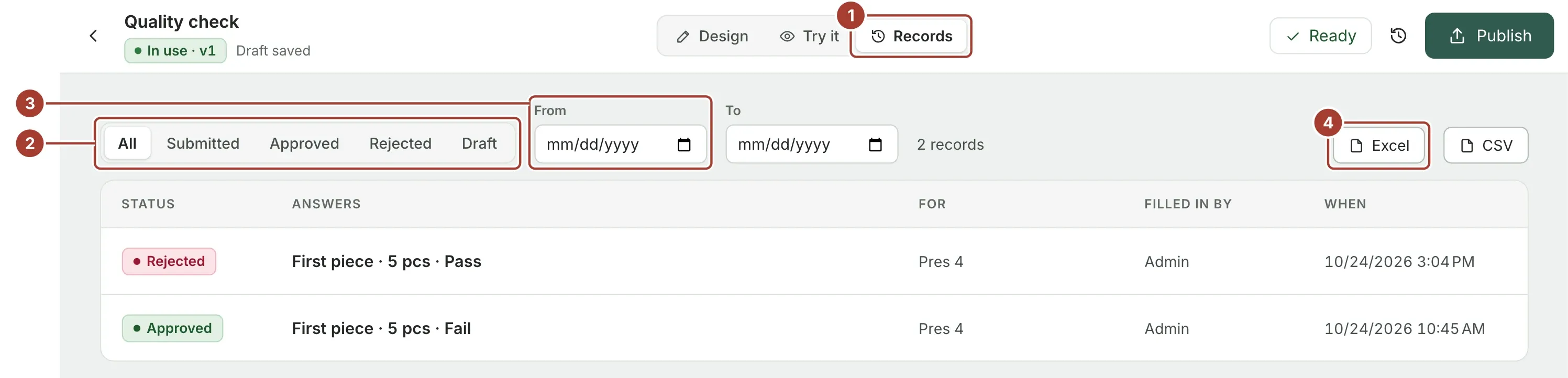
- Records switches the designer to the form's records.
- Show all records, or only the submitted, approved, rejected or draft ones.
- From and To limit the records to the days they were submitted (or last saved).
- Excel and CSV download the records the filters select, at most 10,000: the record's own columns (status, device, who filled it in, when, who decided) and one column per field. Excel keeps numbers, dates and yes/no answers typed; CSV writes numbers with a dot and times as ISO 8601 so other systems can read them.
Select a record to open it, approve or reject it, or download it as a PDF, as on the Apps page. Every export and printout is noted in the record's history. Exporting a list needs Export, and to be among the form's roles that see its records.
Choice lists
A choice list is kept once and used by many forms: downtime reasons, defect codes, shift teams. Change it in one place and every form that uses it follows. The lists are on the Choice lists tab of Organize > Forms. Items can have levels, such as Unplanned › Breakdown › Electrical, up to four deep.
New list asks for a name and starts empty or from the sample Downtime reasons list (planned and unplanned stops, three levels, in English and Turkish).
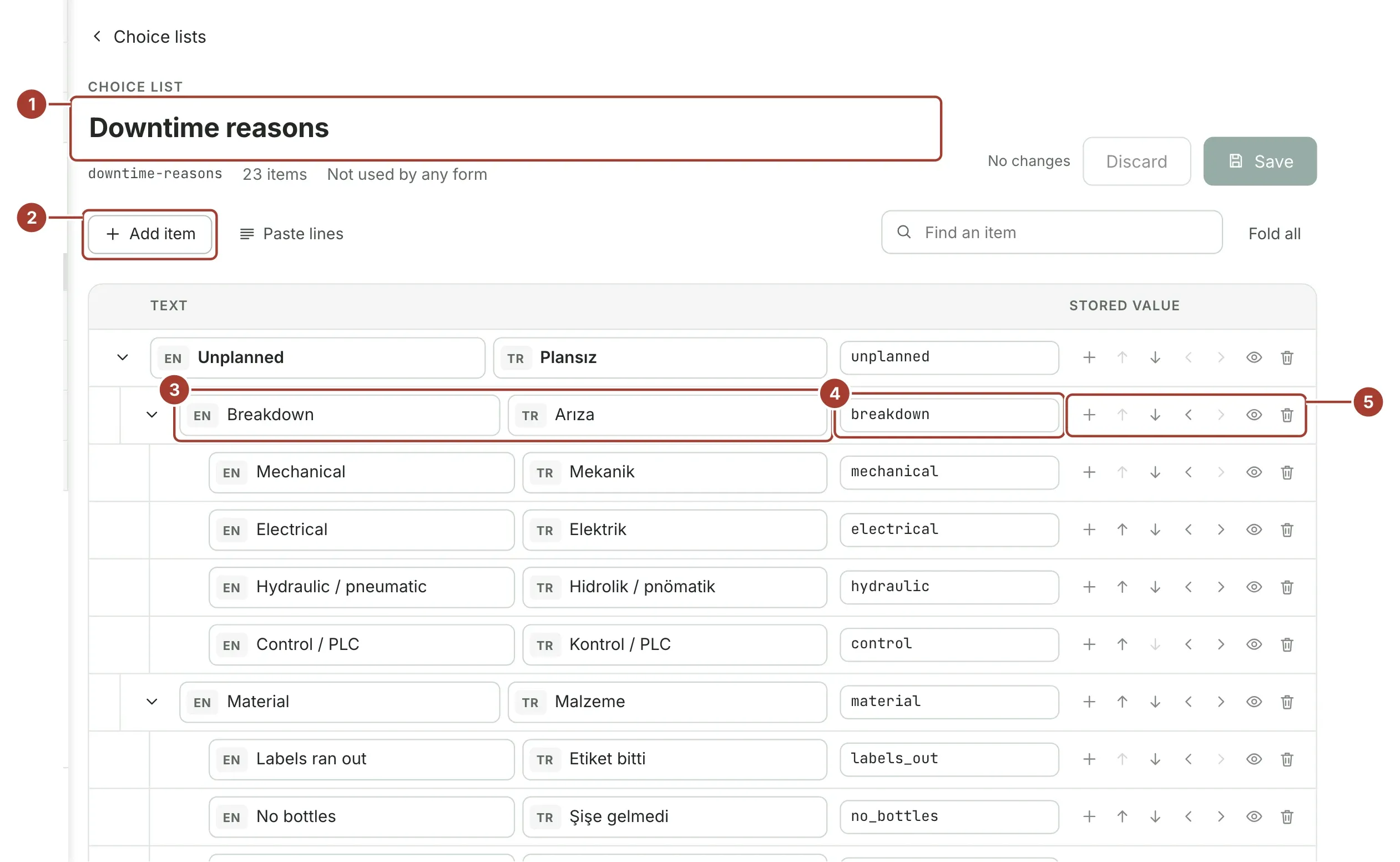
- The list's name. Its key (under the name) is what forms refer to and does not change.
- Add item adds an item at the end. Paste lines takes a list from a spreadsheet: one item per line, two spaces or a tab more to put a line under the line above.
- The item's text in each language. As with the form's own texts, the other language follows the first until you translate it.
- The stored value is what records keep. It is made from the text while the item is new, and must be unique in the whole list.
- Add an item under this one, move it up or down, move it a level up or under the item above, switch it off or remove it.
Save checks the list first: an empty or repeated value, a missing text or a fifth level stops it, and the item is marked. If someone else saved the list meanwhile, Discard loads their version. Forms read the saved list the next time they are opened; records already saved keep their values.
Switch off an item that is no longer used instead of removing it: it is no longer offered, and the records that chose it keep showing its text. A list that a form uses cannot be deleted.
Use a list in a form
- Tree choice shows a list level by level as large buttons, with the way back above them and a search across the levels for long lists, and stores one item. By default people go down to an item with nothing below it; switch off Only the last level to let them stop at a group, such as Breakdown.
- Single choice and Multiple choice can take their options from a Shared list instead of options written into the form. They offer the items at the bottom of the list, each with its path.
Records, the Excel and CSV exports and the PDF show a choice with its path, such as Unplanned › Material › No caps, in the reader's language.
Limits in this version
- Rules cannot show a message to the person filling in the form, call an API or run a script. For more than notify, start a pipeline from the record: see Start a pipeline from a form.
Was this page helpful?
Evaluating Proxus? See it on your own machines in a 30-minute technical session.