How-to guide · for Engineers, Administrators
Import and install a template
Bring an application template file into a hub and install it, so its rules, devices, dashboards and other objects are created there.
At the end of this guide the objects of a template exist in this hub, as new objects with the template's name in their names.
Before you start
- A template file (
.json) exported from a hub, or a template already in the list. See Create and export a template. - If the template contains devices: the edge gateways and outbound targets they use exist in this hub.
- The license has room for the objects the template creates. Install stops if it would go over.
Import the file
Skip this part if the template is already in the list.
- Open Organize > Application Templates.
- Select Import Template and choose the file.
The message Template imported: … appears and the template is in the list, not yet installed.
Install
- Select the template in the list.
- Select Install.

New
Export Template
Import Template
Install: available for a template that is not installed.
Uninstall: available for an installed template.
Confirm with Install.
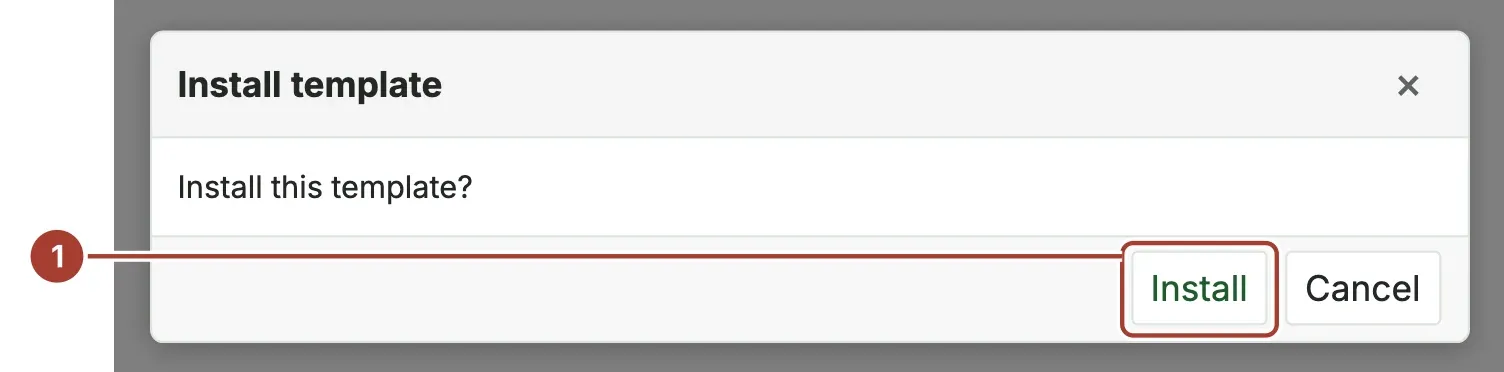
The message Template installed: … appears and the template is marked Installed, with its Installation Date.

- The template, now ticked Installed.
- Uninstall is now available.
Check the result
- Open the screens of the installed objects, for example Automate > Rules. The new objects are named after the original, the template name and its Id, such as
DOCS_Temperature_above_60_°C_DOCS_Temperature_alarm_1a2b3c4d. - Check each one before you switch it on: addresses of devices, the gateways they run on, recipients of notification channels. Objects keep the active or inactive state they had when they were added to the template.
Undo the install
Select the template and Uninstall, then confirm. The objects the install created are deleted. The template keeps its object list, so you can select Install again at any time.
What's next
- Application Templates: what install, uninstall and delete do in detail.
- Health Checks: check the new objects for broken links.
Was this page helpful?
Evaluating Proxus? See it on your own machines in a 30-minute technical session.