How-to guide · for Administrators
Single sign-on with OpenID Connect
Let people sign in with your company's identity provider: Keycloak, Microsoft Entra ID, Okta or any OpenID Connect provider.
At the end of this guide, the sign-in page of the hub has a Log In with … button for your identity provider. People sign in with their company account, Proxus creates their user on the first sign-in, and the provider's groups decide their Proxus roles. Multi-factor sign-in, password rules and account locking are done by the provider.
Proxus works with any provider that speaks OpenID Connect: Keycloak, Microsoft Entra ID, Okta, Auth0, Authentik, AD FS and others. A Keycloak that is connected to your Active Directory or LDAP brings those accounts to Proxus (Active Directory through Keycloak). To sign in with an AD user name and password without a provider, see Active Directory and LDAP sign-in.
Before you start
- A user with the Administrators role in Proxus, and access to the hub's configuration (the
Proxus-config.tomlfile or the container's environment variables). - An administrator of the identity provider who can register an application (a client).
- The address people use to open the hub, for example
https://proxus.example.com. The provider sends people back to this address after they sign in.
How it works
- The person selects Log In with … on the hub's sign-in page and signs in at the provider.
- The provider sends them back to the hub with who they are and their groups.
- Proxus finds the user that belongs to this account at this provider. The first time, it creates the user with the provider's user name.
- Proxus gives the user the Proxus roles mapped from their groups, and takes away mapped roles they no longer have. Roles the map does not name stay as an administrator set them.
- Signing out of Proxus also ends the session at the provider, so the next person at the same browser has to sign in again.
Password sign-in stays available next to the button. Keep at least one administrator account with a password for when the provider cannot be reached.
Step 1: Register Proxus at the provider
Register a confidential application with the authorization code flow. The values Proxus needs:
| Setting at the provider | Value |
|---|---|
| Redirect URI | https://<hub address>/signin-<scheme>, for example https://proxus.example.com/signin-keycloak |
| Post sign-out redirect URI | https://<hub address>/signout-callback-<scheme> |
| Scopes | openid, profile, email |
| Groups | A claim with the person's groups or roles, in the ID token or the user info |
<scheme> is the short name you give the provider in step 2, for example keycloak or entra.
Keycloak
Quickest: import the template. Download proxus-hub-client.json. In the realm, open Clients > Import client, select the file and Save. It holds no secret and no address: Keycloak creates a new secret, and you add your own addresses.
- In the imported client, open Settings and enter the redirect URI and the post sign-out redirect URI from the table above, with your hub's address.
- Copy the client secret from the Credentials tab.
- Put people in groups (or give them realm roles) whose names you use in the role map in step 2.
The template sends both the person's groups (claim groups, without the path) and their realm roles (claim roles); Proxus reads both. It uses the authorization code flow with PKCE (S256) and turns password grants off.
By hand, the same settings:
- In the realm, open Clients and select Create client. Client type OpenID Connect, a client ID such as
proxus-hub. - Turn on Client authentication and keep Standard flow. Under Advanced, set Proof Key for Code Exchange Code Challenge Method to
S256. - Enter the redirect URI and the post sign-out redirect URI from the table above.
- Copy the client secret from the Credentials tab.
- Add the groups: Client scopes >
proxus-hub-dedicated> Add mapper > By configuration > Group Membership. Token claim namegroups, Full group path off, Add to ID token and Add to userinfo on. - Create groups such as
proxus-adminsandproxus-operators, and put people in them (or map your Active Directory groups to them).
The issuer address (the Authority in Proxus) is https://<keycloak address>/realms/<realm>.
Microsoft Entra ID
Register an application under App registrations, add a Web redirect URI and a client secret. Under Token configuration, add the groups claim. Entra sends group IDs, so the role map uses the group IDs. The authority is https://login.microsoftonline.com/<tenant ID>/v2.0.
Okta
Create an OIDC - Web Application app integration with the redirect URIs above. Add a groups claim to the authorization server (filter, for example, Starts with proxus-). The authority is https://<your Okta domain>/oauth2/default.
Step 2: Add the provider to Proxus
Add a provider in Proxus-config.toml, or the same keys as environment variables:
[[Authentication.Oidc.Providers]]
Scheme = "keycloak"
DisplayName = "Keycloak"
Authority = "https://sso.example.com/realms/plant"
ClientId = "proxus-hub"
ClientSecret = "<client secret>"
DefaultRoles = ["Default"]

[Authentication.Oidc.Providers.RoleMap]
proxus-admins = ["Administrators"]
proxus-operators = ["Operator"]environment:
Authentication__Oidc__Providers__0__Scheme: keycloak
Authentication__Oidc__Providers__0__DisplayName: Keycloak
Authentication__Oidc__Providers__0__Authority: https://sso.example.com/realms/plant
Authentication__Oidc__Providers__0__ClientId: proxus-hub
Authentication__Oidc__Providers__0__ClientSecret: ${OIDC_CLIENT_SECRET}
Authentication__Oidc__Providers__0__DefaultRoles__0: Default
Authentication__Oidc__Providers__0__RoleMap__proxus-admins__0: Administrators
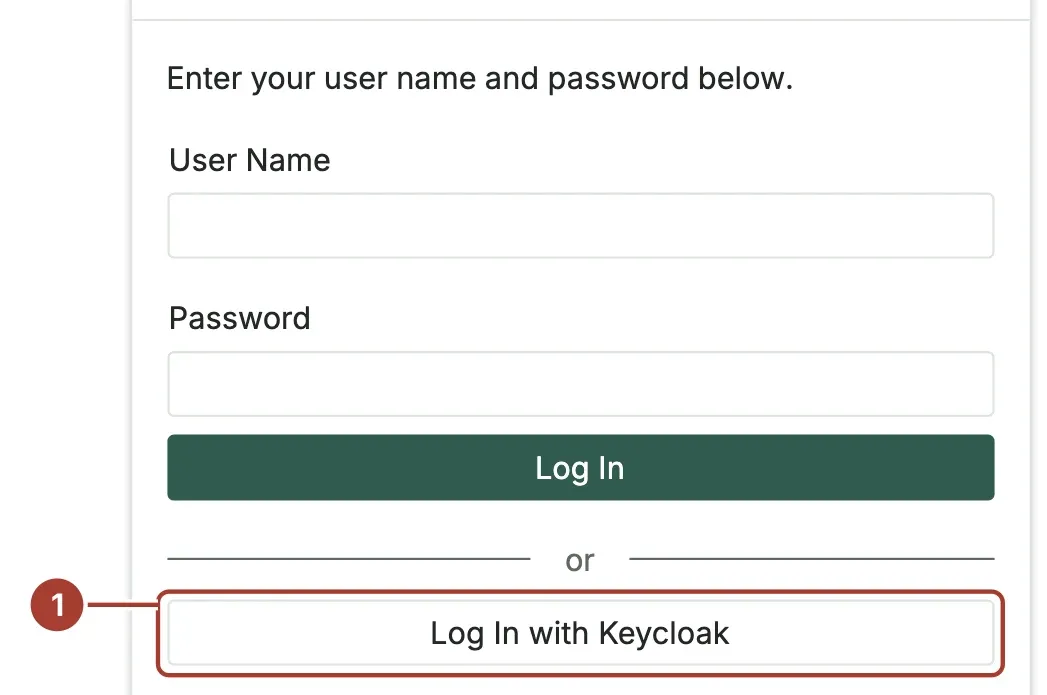
Authentication__Oidc__Providers__0__RoleMap__proxus-operators__0: OperatorRestart the hub. The sign-in page now shows Log In with Keycloak (1), under Log In.
All keys are listed in Configuration keys.
Keep the client secret out of files that are shared: set it as an environment variable, or keep the configuration folder readable only by the hub.
Several providers are possible: add another [[Authentication.Oidc.Providers]] block (or index 1 in the environment variables) with its own Scheme. Each gets its own button.
Step 3: Map groups to roles
RoleMap connects a provider group (or role) to one or more Proxus roles. Names are compared without regard to case, and a Keycloak group path such as /proxus-admins matches proxus-admins.
- Mapped roles follow the provider. At every sign-in a person gets the mapped roles of the groups they are in, and loses the mapped roles of groups they left.
- Other roles stay. A role that no group maps to, for example one an administrator gave by hand, is never taken away by a sign-in.
DefaultRolesare given once, when the user is created.- A role named in the map that does not exist in Proxus is skipped and written to the log.
See Users and roles for what each built-in role allows.
Step 4: Test it
- Open the hub in a private browser window and select Log In with ….
- Sign in with an account in a mapped group.
- As an administrator, open Security > Users. The new user is listed with the mapped roles and signs in through the provider only.
- Sign out and select the button again: the provider asks for the password again.
Existing users
A sign-in never takes over a Proxus user it did not create. If a person already has a Proxus user with the same user name, their first sign-in through the provider is refused and logged, unless you set LinkExistingUsers = true. Then the first sign-in links the provider account to that user, and they keep their roles. Use it only with a provider whose user names you trust.
To allow only people an administrator has already linked, set CreateUsers = false.
API, MCP and service accounts
Programs can use the same provider: a script, a data platform or an AI assistant gets an access token from the provider and exchanges it for a Proxus API token. No Proxus password is shared.
At the provider, let access tokens name Proxus as their audience. In Keycloak: Client scopes >
proxus-hub-dedicated> Add mapper > By configuration > Audience, Included Client Audienceproxus-hub, Add to access token on. For a program without a person, turn on Service accounts roles on the client and use the client credentials grant.Exchange the provider's access token for a Proxus token:
curl -X POST https://proxus.example.com/api/Authentication/Exchange \
  -H "Content-Type: application/json" \
  -d '{"accessToken":"<access token from the provider>"}'
The answer is a Proxus token, as from the REST API's sign-in. The person or service account is found or created and gets their mapped roles, exactly as at a sign-in on the sign-in page. A service account is created with the user name the provider gives it, for example
service-account-proxus-hub.An MCP client signs in the same way:
auth_loginwithaccessTokeninstead of a user name and password. See MCP.
The token must be signed by the provider, be within its lifetime, come from the provider's Authority and name one of ApiAudiences (the ClientId by default) as its audience. Anything else is refused with 401. Set AcceptApiTokens = false to turn the exchange off for a provider.
Multi-factor sign-in
Multi-factor sign-in, passkeys and password reset happen at the provider, before the person comes back to Proxus. Turn them on there: in Keycloak, for example, add OTP or WebAuthn as a required action or in the browser flow. Proxus needs no setting for it.
Electronic signatures on forms
A user created by a provider has no Proxus password. Forms that ask for an electronic signature ask these people for their signature PIN instead, which they set once. A switched-off user cannot sign in through the provider either.
Hub behind a path or a proxy
- Siemens Industrial Edge and other path-based setups. Under a path such as
/proxus, the redirect URIs arehttps://<device>/proxus/signin-<scheme>andhttps://<device>/proxus/signout-callback-<scheme>. - Reverse proxy. The proxy must pass
X-Forwarded-ProtoandX-Forwarded-Host, so that the hub builds the redirect URI with the address people use. - Several hub instances (Kubernetes). Keep sessions on one instance (sticky sessions), as for the rest of the user interface.
When something does not work
| What you see | Why | What to do |
|---|---|---|
| No Log In with … button. | The provider entry is incomplete or wrong. | The hub log names the entry and the problem at start, for example ClientId is missing. |
| The provider says the redirect URI is invalid. | The address registered at the provider differs from the one the hub sends. | Register exactly https://<hub address>/signin-<scheme>, with the path if the hub has one. |
| Back on the sign-in page after signing in at the provider. | Proxus refused the account. | The hub log says why: a Proxus user with the same name exists (LinkExistingUsers), CreateUsers is off, or the user is switched off. |
| The person has no roles they should have. | The groups claim is missing or named differently. | Check that the provider sends groups in the ID token or user info, or set RoleClaims to the claim it uses. |
Authority must use https. | The provider is on plain HTTP. | Use HTTPS. Only in a lab, set RequireHttpsMetadata = false. |
What's next
- Users and roles
- UNS permissions: limit people to parts of the plant
- Security: the hardening checklist
Was this page helpful?
Evaluating Proxus? See it on your own machines in a 30-minute technical session.