How-to guide · for Engineers, Operators
Find a tag and its path
Search the Unified Namespace for a device, read a tag's live value and quality, copy its path and open its trend.
At the end of this guide you have found a tag in the Unified Namespace, checked its value and quality, copied its path and opened its trend.
Before you start
- The device is set up and sends data. See Add a device.
- Your role may read that part of the namespace.
Find the tag
- Open Organize > UNS Explorer.
- Type the device name (or part of it) in Search... and press Enter. Here:
MFB_RTM_L1_FILLER. - Right-click the top node and choose Expand All.
- Select the tag.
The panel on the right shows the tag's value, its quality, when it was updated, its data type, its device and its tag key. Good means the device delivered the value without an error.
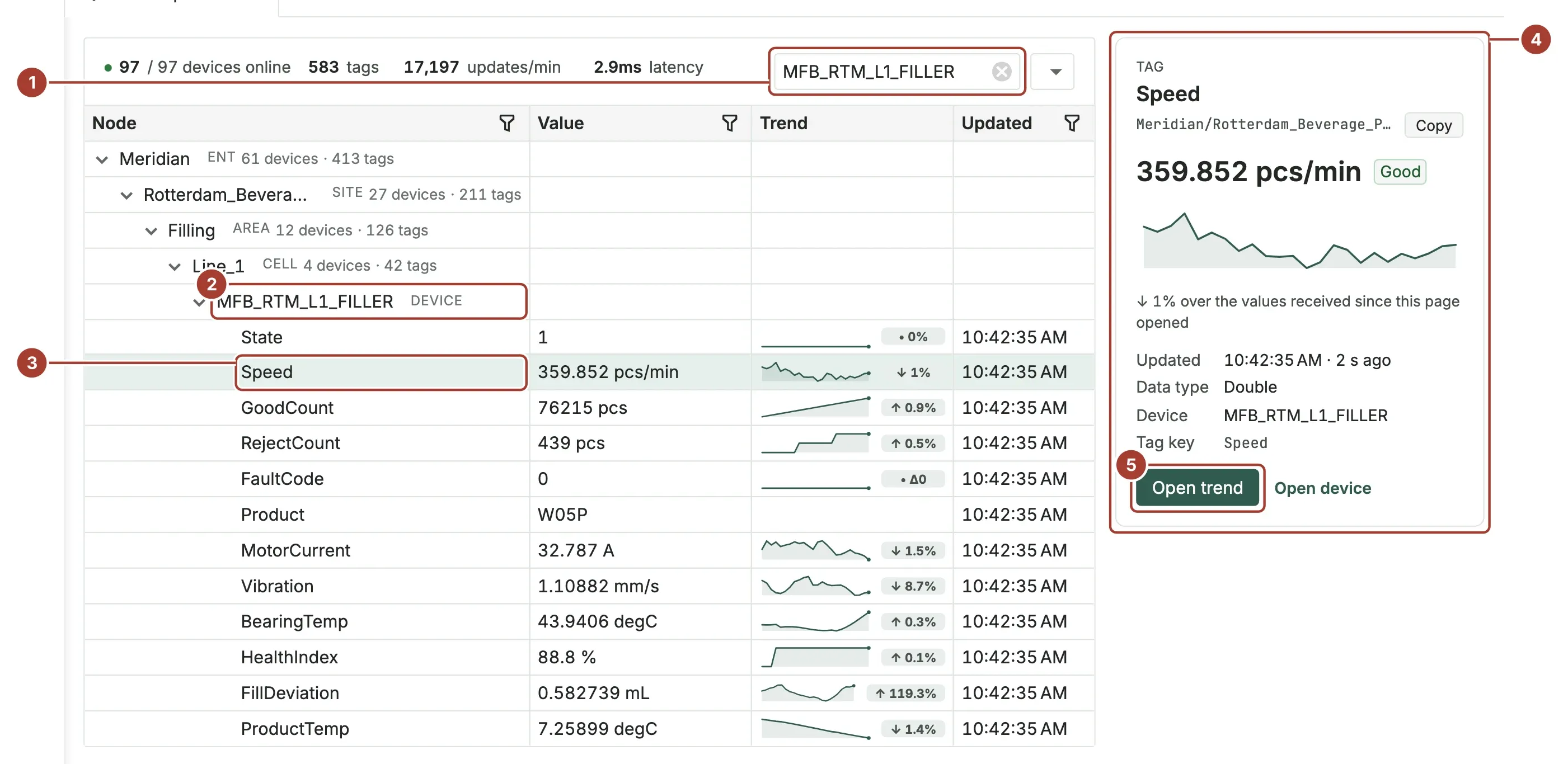
- The search box.
- The device, at its place: enterprise Meridian, site Rotterdam_Beverage_Plant, area Filling, cell Line_1.
- The tag Speed.
- The panel with the tag's details and its path.
- Open trend.
Copy the path
- In the panel, select Copy next to the path.
The path is the tag's address in the namespace, such as Meridian/Rotterdam_Beverage_Plant/Filling/Line_1/MFB_RTM_L1_FILLER/Speed. Use it where Proxus or another program asks for a UNS path, for example in a role's UNS permissions or when subscribing over MQTT.
Open the trend
- Select Open trend.
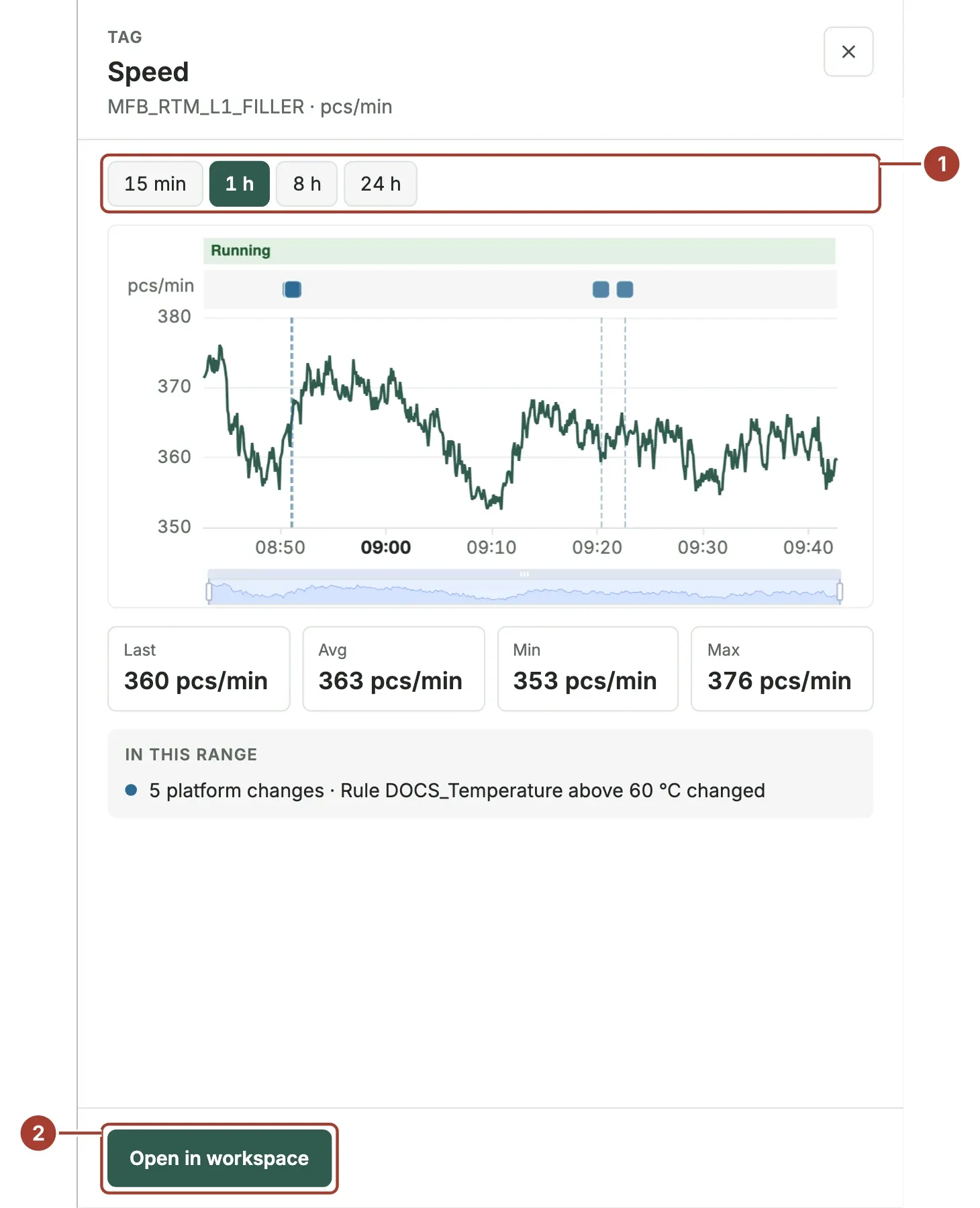
- The range: 15 min, 1 h, 8 h or 24 h.
- Open in workspace opens the tag in the Trend Workspace, where you can add other tags, compare periods and export.
What's next
- Compare tags over time
- UNS Explorer: every part of the screen.
- Troubleshoot data: a tag is missing or does not update.
Was this page helpful?
Evaluating Proxus? See it on your own machines in a 30-minute technical session.