Reference · for Engineers, Operators
SCADA
A dashboard item that places live values on a background image, such as a line schematic or a plant drawing.
The SCADA item shows values as text on top of a background image. Use it where an operator thinks in terms of the plant layout: a line schematic, a P&ID, a floor plan. Each value sits next to the part of the drawing it belongs to.
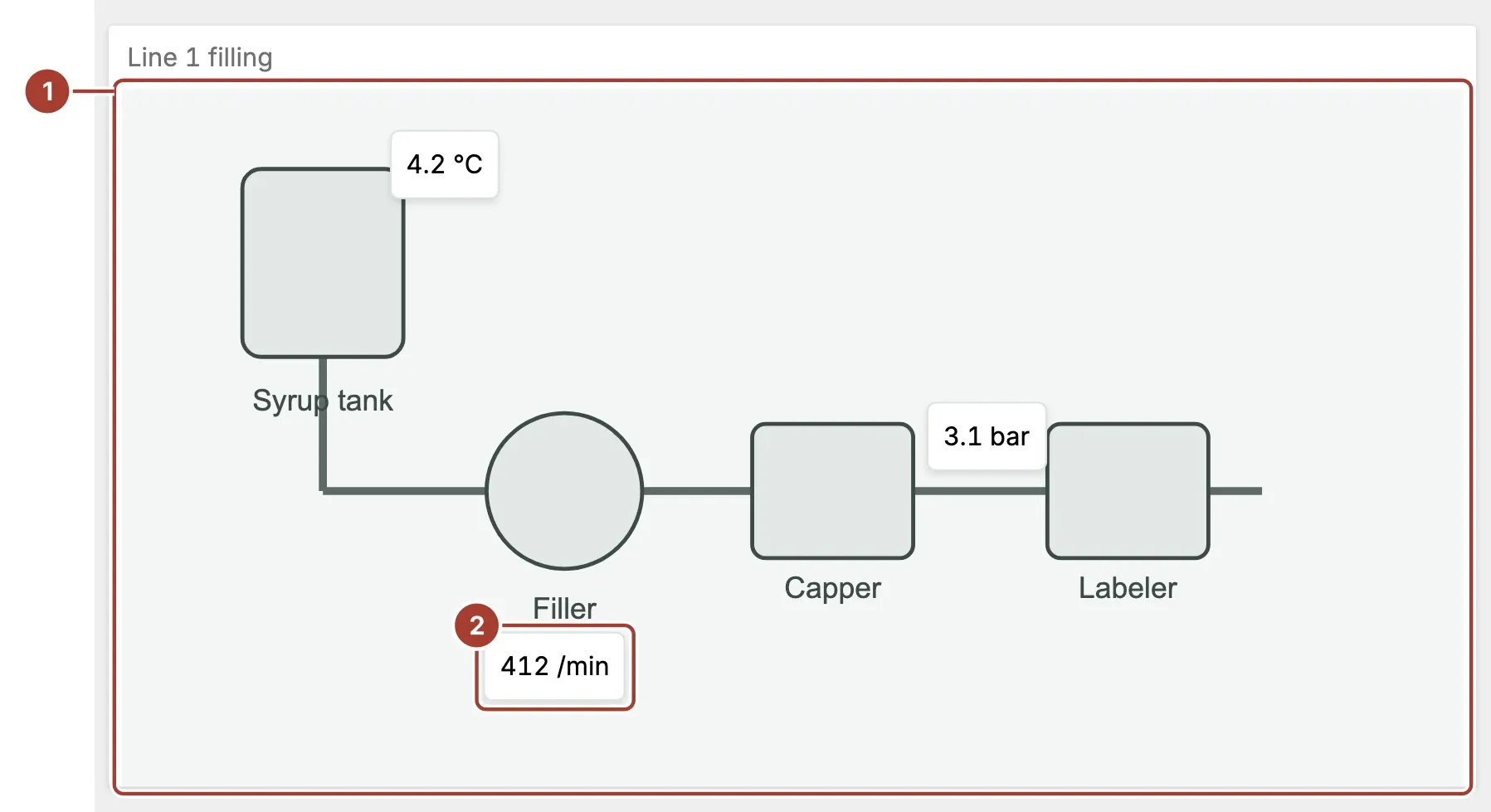
- Background. The image you chose for the item. It is scaled to the item as Scale Mode says.
- Value. One per entry in Data Items, written where you placed it on the background. With Show Frame on, each value sits in a small box.
Data fields
| Field | Kind |
|---|---|
| Data Items | Dimension (one or more) |
Data Items takes one or more dimensions. The item shows one value for each: the first value it finds in the data, as the field formats it. Shape the data so that each field holds the value you want to show, for example the latest reading. The item shows the value alone, without a name, so put the unit in the field's format or in the background image.
Settings
| Setting | Values | Default |
|---|---|---|
| Background | Text | — |
| Scale Mode | Stretch, Contain, Cover | Contain |
| Data Item Color | Text | black |
| Data Item Font Size | A number | 14 |
| Show Frame | Yes, No | No |
| Frame Background Color | Text | #ffffff |
| Frame Border Color | Text | #dfe4e0 |
| Frame Border Radius | A number from 0 to 20 | 5 |
| Frame Padding | A number from 0 to 20 | 8 |
- Background has a Choose Image button. The image you pick is stored in the dashboard itself, so it does not depend on a file on the server.
- Scale Mode fits the image to the item: Stretch fills it and may distort the image, Contain shows the whole image, Cover fills the item and may crop the image.
- Data Item Color and Data Item Font Size set the colour and size, in pixels, of the values.
- Show Frame puts each value in a box. Frame Background Color, Frame Border Color, Frame Border Radius and Frame Padding style that box.
Place the values
A new value appears in the middle of the image. In design mode, drag each value to its place on the background. The position is saved relative to the image, so the values stay on their equipment when the item is resized. Outside design mode the values cannot be moved.
Related
Was this page helpful?
Evaluating Proxus? See it on your own machines in a 30-minute technical session.