How-to guide · for Operators, Engineers
Show machine state on a trend
Set up a state band so trends show, behind the values, when a machine was running, waiting or stopped, with your own labels and colours.
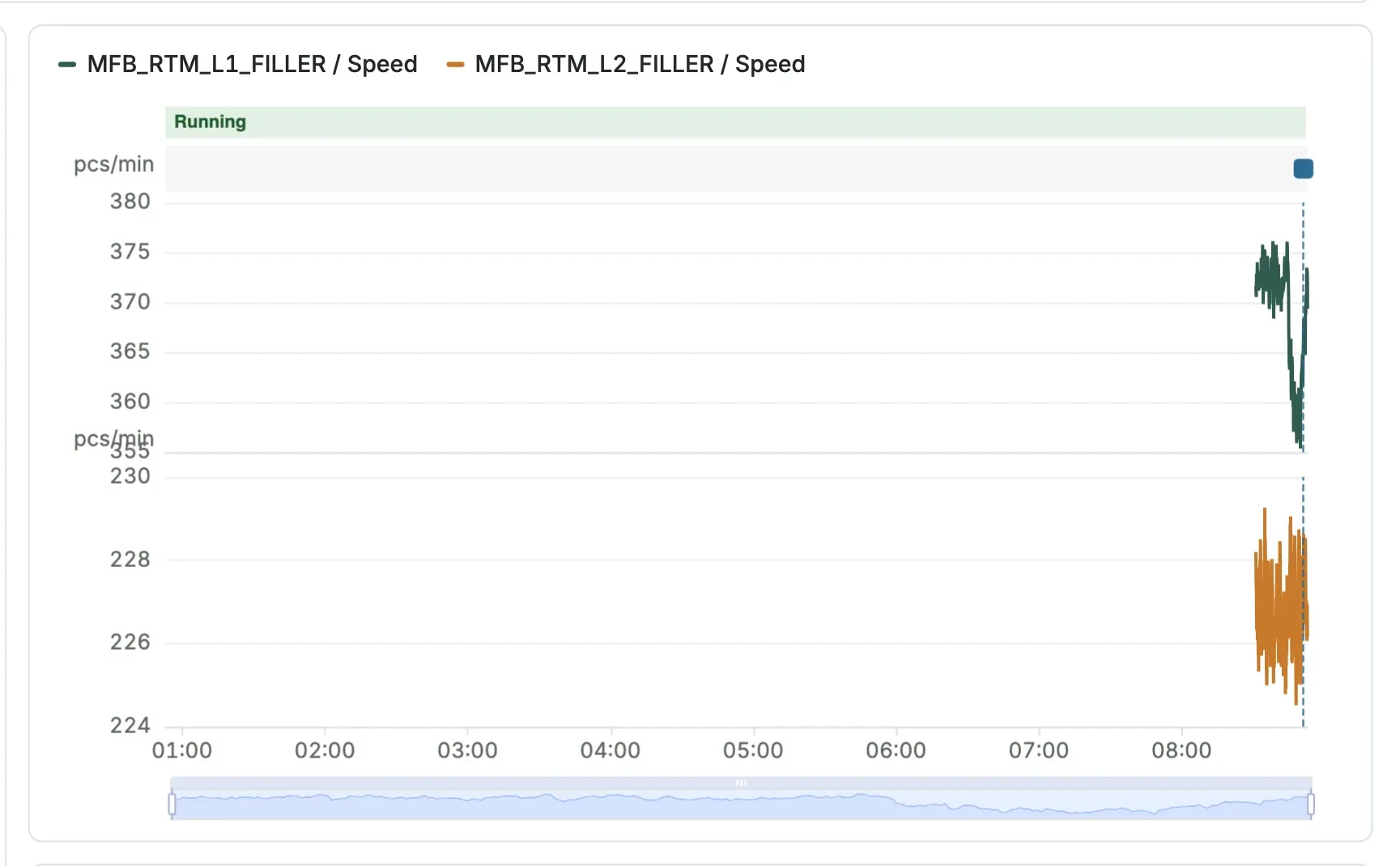
At the end of this guide, every trend of the device shows a coloured band with its state: for example green while it runs, amber while it is blocked and red while it is in fault. The same band appears on the alarm page and in presentation mode, which then also counts the stops.
Before you start
- The device has a tag that holds its state as a code, for example
Statewith1for running and4for fault. Ask the PLC programmer what each code means. - The tag has values in the time range you look at: the form offers only the codes seen in that range.
- A user role that may change the device. The band is saved on the device, so it is the same for every user.
Set up the band
- Open Monitor > Trend Workspace.
- Find the device in the Devices panel and select it.
- Under the device name, select Set up a state band….
- In State tag, choose the tag that holds the state.
- For each value in Values seen in this range, enter a label and choose a colour.
- Select Save.
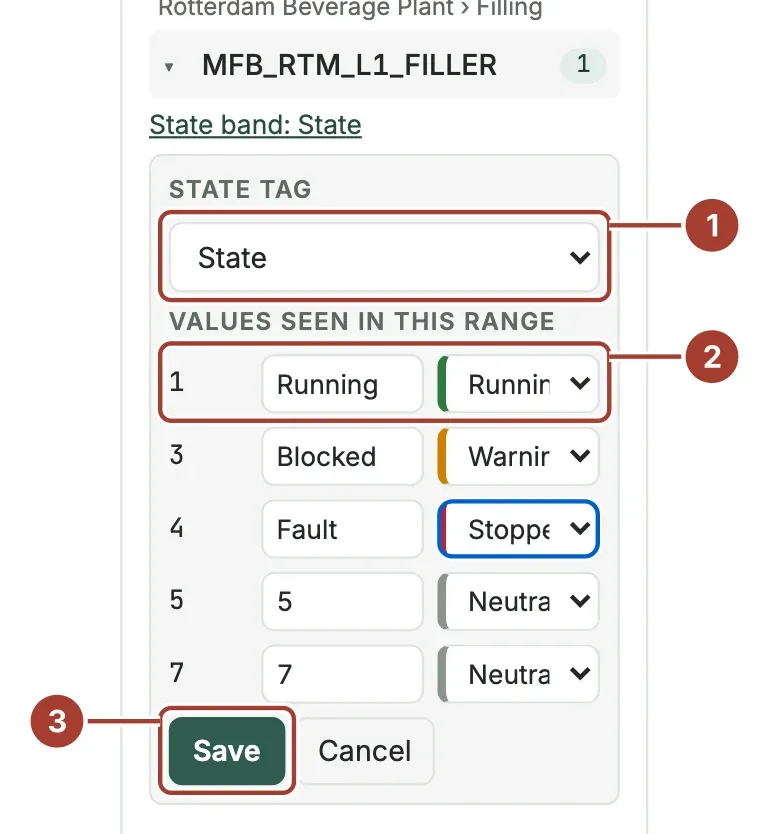
- State tag: the tag with the state code.
- A value with its label and colour. Here
1is Running with Running / OK,3is Blocked with Warning and4is Fault with Stopped / fault. - Save.
The colours are Running / OK, Warning, Stopped / fault, Information and Neutral. Choose Stopped / fault only for states that mean the machine is stopped: presentation mode counts these as stops.
The band now appears above the panes of the device's tags:
If the save fails with The state band could not be saved, your role may not change this device.
Change or remove the band
Select State band: … under the device name. Change the labels or colours and select Save, or choose None in State tag and save to remove the band. A value that the tag reports for the first time later is shown with its code until you give it a label.
What's next
- Trend Workspace: presentation mode and the Machine state layer.
- Alerts: the machine state when an alarm fired.
Was this page helpful?
Evaluating Proxus? See it on your own machines in a 30-minute technical session.