How-to guide
Join your partner company
Accept the invitation to your partner company in the Proxus portal, invite your colleagues and give each the right role.
At the end of this guide, you and your colleagues work in your partner company in the Proxus portal.
Before you start
- An invitation email from the Proxus portal. Proxus sends it to your company's manager when the partnership starts. If you applied on the website, it comes when your application is approved.
- The email address the invitation was sent to. You sign in with that address.
Accept the invitation
- Open the link in the invitation email. It is valid for 14 days.
- Sign in with the invited address. If you have no account yet, create one with that address and confirm it from the email you receive.
- Accept the invitation. Your partner company opens, and you are its Owner.
The menu at the top left now lists your company. Choose it to see its pages: Licences, Support, Customers, Registrations, Company profile, Agreement, Team and Company settings.
Invite your colleagues
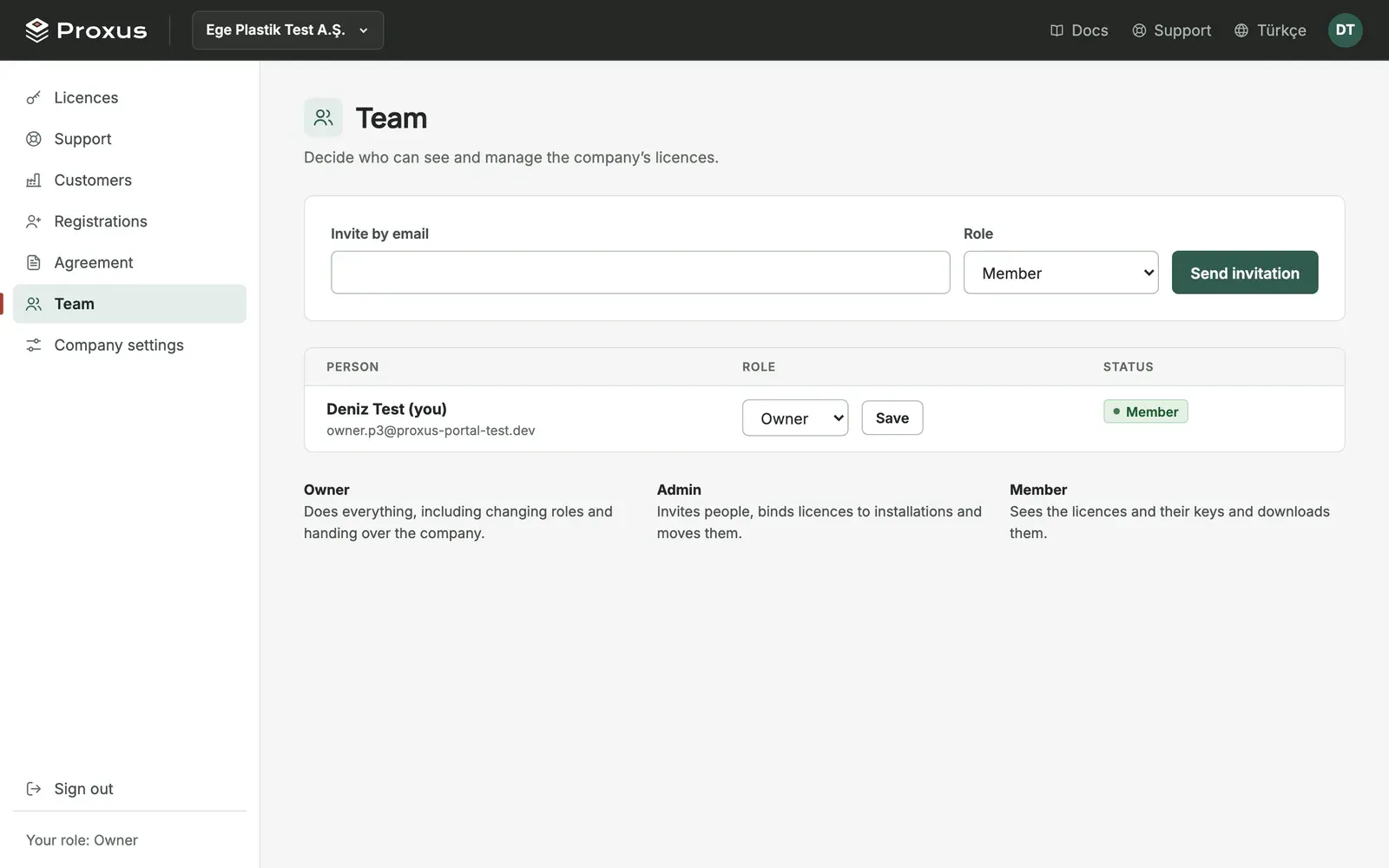
- Choose your company in the menu at the top left and select Team.
- Enter a colleague's email, choose a role and select Send invitation.
- The colleague gets an email in your company's language and joins the same way.
Give each person the role that fits their work:
| Role | Use it for |
|---|---|
| Owner | The person responsible for the partnership. Owners see the Agreement, change roles and can hand over the company. |
| Admin | Sales or project leads. Admins invite people, see the Agreement and bind licences. |
| Member | Engineers and sales staff. Members register customers, see licences and support requests. |
Every person in the company can register customers. Partner emails such as the weekly summary go to owners and admins.
Fill in your company profile
Proxus uses your company profile for invoices, the agreement and your listing on the partners page. Owners and admins fill it in; members can read it.
- Choose your company in the menu at the top left and select Company profile.
- Fill in the legal company name, tax office and number, registered address and city. Add your logo (SVG or PNG, up to 1 MB), a short description of 40 to 60 words in your company's language, the countries you cover, a public email and phone, and the commercial and technical contacts.
- When everything is correct, tick the confirmation box and select Save. You can also save without ticking it and finish later.
Until the profile is complete and confirmed, the company's pages show a reminder, and owners and admins get a reminder email every Monday. A year after you confirm it, the portal asks you to check it and confirm it again. If you change it later, confirm it again. The Proxus team publishes a confirmed profile on proxus.io.
What's next
Was this page helpful?
Evaluating Proxus? See it on your own machines in a 30-minute technical session.