How-to guide · for Operators, Engineers, Administrators
Sign in to Proxus
How to sign in with your user name and password, your company account or a verification code, what the messages mean and where to change your password.
Open the address of Proxus in a browser, for example https://proxus.plant.local. Your administrator tells you the address and which of the ways below is yours.
With a user name and password
Enter your User Name and Password and select Log In. This is either a password Proxus gave you, or your company (Windows, Active Directory) password if your administrator connected Proxus to the company directory.
The first time you sign in with a Proxus password, Proxus may ask you to choose a new one.
With your company account
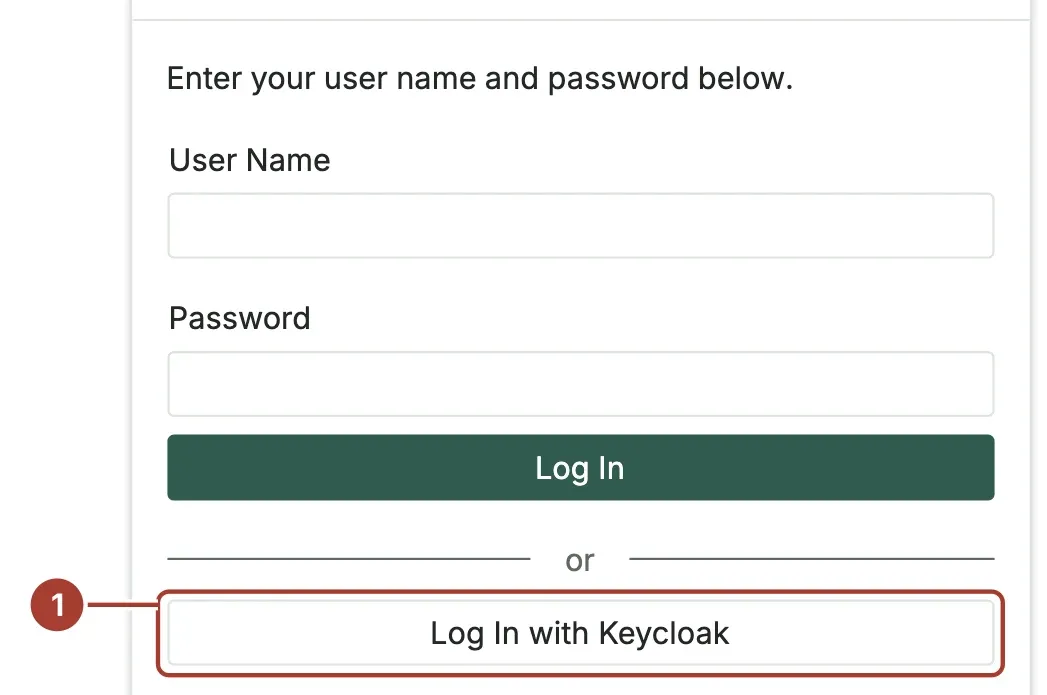
If the page has a button such as Log In with Company account (1) under Log In, select it. Your company's sign-in page opens; sign in there as you do for your other work applications. You come back to Proxus signed in.
With a verification code
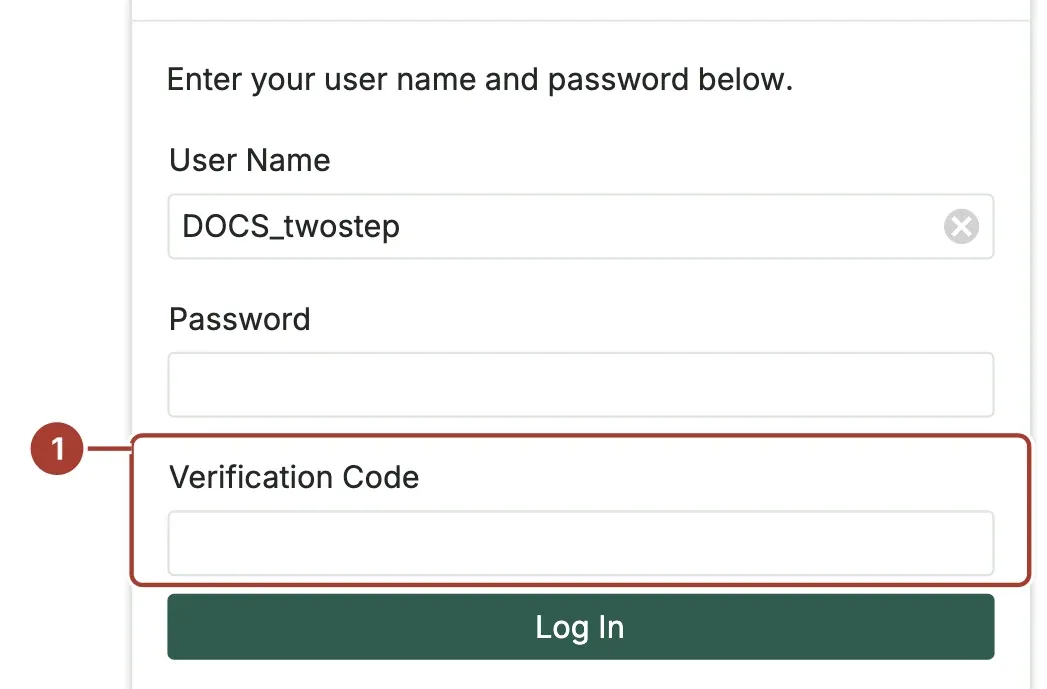
If you turned on two-step verification, Proxus asks for the Verification Code (1) after your password. Enter the 6-digit code from your authenticator app, or one of your recovery codes, and select Log In again.
What the messages mean
| Message | What to do |
|---|---|
| "User name or password is incorrect." | Check both and try again. After a few wrong tries the account is locked for a short time. |
| "Too many failed login attempts. Please try again in … seconds." | Wait that long, then try again, or ask your administrator. |
| "User is not active." | Your account is switched off. Ask your administrator. |
| "That code is not right." | Enter the code the app shows now. Each code works once; wait for the next one. |
| "The company directory cannot be reached right now…" | Proxus cannot check your company password at the moment. Try again in a few minutes. |
| "Your directory account is right, but it may not open Proxus." | Ask your administrator to give you access. |
Change your password
- Proxus password: open your account menu at the top right, My Details, then Change My Password.
- Company password or company account: change it where you change it for your other work applications. Proxus does not show Change My Password to you.
Sign out
Open your account menu at the top right and select Log Off. If you signed in with your company account, this also signs you out at your company's sign-in page.
What's next
Was this page helpful?
Evaluating Proxus? See it on your own machines in a 30-minute technical session.