How-to guide · for Engineers, Administrators
Send a report on a schedule
Run a report every day, weekday, week or month and send it by email as a PDF or Excel file. Pause, run now, and read what each run did.
At the end of this guide, the Fleet Health Executive Summary report is produced every weekday at 06:30 and sent by email as a PDF.
Before you start
You need:
- A report that runs without asking anything. A scheduled run cannot fill in parameters, so choose a report without them (the built-in reports marked "Nothing" under Asks for in Reports), or a copy whose parameters have the defaults you want.
- For email: an Email Notification channel with the SMTP server, user name, password, sender (
From) and the recipients (To, and optionallyCcandBcc, separated by,or;). See Notification channels. The recipients come from the channel, not from the schedule; at most 25 in all. - A user role that may create scheduled deliveries.
Step 1: Create the schedule
Go to Analyze > Scheduled Deliveries and select New.
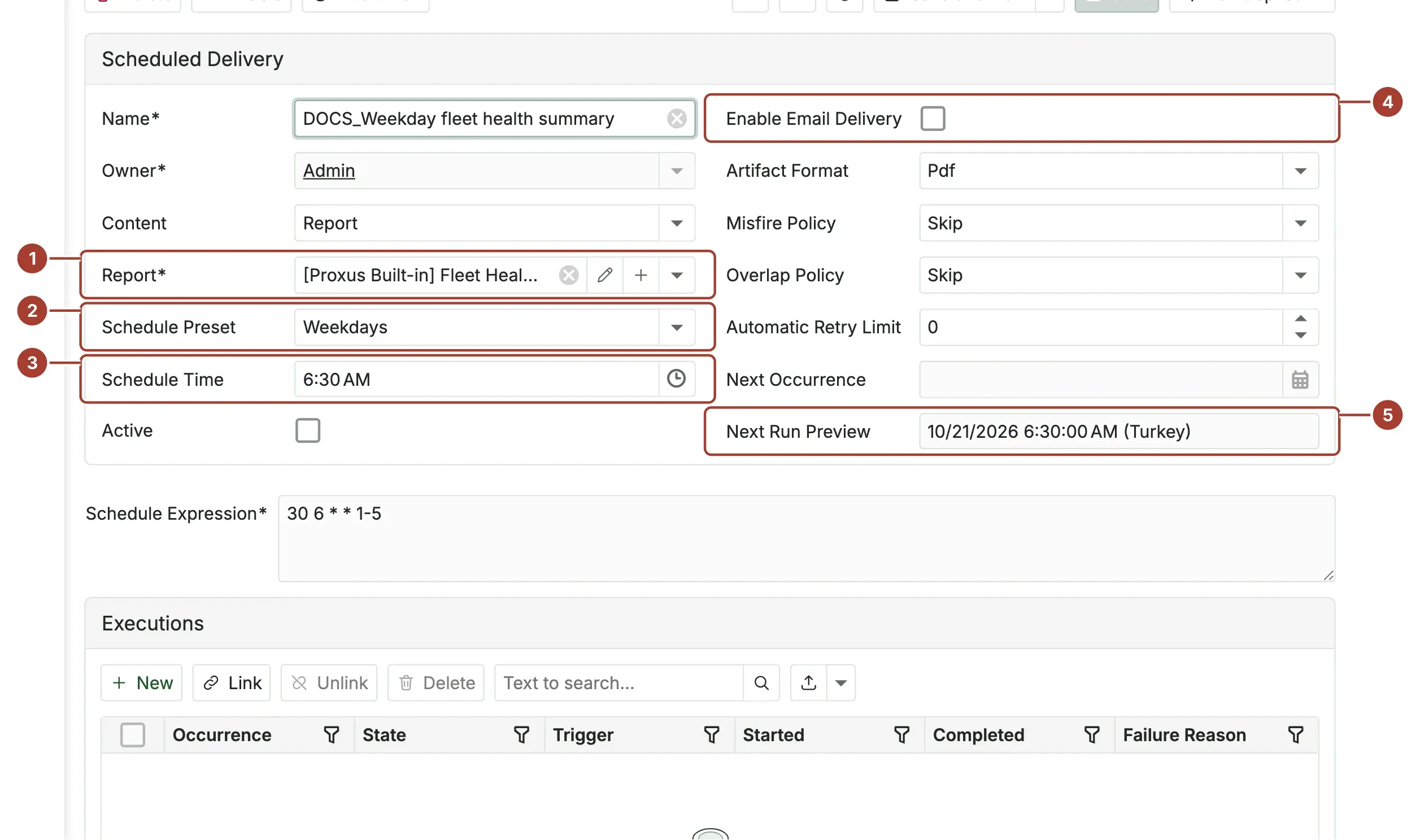
Fill in:
- Name: for example
Weekday fleet health summary. Owner is you; only the owner or an administrator can run, pause or change the schedule's runs.
- Report: the report to send.
- Schedule Preset: Daily, Weekdays (Monday to Friday), Weekly, Monthly or Custom. Weekly asks for the Weekly Day, Monthly for the Monthly Day (1 to 28).
- Schedule Time: the time of day. The preset and the time fill in Schedule Expression for you.
- Enable Email Delivery: tick it, then choose the email Delivery Channel and, if you like, an Email Subject. Without a subject, the schedule's name is used.
- Next Run Preview shows when it will run next, in the hub's time zone. Check it before you save.
On the right:
- Artifact Format: Pdf or Xlsx.
- Misfire Policy: what to do when the hub was not running at the planned time. Skip leaves that run out; Run once after recovery runs it once when the hub is back.
- Overlap Policy: what to do when the previous run is still busy. Skip or Queue one.
- Automatic Retry Limit: how many times a failed run is tried again (0 to 3), and Automatic Retry Delay Minutes between tries. Retries also need
AutomaticRetryEnabled = truein the configuration file.
Select Save. The schedule is Active and runs at the next planned time.
A custom schedule
With Custom, write Schedule Expression yourself as a five-part cron expression: minute, hour, day of month, month, day of week. For example 0 8 * * 1-5 is 08:00 Monday to Friday, and 30 6 1 * * is 06:30 on the first day of every month. The H form is not accepted.
Step 2: Test it
Select Run Now in the toolbar. One run is queued at once, using the saved settings. The Executions list below the form shows it:
| Column | Meaning |
|---|---|
| Occurrence | The planned time of the run. |
| State | Planned, Claimed, Running, Succeeded, Failed, Blocked or Cancelled. |
| Trigger | Scheduled, Manual (Run Now), Retry or Automatic retry. |
| Started, Completed | When it ran. |
| Failure Reason | Why it failed, as a code (see below). |
Select a failed or blocked run and use Retry to try it again, or Cancel to drop a run that has not started.
| Failure Reason | Meaning and what to do |
|---|---|
delivery_not_enabled | Email delivery is off, for this schedule (Enable Email Delivery) or for the whole hub (ExternalDeliveryEnabled). |
delivery_failed | The email could not be sent. Check the channel's SMTP settings and recipients. |
delivery_ambiguous, provider_outcome_unknown | The mail server did not confirm. The email may or may not have arrived. |
artifact_failed | The report could not be produced, for example because of its query or because the file exceeded 20 MB. |
authorization_blocked | The schedule is paused, its owner is no longer active, or it has no report. |
worker_interrupted | The hub stopped during the run. |
Pause, restart, change
- Disable in the toolbar pauses the schedule; Enable starts it again. The list shows Active or Paused in Status.
- Changes to the time or the report apply from the next run.
The list of schedules shows each one's Report, its Schedule in words ("Weekdays at 6:30 AM"), Status, where it Delivers To ("Email · channel name" or "In app only"), its Last Run and Next Occurrence.
Copilot summaries instead of a report
Content chooses what a delivery sends: a Report (the default), a Copilot Shift Summary (the last 8 hours) or a Copilot Weekly Health Report (the last 7 days). A summary needs no report: Report and Output format are hidden. It arrives as the e-mail itself, not as an attachment.
The summary covers what the delivery's owner sees, their site included: devices that are not communicating, disconnected edge gateways, alarms compared with the period before, the noisiest rules and devices, open critical alarms and, for owners who see the whole plant, configuration problems. The numbers are counted by Proxus; when the owner may use Copilot and has tokens left for the day, Copilot writes them up in the hub's language (the tokens count as the owner's). Otherwise the same numbers are sent as a plain list.
Settings for the whole hub
[ScheduledDelivery]
# Email delivery is enabled by default; each schedule still requires its own opt-in.
ExternalDeliveryEnabled = true
# Automatic retry also requires a per-schedule retry limit from 1 to 3.
AutomaticRetryEnabled = false
# Zero disables artifact deletion.
ArtifactRetentionDays = 0
ArtifactCleanupIntervalHours = 24| Key | Default | Meaning |
|---|---|---|
ExternalDeliveryEnabled | true | Set false to stop all email delivery at once. |
AutomaticRetryEnabled | false | Allows schedules with an Automatic Retry Limit to retry. |
ArtifactRetentionDays | 0 | Days to keep produced files before they are deleted. 0 keeps them. Up to 3650. |
ArtifactCleanupIntervalHours | 24 | How often old files are deleted, 1 to 168 hours. |
As environment variables they are written ScheduledDelivery__ExternalDeliveryEnabled and so on. See Configuration keys.
What's next
Was this page helpful?
Evaluating Proxus? See it on your own machines in a 30-minute technical session.