Reference · for Engineers, Administrators
Work orders
Keep the ERP's work orders in Proxus from a file, the ERP's API calls or a scheduled read, and let shop floor forms report what was made.
A work order says what to make, how many, on which machine and when, as your ERP plans it (in ISA-95 terms, a job order). Proxus keeps the plan and adds what the shop floor reports through forms: when the order really started and ended, and the good and scrap quantities. The screen is in Organize > Work Orders.
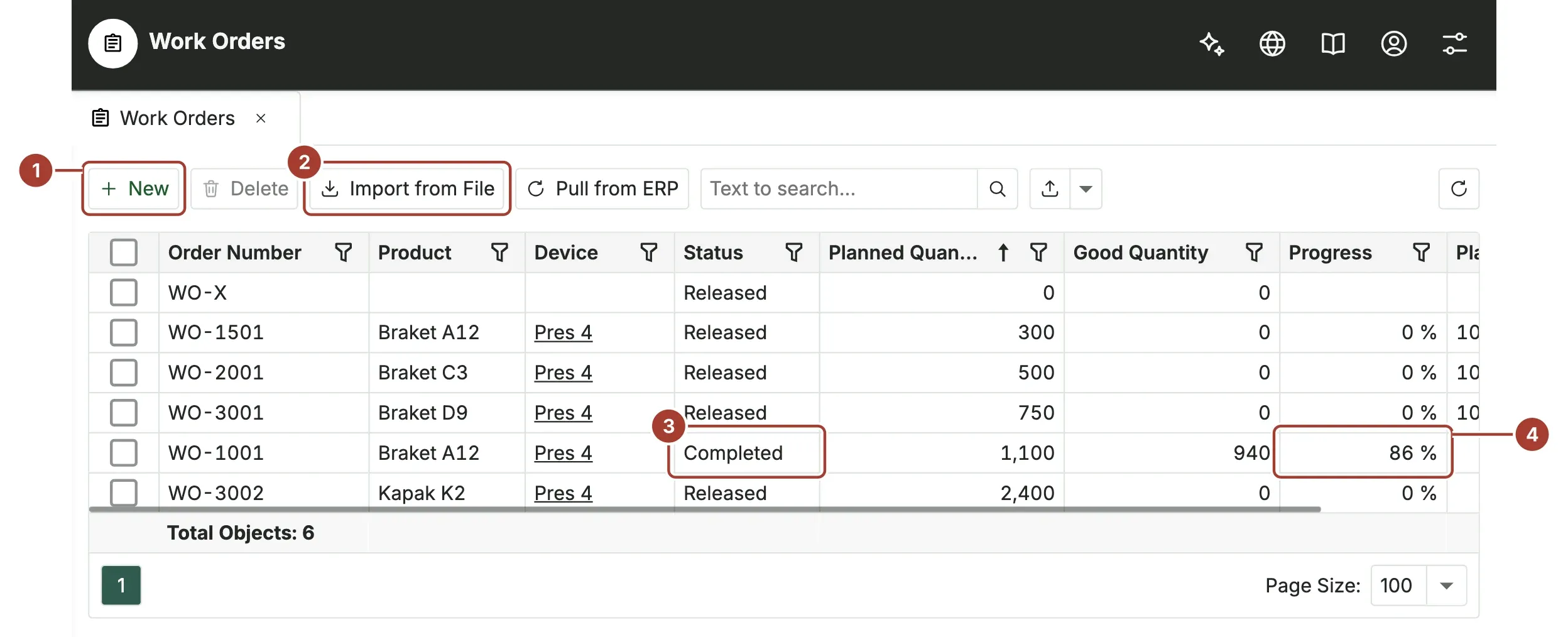
- New adds a work order by hand.
- Import from File adds or updates work orders from a CSV file.
- Status is where the order stands.
- Progress is the good quantity as a share of the planned quantity.
A work order's fields
| Field | Meaning |
|---|---|
| Order Number | The ERP's number for the order. It is required, at most 64 characters and never repeats. |
| Product | What is made: the ERP's material or product code. |
| Description | Free text. |
| Planned Quantity, Unit | How many are to be made, and in what unit. |
| Planned Start, Planned End | When the plan says the order runs, in the hub's local time. |
| Device | The machine or line it is made on. Empty means any. |
| Status | Released, Running, Held, Completed or Cancelled. |
| Good Quantity, Scrap Quantity | What was made, as the forms report it. Read-only. |
| Actual Start, Actual End | When the order really started and finished, as the forms report it. Read-only. |
| Progress | Good quantity ÷ planned quantity. Empty without a planned quantity. |
| Source | How the order came in: Manual, Import, API or Pull (read from the ERP). |
People change the plan. The quantities and actual times are written only by Proxus, from the forms bound to work orders.
States
| Status | Meaning | Forms can report on it |
|---|---|---|
| Released | Planned and released to the shop floor; nothing made yet. | Yes |
| Running | Started on the shop floor. | Yes |
| Held | Started, then stopped until further notice. | Yes |
| Completed | Finished. | No |
| Cancelled | Will not be made. | No |
Forms offer only the orders that are released, running or held.
Import from a file
Save the ERP's list or a spreadsheet as CSV (in Excel: Save as > CSV) and select Import from File. Each line is one work order. An order whose number already exists gets the new plan; any other number is added as a new, released order.
The first line names the columns. Only the order number is required; the other columns may be missing or in any order. Column names are read in English or Turkish:
| Column | Also accepted |
|---|---|
| Order Number | Number, Order, Work Order, İş emri, İş emri no, Emir no, Sipariş no |
| Product | Material, Ürün, Malzeme |
| Description | Açıklama |
| Quantity | Planned Quantity, Miktar, Planlanan miktar |
| Unit | Birim |
| Start | Planned Start, Başlangıç, Planlanan başlangıç |
| End | Planned End, Bitiş, Planlanan bitiş |
| Device | Machine, Line, Cihaz, Makine, Hat |
| Status | Durum |
- Cells may be separated by commas, semicolons or tabs, as Excel saves them in either language. Quoted cells may hold the separator.
- Numbers and dates are read in your language's format (1.250,5 and 25.10.2026 08:00 in Turkish) or in the invariant format (1250.5, 2026-10-25T08:00).
- Device is a device's name, as in Devices, or its id.
- Status may be Released, Held, Completed or Cancelled, or the same states in Turkish.
- Empty cells leave the order as it is.
Proxus then tells you how many orders were added and changed. Lines it cannot take are listed with their line number and the reason, such as an unknown device or a date it cannot read; the other lines are imported.
Importing again does not undo the shop floor: the good and scrap quantities and the actual times are never changed by a file, and a status in the file only holds, completes or cancels an order, or releases one that has not started yet.
Send work orders from the ERP
The ERP can send work orders to Proxus itself, in JSON or as a B2MML (ISA-95) ProductionSchedule. Each order is added by its number or its plan is changed, with the same rules as a file: the shop floor's quantities and times are never changed.
- Create a Proxus user for the ERP, with a role that may create and change work orders (for example a copy of the Engineer role with only Forms access).
- The ERP signs in with
POST /api/Authentication/Authenticateand the body{ "userName": "…", "password": "…" }, and keeps the token it gets back. - It sends the orders with
POST /api/work-orders, the headerAuthorization: Bearer <token>and the content typeapplication/jsonorapplication/xml.
JSON is an array of orders, or an object with the array under workOrders. Names are the file's column names, written in any case: number (or orderNumber), product, description, quantity (or plannedQuantity), unit, start, end, device, status.
{ "workOrders": [
  { "orderNumber": "WO-2001", "product": "Braket C3", "plannedQuantity": 500, "unit": "pcs",
    "plannedStart": "2026-10-27T08:00:00", "device": "Pres 4", "status": "Released" }
] }
In a B2MML ProductionSchedule, each ProductionRequest is an order: its ID is the order number, the produced material (MaterialProducedRequirement, or MaterialRequirement used as Produced) its product, quantity and unit, the required equipment its device, EarliestStartTime and LatestEndTime (or the request's StartTime and EndTime) its plan, and RequestState its status. Times with an offset are read in the hub's local time; numbers and times are written in the invariant format.
The answer lists the orders added and changed by number, and the ones refused with their number (or position) and a code, such as WORK_ORDER_DEVICE_UNKNOWN:
{ "added": ["WO-2001"], "changed": [], "refused": [{ "where": "WO-2002", "code": "WORK_ORDER_DEVICE_UNKNOWN" }] }A message that is neither is answered with 400 and WORK_ORDER_MESSAGE_UNREADABLE, a missing token with 401 and a role that may not create work orders with 403. One message holds at most 5,000 orders and 4 MB.
Pull work orders from the ERP
Proxus can also read the work orders from the ERP on a schedule. The ERP's address and credentials are those of an outbound target: a REST API target, or a server database such as Microsoft SQL Server, PostgreSQL, MySQL or Oracle.
Set it up with ERP Integration on the Work Orders list, in Read Work Orders. The dialog is for the roles that manage outbound targets.
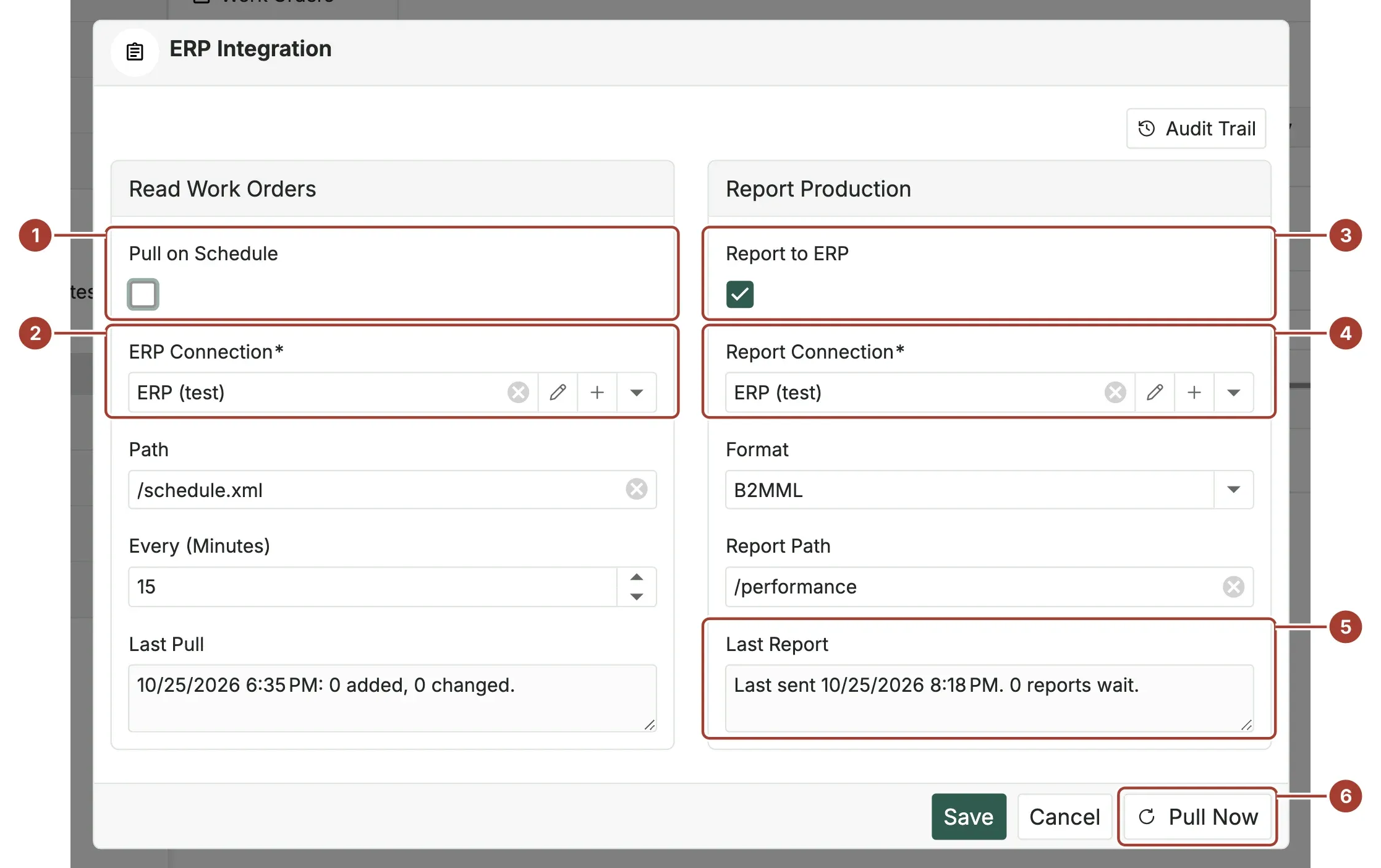
- Pull on Schedule reads the ERP every Every (Minutes), from 1 to 1440.
- ERP Connection is the outbound target to read through. For a REST API, the Path is added to its address, such as
/production/orders?plant=1, and answers JSON or B2MML, as sent to the API. For a database, a SQL Query is entered instead. Last Pull says when it last read and what it did, or why it could not read the ERP. - Report to ERP sends the production reports, see Report production to the ERP.
- Report Connection is the outbound target the reports go to.
- Last Report says when the ERP last took a report, how many wait, and why the ERP did not take the last one.
- Pull Now saves the settings and reads the ERP at once.
The SQL query is one SELECT whose columns are named as the file's columns:
SELECT order_no AS "Order Number", material AS "Product", qty AS "Quantity", uom AS "Unit",
       plan_start AS "Start", work_center AS "Device", state AS "Status"
FROM erp.production_orders
WHERE plant = 'IST' AND state IN ('Released', 'Held')
Give the target a database account that can only read. Orders read this way show Pull as their source; orders sent to the API show API. With several hubs, one of them reads the ERP each time.
Report production to the ERP
With Report to ERP switched on, every report of a bound form goes to the ERP: a start, a hold, a finish or quantities made, each as soon as it counts. Reports made before it was switched on are not sent.
- To a REST API, each report is posted to the Report Path, in the chosen Format: JSON or a B2MML (ISA-95) ProductionPerformance.
- To a database, each report is written as a row of the Report Table.
The JSON report carries what the record reported and the order after it:
{
  "id": "01a1740b-6dfe-7aa1-8d5d-464e194cdb49",
  "workOrder": "WO-2001", "product": "Braket C3", "step": "finish",
  "good": 370, "scrap": 5, "unit": "pcs", "device": "Pres 4", "reportedBy": "operator",
  "reportedAt": "2026-10-25T17:11:05Z", "status": "Completed",
  "totals": { "planned": 500, "good": 490, "scrap": 10 },
  "actualStart": "2026-10-25T06:02:11Z", "actualEnd": "2026-10-25T17:11:05Z"
}
In B2MML, a ProductionResponse names the order (ProductionRequestID), its ResponseState (Ready, Running, Held, Completed or Aborted) and its actual start and end. Its SegmentResponse is the report: the step as its ID, the machine (EquipmentActual), the person (PersonnelActual) and the product made (MaterialProducedActual), with one Quantity keyed Good and one keyed Scrap.
The report table needs these columns:
CREATE TABLE dbo.ProductionReport (
  RecordId        varchar(36) PRIMARY KEY,
  WorkOrder       varchar(64) NOT NULL,
  Product         varchar(200),
  Step            varchar(20),
  GoodQuantity    decimal(18, 3),
  ScrapQuantity   decimal(18, 3),
  Unit            varchar(20),
  Device          varchar(200),
  ReportedBy      varchar(200),
  ReportedAt      datetime2 NOT NULL,
  OrderStatus     varchar(20),
  PlannedQuantity decimal(18, 3),
  GoodTotal       decimal(18, 3),
  ScrapTotal      decimal(18, 3),
  ActualStart     datetime2,
  ActualEnd       datetime2
)
Times are in UTC. Reports go in the order they were made. When the ERP does not take one (it cannot be reached, it answers with an error, or the row cannot be written), it is tried again after 1, 2, 4… up to 60 minutes, and the reports after it wait, so nothing is lost and nothing arrives out of order. The ERP may rarely get a report twice, for example when the hub stopped just after sending it: the id (RecordId) is the same, so the ERP can ignore the second one, and a primary key on RecordId does so for a table.
Bind a form to work orders
A form reports on work orders once it has a choice field that takes its options from the Work orders list and is bound to it in the form's settings. The Work order sample form in Forms comes bound.
- Add a Single choice field and set its options to the Shared list Work orders. It offers the open work orders, as WO-1001 · Braket A12 · Pres 4.
- With nothing selected in the designer, open the Work order group of the form's settings and choose that field as the Work order field.
- Choose the Step field: a choice whose options have the stored values
start,holdandfinish. - Choose the number fields for the Good quantity and the Scrap quantity.
- Publish the form.
The designer's checks stop publishing when the work order field is not a choice from the Work orders list, the step is not a choice field or a quantity is not a number field.
How the forms move an order on
Each record of a bound form that counts (sent, or approved when the form's records need approval) reports once to the order it chose:
- Its good and scrap quantities are added to the order's quantities.
- start sets the order Running and its actual start, if not set yet.
- hold sets a running order Held.
- finish sets the order Completed, with its actual end (and actual start, if not set yet).
- A record with quantities and no step starts a released order.
A record is never counted twice, also when it is sent again from a device that was offline. Once an order is completed or cancelled, records still add their quantities but no longer change its status.
Who can use it
The work orders are part of the Forms area of the roles. The built-in Engineer role has full access. A role that may create work orders also sees Import from File.
Was this page helpful?
Evaluating Proxus? See it on your own machines in a 30-minute technical session.